nvfvsdksvc_x64.exe is normally the executable for the NVIDIA FrameView SDK service, registered in Windows as FvSvc. The expected copy is NVIDIA-signed and commonly installed under C:\Program Files\NVIDIA Corporation\FrameViewSDK\. It is not a core Windows process or the display driver itself. If you do not use FrameView, an NVIDIA performance overlay, or software that depends on its metrics, you can stop the service for a reversible test. Disabling it may remove performance monitoring or overlay data, but it should not stop the GPU driver from displaying graphics. Do not delete the EXE manually.
What Is nvfvsdksvc_x64.exe?
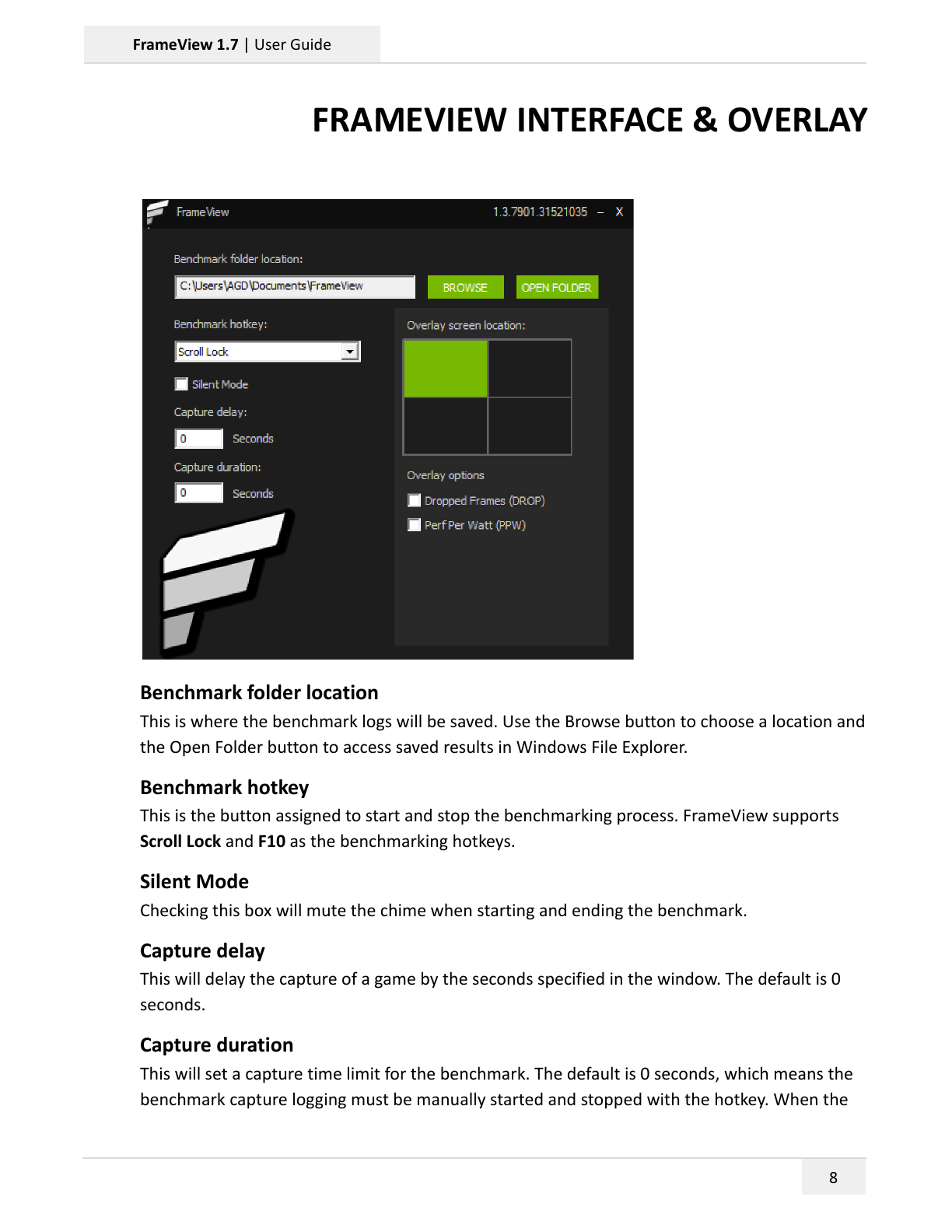
NVIDIA FrameView measures frame rate, frame time, power, and performance-per-watt information. The nvfvsdksvc_x64.exe process runs its supporting Windows service. That service can collect or expose metrics for FrameView and related performance features even when the full FrameView window is not open.
The service and the capture helper are related, but they are not the same executable:
| Component | Role | Best next step |
|---|---|---|
nvfvsdksvc_x64.exe / FvSvc |
FrameView SDK Windows service | Verify its configured path and signer; test the service |
PresentMon_x64.exe |
Captures frame-presentation data used by monitoring tools | Use the PresentMon process and high-CPU guide |
nvcontainer.exe |
Hosts several NVIDIA services and features | Troubleshoot it separately with the NVIDIA Container guide |
Is nvfvsdksvc_x64.exe Safe?
Judge the actual file, not the familiar-looking filename. A normal installation should point to the NVIDIA FrameViewSDK directory and carry a valid NVIDIA publisher signature. Windows may show a slightly different subfolder structure across package versions, so query the service instead of relying on one hard-coded path.
1. Read the service configuration
Open Windows Terminal as administrator and run:
sc.exe qc FvSvc
Check BINARY_PATH_NAME. A common value leads to:
C:\Program Files\NVIDIA Corporation\FrameViewSDK\nvfvsdksvc_x64.exe
2. Verify the digital signature
Use the exact path returned by the service query:
Get-AuthenticodeSignature 'C:\Program Files\NVIDIA Corporation\FrameViewSDK\nvfvsdksvc_x64.exe' | Format-List Status,StatusMessage,SignerCertificate
Status should be Valid, and the certificate subject should identify NVIDIA. A valid signature does not prove that every behavior is desirable, but it separates the expected vendor binary from an unsigned lookalike. For a broader checklist, see how to check whether an EXE is safe.
Do You Need the NVIDIA FrameView SDK Service?
Keep the service if you actively use FrameView benchmarks, performance metrics, an overlay that depends on FrameView, or a tool that stops working when FvSvc is unavailable. Leave it alone when it is idle and not causing a measurable problem; a process existing in Task Manager is not itself a fault.
A stop test is reasonable when you never use performance monitoring, are isolating sustained CPU use, or see repeated service errors. Test before making the change permanent.
| After stopping FvSvc | Expected result |
|---|---|
| Desktop and games still render | Normal; the display driver is separate |
| FrameView or an overlay loses metrics | Expected; restart the service if you need them |
| CPU use drops and stays normal | The service or its parent package needs repair or an update |
| CPU use remains high elsewhere | FvSvc was not the cause; restore it and inspect the actual busy process |
How to Stop or Disable FvSvc Safely
- Press Win + R, enter
services.msc, and press Enter. - Open NVIDIA FrameView SDK service.
- Record its current Startup type before changing anything.
- Select Stop. Use the PC normally and open the game or overlay that prompted the test.
- If nothing you need breaks, set Startup type to Disabled for a longer test. If metrics disappear, restore the recorded setting and select Start.
Do not delete the service in the registry and do not remove nvfvsdksvc_x64.exe by hand. An NVIDIA update can restore it, and a partial removal can leave the package in an inconsistent state.
Fix High CPU or a Service That Keeps Stopping
Brief activity while a monitored app starts can be normal. Investigate when the process stays busy for several minutes at idle, repeatedly stops, or produces the same error after every boot.
- Confirm the owner. Recheck the configured service path and signature before treating the process as NVIDIA software.
- Restart once. Stop and start
FvSvcin Services, then retest without launching an overlay. - Update the parent software. Install the current NVIDIA app/driver or FrameView release from NVIDIA rather than downloading the EXE from a file site.
- Use a clean reinstall. If the fault began after an update, uninstall the NVIDIA FrameView SDK or FrameView entry from Settings → Apps → Installed apps, restart Windows, and reinstall only if a feature needs it.
- Remove only the optional package. Do not uninstall the whole display driver merely to remove FrameView metrics.
If the service immediately returns to a failure loop after a clean reinstall, check Event Viewer for the matching Service Control Manager or application error time. The event’s faulting module is more useful than a generic “high CPU” label.
When nvfvsdksvc_x64.exe May Be Suspicious
Investigate a copy when FvSvc points to Temp, AppData, Downloads, a random folder, or another path unrelated to NVIDIA; when the signature is missing or invalid; or when the process returns from an unknown startup entry after the legitimate FrameView package is removed.
First record the full path, signer result, service configuration, parent process, and detection name. Then scan the file and the system. Do not label the expected signed copy as malware solely because it can monitor application performance.
FAQ
Can I disable NVIDIA FrameView SDK service?
Yes, as a reversible test. Stop FvSvc first. If games and the tools you use still work, disable its startup. Restore the original setting if FrameView or an NVIDIA performance overlay loses metrics.
Will disabling FvSvc reduce gaming performance?
It should not disable the graphics driver. It can remove monitoring data or an overlay feature. Benchmark before and after if you suspect another program depends on the service.
Why is nvfvsdksvc_x64.exe using CPU?
Short activity can occur when monitoring starts. Sustained activity at idle can indicate a stuck metric session, an overlay conflict, or a damaged FrameView package. A stop test shows whether the service is actually responsible.
Is nvfvsdksvc_x64.exe the same as PresentMon_x64.exe?
No. They belong to the same performance-monitoring ecosystem, but nvfvsdksvc_x64.exe runs the FrameView SDK service while PresentMon_x64.exe captures frame-presentation events.
Should I delete nvfvsdksvc_x64.exe?
No. Stop or disable the service, then repair or uninstall its parent package if you do not need it. Manual deletion can leave the registered service broken and may be reversed by the next NVIDIA update.
References
- NVIDIA. “FrameView Performance and Power Benchmarking App.” Product documentation, accessed September 1, 2026.
- NVIDIA. “NVIDIA FrameView 1.7 User Guide.” PDF user guide, accessed September 1, 2026.
- Microsoft. “Get-AuthenticodeSignature.” Microsoft Learn, living documentation, accessed September 1, 2026.