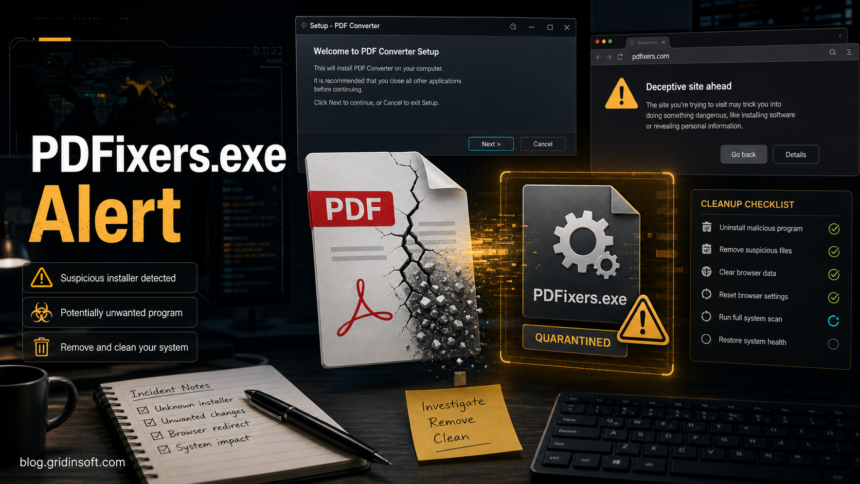
PDFixers.exe is not a Windows system file. If you saw `PDFixers.exe`, `PDFixers App`, or a `pdfixers.com` block, keep the file quarantined and treat the whole install path as suspicious until you check what changed. The name appears in current search results as a Windows PUA executable, a suspicious PDF converter app, and a phishing-associated file-conversion domain, so the safest path is: do not restore the file, uninstall the related app, remove browser/startup leftovers, then scan the PC before trusting it again.
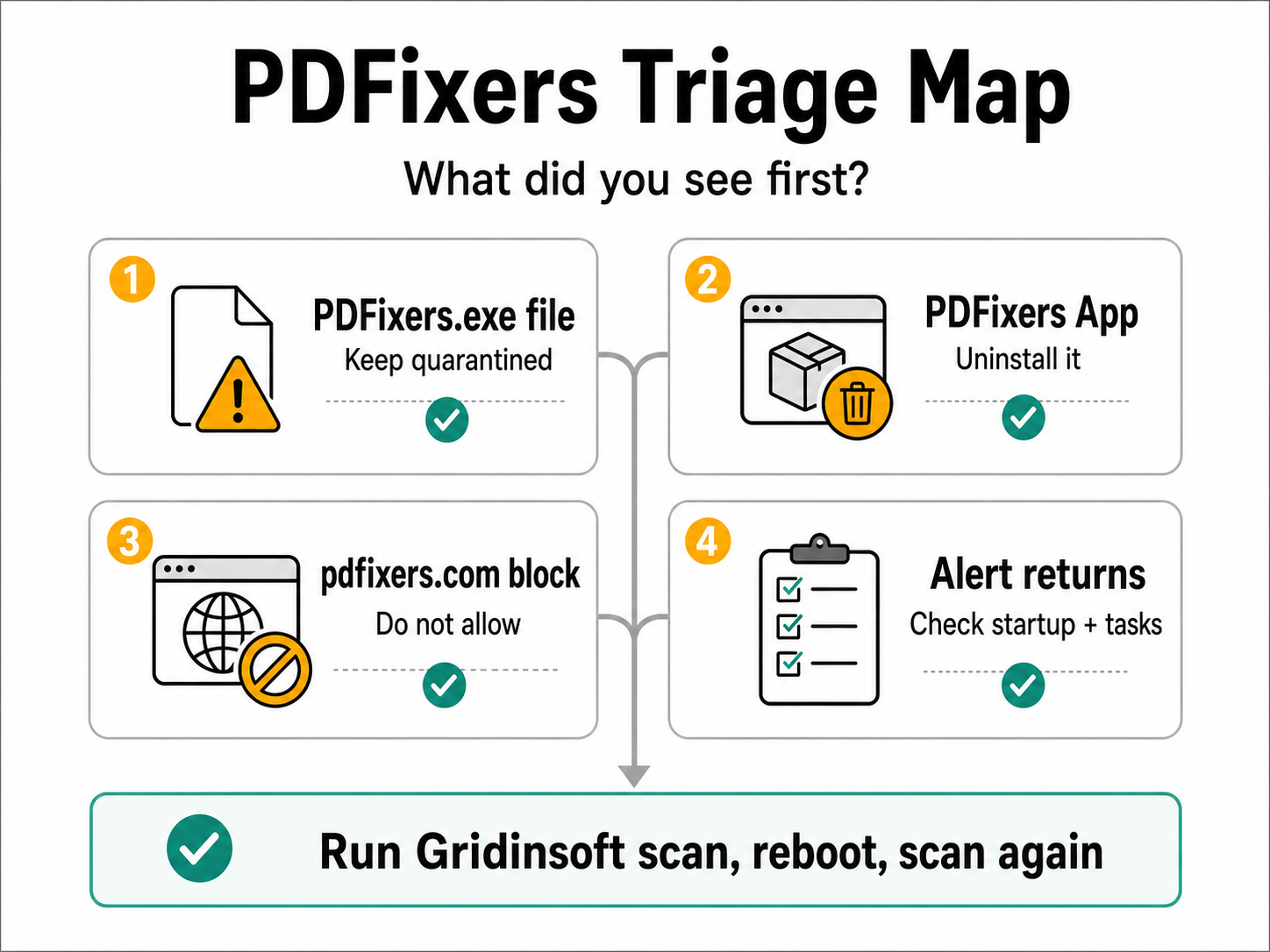
The important split is simple: a blocked website means do not allow the domain; an installed app means remove the program and its browser pieces; a recurring EXE alert means something may be reinstalling or relaunching it. Gridinsoft Anti-Malware makes the cleanup easier after the manual checks because it can look for the leftover files, scheduled tasks, startup entries, bundled apps, browser changes, and persistence that a visible uninstall step often misses.
What Is PDFixers.exe?
PDFixers.exe is normally presented as part of a PDF or file-converter utility. That does not make it safe. Current public detection and domain-intelligence results associate the PDFixers name with both a Windows potentially unwanted application and a suspicious file-conversion domain. For the reader, the practical question is not which vendor label appeared first, but what installed it, what changed in Windows or the browser, and whether a converter page collected any sensitive data.
That is why PDFixers should be handled as a bundle of decisions, not as one yes/no label. The file may be a PUA component, the installed app may be unwanted adware, the domain may be a phishing-style page, and a recurring alert may point to a startup entry or scheduled task that brings it back.
What Did You See First?
| What you saw | Best next action |
|---|---|
| `PDFixers.exe` in quarantine | Leave it quarantined, note the file path and detection name, then check what installed it before restoring or deleting anything. |
| `PDFixers App` in Windows apps | Uninstall it from Settings -> Apps -> Installed apps, reboot, then check Startup Apps, Task Scheduler, and browsers. |
| `pdfixers.com` was blocked | Do not allow the domain. Close the page, do not upload documents, and change passwords if you typed credentials or payment data there. |
| The alert returns after reboot | Look for a helper, updater, scheduled task, browser extension, or dropped file in user-writable folders, then run a full Gridinsoft scan. |
| The file is in `C:\Users\Public\Documents\SiteKiosk` | Treat it as a downloaded file unless your SiteKiosk admin proves otherwise. SiteKiosk support says it is not familiar with that executable and advises removal in a public support case [2]. |
First Response: Do This Before Restoring Anything
- Keep PDFixers.exe quarantined. Restoring it too early can relaunch the installer or let the same app rewrite browser settings.
- Write down the exact path. Paths such as `%USERPROFILE%\Downloads`, `%AppData%`, `%LocalAppData%`, `%ProgramData%`, `%Temp%`, or `C:\Users\Public\Documents` are much more suspicious than a known vendor folder.
- Close the source page. If the file came from a converter site, do not upload more files or enter credentials. The FBI has warned that fake online file converters can deliver malware or expose sensitive data [1].
- Uninstall the related app. Remove PDFixers, PDFixers App, unknown PDF converters, and recently installed “document fixer” or “PDF helper” apps.
- Reboot once. A reboot shows whether the unwanted app is gone or whether a startup component tries to recreate the alert.
Cleanup Checklist For PDFixers.exe
Run this checklist if the file was detected, the app was installed, or the browser keeps returning to converter pages.
- Downloads and installer folders: delete the original installer from `%USERPROFILE%\Downloads`, the browser download shelf, and any temporary setup folder you recognize.
- Installed apps: remove PDF converters, search tools, coupon tools, browsers, “updaters”, and helper apps added at the same time.
- Startup Apps: open Task Manager -> Startup apps and disable unknown converter, updater, helper, or browser-launch entries.
- Task Scheduler: check Task Scheduler Library for recent tasks that run an EXE, JavaScript, browser, or updater from `%AppData%`, `%LocalAppData%`, `%ProgramData%`, or `%Temp%`.
- Browser extensions: remove unknown PDF, search, coupon, redirect, “converter”, or “optimizer” extensions from Chrome, Edge, Firefox, and other browsers you use.
- Browser settings: reset search engine, homepage, startup page, notification permissions, default PDF handling, and site permissions if they changed around the same time.
- Proxy and hosts file: check these only if security sites fail to load, searches redirect, or the system keeps opening converter domains.
Where Gridinsoft Anti-Malware Helps Most
Manual cleanup removes what you can see. Gridinsoft Anti-Malware is useful after that because PDF converter PUA cases often leave less obvious pieces behind: downloaded payloads, startup entries, scheduled tasks, browser extensions, unwanted apps, and files dropped into user-profile folders. The practical sequence is:
- Keep PDFixers.exe quarantined or delete the visible installer.
- Uninstall the related PDFixers or converter app.
- Remove suspicious browser extensions and reset affected browser settings.
- Run a full Gridinsoft Anti-Malware scan.
- Remove detected leftovers, reboot, and scan again if the alert or browser block returns.
If the process path is wrong, the name imitates a Windows component, or high CPU started after an unknown installer, scan for hidden miners, services, startup entries, and bundled components.
Scan for PDFixers leftoversIf you only have the installer and it never ran, submit the file to the Gridinsoft Online Virus Scanner first. If your concern is the domain rather than the EXE, check the URL with the Gridinsoft Website Reputation Checker and keep the site blocked unless you have a verified business reason to visit it.
Could PDFixers.exe Be A False Positive?
Possible, but do not start from that assumption. Consider a false-positive review only when all of these are true:
- you know the exact vendor and download source;
- the file has a valid digital signature from a vendor you recognize;
- the file path fits that vendor and is not a temporary, startup, browser-profile, public-documents, or random user folder;
- no browser search changes, notification spam, new extensions, or recurring startup entries appeared;
- a second scan does not show nearby detections around the same install time.
If the file sits in `C:\Users\Public\Documents`, `%AppData%`, `%LocalAppData%`, `%Temp%`, a browser download folder, or a random installer cache, do not restore it just because you wanted a PDF converter. Delete it or keep it quarantined while you clean the surrounding changes.
Do You Need To Change Passwords?
Change passwords if you entered account credentials, payment data, personal documents, business files, or cloud-drive access into `pdfixers.com` or another suspicious converter page. Also rotate passwords if PDFixers.exe ran and you then saw browser redirects, new extensions, unknown startup entries, or detections related to stealers or credential theft.
If you only downloaded the installer and did not run it, password rotation is less urgent. Delete or quarantine the file, clear the browser download entry, scan the PC, and watch for new browser or startup changes.
How To Avoid Fake Converter Downloads
- Use built-in export tools in Microsoft Office, LibreOffice, Preview, Adobe Acrobat, or your operating system when possible.
- Avoid sponsored search results for urgent “convert PDF” tasks. Malicious converter campaigns often rely on ads and lookalike landing pages.
- Do not install a desktop converter just to process one file unless the vendor is known and the installer is signed.
- Do not upload tax, medical, contract, ID, password, or finance documents to unknown converter sites.
- Keep browser notification prompts off unless you trust the site. Converter pages should not need push notifications.
- After testing a new converter, check Startup Apps and browser extensions before assuming the system is clean.
FAQ
Is PDFixers.exe malware?
Treat it as suspicious or potentially unwanted unless you can prove the source. Security results connect the PDFixers name to a PUA executable and a phishing-associated converter domain, so quarantine or remove it before trusting the system.
Should I delete PDFixers.exe?
Yes, delete or keep it quarantined if it came from an unknown converter, browser download, temporary folder, public documents folder, or app you did not intentionally install. Do not restore it until you have checked the source, signature, and surrounding system changes.
Why does PDFixers keep coming back?
A recurring alert usually means the app left a startup entry, scheduled task, service, browser extension, updater, or dropped file behind. Remove the app, check Startup Apps and Task Scheduler, reset affected browsers, then scan for leftovers.
Is pdfixers.com safe?
No. Treat pdfixers.com as unsafe unless your administrator has a verified business reason to allow it. Keep it blocked, do not upload documents, and do not add it to an allow list during cleanup.
Can Gridinsoft remove PDFixers leftovers?
Gridinsoft Anti-Malware can help find detections, hidden files, scheduled tasks, startup entries, unwanted apps, browser changes, and persistence connected to suspicious installers. It cannot guarantee that no data was exposed, so change passwords separately if you entered credentials on a suspicious site.
References
- Federal Bureau of Investigation Denver Field Office. “FBI Denver Warns of Online File Converter Scam.” FBI, March 2025; accessed June 20, 2026. https://www.fbi.gov/contact-us/field-offices/denver/news/fbi-denver-warns-of-online-file-converter-scam
- SiteKiosk. “Support Request: PDFIXERS.EXE flagged as Malware.” SiteKiosk Customer Support Center, January 30, 2025; accessed June 20, 2026. https://www.sitekiosk.com/web/CustomerSupportCenter/ArticleDetails.aspx?ArticleID=26802