JxrDecApp.exe is normally a legitimate JPEG XR decoder from the open-source jxrlib package, but the filename alone cannot prove that a particular copy is safe. If an antivirus flags it, leave the file quarantined while you check its path, package source, SHA-256 hash, neighboring files, and behavior. Restore it only when those checks agree.
A copy inside a known image-processing or dependency bundle can be expected. A copy in Temp, Startup, a random AppData folder, or an unrelated download deserves more caution. Do not exclude every file named JxrDecApp.exe, and do not delete an entire developer runtime based on one alert.
What is JxrDecApp.exe?
JxrDecApp.exe is the command-line decoder included with jxrlib, a JPEG XR image-codec library. Its normal job is to read JPEG XR or related HD Photo files and convert or decode them for another application. Package inventories from MSYS2 list JxrDecApp.exe together with JxrEncApp.exe, libjpegxr.dll, and libjxrglue.dll [1].
This explains why the file can appear even when you never installed a program called “JxrDecApp.” Image tools, document libraries, or application runtimes may bundle jxrlib as a dependency. The executable is not a core Windows file, however, so its safety depends on where that specific copy came from.
Why can it appear in Codex dependencies?
Codex runtime bundles can include native libraries used by document and image-processing tools. A path that ends in a dependency tree such as .cache\codex-runtimes\codex-primary-runtime\dependencies\native\jxrlib\jxrlib\bin\JxrDecApp.exe is consistent with a bundled jxrlib utility.
That path is useful context, not a clean verdict. The same dependency can have different builds for Windows, macOS, and Linux, so a hash from another operating system cannot validate a Windows copy. Check the Windows file itself before restoring it.
How to decide whether JxrDecApp.exe is safe
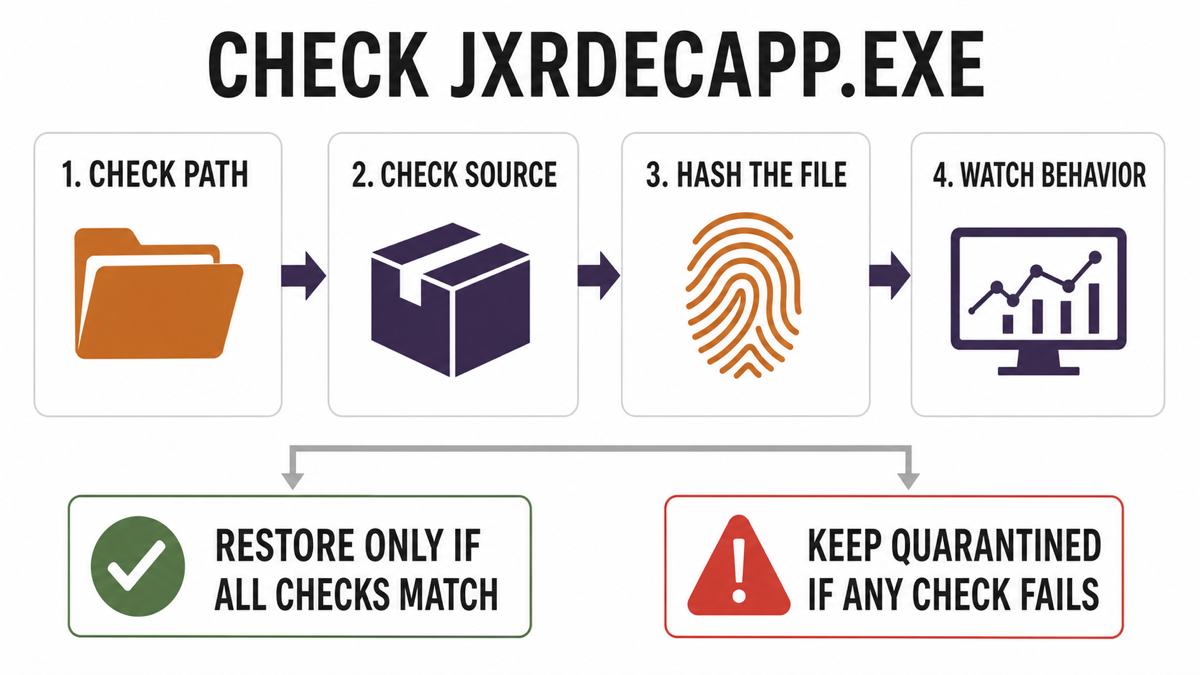
Use all four checks below. One matching clue is not enough, especially when the file has already triggered a security alert.
1. Check the full file path
A legitimate copy is more plausible when it sits inside a recognizable jxrlib or application dependency directory and is surrounded by related codec files.
| Situation | Risk and what to do |
|---|---|
| Inside a known Codex, MSYS2, ImageMagick, or other image-processing dependency tree | Possible legitimate component. Continue with source, hash, and behavior checks before restoring it. |
Beside JxrEncApp.exe, libjpegxr.dll, and libjxrglue.dll |
The neighboring files match a typical jxrlib bundle, but a compromised package is still possible. |
In %TEMP%, Startup, a random %APPDATA% subfolder, or an unrelated downloads directory |
Keep it quarantined and scan the system. The name may be copied to disguise another executable. |
| The file returns after quarantine or launches without an image-conversion task | Treat it as active suspicious behavior and check persistence, scheduled tasks, and recent installs. |
2. Check the package source
Work backward to the program that installed the file. A runtime downloaded and updated through its official application channel is more trustworthy than a loose executable from a mirror, archive, forum attachment, crack, or repack. If the package source is unclear, do not restore the file merely because the folder name says codex or jxrlib.
Also check the file’s Properties dialog. An unsigned file is not automatically malicious—many open-source command-line utilities are unsigned—but a valid signature from an unexpected publisher is not reassuring either. Source and hash matter more than filename or icon.
3. Calculate the SHA-256 hash
Open PowerShell and calculate the hash of the quarantined file only after exporting or restoring a copy in a controlled location supported by your security product. Replace the example path with the actual file path:
Get-FileHash -LiteralPath "$env:USERPROFILE\.cache\codex-runtimes\codex-primary-runtime\dependencies\native\jxrlib\jxrlib\bin\JxrDecApp.exe" -Algorithm SHA256
Microsoft documents that Get-FileHash uses SHA-256 by default and that changing a file’s content changes its hash [2]. Compare the result with a hash from the package publisher or another installation obtained through the same official channel. Do not compare a Windows hash with a macOS or Linux build; different builds normally have different hashes.
If no publisher hash is available, record the value and compare it with a freshly reinstalled copy from the same application version. A matching hash is strong integrity evidence only when the reference package itself came from a trusted source.
4. Check the detection pattern and behavior
A single antivirus detection can be a false positive, but a low detection count is not proof of safety. Review the exact detection name, file path, source, first-seen date, and whether other engines identify the same threat family. Our multi-engine false-positive checklist explains why the headline ratio should not be used as a verdict by itself.
If the alert names Neshta.Virus.FileInfector.DDS, compare the scope of the event with the Neshta file-infector guide. One isolated hit in a known dependency folder is different from detections across unrelated EXE files, changed executable timestamps, or a suspicious svchost.com file. Multiple modified programs point to a possible file-infector incident, not a simple one-file false positive.
What to do after a Malwarebytes Neshta alert
- Keep the file quarantined. Do not restore or run it just to see whether the dependency still works.
- Update Malwarebytes and scan again. A definition update may change a newly reported false positive.
- Export the detection log. Save the exact label, path, date, and scan type.
- Check the system for scope. Look for other Neshta detections, recently modified EXE files, unusual startup entries, and alerts outside the jxrlib directory.
- Verify the package and hash. Compare the dependency tree and SHA-256 with a clean reinstall from the same official channel.
- Submit a likely false positive. Malwarebytes directs users to its support channel or False Positives forum for file review [3]. Do not post private files, credentials, or proprietary builds publicly.
- Restore only after the evidence agrees. Prefer a vendor-confirmed correction or a clean package replacement over a permanent exclusion.
Should you delete JxrDecApp.exe?
Deleting the file may break JPEG XR conversion or any dependency that expects the decoder. If the file is part of a legitimate runtime but remains disputed, keep it quarantined and repair or reinstall the affected application through its normal official channel. That is safer than downloading a replacement JxrDecApp.exe from a DLL or executable mirror.
If the file came from an unknown source, sits in a suspicious path, has a mismatched hash, or shows persistence or network activity unrelated to image decoding, leave it removed and perform a full system scan. The broader EXE file safety checklist covers signature, parent process, network, and startup checks for other disputed executables.
Scan before restoring a disputed file
A security product may quarantine the visible executable while a malicious installer, scheduled task, startup entry, or bundled module remains. This matters when the alert returns after reboot, appears in temporary or startup paths, affects more than one EXE, or follows an untrusted archive or installer.
Run a full Gridinsoft Anti-Malware scan to check for related detections, hidden files, scheduled tasks, startup entries, and persistence. A clean scan adds context; it does not prove that a disputed file is authentic or recover stolen data.
A false positive is possible, but restore only after checking that the system has no companion detections, startup entries, scheduled tasks, or hidden files tied to the same source.
Scan before restoring JxrDecApp.exeWhat not to do
- Do not create a broad exclusion for every file named
JxrDecApp.exe. - Do not download a replacement executable from a random mirror.
- Do not call the file safe because only one engine detected it.
- Do not call it malware solely because it is unsigned or stored under a cache directory.
- Do not delete the entire Codex runtime before saving the alert details and confirming the affected package.
FAQ
Is JxrDecApp.exe a virus?
The standard JxrDecApp.exe is a JPEG XR decoder from jxrlib. A malicious or modified file can use the same name, so verify the specific copy’s path, source, hash, neighboring files, and behavior.
Why does Malwarebytes detect JxrDecApp.exe as Neshta?
The alert may be a false positive when it affects one file in a known dependency folder, but the detection name also describes a real file-infector risk. Keep the item quarantined and check whether unrelated EXE files are also detected or modified.
Can I restore JxrDecApp.exe if only one scanner flags it?
Not based on the detection count alone. Restore it only after the source and SHA-256 match a clean package, the path and companion files are expected, no suspicious behavior is present, and preferably the detecting vendor has reviewed the sample.
Will deleting JxrDecApp.exe break Codex?
It can break a function that depends on JPEG XR decoding. Keep the file quarantined while you verify it, then repair or reinstall the official runtime instead of downloading a loose replacement or adding a permanent exclusion.
References
- MSYS2. “Package: mingw-w64-x86_64-jxrlib.” MSYS2 Packages, updated July 17, 2026, accessed July 18, 2026. https://packages.msys2.org/packages/mingw-w64-x86_64-jxrlib
- Microsoft. “Get-FileHash (Microsoft.PowerShell.Utility).” Microsoft Learn, accessed July 18, 2026. https://learn.microsoft.com/en-us/powershell/module/microsoft.powershell.utility/get-filehash
- Malwarebytes. “Report a false positive to Malwarebytes Support.” Malwarebytes Help Center, updated December 1, 2025, accessed July 18, 2026. https://help.malwarebytes.com/hc/en-us/articles/31589211404571-Report-a-false-positive-to-Malwarebytes-Support