Hirudo is Android banking malware that can leave you with more than one unwanted app to remove—and a banking app you should no longer trust. If an unexpected update asked you to install another application or remove your bank’s app, stop banking on that phone. Use another trusted device to contact the bank, then check the phone before restoring banking access.
The recovery task has three parts: remove the unwanted software, restore a genuine banking application if necessary, and secure exposed accounts. A clean-looking home screen or a successful login does not complete all three.
What makes Hirudo different?
ThreatFabric’s research describes a shopping or entertainment lure that installs a separate remote-access payload through a fake update. The payload can abuse Accessibility, collect credentials and messages, and control the phone. In a further step, it can replace selected banking apps with modified copies that interfere with their security checks. [1]
The replacements retain the original package name and version but use a different signing key. That prevents a normal update over the genuine app, so the original must be uninstalled first. ThreatFabric documented eight replacement apps across seven Indonesian banks; its broader registry of 42 financial apps is not a list of 42 confirmed replacements. These are the report’s observations, not a test of your device.
For recovery, the installation history matters more than whether an icon looks familiar. Write down what you installed, where it came from, what permissions you approved, and whether an app disappeared and returned. Do this without reopening the suspicious software or entering another password to “test” it.
Choose your next step from what actually happened
You saw an ad or downloaded an APK but did not install it.
Delete the unneeded download and close the page. An advertisement alone does not establish this infection. Check Settings if you are unsure whether installation completed.
You installed the first app but declined its extra update.
Uninstall the suspicious app and inspect the installed-app list for anything added around the same time. Do not assume that declining one prompt explains every earlier action.
You approved a second installation or unfamiliar Accessibility/notification access.
Stop sensitive use, remove the unwanted apps and their access, then scan. Begin account recovery from another device if you used sensitive accounts during the exposure.
Your bank app was removed or reinstalled through that sequence.
Keep it closed. After resolving the phone’s security problem, obtain the replacement only through the bank’s verified installation instructions.
You see an unfamiliar payment, new payee, login, or recovery change.
Contact the bank or account provider immediately from a trusted device. Do not wait for a scan to finish before reporting account abuse.
A familiar app name alone is not a malware diagnosis, and legitimate Accessibility tools have useful purposes. The concerning combination is an untrusted installation, unexpected privileges, and activity you did not authorize.
Start with the bank and the phone separately
If you suspect active remote control, disconnect the affected phone from Wi-Fi and mobile data. If you cannot control its settings, power it off while arranging help. Keep banking and password changes on another trusted device. Do not approve a payment or read an authentication code to someone claiming that it is needed to clean the phone.
Use a contact route you already trust, such as the number on your bank card or the bank’s official website typed directly. Tell the bank that the phone or banking application may have been compromised. Ask it to review recent activity and advise on revoking mobile access, resetting banking credentials, and re-enrolling the device. The available controls vary by bank.
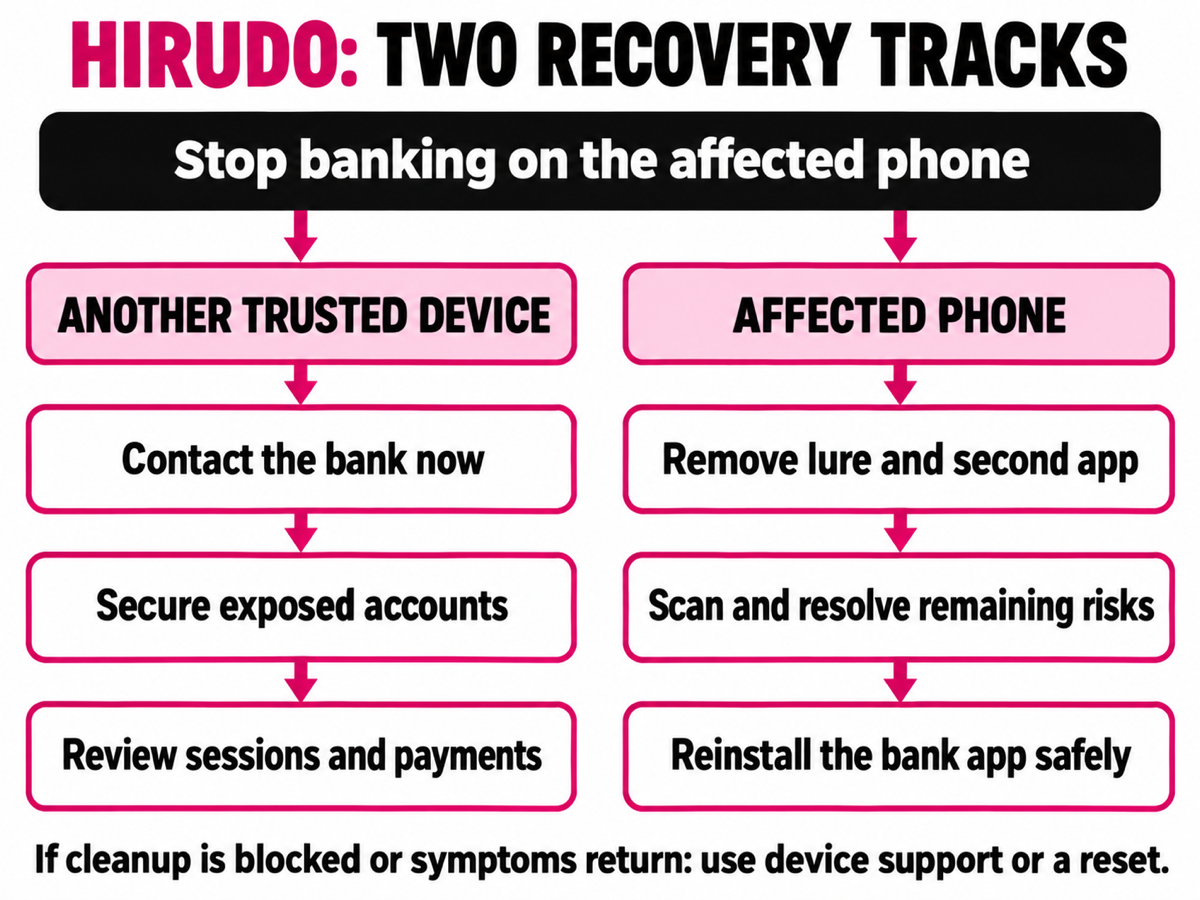
Record app names, approximate installation times, and relevant security alerts for support. Keep account numbers, transaction details, and any screenshots containing personal information private. For a work-managed phone, involve its administrator before removing management or accessibility settings.
Remove the unwanted apps and check the whole phone
Open Android Settings → Apps → See all apps; wording varies by manufacturer. Use the complete app list rather than relying on home-screen shortcuts. Identify the suspicious download and any unfamiliar app installed during its update sequence. Remove the unwanted entries, and delete their saved APK installers so they are not accidentally opened again.
If Settings remains usable, install Gridinsoft Trojan Scanner from Google Play, update its threat database, and run an app scan. Review each finding and confirm removal of unwanted installed apps when Android asks. Reconnect only as needed for trusted updates and scanning after stopping the suspicious activity; keep banking off the device during this process. Our Android scanning and removal walkthrough shows the app controls and how to interpret results.
Scanning is useful for finding suspicious components you may have missed. It is not a guarantee that every Hirudo variant will be detected, that a bank app is authentic, or that stolen information is now unusable.
If uninstall is blocked or Settings keeps closing
Search Settings for Accessibility, Notification access, and Device admin apps. Revoke the access belonging to the unwanted app, then retry uninstalling it. Do not turn off an accessibility aid you rely on or a legitimate work administrator merely because it has powerful permissions.
Also review permission to install unknown apps for the browser or messenger that delivered the APK. Turn it off when you no longer need it. If overlays or interference prevent removal, follow your phone manufacturer’s Safe Mode instructions, remove the unwanted apps through Settings, and restart normally.
Keep Google Play Protect enabled and install available Android and Google Play system updates. Google’s Android cleanup guidance also recommends removing untrusted apps and escalating persistent symptoms to a reset or device-maker support. [2]
Restore the banking app through a verified source
Do this after resolving suspicious app activity and permissions. Reinstalling the bank app while something else still controls the phone leaves the central problem unresolved.
- Confirm the bank’s installation route independently. Use its official website or support channel from the trusted device. Where the bank distributes through Google Play, follow the bank’s own store link and check the developer identity. Do not use a search advertisement or the earlier “update” link.
- Remove the suspect banking copy. If the app was replaced during the suspicious sequence, treat that installation as untrusted. Before removal, ask the bank how reactivation works so you do not lose your only available recovery route.
- Install the genuine app and re-enroll as directed. Use the verified source after cleanup, or on a freshly recovered device if you needed a reset. Do not restore the suspect bank APK from a backup.
- Check the result with the bank. Confirm that the expected device and account access are active and unfamiliar access has been revoked. A successful installation is only the software portion of recovery.
If the legitimate banking app still refuses to install or reports a security problem, do not disable protection, sideload a “fixed” copy, or bypass its checks. Give the exact message to the bank or phone manufacturer. A compatibility or enrollment error needs diagnosis rather than another unknown APK.
Finish account recovery from a trusted device
Change passwords that were entered or reused during the suspected exposure. Review active sessions, recovery email and phone details, and sign-in methods; remove unfamiliar access using the provider’s recovery process. Google’s compromised-account guide covers security events, devices and recovery settings. [3]
Ask the bank about payment PINs and mobile-device enrollment rather than assuming that changing your Google password also secures banking. Check recent payees and transactions, and report anything you did not authorize. Do not move funds to a “safe account” suggested by an unsolicited caller.
After the phone is trustworthy again, change its screen-lock secret if you entered it during the suspected exposure. Update any other account that reused that secret. Malware removal cannot cancel a completed transfer or erase information an attacker already obtained.
When a reset or device support makes more sense
Escalate if unwanted apps return, permissions cannot be removed, unexplained control continues, or you cannot establish where the banking installation came from. Do not keep opening the bank app between cleanup attempts.
Before a reset, confirm that you can sign in to the Google account already associated with the phone and recover essential accounts. Preserve needed personal files and any evidence your bank requests. Avoid restoring the suspicious APKs or the same questionable app backup. Our factory-reset guide explains the limits and reinfection risks.
If symptoms return before you restore third-party apps, contact the device manufacturer. If suspicious banking activity continues after device recovery, return to the bank’s account investigation; a phone reset does not automatically revoke every remote session or credential.
FAQ
Is this the same as a bank-app clone in an Android work profile?
No. An unexpected Work tab or briefcase badge raises a different investigation path. Our Gigabud and Vwork explanation covers that technique. A legitimate employer-created work profile is not evidence of either infection.
Should I uninstall a genuine bank app just because I read about Hirudo?
No. This recovery sequence is for a suspicious installation, a security finding, or unexplained account/device activity. If nothing was installed and there are no other signs, keep the legitimate app updated through its verified source. Do not seek out a malware sample to compare it.
References
- ThreatFabric. Hirudo: From Fake Updates to Patched Banking Apps. October 14, 2026. Accessed October 16, 2026.
- Google Account Help. Remove malware or unsafe software — Android. Google. Accessed October 16, 2026.
- Google Account Help. Secure a hacked or compromised Google Account. Google. Accessed October 16, 2026.