

If your Amazon Fire tablet says it has a virus while you’re browsing in Silk, close the tab using the × on the tab itself. A web page can draw a convincing scan, complete with a virus count and a countdown. That display tells you what the page chose to show. It gives you no diagnosis of the tablet, and you can leave without buying the cleaner it offers.
Go back to the tablet’s Home screen. Where did you see the warning? What did you do after it appeared? Those two details tell you more than the name or logo on the alert.
Did the warning disappear when you left Silk?
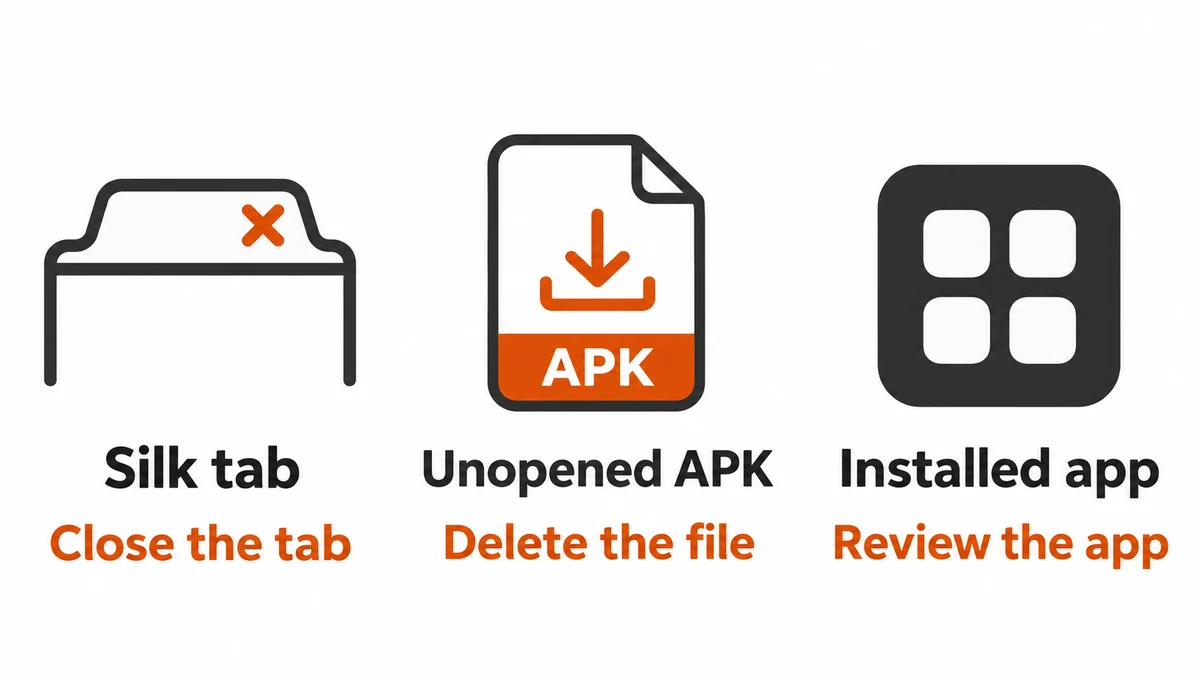
Close the offending tab using Silk’s own control, outside the page. A button labeled “Close” inside a warning belongs to the website. If you have several tabs and cannot identify the one playing the alert, touch and hold the × on a tab and choose Close all tabs. This also closes pages you wanted to keep.
Open a fresh tab and visit a familiar site. Amazon explains that Silk can return to the last page you viewed when you reopen the browser. If the same countdown comes back after you press Home and relaunch Silk, you may simply have reopened the same page. Closing that tab and testing a fresh one is a better check. If the warning stops there and you didn’t install anything or enter personal information, there’s no reason to buy a scan or erase the tablet because of that encounter. Read how scareware pages imitate security software if you want to recognize the pitch next time.
Is it an ad on the lock screen?
On ad-supported Fire tablets, Amazon displays sponsored offers on the lock screen. It also places sponsored tiles in the Continue and Discover row on Home. An offer that appears when you wake the tablet and goes away when you unlock it fits that pattern. You can unlock without opening it. A page that demands payment to remove “viruses” deserves a separate check, even if you arrived there by tapping an ad.
Did you download an APK or install an app?
An APK is an app installation file. If you saved one from the warning and never approved installation, locate the file in Downloads and delete it without opening it. If you went through an installation prompt, deleting the download leaves the installed app in place.
For a downloaded app on Fire OS 7 or later, open Games or Apps, open its menu, and choose Library → Downloaded. Find the app you installed from the alert, open the three-dot menu next to its name and select Delete from Device. Check the name before confirming. Amazon’s guide describes this route for downloaded apps. Preinstalled apps can lack a removal option.
If the warning looks like a notification, check the app name attached to it without opening the message. If a full-screen warning returns with Silk closed, write down which app was open and which apps you recently added. After removing the app you can tie to the warning, restart and repeat the same activity. If it still happens, contact Amazon Device Support with the model, software version and the steps that bring it back. Back up local files before considering a factory reset.
Does a Fire tablet need antivirus protection?
A cleaner advertised by a pop-up has no special knowledge of your tablet. A more useful first check is whether the tablet still receives security updates. Open Settings → Device Options and look under Device Model or About Fire Tablet. Check System Updates there and match the full model and generation against Amazon’s support table.
For example, Amazon lists the Fire HD 10, 13th generation (2023), for security updates through at least December 31, 2029. “HD 10” alone is insufficient to identify that model. If yours is older, check its own support entry before relying on it for sensitive accounts. An antivirus subscription cannot supply missing Fire OS security updates.
What if you typed a password, a code or a card number?
Act on the information you shared, even if closing Silk made the warning disappear. On another trusted device, open the affected service directly. If you entered its password, change it and any identical password used elsewhere. If you gave away a sign-in code, review active sessions immediately, sign out unknown devices, and check that the recovery email and phone still belong to you. See the account recovery checklist if you see unfamiliar activity or have lost access.
If you gave the page card details or paid for “support,” contact the card issuer using the number on the card or its official app. Keep the transaction details. Removing an app from the tablet does not cancel a charge or end someone else’s sign-in session.
References
- Amazon Customer Service. Silk Browser Basics on Fire Tablet. Accessed November 18, 2026.
- Amazon Customer Service. Learn More About Ads On Kindle and Fire Tablet. Accessed November 18, 2026.
- Amazon Customer Service. Uninstall an App from Your Fire Tablet (FireOS 7 and higher). Accessed November 18, 2026.
- Amazon Customer Service. Fire Tablet Device Software Security Updates. Accessed November 18, 2026.