

Blazer virus pop-ups can be website notifications delivered through Blazer Browser, rather than a virus scan finding an infection. Read the browser name and website address on the alert without clicking its buttons. Block the unwanted site’s notification permission. If Blazer itself appeared without your intention to install it, remove the browser through Windows Installed apps and check for other unwanted software.
The distinction matters: turning off Windows notifications hides the messages, while uninstalling an unwanted browser removes an application. A clean antivirus result does not cancel a website’s permission to send alerts. You may need to address both the permission and the browser.
First, identify what “Blazer” means on your screen
Open Notification Center with Win + N on Windows 11 and read the sender above the message. A browser name identifies the application delivering the notification; a website address identifies the site behind it. A frightening headline or antivirus logo inside the message does not make that site your security software.
- A website address on an alert delivered by Blazer: block that site’s notifications inside Blazer. Do not use the alert’s Scan, Renew, or Remove buttons.
- Blazer in Installed apps, but you did not choose it: uninstall the application and check for unwanted software installed around the same time.
- A detection inside security software you opened yourself: read its exact detection name and file location. Follow the scanner’s quarantine/removal workflow.
- A warning that occupies a browser tab: close the tab. If needed, use Ctrl + W; avoid buttons drawn inside the warning page.
If Blazer arrived unexpectedly, you ran a download offered by a warning, or browser changes return after removal, check the PC as well as its notification permissions. An unwanted installer may leave another application or startup component behind; dismissing the visible alert does not inspect those files. Download Gridinsoft Anti-Malware from its official page, install it, update its database, and run a Full Scan. Review the findings, remove detected threats, and restart if prompted. A scan can help identify unwanted components; it does not replace blocking a site’s permission.
Is Blazer Browser a virus?
Blazer Browser is a Chromium-based browser. Malwarebytes documents PUP.Optional.BlazerBrowser as a potentially unwanted program detection and describes installations reached through download buttons on pages discussing a different application. That is a specific concern about how people acquire the software, not proof that every Blazer installation is a file-infecting virus. [1]
Three things can therefore coexist: Blazer is installed, a website has permission to send it notifications, and a security product finds no conventional malware. The notification still needs attention. Conversely, a real PUP detection should not be dismissed just because the pop-up messages themselves were fake.
Search results also mix up Blazer Browser with Blaze Browser, BlazeSearch, and an old DOS virus called Blazer. Match the installed application or detection name before following a removal guide. This article addresses present-day Blazer Browser and Windows notification complaints.
Stop Blazer notifications at their source
- Note the website address shown on the notification. Do not visit it to investigate or copy a “repair” command from it. If the message has no visible domain, first identify the sending app in Notification Center.
- Open the sending browser yourself. In Blazer, open Settings and locate the notification/site-permission controls. Use the settings search for notifications if available. Find the allowed website matching the alert and change its permission to Block.
- Review other allowed sites you do not recognize. Keep permissions you intentionally use. Turning off future permission requests alone is not a substitute for reviewing permissions already granted.
- Dismiss old alerts and watch for new ones. An old entry remaining in Notification Center does not mean the site is still sending messages. Recheck the sender and domain if a new warning arrives.
If the sender is Chrome, type chrome://settings/content/notifications into Chrome’s address bar, or open Settings → Privacy and security → Site Settings → Notifications. Block the unwanted site there. Google documents site-specific blocking separately from the default notification setting. Changing Chrome’s permissions will not fix an alert sent by another browser. [4]
For immediate quiet, Windows Settings → System → Notifications lets you disable notifications for the identified sender. That is a temporary containment option: return to the browser to revoke the unwanted site permission, or uninstall the browser if you do not want it. For alerts that imitate security software more broadly, see our guide to recognizing and stopping fake virus alerts.
Remove Blazer Browser from Windows
If you did not intend to install Blazer, or no longer want it, use its normal uninstall entry. Before deleting browsing data, preserve any bookmarks you deliberately saved and confirm you can access accounts from your preferred browser.
- Close Blazer windows. If its tray icon offers an Exit command, use it.
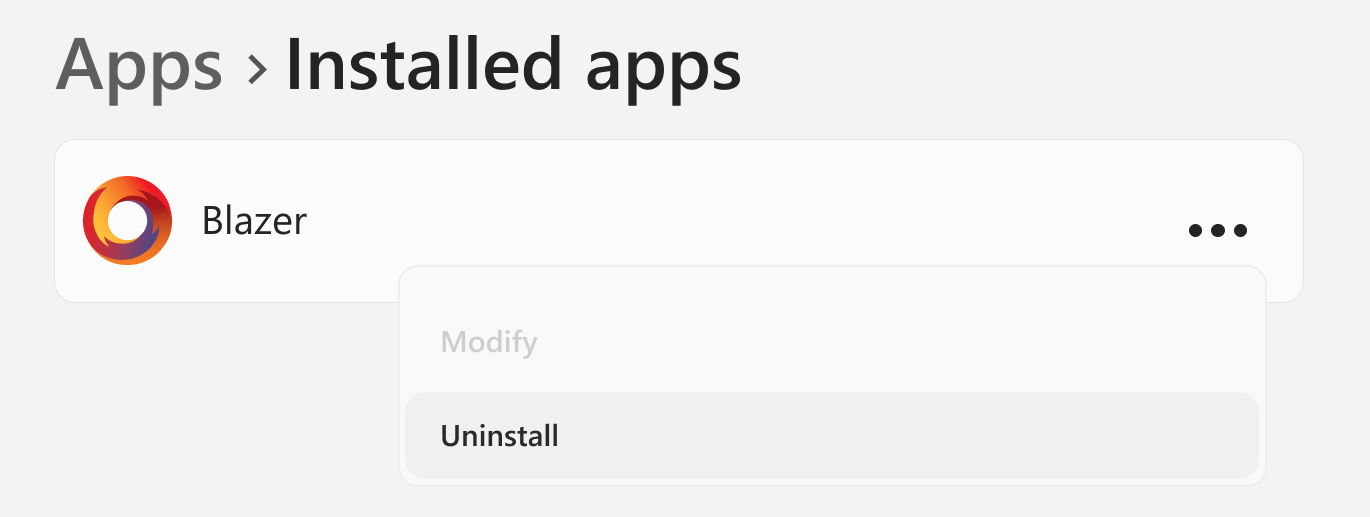
- Open Settings → Apps → Installed apps on Windows 11. On Windows 10, look under Apps → Apps & features. Searching Start for Add or remove programs also opens the installed-app list.
- Search for Blazer, open its menu, and select Uninstall.
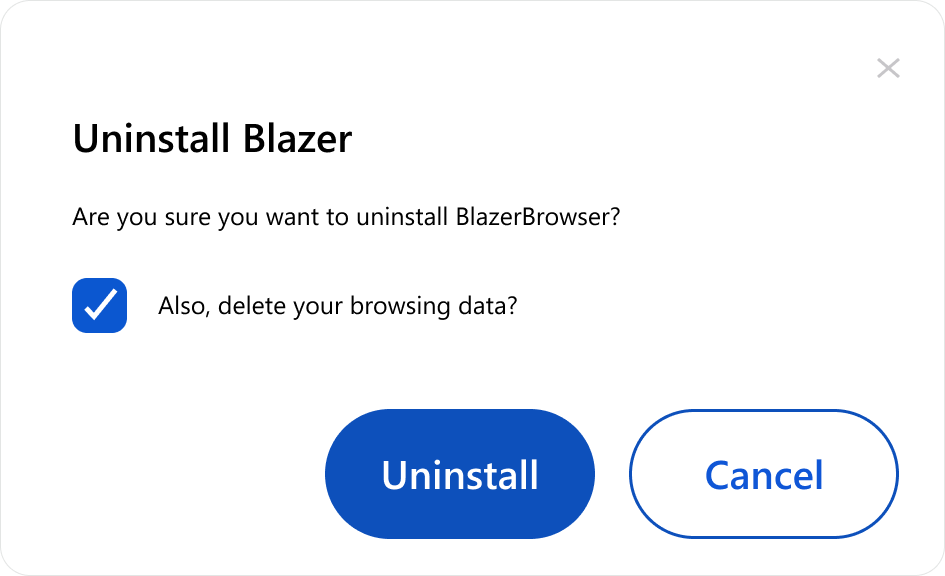
- Read the removal dialog. If you want its local browsing data removed too, select that option after saving anything you need. Confirm Uninstall.
- Open Settings → Apps → Default apps, select your preferred browser, and set it as default. Restart Windows and check that Blazer is absent from Installed apps.
The publisher’s own support page documents the uninstall entry, optional browsing-data removal, and default-browser change. [3]
Unpinning the Blazer icon is not an uninstall. Likewise, disabling its Startup entry only changes whether it starts automatically. If uninstalling fails, restart Windows and try again before opening the browser. Record any exact error. Avoid deleting guessed registry entries or removing every folder with a similar name; those actions can leave the uninstall registration broken or affect unrelated software.
Why Blazer can still run after you close its window
The publisher’s disclosure says Blazer can start with Windows and run in the background. It also describes a periodic updater that cannot be switched off independently; uninstalling the browser is the documented way to stop those updates. Startup and background operation have separate controls. [2]
This explains why “I closed the browser” is not a reliable test of whether its components have stopped. It also does not establish malware persistence by itself. If you intentionally keep Blazer, review its startup and background settings. If you want it removed, complete the uninstall and verify the app list after restarting.
If the pop-ups or browser come back
First identify what returned. A new website notification, an installed application, and a search-engine change are different findings.
- New alerts from the same domain: check that you blocked it in the browser and profile named by the notification. Review additional profiles you use. Clearing history or deleting a desktop shortcut is not the same as revoking permission.
- New alerts from another domain: inspect the remaining allowed-site list. Do not assume one blocked address covers every sender.
- Blazer reappears in Installed apps after a completed uninstall: check recently installed applications and any installer you have run again. Run the Gridinsoft Full Scan described above and review findings before removing them. Note the time it returns and what was running then; recurrence alone does not identify the responsible program.
- An extension or search change returns: review extensions in the affected browser and consider whether synchronization or another application restores the setting. Our guide to extensions that reinstall themselves covers that separate troubleshooting path.
After cleanup, dismiss existing notifications, restart, and use your intended browser normally. Check for newly arriving alerts, whether Blazer remains uninstalled, and whether your chosen default browser stays selected. These checks establish whether the symptom stopped; they do not prove the computer was never exposed.
If you clicked the warning
Opening a notification is different from running its download or entering account details. If you only opened a page, close it and remove any permission you granted. If you downloaded a file but did not run it, delete it rather than opening it to identify it. If you ran an installer or added an extension, remove the unwanted software and scan the PC.
If you entered a password on the page, change it through the real service from a trusted device and review active sessions. If you gave someone remote access, disconnect that session and follow the account recovery checklist. Contact your bank through a known channel if you submitted payment details. A clean scan does not undo an exposed password or payment.
References
- Malwarebytes. “PUP.Optional.BlazerBrowser.” Detection encyclopedia, accessed November 10, 2026. Detection definition.
- Blazer Browser. “Blazer Browser Product Disclosure.” Accessed November 10, 2026. Startup, background operation, and updater disclosure.
- Blazer Browser. “Uninstall.” Support documentation, accessed November 10, 2026. Windows uninstall instructions.
- Google. “Use notifications to get alerts.” Chrome Help, accessed November 10, 2026. Website notification controls.