


MacOS.Stealer.Nova is a security app’s label for a suspected Mac information stealer. Open the app’s scan history and expand the result to see the original file path and the action taken. If it flagged an installer you never ran, keep it quarantined. If you launched the app or ran a Terminal command supplied by a website, disconnect the Mac from Wi-Fi and Ethernet. Use a trusted phone or another computer to secure your main email account and sign out other sessions.
One detail makes Nova especially easy to underestimate. In a sample analyzed by SpiderLabs, a message saying the Mac did not support the app appeared after the program had looked for browser and wallet data. If you saw an error after opening a suspicious app, include that launch when deciding which accounts to check. [1]

Check your Mac for files left behind
Run a free Quick Scan with 67 Cleaner and review the paths it flags. Eligible threats can be quarantined with the seven-day trial or Premium.
What happened before the Nova alert?
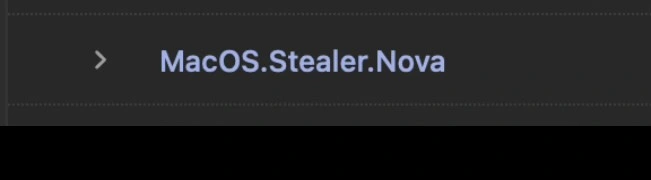
The arrow beside the detection name is the first place to look. Save the path, detection time and status. Then note when you downloaded the file and whether you opened an app, ran an installer, pasted a command or entered a password. The scan time tells you when the scanner noticed a file. It cannot establish when that file first ran.
- You only downloaded a DMG or ZIP. If the report identifies that download and you never ran its contents, keep it in quarantine. Double-clicking a DMG to mount it and launching the app inside are different steps. Our guide to Mac disk images and installers explains the distinction.
- You opened the app or pasted a command into Terminal. Treat the Mac as potentially exposed, even if the installer appeared to fail. Keep it offline while you review accounts elsewhere. For a work Mac, contact IT from another device with the alert and approximate time. Leave the machine and scan history available to them.
- You see an unfamiliar sign-in, sent message or recovery change. Start account recovery on a trusted device now, even if the scanner already quarantined the file. Save the security event and its timestamp so you can compare it with the installation timeline.
Why sign out sessions if you already use two-factor authentication?
Think of a browser where you opened your inbox this morning without signing in again. The service remembers that login through a session. If malware copied a still-valid session cookie, someone else may be able to use the account without a fresh password or two-factor prompt. SpiderLabs calls the macOS stealer MioLab, also known as Nova. Its researchers found that their sample looked for cookies and saved login data in browsers including Chrome and Firefox. The alert photo alone does not show which data, if any, left a particular Mac.
- Secure the inbox you use for password resets. From a trusted device, open the service directly and change to a unique password. In Google Account, open Security & sign-in, review recent security events, then open Your devices → Manage all devices. Sign out unfamiliar sessions and the affected Mac. If the same device name has several sessions you cannot distinguish, sign out each of them. [2]
- Check how someone could get back in. Verify the recovery email, phone number and two-factor methods. Review third-party app access and look for new mail-forwarding rules or filters that hide security notices.
- Work through the affected browser profile. Prioritize work accounts, financial accounts and services that were signed in or had stored passwords. Revoke sessions and change exposed passwords from the trusted device. If a work account was open, tell IT which account and when. The infostealer recovery overview covers the wider account cleanup.
What if a wallet app asked for your recovery phrase?
The researchers also observed the sample looking for wallet files and checking for desktop apps such as Ledger Live and Trezor Suite. Finding a wallet app on the Mac does not establish that someone obtained the words kept offline with a hardware wallet. The urgent question is whether you typed those words into the Mac or kept a readable copy on it.
If a window asks for your Ledger recovery words, close it. Ledger instructs owners to keep the phrase offline and never enter it into an app or website. If you already entered it, treat that wallet as exposed. On a trusted device, go directly to the manufacturer’s official support site for its compromised-wallet procedure. Changing an app password cannot replace an exposed recovery phrase. [3]
What 67 Cleaner can check on the Mac
On a personal Mac, use 67 Cleaner → Quick Scan to look for other flagged files. If a scanner has already quarantined the original item, leave it there. Compare new findings by path and record any that reappear. The free scan leaves files in place. The seven-day trial and Premium include quarantine for eligible findings. If an unfamiliar app returns or you cannot establish what ran, get help assessing the Mac before signing back in.
A local scan can help you find files still on disk. Signing out sessions at the account provider takes care of a session that may still be valid on someone else’s device.
References
- Mark Tsipershtein and Evgeny Ananin. “Say My Name”: How MioLab is building MacOS Stealer Empire. LevelBlue SpiderLabs, March 20, 2026.
- Google. Secure a hacked or compromised Google Account. Google Account Help. Accessed November 20, 2026.
- Ledger. How to keep your 24-word Secret Recovery Phrase and PIN safe? Ledger Support, August 28, 2026. Accessed November 20, 2026.