

Snaptroid is not a trustworthy way to view private Snapchat content. A screen claiming it found someone’s chats or My Eyes Only photos does not establish that it accessed their account. Published testing found Snaptroid reporting successful retrieval even for made-up accounts, then asking visitors to complete offers. If you already tried it, the next step depends on what you actually shared or installed—not on the progress bar the site displayed.
Close the viewer and stop its “verification” tasks. If you entered a password or login code, secure the account. If you installed software or paid for an offer, use the relevant recovery steps below. Do not reset a forgotten My Eyes Only passcode just because a video frightened you: that reset deletes the Snaps stored behind it.
What Snaptroid’s screens actually show
In a May 12, 2025 investigation, Certo documented Snaptroid 2.0 at snaptroid[.]vip and Snaptroid 3.0 at snaptroid[.]co. The sites advertised private Snapchat information, displayed a connection sequence and placed the supposed results behind app installs, surveys or promotional tasks. Certo reported that entering invented Snapchat accounts still produced a successful retrieval message. Its tested offers did not appear malicious at the time; that observation is not a safety verdict for other downloads or later versions. [1]
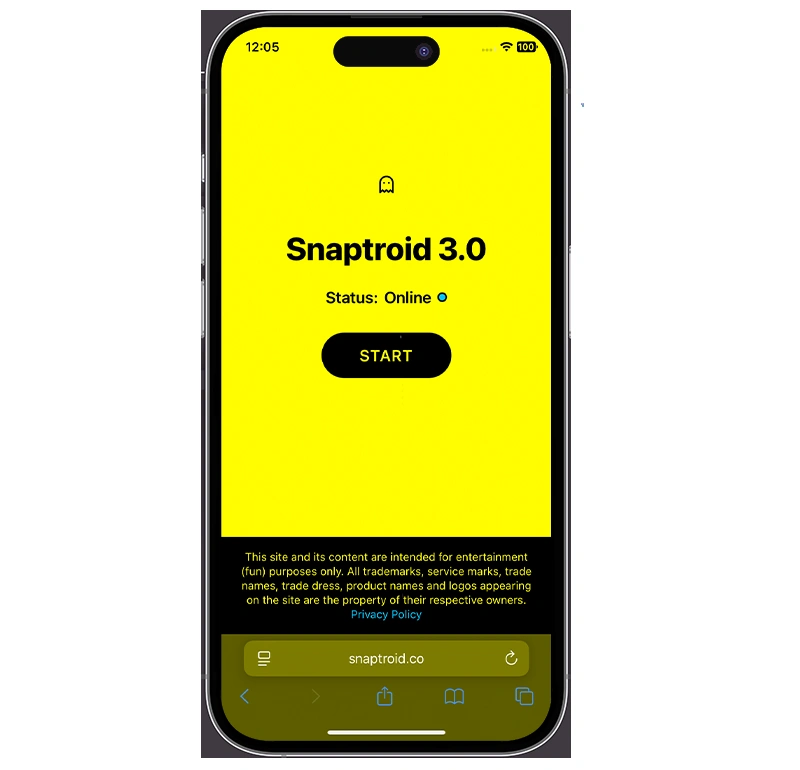
The important distinction is between displaying a result screen and proving access to private data. A website controls its own animation, account labels and completion messages. A username typed into a form is not permission from that account holder. The invented-account result is especially revealing: the success message could appear without a real account to retrieve.
That is enough reason to reject the advertised private-viewer service. It does not mean every app in an offer list contains malware, or that every visitor has been hacked. Those are separate questions requiring evidence about the particular app, permission or account activity.
A separate example: Seedroid’s verification gate
ScamAdviser’s November 3, 2026 report documented a similar pitch at seedroid[.]live, branded “SnapTools.” Its screen claimed a connection had succeeded, then required an offer before showing the promised information. The report’s next screen included survey sign-ups and a browser-extension installation. [2]
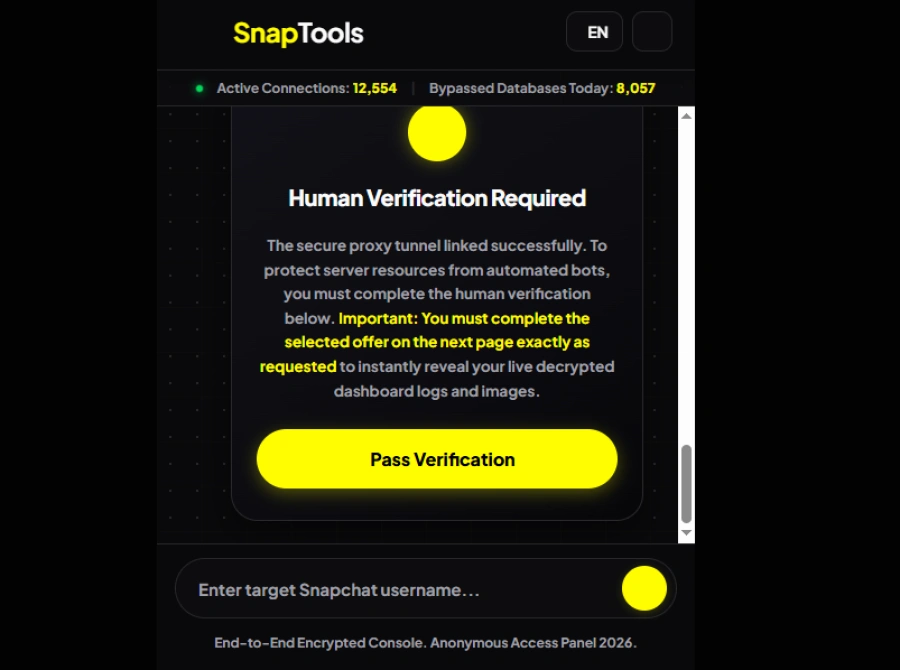
This is a separately named example, not proof that Seedroid and Snaptroid share an operator. It illustrates the decision point: a claim about someone else’s private account becomes a request for your information, installation or subscription. Completing an unrelated offer does not authenticate you to that person’s Snapchat account.
What to do after using Snaptroid
Follow every branch that matches what happened. A password change, an app removal and a subscription cancellation solve different problems.
- You only opened the page or entered a Snapchat username. Close it and do not return to finish the offers. Check whether the browser downloaded a file or received notification permission. Delete an unneeded download without opening it; revoke unwanted notification permission in browser settings. A username-only lookup is not, by itself, evidence that someone accessed your account. Keep the browser and operating system updated.
- You entered a password, login code or recovery information. Treat that information as exposed, even if the viewer never showed a result. Open Snapchat independently and follow the account steps below. If you reused the password, change it on the other accounts too. Use a trusted device if you also installed suspicious software.
- You connected an app through Snapchat. Review the actual connection in Snapchat’s Settings → Connected Apps. Select an unwanted app and tap Remove. This revokes that connection; it does not remove a browser extension or uninstall a downloaded app. Snapchat distinguishes authorized Snap Kit connections from unauthorized tools that use your login credentials. [3] [4]
- You installed a browser extension. Remove the extension through the browser’s extensions settings and review what website access it had. If it could read information on sites where you entered credentials, change those credentials from a trusted device. If it returns after removal, follow the separate guide to extensions that keep reinstalling; simply closing the viewer will not remove that persistence.
- You installed an app or ran a downloaded file. Use the platform-specific checks below. The viewer’s name is not a reliable identifier for the software installed by an offer. Record the actual app name and installation time before removing it.
- You submitted personal details or payment information. Save receipts and the offer’s merchant name, then check the real subscription or payment account independently. Cancel unwanted subscriptions through their actual provider or app-store account. Contact your card issuer through its official app or the number on your card about unfamiliar charges or exposed card details. Deleting an app does not necessarily cancel its subscription. Do not pay a second fee to “unlock” the viewer or obtain a refund.
If you installed software: check the device you used
On Android: uninstall the unwanted app and review permissions granted to it, especially accessibility or device-administration access. If elevated permissions prevent removal, revoke those permissions in the device’s settings first. Gridinsoft Trojan Scanner for Android can check for harmful apps; run a scan, review the findings and follow the removal guidance. An app with a familiar name is not necessarily the app you intended to install.
On Windows: if you ran an installer from the offer or now have recurring redirects, check for unwanted software and persistence. A downloaded package can add components beyond the visible app, so deleting the original installer may not resolve recurring activity. Download and install Gridinsoft Anti-Malware, update its database, run a Full Scan, review detections, apply the selected cleanup and restart. Recheck the original symptom afterward.
On iPhone or iPad: remove any unwanted app, review subscriptions separately, and check Settings → General → VPN & Device Management if you installed a configuration profile. Remove only a profile you recognize as coming from the unwanted offer; contact your administrator about a managed work or school device. Keep iOS updated. A Windows antivirus download is not an iPhone cleanup tool.
Device cleanup does not recover an account or reverse information already shared. Finish the applicable account and payment steps even if a scan reports no detections.
Secure Snapchat without giving the viewer more information
Open the official Snapchat app directly. If you suspect someone accessed the account, change its password, verify the associated email address and mobile number, and end unfamiliar active sessions in Settings → Session Management. Unexpected posts, messages, recovery-detail changes or login notifications are reasons to investigate. If you cannot regain access, use Snapchat’s official support route. Snapchat says its representatives do not need your password or My Eyes Only passcode. [5]
Enable two-factor authentication and protect the email account used for recovery. For a broader recovery checklist, see what to do after an account is hacked. Our Snapchat account-security guide covers the wider threat context.
Authorized Snap Kit connections are not a private-content bypass. Snapchat says external partner apps can request your Display Name or Bitmoji, with your approval. A separate page asking for your password or promising another person’s private chats is a different proposition. Check permissions in the official app instead of trusting a logo or a “connected” message on the viewer. [4]
Can Snaptroid see My Eyes Only? Avoid a destructive reset
The documented Snaptroid success screens do not demonstrate access to My Eyes Only. If someone says they viewed you through such a tool, the claim alone is not evidence. Check real account activity; do not enter your passcode into a viewer to “test” whether it works.
Changing a known passcode and resetting a forgotten one are different actions. Snapchat’s Change Passcode flow asks for the current My Eyes Only passcode. If you still know it and need to change it, open Memories → My Eyes Only → Options → Change Passcode in the official app. [6]
The Forgot Passcode flow creates a new passcode but deletes the Snaps saved under the old one. Snapchat Support cannot recover the forgotten passcode or the deleted Snaps. Read that warning before confirming a reset; it is not a way to recover private photos. [7]
The useful question after a Snaptroid encounter is what you actually exposed. A convincing screen can be fake while an installed extension, disclosed password or subscription is real. Deal with those concrete changes through the device, Snapchat and the payment provider—not through another “verification” task.
References
- Kent-Payne, Russell. “Is Snaptroid Legit or a Scam? Here’s What You Need to Know.” Certo Software, May 12, 2025; accessed November 10, 2026. Original investigation.
- Collins, Adam. “Seedroid.live Review: Can You Really Sneak Into Someone’s Snapchat?” ScamAdviser, November 3, 2026; accessed November 10, 2026. Verification-screen report.
- Snap Inc. “Can I use third-party apps or plugins with Snapchat?” Snapchat Support; accessed November 10, 2026. Third-party app guidance.
- Snap Inc. “How do I remove a connected app from Snapchat?” Snapchat Support; accessed November 10, 2026. Connected Apps controls.
- Snap Inc. “My account is compromised.” Snapchat Support; accessed November 10, 2026. Official recovery guidance.
- Snap Inc. “How do I change my My Eyes Only passcode?” Snapchat Support; accessed November 10, 2026. Changing a known passcode.
- Snap Inc. “I forgot my My Eyes Only passcode.” Snapchat Support; accessed November 10, 2026. Forgotten-passcode reset and deletion warning.