
wininit.exe is normally a legitimate, critical Windows process when it runs from C:\Windows\System32\wininit.exe and has a valid Microsoft signature. Do not end, delete, rename, replace, or change the priority of that file. A same-name copy in AppData, Temp, Downloads, or another user-writable folder is a different file and needs a security check.
wininit.exe initiated a restart does not, by itself, mean malware. Verify the exact path and signer, then read the neighboring Windows events before deciding what failed.What Is Wininit.exe?
wininit.exe, shown as Windows Start-Up Application, runs in Windows session 0 during system initialization. Microsoft classifies it as a critical system process. It sits above core service activity in the process tree and remains running because Windows depends on that initialization context.
This is why the correct response is to diagnose what surrounds Wininit, not to attack the process itself. A forced termination can make Windows crash or restart. A second copy launched manually is not a useful test and can also destabilize the system.
Is Wininit.exe Safe or a Virus?
| What you find | What it means | Next action |
|---|---|---|
C:\Windows\System32\wininit.exe with a valid Microsoft signature |
Normally the legitimate Windows process | Leave it running. Investigate the symptom, not the file. |
Files under C:\Windows\WinSxS\... |
Can be Windows component-store or servicing entries | Do not delete them. Verify rather than judging by the number of search results. |
A running copy under AppData, Temp, Downloads, Desktop, or a program folder |
Strong same-name impersonation warning | Do not open it. Record the path, check the signer and launcher, then scan. |
| Unsigned or invalidly signed copy | Suspicious, especially outside a protected Windows folder | Check its source, hash, parent process, task/service, and security alerts. |
| Signed System32 process with high CPU | A symptom, not a malware verdict | Correlate Event Viewer entries, updates, service failures, and system-file integrity. |
Event ID 1074 names wininit.exe |
Windows logged a controlled restart request | Read the reason, Comment field, user, and nearby event IDs. |
How to Verify the Running File
- Open Task Manager, select Details, right-click
wininit.exe, and choose Open file location. Windows may restrict some actions on this protected process. - Confirm that the running image resolves to
C:\Windows\System32\wininit.exe. - Open Properties → Digital Signatures and verify that Windows reports a valid Microsoft signature.
- Compare the path, signer, source, parent, and behavior together. The EXE safety checklist explains why a familiar filename alone proves nothing.
An elevated PowerShell window can show the running process details and check the signature of the System32 file:
Get-CimInstance Win32_Process -Filter "Name = 'wininit.exe'" |
    Select-Object ProcessId, ParentProcessId, ExecutablePath, CommandLine

Get-AuthenticodeSignature "$env:WINDIR\System32\wininit.exe" |
    Select-Object Status, StatusMessage,
        @{Name='Signer';Expression={$_.SignerCertificate.Subject}}
A blank executable path can occur when a protected process is queried without enough rights; it is not automatic evidence of malware. Run the check as administrator, then use the signature and the known System32 path.
Why Can File Explorer Find More Than One Wininit.exe?
One running System32 instance is the normal pattern. A disk search can also find WinSxS component-store entries used by Windows servicing and updates. Those search results do not mean several copies are actively running, and they should not be deleted to “clean” the PC.
Focus on processes that are actually running. More than one running wininit.exe, especially when one resolves to a user-writable folder or lacks a valid Microsoft signature, deserves investigation. Do not move a downloaded copy into System32 and do not compare file size alone; Windows builds and updates legitimately change system-file versions.
What If Wininit.exe Uses High CPU?
The legitimate process is usually quiet after startup. Sustained CPU use is unusual, but ending the critical process is still the wrong test. First confirm the path and signature. Then note when the spike starts: at boot, during Windows Update, immediately before a restart, after a driver or security-tool change, or after an unknown installer.

- Restart Windows once normally and install pending Windows updates.
- Check Event Viewer → Windows Logs → System and Application for errors at the same timestamp.
- Look for a critical service failure, update, installer, management agent, or security alert rather than assuming Wininit itself is broken.
- If the file is the signed System32 copy but Windows behaves incorrectly, use DISM and System File Checker as shown below.
- If the path or signature is wrong, skip to the suspicious-copy cleanup branch.
High CPU with a normal path can still coincide with malware elsewhere, but the resource graph cannot identify that cause. Stronger evidence includes a wrong-path copy, a new task or service, an unknown parent or launcher, repeated alerts, or suspicious activity that returns after reboot.
Why Does Wininit.exe Say It Initiated a Windows Restart?
The message usually appears in the System log as User32, Event ID 1074: “The process wininit.exe has initiated the restart of computer…” This event records a controlled shutdown or restart request and identifies the process, user, reason code, shutdown type, and optional Comment. It is different from Kernel-Power Event ID 41, which says Windows detected that the previous shutdown was not clean.
If the process field shows wininit.exe (127.0.0.1), 127.0.0.1 is the local computer’s loopback address, not proof of a remote attacker. If the user is NT AUTHORITY\SYSTEM, the request ran under the Windows system account rather than an interactive user.
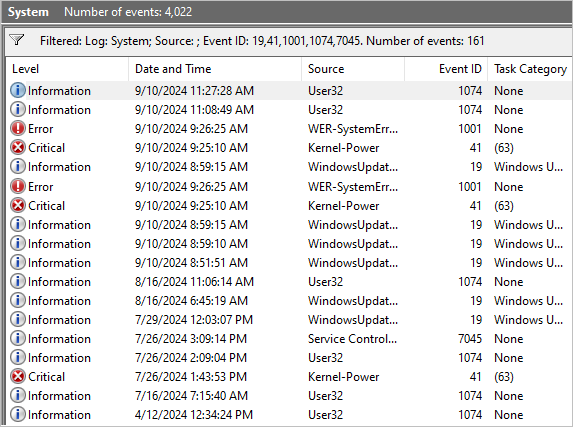
Read the Event 1074 fields in this order
- Time: match it to the moment the restart began.
- Process: note whether it names
wininit.exe,shutdown.exe, an installer, or a management component. - User: distinguish your account from
NT AUTHORITY\SYSTEM. - Shutdown Type: confirm whether Windows logged a restart or power off.
- Comment: this can name the system process or service that terminated. When it names
lsass.exe,services.exe, or another critical component, Wininit is reporting the consequence; the earlier failure is the real lead. - Reason Code: keep the hexadecimal value as evidence, but do not diagnose from the code alone without the Comment and neighboring events.
Correlate the neighboring event IDs
| Event ID | What it tells you |
|---|---|
| 19 — WindowsUpdateClient | An update installed successfully and may explain a scheduled restart. |
| 41 — Kernel-Power | Windows started after an unclean shutdown; it does not identify the root cause. |
| 1001 — WER-SystemErrorReporting | The computer restarted after a bug check; inspect the stop code and dump path. |
| 1074 — User32 | A process requested a controlled shutdown or restart and recorded user/reason details. |
| 7045 — Service Control Manager | A service was installed; it can be relevant after software, driver, management-agent, or malware changes. |
Use this PowerShell query to collect the same event set for the last seven days:
Get-WinEvent -FilterHashtable @{
    LogName='System'
    Id=19,41,1001,1074,7045
    StartTime=(Get-Date).AddDays(-7)
} | Sort-Object TimeCreated -Descending |
    Select-Object TimeCreated, Id, ProviderName, Message
If Event 1074 appears at the same time every day, check Windows Update history, Task Scheduler, software deployment tools, backup/management agents, and the Comment field. If there is no useful 1074 and you mainly see Event 41 or 6008 after a sudden black-screen reboot, use the broader random Windows restart checklist for power, heat, memory, driver, and hardware branches.
Do Not Run “wininit” as a PowerShell Test
Typing wininit in an elevated PowerShell or Command Prompt asks Windows to launch the executable; it does not inspect the existing process. Because Wininit is a special critical component, manually launching or terminating it can crash or restart some Windows builds. Behavior can differ by version, but there is no diagnostic benefit. Do not use it as a prank, stability test, or malware check.
How to Repair a Missing or Damaged System32 File
Never download wininit.exe from an EXE or DLL library. A file with the right name can be malicious or the wrong Windows build. Use Windows servicing so the replacement matches the installed system.
- Open Windows Terminal or Command Prompt as administrator.
- Repair the Windows component store first.
- Run System File Checker after DISM completes.
DISM.exe /Online /Cleanup-Image /RestoreHealth
sfc /scannow
If Windows cannot stay running, use the recovery environment rather than copying a system file from another PC. If the crash began after you deleted or terminated another protected process, the critical-process recovery steps for csrss.exe explain the same repair boundary.
What to Do With a Suspicious Wininit.exe Copy
Remove only the impostor, never the signed System32 process or WinSxS servicing files.
- Record the full path, signature status, hash, parent process, and any security alert.
- Do not double-click the file or move it into a Windows folder.
- Check Task Scheduler, Services, startup entries, and the app that introduced the file. The suspicious startup checklist helps find what launches it.
- Quarantine the wrong-path copy with a security tool, reboot, and confirm that it does not return.
- If the file ran, review related services, scripts, browser changes, and outbound connections instead of stopping after one deletion.
A visible same-name file may be only one part of the persistence chain. A scheduled task, service, script, bundled installer, or another loader can recreate it after reboot. Gridinsoft Anti-Malware can check the suspicious copy together with those persistence points; it does not replace DISM/SFC when the genuine Windows file is damaged.
If the process path is wrong, the name imitates a Windows component, or high CPU started after an unknown installer, scan for hidden miners, services, startup entries, and bundled components.
Scan a suspicious wininit.exe copyFAQ
Is wininit.exe safe?
Yes, when the running file is C:\Windows\System32\wininit.exe and has a valid Microsoft signature. A same-name file in a writable folder or with an invalid signature needs investigation.
Can I end wininit.exe in Task Manager?
No. Microsoft classifies it as a critical system process. Ending, deleting, renaming, or changing it can crash or restart Windows.
Why is wininit.exe running all the time?
It remains in session 0 as part of the Windows initialization and critical-service context. Continuous presence is normal; sustained CPU use is not, so verify the path and correlate events rather than ending it.
Does Event ID 1074 mean wininit.exe is a virus?
No. Event 1074 records the process that requested a controlled restart and includes the user, reason, type, and Comment. Read those fields and nearby update, bug-check, power, and service events.
Why are there several wininit.exe files on disk?
File Explorer can find System32 plus Windows component-store entries under WinSxS. That is not the same as several processes running. Investigate running copies outside protected Windows folders.
What does typing wininit in PowerShell do?
It attempts to launch wininit.exe; it does not inspect the current process. On some builds this can crash or restart Windows, so do not use the command as a test.
Should I download wininit.exe if it is missing?
No. Run DISM and System File Checker so Windows restores a matching protected copy. Third-party EXE downloads can be malicious or incompatible.
References
- Microsoft. “Critical System Services.” Windows App Development documentation, updated March 15, 2022, accessed August 27, 2026. https://learn.microsoft.com/en-us/windows/win32/rstmgr/critical-system-services
- Microsoft. “Troubleshoot unexpected reboots using system event logs.” Windows Server troubleshooting documentation, updated February 11, 2026, accessed August 27, 2026. https://learn.microsoft.com/en-us/troubleshoot/windows-server/performance/troubleshoot-unexpected-reboots-system-event-logs
- Microsoft. “Use the System File Checker tool to repair missing or corrupted system files.” Microsoft Support, accessed August 27, 2026. https://support.microsoft.com/en-us/windows/experience/backup-recovery/use-the-system-file-checker-tool-to-repair-missing-or-corrupted-system-files
- Microsoft. “Troubleshoot issues using Process Explorer.” Windows Server troubleshooting documentation, updated February 12, 2026, accessed August 27, 2026. https://learn.microsoft.com/en-us/troubleshoot/windows-server/support-tools/troubleshoot-issues-process-explorer