

If ASUS NodeJS Web Framework jumps to the top of Task Manager while you play, expand the group before ending it. On an Armoury Crate system, the file to look for is asus_framework.exe. Note which process ID (PID) owns the memory, then check that same row after you quit the game. Several instances can share the label. A group total tells you neither which instance grew nor whether one is still growing. If the game runs smoothly and memory settles afterward, there is little reason to remove the software that manages your device profiles.
Find the process behind the memory reading
One ROG motherboard owner reported four framework processes using about 1.1 GB each, even without opening the Armoury Crate window. That is a useful distinction: four large processes at one moment are a different observation from one process gaining memory every time you open the same game. Neither gives you a universal “normal” RAM figure.
- Press Ctrl + Shift + Esc, open Processes and expand the ASUS group. Right-click the busy instance and select Go to details. Record the image name and PID. If it points to ArmouryCrate.UserSessionHelper.exe instead, use the helper-specific checks.
- Right-click the file in Details → Open file location. In its properties, inspect the product details and, when present, the digital signature and signer. Compare them with the ASUS software in Settings → Apps → Installed apps. A familiar filename alone cannot identify a file, and there is no single folder that covers every package version.
- In Details, right-click a column heading and choose Select columns. Keep PID, CPU, a working-set memory column and Commit size visible. Working set measures memory currently resident in RAM; commit is memory Windows has promised to back. They can move differently. CPU is processing time, not another measure of RAM.
Repeat the trigger with one change
Save your work. At idle, jot down the time, the PID and both memory columns. Open the game or device panel that triggers the slowdown; sample again at the same point in the session and once more after closing it. For a second pass, keep the game, scene, profile and elapsed time the same. Change just one optional factor, such as leaving the Armoury Crate window closed. Leave the fan and thermal controls alone.
Worked example: Suppose one game launch takes the framework from 200 MB to 800 MB. The next two launches reach roughly the same level, and the game stays responsive. That pattern suggests a plateau. If the same PID instead gains several hundred MB after each return to the desktop, its commit also keeps rising and Windows starts to slow down, save those readings for ASUS. These numbers illustrate two patterns; they are not lab measurements or thresholds. If the PID changes, start a new row in your notes rather than comparing two instances as one.
| What you see | What to do next |
|---|---|
| Memory rises during play, then settles; no stutter or system memory pressure. | Keep the current setup. Repeat the same check if the symptom returns. |
| The same framework PID grows across repeated sessions. Closing one optional panel changes the pattern. | Record which panel mattered. Check Armoury Crate for updates to the relevant component and repeat the test before removing anything. |
| The framework disappears and returns with a new PID. | A background component may have started a fresh instance. Note what triggered it; repeatedly ending it discards the evidence. |
| Framework RAM stays flat, but WMI Provider Host uses CPU at idle. | Follow the WMI Provider Host diagnostic to identify the client requesting work. Do not disable Windows Management Instrumentation. |
A separate ROG user described WMI activity and elevated idle package power with Armoury Crate 6.5.7.0. That report concerns power and requests to Windows, not a confirmed memory leak. If unsecapp.exe appears alongside it, the Windows callback process is another clue to the activity, not a file to delete.
Before you repair or remove Armoury Crate
Write down your ASUS model, Armoury Crate version and the affected component version. After applying the updates offered for your device, restart and repeat the original trigger. If your usual fan mode, lighting and peripheral profiles still work and the growth has stopped, you can stop here.
If you need a clean reinstall, first save your profiles or take screenshots of the settings you rely on: laptop performance mode, fan curve, cooling controls, device lighting and peripheral assignments. Check your model’s support documentation for a supported way to manage essential cooling and performance controls during removal. A motherboard firmware menu is not a universal fallback for a laptop or handheld. If you cannot confirm an alternative, keep the installation and contact ASUS with your readings.
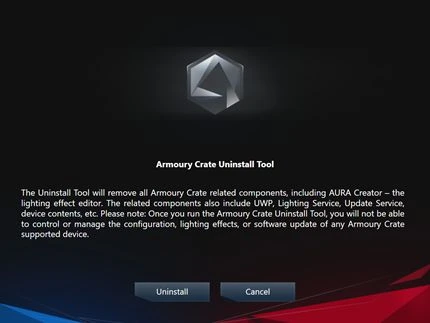
Use the Armoury Crate Uninstall Tool from ASUS support, then restart to complete removal. If you need those features, get the compatible installer from ASUS for your device. Test with the same workload after the restart and check that the profiles actually work. Do not delete the EXE by hand or uninstall a separate Node.js developer installation because the names look similar. If growth persists, send ASUS your model, versions, time-stamped PID readings and the one change that affected them.
When a copy deserves a security check
A file running from %USERPROFILE%\Downloads with no matching ASUS package, an unexpected startup entry or an independent security alert calls for a different check. Record the actual path and signer without running the file. If an unknown copy returns after removal, use Gridinsoft Anti-Malware to check the file and the startup entries or scheduled tasks that could be launching it. A scan addresses suspicious activity; it cannot fix high memory use by a legitimate ASUS component.
References
- ASUSTeK Computer Inc. Armoury Crate FAQ. ASUS Official Support, updated October 21, 2026; accessed November 12, 2026.
- yuujsjjs. Process asus_framework.exe use a lot of RAM. Republic of Gamers Forum, December 26, 2024; accessed November 12, 2026.
- ahmed-assassino. Possible issue: ASUS NodeJS Web Framework causing continuous WMI activity and high idle power. Republic of Gamers Forum, August 7, 2026; accessed November 12, 2026.