Fake Razer, Microsoft Edge and Kaspersky download pages are delivering Windows malware that can remain active after the installer disappears. Microsoft’s September 1 investigation links the activity to Silver Fox with moderate confidence, not to a confirmed breach of those vendors. If you ran an installer from an imitation page, disconnect the affected PC and investigate the execution—not just the downloaded ZIP. [1]
What Microsoft confirmed
The observed compromises primarily involve Chinese-speaking users and China-based operations. Archives can retain their names while changing their contents between downloads. After execution, the chain uses randomized payload paths, recurring scheduled tasks, security exclusions and interference with Windows Update; shadow-copy deletion and interactive attacker activity also appeared. Microsoft has not attributed this activity to a nation-state. [1]
This is a counterfeit download problem, not proof that a genuine copy of Razer Synapse, Edge or Kaspersky is malware. An unrelated warning about the real application needs its own investigation.
Recognize the download before opening it
Reported imitation domains include pc-razerzone[.]com[.]cn, app-microsoft-edge[.]com[.]cn and kaspersky-lab[.]hl[.]cn. They are indicators for checking browser history, not addresses to visit. [1]
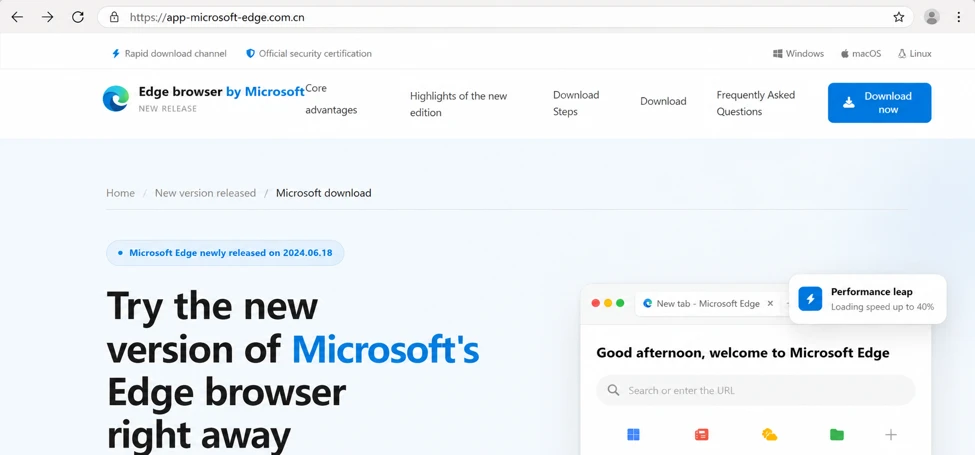
Start with the address recorded in your browser’s download history. A brand name somewhere in a domain is not the same as the vendor controlling that domain. Open the vendor’s known website independently or use your organization’s software catalog; do not return through the suspicious download button to “verify” it.
Keep the full filename and download time for your report. A familiar name, a copied logo, a padlock or an apparently successful installation does not establish that an installer came from the vendor. A verdict for someone else’s archive cannot clear your different file. Do not download a second copy from the suspicious site to compare it.
Did you visit, download or run it?
Only opened the page
Close it. Review downloads and any permissions you granted. A page visit alone does not establish that this installer chain executed.
Saved the ZIP, but ran nothing inside
Do not extract or test it. Keep a detected file quarantined; otherwise remove the unneeded download. On a work PC, ask IT whether they need the file preserved first.
Extracted the archive, but did not start an installer
Do not run the extracted files. Check protection history and the download timeline. If you cannot establish what launched, use the execution-response steps below.
Ran an EXE/MSI, approved an installer or see recurring activity
Disconnect networking and stop using the device for sensitive accounts. Treat this as a potential device compromise even if the intended app never appeared.
After execution: contain, check, then recover
- Contain the device. Disconnect Wi-Fi and Ethernet. For a managed PC, contact IT through a separate device and follow its incident process. Do not delete logs, wipe the disk or restart repeatedly before responders decide what evidence to preserve.
- Record what happened. Note the source page, download time, archive and installer names, any administrator prompt and security alerts. Share the report through the organization’s approved channel; do not forward an executable to colleagues or upload private work files to a public scanner.
- Review protection settings. In Windows Security, open Virus & threat protection → Manage settings → Exclusions → Add or remove exclusions. Check unfamiliar entries against your own changes or the administrator’s approved baseline. Remove an exclusion only after establishing it is unauthorized; never add one to make the suspicious installer run. Microsoft documents how exclusions reduce scanning coverage. [2]
- Check persistence as a relationship. In Task Scheduler, examine the program path in a suspicious task’s Actions tab alongside its creation time, trigger and corresponding alert. A random directory under
C:\Users\PublicorC:\ProgramDatais a lead, not a verdict. Do not delete every unfamiliar task, all of ProgramData, or a legitimate Windows process by name. - Clean and verify. On a personal PC, use a trusted clean device to obtain security software if necessary, then run a full Gridinsoft Anti-Malware scan and apply its recommended actions. Reboot when the cleanup process calls for it and scan again if symptoms recur. On managed systems, let the response team choose the tools and reconnection point.
Removing the visible installer may leave a loader, scheduled task or unauthorized exclusion behind. That is why post-execution recovery should check what can restart the threat, not stop at deleting one ZIP. A scan can identify malicious components; it cannot revoke stolen sessions, repair every changed policy or prove the PC was never compromised.
When settings will not stay repaired
If security settings revert, updates remain broken or detections return, keep the PC isolated and escalate. Do not run a bulk registry “repair” script from a forum. Record update errors and the settings that change; a repair that leaves the attacker’s launch mechanism in place is not a recovery.
Where trust in the system cannot be restored, consider a clean Windows installation from official media created on a clean device. Back up needed documents carefully, preserve the BitLocker recovery key and required licenses, and understand that a clean install can erase files, apps and settings. An in-place repair that keeps applications is not the same operation. Microsoft provides the installation options and prerequisites. [3]
From a clean device, review sensitive accounts used after the suspicious execution: revoke unfamiliar sessions, change affected passwords and check recovery methods. This is a precaution after possible device access, not a claim that Microsoft confirmed password theft from every victim. Cleanup and account recovery are separate tasks.
For related but distinct examples, see the counterfeit Exodus installer investigation and the fake-download campaign involving ScreenConnect and AsyncRAT. Do not use one campaign’s malware name to diagnose another without matching evidence.
References
- Microsoft Security Research, Microsoft Defender Experts and Parth Jomadkar. “Counterfeit installers to system compromise: Tracking a deceptive software download campaign.” Microsoft Security Blog, September 1, 2026. Investigation.
- Microsoft. “Virus and Threat Protection in the Windows Security App.” Microsoft Support, accessed September 4, 2026. Protection settings and exclusions.
- Microsoft. “Reinstall Windows with the installation media.” Microsoft Support, accessed September 4, 2026. Reinstallation guidance.