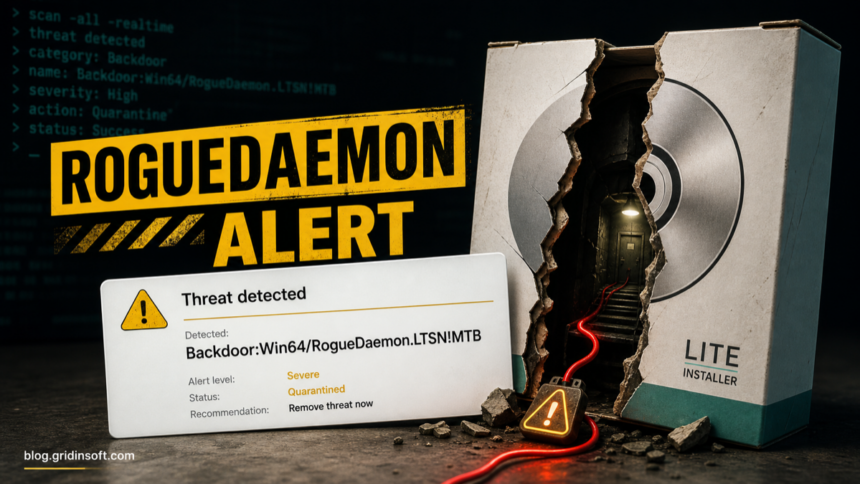
Backdoor:Win64/RogueDaemon.LTSN!MTB is a Microsoft Defender backdoor alert that many users are now seeing after installing or updating DAEMON Tools Lite. Treat it as real unless you can prove your DAEMON Tools install is outside the affected window. The strongest match is the DAEMON Tools Lite supply-chain incident: trojanized official installers were distributed from April 8 to May 5, 2026, and affected builds include 12.5.0.2421 through 12.5.0.2434 [1].
What to do first
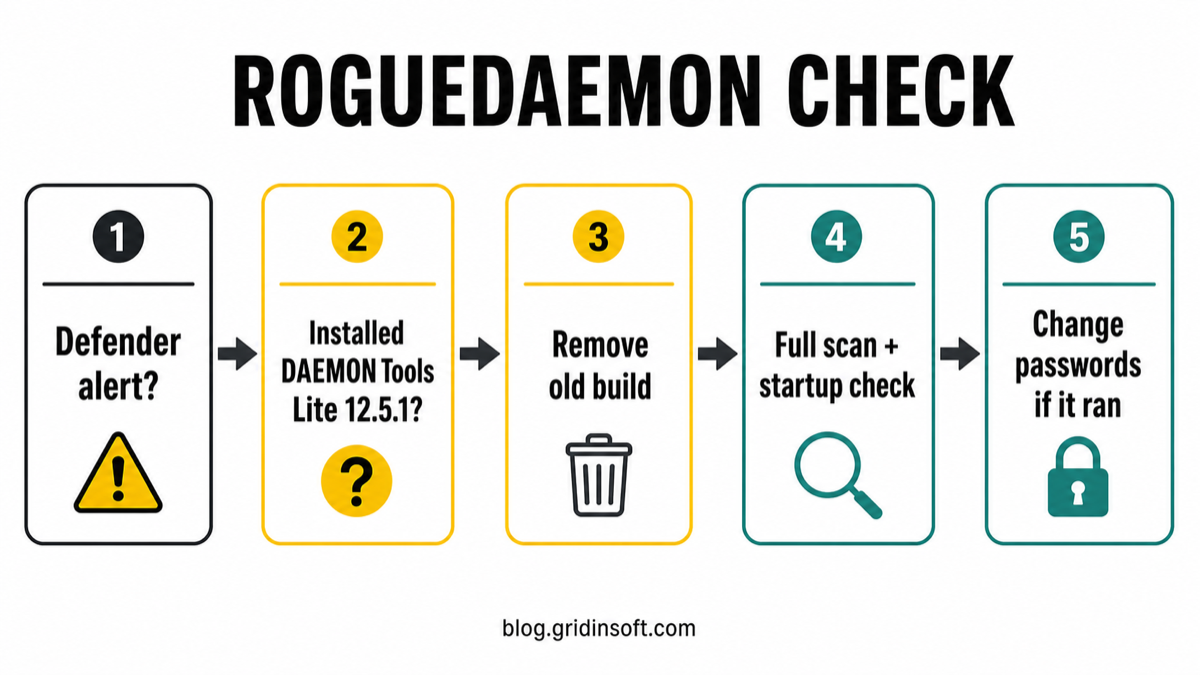
- Do not restore or allow the Defender alert just because DAEMON Tools came from the official site.
- Check whether DAEMON Tools Lite
12.5.1or build12.5.0.2421–12.5.0.2434was installed or updated between April 8 and May 5, 2026. - Uninstall the affected build, run a full scan, and check Startup Apps, Task Scheduler, Services,
AppData,ProgramData, andTemp. - If the alert disappeared before quarantine, still review Protection History and run a full scan. A disappearing toast does not prove the machine is clean.
- Change important passwords from a clean device if the affected installer ran while you used email, banking, work, crypto, or password-manager accounts.
What Backdoor:Win64/RogueDaemon.LTSN!MTB Means
Backdoor:Win64/RogueDaemon.LTSN!MTB is the kind of alert you should connect to both the detection name and the local context. If it appears on a PC that recently installed DAEMON Tools Lite, the timing matters more than generic “is this a false positive?” guessing. Kaspersky reported that attackers compromised the official DAEMON Tools distribution path and served signed, trojanized installers. DAEMON Tools later confirmed the incident, removed affected files, and said version 12.6.0.2445 no longer showed the malicious behavior described in the analysis [2].
The uncomfortable part is that “downloaded from the official website” did not make the affected installer safe. In a supply-chain attack, the trusted vendor path becomes the delivery mechanism. That is why a Defender alert after a recent DAEMON Tools install should be handled as a cleanup and account-safety task, not only as a one-click quarantine event.
Affected Versions and Timing
| Question | What to check |
| Was DAEMON Tools Lite installed? | Check Apps & Features, Control Panel, install folders, and recent downloads. |
| Which version matters? | DAEMON Tools Lite 12.5.1, specifically builds 12.5.0.2421 through 12.5.0.2434. |
| Which dates matter? | Install or update activity between about April 8 and May 5, 2026. |
| Which files were reported as tampered? | DTHelper.exe, DiscSoftBusServiceLite.exe, and DTShellHlp.exe. |
| What version is reported clean? | DAEMON Tools Lite 12.6.0.2445 or later from the verified vendor site. |
| What vulnerability record tracks it? | CVE-2026-8398; CISA added it to the Known Exploited Vulnerabilities catalog [3]. |
What If the Defender Alert Disappeared Before Quarantine?
A Defender toast can disappear because the notification timed out, the item was already blocked, the file moved, the detection history updated, or another scan action took place. Do not use the vanished popup as proof that nothing happened. Open Windows Security → Virus & threat protection → Protection history, then look for Backdoor:Win64/RogueDaemon.LTSN!MTB, DAEMON Tools components, or suspicious items around the install time.
If Protection History shows “quarantined,” “removed,” or “blocked,” keep that action in place and continue with a full scan. If it shows no item but you know DAEMON Tools Lite 12.5.1 was installed during the affected window, uninstall the old build anyway and scan the system. Supply-chain incidents are not cleaned up by closing the notification.
Safe Cleanup Steps for Home Users
- Disconnect from sensitive sessions. Close banking, email, cloud, crypto, work, and admin sessions on the affected PC until scans are clean.
- Uninstall DAEMON Tools Lite 12.5.1 or affected 12.5.0 builds. Reboot after uninstalling, then check whether the program folder or services remain.
- Update Microsoft Defender intelligence. Run a full scan, not only a quick scan.
- Check startup and persistence locations. Review Startup Apps, Task Scheduler, Services, browser extensions, and Run keys such as
HKCU\Software\Microsoft\Windows\CurrentVersion\RunandHKLM\Software\Microsoft\Windows\CurrentVersion\Run. - Look for campaign indicators. Check local logs or router/security logs for
env-check.daemontools[.]cc,38.180.107[.]76, suspicious PowerShell activity, or recent child processes from DAEMON Tools components. - Scan for leftovers with Gridinsoft Anti-Malware. A Defender action can remove the visible detection while a loader, service, scheduled task, browser change, or dropped file remains. Gridinsoft Anti-Malware can help check hidden files, startup entries, scheduled tasks, bundled apps, browser changes, and persistence traces after the DAEMON Tools uninstall.
- Change passwords from a clean device if the installer ran. Prioritize email, Microsoft/Google/Apple accounts, banking, crypto, work, cloud storage, social media, and password-manager master credentials.
If you still need virtual disk mounting, use the clean current release only after the machine is scanned. Windows can mount many ISO images natively, so you may not need DAEMON Tools at all for simple disk images.
Defender can quarantine the visible file, but repeated alerts may mean a loader, scheduled task, service, browser change, or bundled component is recreating it. Scan the PC before trusting the cleanup.
Scan for hidden startup and persistenceHow Gridinsoft Makes the Cleanup Easier
The hard part after Backdoor:Win64/RogueDaemon.LTSN!MTB is not clicking one “remove” button. The hard part is answering: did the affected installer run, did it leave a startup component, did it contact the campaign infrastructure, and do I need to rotate passwords? Gridinsoft Anti-Malware gives you a practical second pass after Defender: scan the whole system, remove detected remnants, reboot, then scan again if the alert or suspicious startup item returns.
For a single file or old installer, the Gridinsoft Online Virus Scanner can help with a quick reputation check. For a PC that actually ran an affected DAEMON Tools installer, use the installed Anti-Malware scan because the risk is no longer limited to one file.
Could It Be a False Positive?
It is possible for security tools to label some dual-use or installer behavior too aggressively, but this exact case has a strong real-world incident behind it. If your DAEMON Tools install date and version match the affected window, do not treat Backdoor:Win64/RogueDaemon.LTSN!MTB as a harmless false positive. Remove the affected build and verify the system first.
A false-positive path is more plausible when DAEMON Tools was installed well before April 8, 2026, the installed version is not in the affected build range, the installer hash came from a clean current release, and full scans plus startup checks show nothing suspicious. Even then, do not restore quarantined files unless you know exactly which file was detected and why.
What Organizations Should Do
For a managed endpoint, treat this as a supply-chain incident, not a home-user uninstall problem. Preserve logs before wiping the host. Inventory DAEMON Tools Lite installations, collect DNS/proxy/firewall/EDR/PowerShell logs from April 8 onward, search for the C2 indicator and tampered components, and rotate credentials used on affected machines. CISA’s KEV listing for CVE-2026-8398 is a useful signal that organizations should not leave affected builds in service [3].
If you confirm second-stage payload activity, remote shell behavior, unusual outbound traffic, or credential access, reimage the host after evidence collection and rotate secrets that touched the system. For home users, that level of forensic work is often unrealistic; the practical path is uninstall, full scan, Gridinsoft remnant check, password changes from a clean device, and close monitoring of account sign-ins.
FAQ
Is Backdoor:Win64/RogueDaemon.LTSN!MTB definitely from DAEMON Tools?
Not always, but a recent DAEMON Tools Lite 12.5.1 install makes the connection strong. Check the install date, version, affected files, and Protection History before deciding.
Am I safe if I downloaded DAEMON Tools from the official website?
Not automatically. During the reported incident, the official distribution path served trojanized installers. Official source and valid signature were not enough for affected builds.
What if Defender removed RogueDaemon already?
Keep the removal action in place, uninstall the affected DAEMON Tools build, run a full scan, and check startup/persistence locations. If the installer ran, change important passwords from a clean device.
Should I update DAEMON Tools or uninstall it?
If you do not need it, uninstall it. If you still need it, remove the old build first, scan the PC, then install only the clean current release from the verified vendor site.
Can Gridinsoft Anti-Malware remove RogueDaemon leftovers?
Gridinsoft Anti-Malware can help find and remove detected files, startup entries, scheduled tasks, unwanted browser changes, bundled apps, and persistence traces that may remain after the first Defender action.
Do I need to reinstall Windows?
Most home users should first uninstall the affected build, scan, remove detections, reboot, scan again, and change passwords if the installer ran. Reinstall Windows if alerts keep returning, remote access is confirmed, or you cannot trust the cleanup result.
References
- Kaspersky. “Supply chain attack via DAEMON Tools.” Kaspersky Daily, published May 5, 2026, updated after vendor response, accessed June 18, 2026. https://www.kaspersky.com/blog/daemon-tools-supply-chain-attack/55691/
- DAEMON Tools. “Security Incident Affecting DAEMON Tools Lite: What We Know So Far.” DAEMON Tools Blog, published May 6, 2026, accessed June 18, 2026. https://blog.daemon-tools.cc/post/security-incident
- Cybersecurity and Infrastructure Security Agency. “Known Exploited Vulnerabilities Catalog: CVE-2026-8398.” CISA, accessed June 18, 2026. https://www.cisa.gov/known-exploited-vulnerabilities-catalog
- CVE Program. “CVE-2026-8398.” CVE Record, published May 2026, accessed June 18, 2026. https://www.cve.org/CVERecord?id=CVE-2026-8398