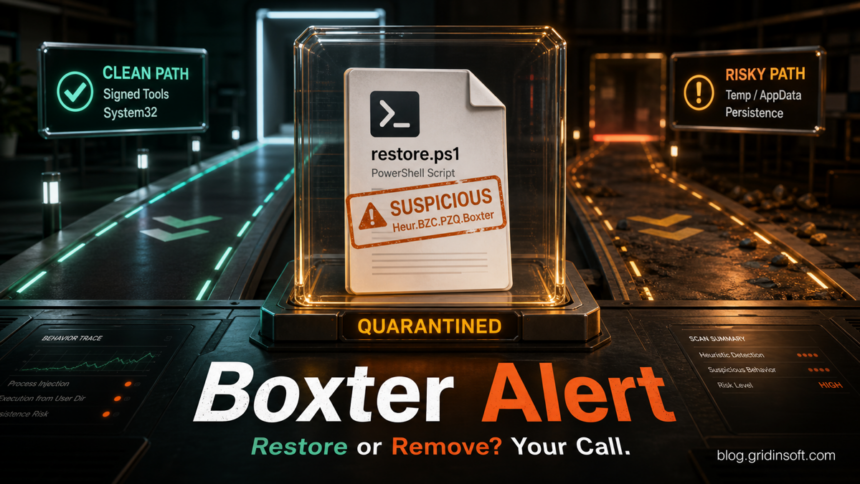
Heur.BZC.PZQ.Boxter is a Bitdefender heuristic detection, not a complete malware family name by itself. Treat the alert as a decision point: keep the item quarantined, verify the file source and path, then restore or exclude it only when you can prove the file is trusted. If the alert comes from a temporary folder, an unknown download, a crack, a script you did not create, or it returns after reboot, remove it and scan for persistence before making any exception.
Recent user reports show this label on PowerShell scripts such as logCollector.ps1, developer or diagnostic scripts, and recurring PowerShell activity where a full Bitdefender scan may still report the system clean [1]. That mix is why the safe answer is not simply “false positive” or “trojan.” The right answer depends on the file’s origin, location, behavior, and whether the detection repeats.
What Heur.BZC.PZQ.Boxter means
Heur means the security engine is using heuristic behavior or pattern matching. BZC.PZQ.Boxter is the internal-looking label Bitdefender shows for this detection family or rule output. The suffix can include extra numbers and hash-like fragments, for example Heur.BZC.PZQ.Boxter.1174.786BAC69. Those suffixes help identify the exact detection event, but they do not tell you whether your exact file is safe.
Many Boxter reports involve scripts because PowerShell can automate legitimate admin work and malicious persistence. A trusted vendor support script, developer build script, or Windows diagnostic script can trip a heuristic rule, especially after an antivirus update. The same label can also appear when a loader drops a script into Temp, AppData, Startup folders, or a scheduled task and uses PowerShell to run it again.
Why Bitdefender flags CustomDestinations .temp files
A detection under %APPDATA%\Microsoft\Windows\Recent\CustomDestinations\{random}.temp needs different context from an unknown executable dropped in a normal temporary folder. Windows stores application-specific Jump Lists in CustomDestinations. These artifacts record files an application interacted with and other app-specific recent-item metadata; Microsoft incident-response guidance also notes that Jump Lists can preserve evidence of files that no longer exist on the device [4].
The folder path alone proves neither active malware nor a false positive. Bitdefender may be matching a file reference, path, or other string while an application updates its Jump List. The referenced item may already be gone, but a hit that reliably returns after one browser or app opens can still reveal the source that is rewriting the record.
Safe CustomDestinations triage
- Keep the event details. Record the complete heuristic label, random
.tempfilename, full path, action Bitdefender took, and exact time. Do not restore the file only to inspect it. - Identify the likely application. Note which browsers and desktop apps were active at that time. Close them, reboot if needed, then reopen one suspected app once. If the alert returns immediately after that app opens a window or recent file, you have a stronger lead than the path alone.
- Check what the app recently opened. Review its taskbar Jump List and recent-file or recent-site history for an unknown download, document, installer, or destination near the alert time. Also check Bitdefender for companion detections outside
CustomDestinations. - Clear only the relevant recent history when appropriate. Use the application’s own recent-item controls or Windows recent-item settings after saving any pinned entries you need. Do not delete or exclude the whole
RecentorCustomDestinationsfolder as a first response. - Update and rescan. Update Bitdefender, Windows, and the suspected application, then run a full scan and repeat the one-app test. If the alert does not return and no related indicator exists, submit the event or recoverable sample to Bitdefender as a possible false positive before creating any exception.
- Escalate on companion symptoms. Run the full persistence cleanup when the alert returns with browser redirects, an unknown extension, a suspicious download, PowerShell activity, a startup item, a scheduled task, or another malware detection.
Changing suffixes such as Heur.BZC.YAX.Linx, Gen:Heur.Jatommy, or another heuristic label do not turn the Jump List folder into a malware family. Preserve the exact event, test the application trigger, and base the restore-or-remove decision on the referenced activity and the rest of the system evidence.
Restore it or remove it?
Use the alert context before clicking restore, allow, or add exclusion.
- Trusted vendor, company tool, your own source project, or Windows diagnostic package: Keep it quarantined, verify the signature, hash, source, and expected path, submit it to Bitdefender as a possible false positive, then restore only after review or a clean rescan.
%TEMP%,%APPDATA%, random ProgramData, Downloads, crack/repack, or unknown script path: Do not restore it. Remove the item, check startup and scheduled tasks, and scan for bundled or persistent components.- Alert returns every minute, after reboot, or after a folder is deleted: Treat it as possible persistence until proven otherwise. Find the process, scheduled task, service, or parent app that recreates the script.
- Only Bitdefender flags your expected script after an update: Do not assume malware, but do not exclude the whole folder. Submit the sample and use a narrow file-specific exception only after you verify and trust the source.
First checks before restoring
- Save the exact alert details. Note the full detection name, file path, parent process, and time. A screenshot helps when submitting a sample to Bitdefender.
- Check the path. A script under a signed vendor folder or your own development workspace is different from a random script under
%TEMP%,%APPDATA%,ProgramData, or a browser cache. - Check the source and signature. Re-download the tool from the official source if possible. For scripts, compare the file with the vendor’s current package or your source repository.
- Rescan after updates. Update Bitdefender and rescan the exact file. Heuristic false positives may disappear after definition updates.
- Submit the sample when the file should be legitimate. Bitdefender documents a sample submission process for suspected false positives and false negatives [2].
- Keep exclusions narrow. If Bitdefender later confirms the file is safe, add an exception only for that file or exact trusted folder, not for broad locations like Downloads, Temp, or the whole drive. Bitdefender’s consumer guidance places exclusions under Protection, Antivirus, and Manage Exceptions [3].
If the Boxter alert keeps coming back
A repeating Heur.BZC.PZQ.Boxter alert means something is still launching, rewriting, or downloading the flagged script. Do not solve that by excluding PowerShell or deleting PowerShell. That may break Windows and hide the real cause.
Check these persistence points instead:
- Task Scheduler entries created around the first alert time.
- Startup apps and shortcuts that launch PowerShell,
wscript.exe,mshta.exe,cmd.exe, or a helper executable. - Recently installed remote-support tools, driver utilities, browser extensions, game mods, cracks, or vendor support collectors.
- Folders under
%APPDATA%,%LOCALAPPDATA%,%TEMP%,ProgramData, and your Downloads folder. - Browser downloads and compressed archives that extract the same script again.
If the file already ran, or if the folder comes back after deletion, use a cleanup scan before restoring anything. Gridinsoft Anti-Malware can check for hidden files, startup entries, scheduled tasks, bundled apps, browser changes, and other persistence that may remain after the visible script is quarantined.
A false positive is possible, but restore only after checking that the system has no companion detections, startup entries, scheduled tasks, or hidden files tied to the same source.
Scan before restoring this fileWhen it is probably a false positive
A false positive is more likely when the flagged file is part of a legitimate tool, the path is expected, the file is signed or reproducible from a trusted package, the alert started right after a Bitdefender update, and no other suspicious startup, browser, or network behavior exists. Developer scripts, admin scripts, diagnostic collectors, and tools that read/write many files can look unusual to heuristic engines.
Even then, avoid broad exclusions. Submit the sample, wait for a vendor response or later detection update when practical, and document exactly what was restored. If this is a business or development machine, keep the sample, hash, and Bitdefender event details with the support ticket so the same file is not repeatedly treated as a new mystery.
When to treat it as malware
Remove the file and investigate the system if the alert points to an unknown download, a cracked installer, a random script path, a suspicious archive, a browser redirect chain, or a folder that recreates itself. Also treat it seriously when the same script appears after reboot, when PowerShell runs in the background without your action, or when other security tools report loaders, droppers, stealers, or trojan behavior for the same file.
Do not restore the file just to “see what happens.” If you need to inspect it, use a separate analysis environment or submit it to the vendor instead of running it on the affected PC.
Related Gridinsoft checks
If your alert is a broader Bitdefender or Emsisoft-style generic detection, compare it with our Gen:Variant false-positive checklist. If you are comparing multiple scan engines and one engine flags the file while most others are clean, the VirusTotal and Hybrid Analysis false-positive guide explains how to weigh source, sandbox behavior, and detection ratios. For Avast/AVG-style heuristic labels, use the IDP.Generic guide as the closest equivalent decision flow. If Bitdefender names a normal-looking process and blocks only its outbound URL, the AUEPDU.exe alert checklist is a useful example of path, signature, and network triage before adding an exception.
FAQ
Is Heur.BZC.PZQ.Boxter definitely malware?
No. It is a heuristic Bitdefender label, so the alert means the file matched suspicious patterns. The file can be malicious, but it can also be a false positive on a legitimate script or tool.
Can I restore a file detected as Heur.BZC.PZQ.Boxter?
Restore it only when you trust the source, path, signature, and behavior. If the file came from Temp, AppData, a crack, an unknown download, or keeps returning after quarantine, do not restore it.
Should I add a Bitdefender exclusion?
Use exclusions only after verification or vendor confirmation, and keep them narrow. Excluding broad folders such as Downloads, Temp, or the whole development workspace can hide future threats.
Why does the alert mention PowerShell?
PowerShell is often used by legitimate admin tools and by malware. Bitdefender may report the script, the PowerShell host, or the behavior PowerShell attempted to run.
What if the alert appears again every minute?
Look for persistence. A scheduled task, service, startup entry, helper app, or browser/download component may be recreating the file. Remove the source before adding any exception.
References
- Bitdefender Expert Community. “Stubborn Virus or False positive?” Bitdefender Community, accessed June 19, 2026. https://community.bitdefender.com/en/discussion/106415/stubborn-heur-virus-or-false-alarm-x8
- Bitdefender. “Submitting sample files and websites for analysis.” Bitdefender Business Support, accessed June 19, 2026. https://www.bitdefender.com/business/support/en/77209-343057-submitting-sample-files-and-websites-for-analysis.html
- Bitdefender. “How to exclude files and folders from Bitdefender Antivirus scan.” Bitdefender Consumer Support, accessed June 19, 2026. https://www.bitdefender.com/consumer/support/answer/13427/
- Microsoft Incident Response. “Navigating DFIR Strategies: Leveraging Windows Internals for Forensic Investigation — Link Files & Jump Lists Guide.” Microsoft, accessed August 2, 2026. Microsoft Incident Response guidebook