A fake Slack download is not a Slack problem; it is a source-verification problem. Slack is legitimate software, but a lookalike download from an unfamiliar domain can install the real app while a second loader works in the background. In the slacks[.]pro campaign reported in April 2026, the file name looked like a normal Slack installer, yet the payload was designed to create hidden desktop access on Windows [1].
If you downloaded Slack from anywhere other than slack.com, the Microsoft Store, the Mac App Store, or your company software portal, treat the machine as exposed until you check it. Disconnect it from the network, do not keep using saved browser sessions, and review Slack, email, password-manager, banking, crypto, and developer accounts from a clean device.
What Happened in the Fake Slack Download Campaign?
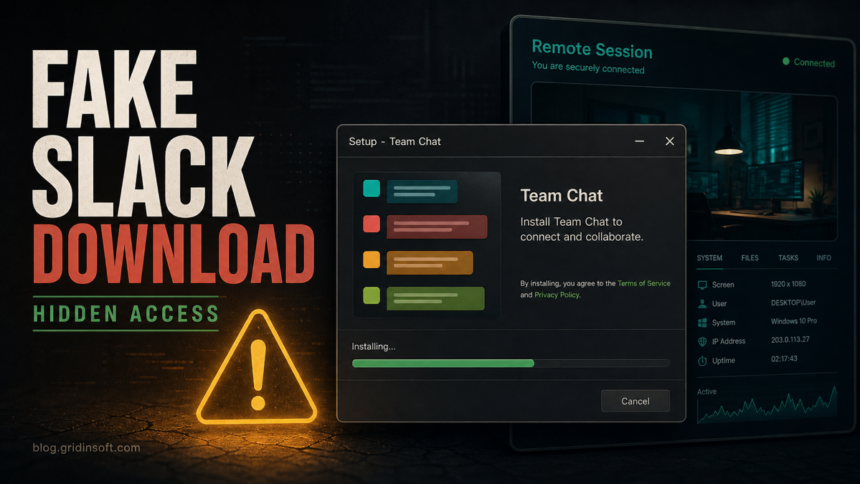
Researchers described a typosquatting site, slacks[.]pro, that pushed a file named slack-4-49-81.exe. The decoy was convincing because it installed a working copy of Slack through a normal-looking Squirrel installer flow. That is why a victim could see Slack open and assume the download was safe.
The risky part was the companion loader. Malwarebytes reported that the installer also wrote svc.tmp to the user temp folder, attempted command-and-control communication, and was engineered to run an HVNC payload that could give attackers an invisible desktop session. In plain terms, the user may see a normal Slack window while the attacker operates in a separate hidden session.
Is Slack Safe if I Downloaded It from the Official Site?
Yes. The issue is not the legitimate Slack app. The safe path is to download Slack from the official Slack download page [2], a trusted app store, or an internal company deployment system. The warning signs are small URL changes, extra letters in the domain, unfamiliar top-level domains, ads or reposted links, and pages that start a download when you click almost anywhere.
If you still have the installer, do not run it again. Check its source, file name, digital signature, and download URL. A legitimate app name is not proof of a legitimate installer.
First Steps if You Ran a Fake Slack Installer
- Disconnect the computer from the network. Unplug Ethernet or turn off Wi-Fi to interrupt any live remote session or C2 traffic.
- Do not sign in to more accounts from that PC. Use a clean phone or another trusted computer for account recovery.
- Save the installer path and file name. Note whether it was
slack-4-49-81.exeor another Slack-like file from Downloads, Desktop, or Temp. - Tell your IT or security team if this is a work machine. Slack often sits behind SSO, so the incident may involve company identity, browser sessions, and internal data.
- Run a full malware scan before reconnecting. A hidden desktop loader may not leave a visible window, so process and startup checks matter more than what you can see on screen.
Windows Artifacts to Check
Start with the locations and behaviors that match this kind of fake installer. The exact names can change, but these checks help separate a clean Slack install from a decoy plus loader.
%USERPROFILE%\Downloadsand Desktop for Slack-like installers from unknown domains.%TEMP%for files such assvc.tmp,slack.tmp,loader_log.txt, or freshwmiprvse_*.tmpfiles.%LOCALAPPDATA%\SquirrelTempfor the normal decoy install path, especially if the source was not official.HKCU\Software\Microsoft\Windows\CurrentVersion\Runfor Slack autostart entries that appeared immediately after the suspicious download.explorer.exefor unusual child processes, command lines, network connections, or injection alerts from your security tool.- Outbound traffic to unfamiliar hosts shortly after the installer ran, especially when Slack itself was not actively being used.
Do not delete random files blindly if this is a company device. Preserve the installer and suspicious paths for your security team. On a personal device, quarantine detections first, then remove leftover startup items only after the scanner or Windows logs identify them clearly.
Scan and Remove Leftovers
A fake Slack installer can show the legitimate app while a loader, temp file, startup entry, or injected process handles the malicious work. That is why uninstalling Slack is not enough if the installer already ran. Use Gridinsoft Anti-Malware to scan the full system, remove detected files and persistence, reboot, and scan again if browser sessions, pop-ups, or security alerts return.
If the page or email made you download an invoice, coupon, tracking app, browser extension, or support tool, scan the PC before opening it again or logging into sensitive accounts.
Scan the fake Slack installerAfter cleanup, reinstall Slack only from the official source or your company software portal. If your workspace uses device management, ask IT whether the machine needs endpoint isolation or a rebuild before it is allowed back on the network.
Accounts to Secure After Hidden Desktop Exposure
Hidden desktop malware is dangerous because it can interact with already-open sessions. Clean the PC first, then use a trusted device to secure accounts in this order:
- Slack and work SSO. Review Slack access logs [3], sign out other sessions, and ask an admin to reset SSO sessions if the workspace requires it.
- Email. Change the password, check forwarding rules, app passwords, recovery email, and recent login activity.
- Password manager. Rotate the master password only from a clean device and review recent vault access.
- Browser profiles. Revoke suspicious sessions for Google, Microsoft, Apple, GitHub, cloud consoles, and developer tools.
- Banking and crypto. Check withdrawals, saved devices, API keys, wallet extensions, and 2FA settings.
If you entered work credentials after running the fake installer, notify the workspace owner or security team. A personal password change may not be enough when SSO tokens, browser cookies, or managed devices are involved.
A separate hidden-desktop threat now targets browser sessions without the fake Slack lure. The MedusaHVNC analysis explains the JScript, AutoIt, charmap.exe, and Startup artifacts to check and why session revocation must follow malware cleanup.
How to Avoid Fake Slack Download Pages
- Bookmark the official download page instead of searching for the installer every time.
- Avoid sponsored results and reposted download links for workplace apps.
- Check the domain before clicking:
slack.comis not the same as a domain with extra letters or a different top-level domain. - Be suspicious when a page triggers a download from a different domain.
- Verify the publisher signature before running a newly downloaded installer.
- For company devices, prefer your managed software portal or ask IT for the approved installer.
Fake workplace-app downloads use the same trust shortcut as other fake job interview malware and fake game installer campaigns: the visible app looks familiar, while the risk is hidden in the installer source and the background process.
FAQ
Is Slack itself malware?
No. Slack is legitimate software. The malware risk comes from fake download pages and trojanized installers that pretend to be Slack.
Can a fake Slack installer install the real Slack app too?
Yes. That is what makes this attack convincing. A decoy installer can launch a working Slack app while a separate loader runs in the background.
Should I just uninstall Slack?
No. If the installer was fake, uninstalling Slack may remove the legitimate decoy app but leave the loader, temp files, injected process, or account exposure unresolved.
What should I change first after running a fake installer?
Disconnect and clean the PC first, then use a clean device to secure email, Slack or SSO sessions, password manager access, banking, crypto, and developer accounts.
References
- Stefan Dasic. “A fake Slack download is giving attackers a hidden desktop on your machine.” Malwarebytes Labs, April 16, 2026, accessed June 14, 2026. https://www.malwarebytes.com/blog/threat-intel/2026/04/a-fake-slack-download-is-giving-attackers-a-hidden-desktop-on-your-machine
- Slack Technologies. “Download Slack Desktop & Mobile App for Windows.” Slack, accessed June 14, 2026. https://slack.com/downloads/windows
- Slack Technologies. “View access logs for your account.” Slack Help Center, accessed June 14, 2026. https://slack.com/help/articles/360002084827-View-access-logs-for-your-account