

DriverUpdSvc.exe can belong to Avast Driver Updater or AVG Driver Updater. If you find it in Task Manager, check which installed app owns the running file. You can uninstall an optional driver updater and keep the hardware drivers Windows already uses. The important choice comes in the uninstaller itself: it may offer to erase the backups you would need to undo an earlier driver update.
Which app is running DriverUpdSvc.exe?
- Open Task Manager with Ctrl + Shift + Esc. On the Details tab, right-click the running DriverUpdSvc.exe and choose Open file location. Record the full path. If you started from a service entry instead, open its properties in Services and read the path to its executable.
- Right-click that file, open Properties and look under Details for the product name. Under Digital Signatures, select the signer and open Details again to see whether Windows validates the signature. A company name typed into the description is weaker evidence than a signature Windows can verify.
- Open Settings → Apps → Installed apps (Apps & features on Windows 10). Look for Avast Driver Updater or AVG Driver Updater. Compare the installed product with the folder, product name and verified publisher of the file you just located.
For example, a documented Avast build, version 21.3.1930.0, identifies itself as Avast Driver Updater Service, carries a signature from Avast Software s.r.o. and was recorded under C:\Program Files\Avast Software\Driver Updater\. Use those details to understand what a match looks like. An AVG installation or a newer build can have different details. If the busy process is actually AvastSvc.exe, the Avast Antivirus service, leave it in place while you investigate the updater separately.
Remove the updater and keep your drivers
If the product matches and you use it, you can leave the service running. If you no longer want the utility, select the matching Driver Updater entry in Installed apps and choose Uninstall. Check the product name again in the confirmation window. Leave Avast or AVG Antivirus alone. There is no need to remove a device in Device Manager or delete the executable by hand.
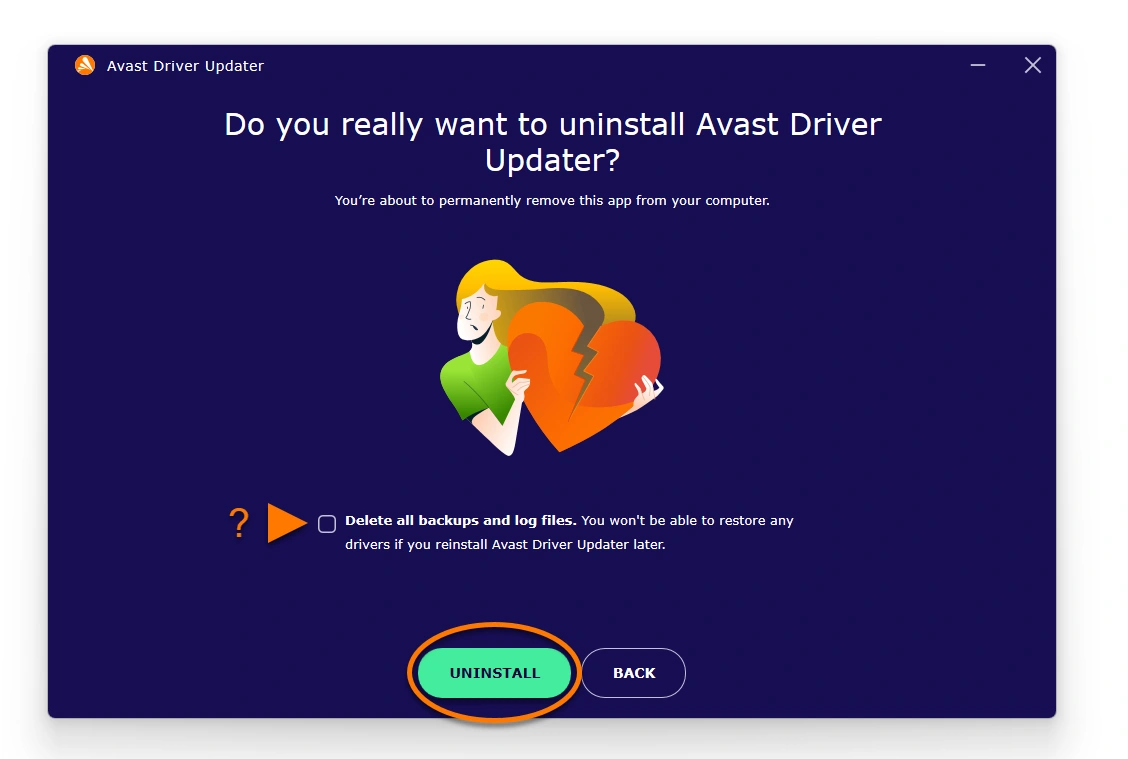
If a device stopped working after a driver update, pause here. Uninstalling the utility leaves the installed driver version in place. While you still have the updater and its backups, check its restore options for the affected device. If you might want those backups later, leave the option to delete backups and logs unchecked. Removing the application also leaves a paid subscription in place. Manage renewal separately in the account used to buy it.
What if the file returns after uninstall?
Restart Windows when the uninstaller asks, then check the running process again. Compare its current path with the one you recorded. A leftover folder on disk and a process that launches at every sign-in call for different decisions. If the original signed service still runs, check whether the matching product remains in Installed apps and use that vendor’s support instructions for an incomplete uninstall.
A second copy launching from Downloads after an unexpected installer needs a different check. Leave it closed, keep the path and any alert details, and look at what to check after a fake driver update prompt if that is how it arrived. If the unfamiliar copy ran or keeps returning, update Gridinsoft Anti-Malware and run a Full Scan. Review the detections against the path you recorded, apply the recommended cleanup to the identified items, restart, and check whether that same file runs again.
References
- Avast Support. Uninstalling Avast Driver Updater. Accessed November 27, 2026.
- AVG Support. Uninstalling AVG Driver Updater. Accessed November 27, 2026.