


hasplms.exe runs the Sentinel LDK License Manager on Windows. Licensed software can install this service to find a hardware key or check a software license. Even an application using a key plugged into your own PC can contact the service on port 1947. If a firewall prompt brought you here, leave the rule alone while you identify the running file and the program that needs it.
Match port 1947 to the running file
- Press Windows key + R, enter
resmonand open Network → Listening Ports. Find port 1947 and note the image name, process ID (PID), address and protocol. A port number by itself cannot identify its owner. - Open Task Manager → Services. Compare that PID with the row for hasplms. The screenshot below shows what a match looks like. Use the number on your own PC because Windows assigns the PID when the process starts.
- In Task Manager’s Details tab, right-click the matching process and choose Open file location. Thales lists
%CommonProgramFiles(x86)%\Aladdin Shared\HASP\for the installed service on 64-bit Windows and%CommonProgramFiles%\Aladdin Shared\HASP\on 32-bit Windows. Open the file’s Properties → Digital Signatures → Details and compare its publisher and signature status with the runtime supplied by your software vendor.
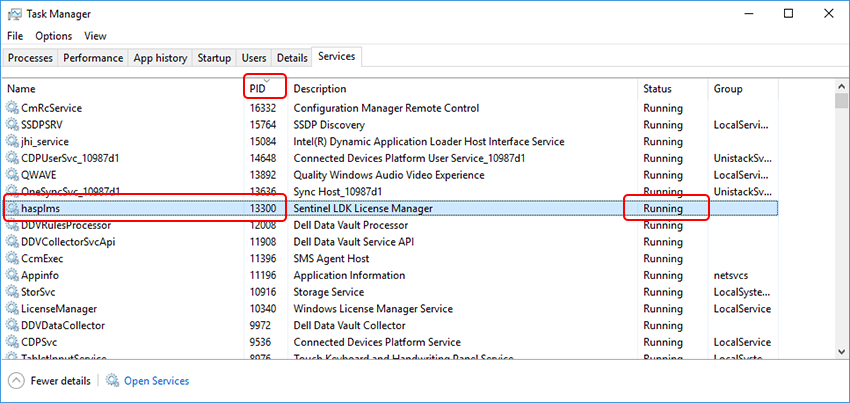
If a different process owns the port, record its name and path before troubleshooting either program. FARO documents one concrete symptom of a conflict: its licensed software can report status code 4858900 when the Sentinel service cannot start. Give support the error, time and owning PID. Ending a service by port number alone could interrupt another application.
Why a local license can trigger a network alert
A protected application can ask the license manager on its own PC for a license over TCP at 127.0.0.1:1947. That address loops back to the same computer. If the key lives on a shared license server, the local manager can also discover servers using UDP and communicate with the selected server over TCP on port 1947. Here is how to read three common observations.
- A connection to 127.0.0.1. Both ends are on your PC. This connection alone gives you no reason to allow incoming traffic from a public network.
- A listener at 0.0.0.0:1947. The service is listening on all local IPv4 interfaces. The listener does not tell you whether a remote client connected or whether the firewall permits one. Check the network profile and the scope of any existing rule before making a change.
- A connection to another computer on your work network. Ask the license administrator whether that address belongs to the approved server. Give them the application name, remote address and time of the prompt. If a rule is required, have them confirm the intended computers and network profile. Leave public-network access and router port forwarding disabled unless your administrator has a specific documented requirement.
Find the application before disabling the service
On the PC running the verified service, type http://localhost:1947 into your browser’s address bar. In the default configuration this opens Sentinel Admin Control Center. Look at Sentinel Keys and Sessions, then launch the licensed application you normally use and compare the entries. A newly visible session, its vendor and the time the application started can help you identify a dependency. An empty session list while other applications are closed tells you little about what they will need tomorrow.
For example, if FARO software opens only when its USB license key is attached, keep the runtime that lets it use that key. On a shared license server, ask who checks out seats before stopping the service. If the product was retired, follow its vendor’s license-return and uninstall instructions, then check for other products using the same runtime. Deleting the EXE leaves Windows with a registered service whose file is missing.
If the local page fails to load, open services.msc and check the status of Sentinel LDK License Manager. Record the exact licensing error and the application version. Use that application vendor’s supported runtime repair if needed. If Windows instead lists FNPLicensingService64.exe, the FlexNet licensing service, use the dependency checks for that product.
If the firewall names a different copy
A valid service can coexist with a second file using the same name. If the prompt points to Downloads or a temporary folder, compare that full path with the file behind the running service. Leave the unfamiliar copy blocked and keep the working licensing component in place. If the other copy ran after an unexpected installer, or a new alert returns after reboot, run a full scan with Gridinsoft Anti-Malware. Review detections against the recorded path and check for a startup entry that launches that copy again.
References
- Thales. Files installed by the Sentinel run-time environment installation API. Sentinel LDK documentation. Accessed November 27, 2026.
- Thales. Sentinel LDK run-time network activity. Sentinel LDK Software Protection and Licensing Guide. Accessed November 27, 2026.
- FARO. Error starting the Sentinel License Manager service. FARO Knowledge Base. Accessed November 27, 2026.