

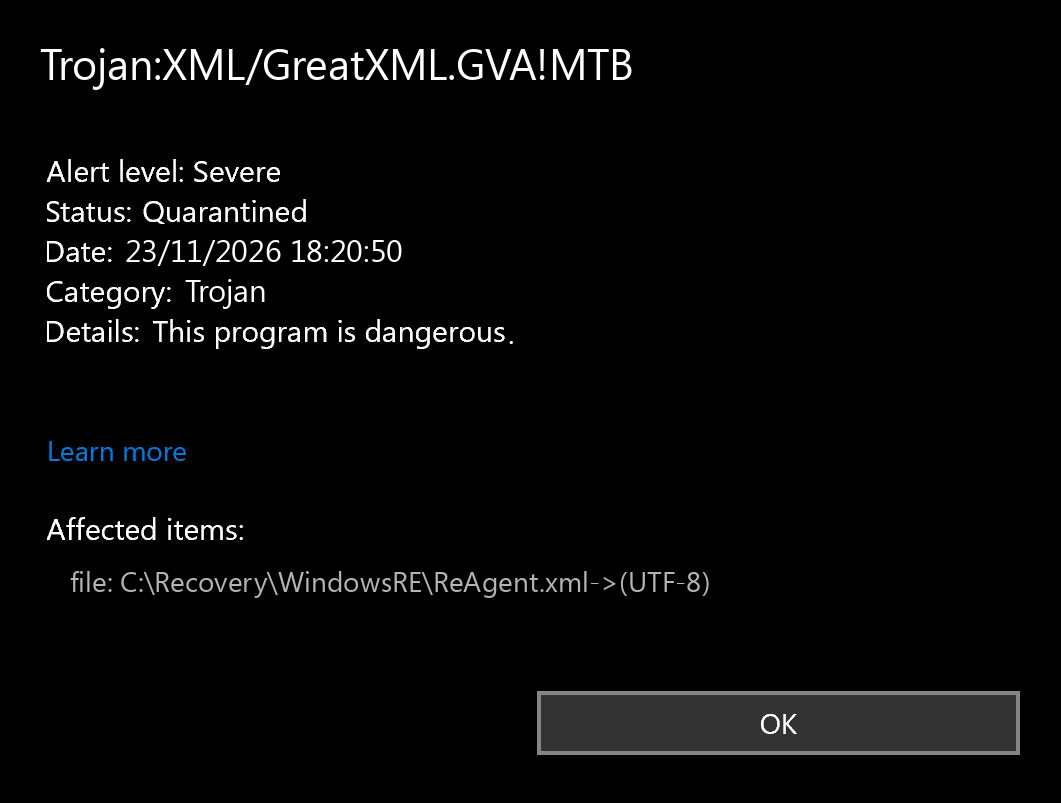
Trojan:XML/GreatXML.GVA!MTB is a Microsoft Defender Antivirus detection for XML content. If the alert names C:\Recovery\WindowsRE\ReAgent.xml, keep any quarantine in place and check the time and action on the newest Protection History card. Two affected-item lines on one card can describe the same XML file. A new detection after an updated scan is a separate event and calls for another look.
Why Defender lists ReAgent.xml twice
Open Windows Security → Virus & threat protection → Protection history and expand the GreatXML alert. Take down its timestamp, status and full affected paths. You may need an administrator account to see these details.
containerfile: C:\Recovery\WindowsRE\ReAgent.xmlidentifies the outer file Defender examined.file: C:\Recovery\WindowsRE\ReAgent.xml->(UTF-8)identifies the decoded content inside that file.->(UTF-8)is part of Defender’s display, so use the path before that suffix when comparing entries.
When both lines share the same base path on one card, treat them as one affected file for triage. If another card shows a different base path, record that location separately. ReAgent.xml is a Windows recovery configuration filename, and its location helps you decide whether to investigate Windows Recovery Environment (WinRE) or an unrelated download. Microsoft lists the exact detection in its threat encyclopedia and leaves its technical behavior unspecified.
Check whether the GreatXML alert actually returned
Compare the newest card’s time with the time you last scanned. An old card can stay in Protection History after Defender acts on it. If the notification returns and the cards are unclear, check the event log:
- Open Event Viewer → Applications and Services Logs → Microsoft → Windows → Windows Defender → Operational.
- Use Filter Current Log and enter
1116,1117,1118in the event IDs box. Look around the time of the alert or scan. - Match the GreatXML name and base path. Event
1116records a detection,1117records a Defender action, and1118records an action error. Open the action event and check what Defender did and whether it succeeded.
For example, if 1116 at 9:02 names ReAgent.xml and 1117 at 9:03 shows successful quarantine for the same item, those entries describe the detection and its handling. A matching 1116 at 11:45 after an updated scan is a new detection. Check its corresponding action before making another cleanup decision.
If Defender says Threat found – action needed, choose Quarantine. If it says Threat quarantined, leave the recovery item there while you verify it. For Remediation incomplete, keep the error and follow the steps for an unfinished Defender action. Keep the event history intact so you can compare it after the next scan.
What to do when the affected file is in Windows Recovery
Update Defender under Virus & threat protection updates, then run a Full scan from Scan options. A follow-up scan checks what it can access at that time. A clean result after quarantine leaves the quarantined copy’s original classification unresolved.
If Defender Offline sent you to a boot menu or immediately back to Windows, check the same Operational log for event 2030 around the time you started it. That event records that Defender prepared the scan for the next reboot. Check what appeared during restart and review the results in Protection History. If the offline scan fails to start, open an administrator Command Prompt and run the read-only status check reagentc /info. Enabled WinRE is a prerequisite. Save any disabled status, missing location or error for Microsoft, your PC maker or your IT team to review.
A false positive is possible for a recovery XML file. If an updated scan repeatedly flags just this path, give Microsoft or your IT team the exact detection, full path, timestamps and Defender actions. Ask how to submit the quarantined item for review if they need it. Keep the existing protection and recovery settings in place while the case is open.
When to scan for other malware
If fresh alerts point to a download, a temporary folder or an unexpected file in your user profile, check what was opened or installed before the first alert. A loader or a scheduled task can leave another copy after Defender handles the visible file. Use Gridinsoft Anti-Malware to run a full Windows scan for other detections and persistence. If an untrusted program already ran, follow the response steps for a suspicious download that ran, including protecting affected accounts from a trusted device.
References
- Microsoft. Trojan:XML/GreatXML.GVA!MTB threat description. Microsoft Security Intelligence, July 6, 2026. Accessed November 23, 2026.
- Microsoft. Microsoft Defender Antivirus event IDs and error codes. Microsoft Learn. Accessed November 23, 2026.
- Microsoft. Microsoft Defender Offline scan in Windows. Microsoft Learn. Accessed November 23, 2026.