eld4.exe is not a normal Windows file. If you find eld4.exe, eld3.exe, eld5.exe, or other eld*.exe files running from AppData/Local/Temp, an is-*.tmp folder, or the Startup list, treat the system as infected until a full scan proves otherwise. Public reports and file telemetry connect this cluster with downloader, ransomware-like, and startup-persistence behavior.
What is ELD4.exe?
ELD4.exe appears to be part of a small cluster of randomly staged executable names such as eld0.exe, eld1.exe, eld2.exe, eld3.exe, eld4.exe, and eld5.exe. The important point is not the number in the filename; it is the location and behavior. A file with this name in a temporary installer folder, Startup entry, or Task Manager process list should not be trusted as a Windows component.
Gridinsoft ThreatInfo records an exact eld3.exe sample as Trojan.Downloader [1]. Related ThreatInfo product telemetry lists eld4.exe and eld1.exe among Ransom.STOP records [2]. ANY.RUN also has a public sandbox report where eld5.exe.exe shows malicious activity [3]. That does not prove every local file with the same name is the same hash, but it is enough to justify immediate triage.
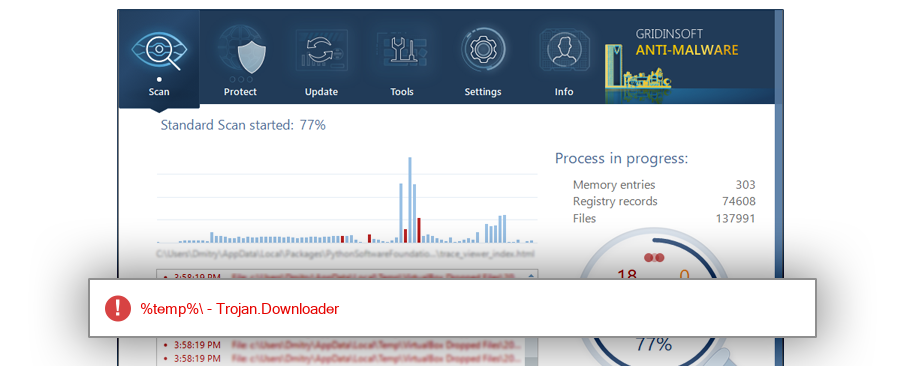
eld3.exe sample. Use your local file path and hash to confirm whether the same cluster is present.Why it appears in Temp and Startup
User reports describe eld4.exe running at startup from paths like C:/Users/Admin/AppData/Local/Temp/is-70IM7.tmp, with nearby files named eld0.exe through eld3.exe [4]. The is-*.tmp pattern often looks like a temporary installer extraction folder. Malware and unwanted installers abuse this because users rarely inspect Temp folders, and cleanup tools may miss an active process that recreates itself at logon.
Microsoft Sysinternals Autoruns documents that startup entries can be placed in Startup folders, Run, RunOnce, services, browser helper locations, and other autostart areas [5]. For ELD files, the most important places to inspect are:
Task Manager > Startup appsfor an entry namedeld4.exe,eld*.exe, or an unfamiliar installer name.%LocalAppData%/Tempand temporaryis-*.tmpfolders.HKCU/Software/Microsoft/Windows/CurrentVersion/RunandHKLM/Software/Microsoft/Windows/CurrentVersion/Run.- Task Scheduler entries created around the time the suspicious download or installer ran.
Signs this is active malware
Do not rely on the filename alone. Look for the behavior around it. A suspicious ELD infection commonly looks like this:
eld4.exeor anothereld*.exeprocess returns after reboot.- The file lives in
Temp,Downloads,AppData, or a random installer folder rather than a known program directory. - Startup apps show a blank publisher, strange name, or a path to an
is-*.tmpdirectory. - Your browser sessions, Steam account, email, or game accounts show unexpected login activity after the file appeared.
- A security tool flags the file as a downloader, trojan, ransomware, or generic threat.
- Deleting one ELD file leaves other numbered copies behind.
If you saw account compromise near the same time, handle the cleanup as a possible infostealer incident. Our infostealer checklist after a suspicious game or mod explains the order for scanning first, then resetting passwords from a clean device.
How to remove ELD4.exe safely
Use this order so you do not remove only the visible startup shortcut while leaving the loader behind.
- Disconnect risky sessions. If accounts were stolen or suspicious logins appeared, sign out of active sessions from a clean phone or another trusted computer before changing passwords.
- Record the path. In Task Manager, right-click the
eld4.exeprocess or Startup entry and open the file location. Save the folder path and modified time for your notes. - Do not run the file again. Avoid double-clicking any neighboring
eld*.exefiles. Do not upload private archives, browser profiles, or account data to random scanners. - Run a full malware scan. Use Gridinsoft Anti-Malware to scan the whole system, not just the one visible file. Remove detections for ELD files, loaders, startup entries, and related payloads.
- Check Startup and Run keys. After the scan, inspect Task Manager Startup apps and Autoruns. Disable or delete entries pointing to
eld*.exe,is-*.tmp, or unknown executables in Temp. - Clean leftover Temp folders. Remove only the suspicious ELD-related temporary folders after the process is stopped and the scan has completed. Leave unrelated files alone if you are unsure.
- Reboot and rescan. Restart Windows, confirm that
eld4.exedoes not reappear, then run another scan. If it returns, a scheduled task, service, or second payload is still present. - Reset passwords from a clean device. For stolen Steam, email, browser, or game accounts, change passwords and revoke sessions only after the infected PC is cleaned or from another trusted device.
A Temp file in Startup is a persistence pattern, not just one suspicious executable. Scan for the parent installer, task, service, or second payload before trusting that deleting ELD4.exe solved it.
If the process path is wrong, the name imitates a Windows component, or high CPU started after an unknown installer, scan for hidden miners, services, startup entries, and bundled components.
Remove the startup source, not only ELD4.exeManual checks after the scan
After Gridinsoft removes the active detections, these manual checks help confirm that the infection did not leave a persistence path behind:
- Open
shell:startupand remove shortcuts that point toeld*.exeor Temp folders. - Open Task Scheduler and review tasks created on the date the suspicious installer appeared.
- Use Autoruns with signed Microsoft entries hidden, then review third-party logon entries and scheduled tasks.
- Check installed apps for the installer, crack, bundle, or fake utility that arrived before ELD appeared.
- If you downloaded cracks or repacks, read why cracked games often carry stealers, miners, and loaders.
If Windows keeps showing strange startup behavior after the cleanup, compare the symptoms with our mshta.exe scheduled-task cleanup guide. The filenames differ, but the persistence logic can be similar: a small launcher at logon may pull or run a second payload.
When to reinstall Windows
Most ELD cases should start with a scan, persistence cleanup, and password/session reset. A clean reinstall becomes reasonable when the scanner keeps finding new payloads, you cannot trust the admin account, security tools are disabled after reboot, or high-value accounts were stolen and the machine still behaves oddly. If you reach that point, prepare install media on a clean computer. Our clean Windows install USB guide covers how to avoid carrying the infection back through old installers and backups.
For another exact-file startup case, see the Moo.exe virus link cleanup guide, which explains how to verify file paths, persistence, and account-safety steps.
FAQ
Is ELD4.exe a Windows system file?
No. ELD4.exe is not a standard Windows component. A copy in Temp, AppData, Startup, or an unknown installer folder should be treated as suspicious.
Can I just delete eld4.exe from the Temp folder?
Deleting the file may remove the visible copy, but it may not remove the startup entry, scheduled task, downloader, or second payload. Scan first, then clean persistence entries and reboot to confirm it does not return.
Why are there several files named eld0.exe through eld5.exe?
Numbered copies can appear when an installer or loader drops several related executables. Treat the folder as one suspicious cluster instead of cleaning only the highest-numbered file.
Could ELD4.exe steal my Steam or browser accounts?
The public reports include account-theft concerns, but your local risk depends on what payload ran. If you saw stolen accounts or browser session abuse, clean the PC first, then reset passwords and revoke sessions from a trusted device.
References
- GridinSoft ThreatInfo. “eld3.exe Malware Detection Report.” ThreatInfo, latest analysis January 25, 2026, accessed May 28, 2026. https://threatinfo.net/files/eld3.exe-f0e68d01042004c931cb2dcfa673c674
- GridinSoft ThreatInfo. “Porezot Files: Hashes and Detection Reports.” ThreatInfo, accessed May 28, 2026. https://threatinfo.net/products/Porezot
- ANY.RUN. “Malware analysis eld5.exe.exe: Malicious activity.” ANY.RUN public sandbox report, analysis date November 8, 2025, accessed May 28, 2026. https://any.run/report/4ff37e0d4b7d74c84bd26ae956a71441d8595f22c4ef1c9db6fbfc1ee2325f5f/909f33e4-5e03-4273-9575-e5378344e091
- Reddit. “HELP! what is eld4.exe on my startup program & task manager??” r/buildapc, September 2025 thread, accessed May 28, 2026. https://www.reddit.com/r/buildapc/comments/1n6ath4/help_what_is_eld4exe_on_my_stratup_program_task/
- Microsoft Sysinternals. “Autoruns v14.11.” Microsoft Learn, published February 6, 2024, accessed May 28, 2026. https://learn.microsoft.com/en-us/sysinternals/downloads/autoruns