ctfmon.exe, shown in Task Manager as CTF Loader, is normally a legitimate Windows text-input process. Sustained high CPU usually means an input method, keyboard layout, handwriting or speech component, or an app using Windows text services is stuck in a loop. Test the active layout first, restart the input session, and repair Windows only if the load returns. Do not rename or delete the genuine file. Treat it as a security problem when the running copy has the wrong path, an invalid signature, suspicious persistence, or unrelated network activity.
ctfmon.exe runs from C:\Windows\System32 with a valid Microsoft signature, high CPU alone is not evidence of malware.What Is Ctfmon.exe?
CTF Loader connects Windows text services to features such as input method editors (IMEs), language switching, the touch keyboard, handwriting, speech input, and text entry in modern Windows interfaces. It can start at sign-in and return after you end it because Windows launches it when an input feature needs it.
Brief CPU activity while switching languages, opening the emoji panel, using dictation, or entering text is normal. A process that holds a CPU core, makes the fan run continuously, delays typing, freezes the language indicator, or crashes repeatedly needs troubleshooting.
Match the CTF Loader Symptom to the Next Check
| What you see | Most useful next check |
|---|---|
| CPU rises after switching to one language or layout | Switch to another installed layout. If CPU drops, remove and re-add only the affected layout or IME. |
| CPU rises while typing in one app or game | Close that app, test a basic editor, and disable third-party input, overlay, macro, or accessibility tools one at a time. |
| The language indicator freezes or typing stops | Sign out and back in, then confirm that Text Input Management Service is not disabled. |
| CTF Loader crashes or returns after every restart | Install Windows updates, test a clean boot, and run DISM followed by SFC. |
| The file opens from AppData, Temp, Downloads, or a program folder | Do not assume it is the Windows component. Verify the signer and inspect startup, task, service, and parent-process context. |
1. Isolate the Keyboard Layout or IME Trigger
Do this before changing services or system files. It produces a useful answer quickly and is reversible.
- Open Task Manager and sort the Processes or Details tab by CPU.
- Press Windows key + Space and switch to another installed keyboard layout.
- Type for a minute in Notepad or another simple editor. Watch whether CTF Loader drops back near idle.
- Switch back to the suspected layout and repeat the same text-input action.
- If only one layout triggers the spike, record its language, keyboard name, Windows build, and whether the device is on an Insider channel.
A layout-specific result points to the Windows input stack or that IME, not automatically to malware. Current user reports include non-standard layout loops, but do not copy hidden feature-flag commands from a forum. Those IDs can change and may alter unsupported Windows settings. Update Windows first and report a reproducible Insider issue through Feedback Hub.
2. Restart the Input Session Safely
You can end CTF Loader in Task Manager as a temporary test. Windows may start it again as soon as an input feature requests it.
- Save open work.
- Right-click CTF Loader or
ctfmon.exein Task Manager and choose End task. - Sign out of Windows and sign back in. A full restart is useful if the language indicator or touch keyboard is also stuck.
- Repeat the layout test. If the same action recreates the spike, move to the service and layout checks instead of ending the process repeatedly.
Do not rename ctfmon.exe to prevent it from returning. That can break Start menu typing, language switching, the touch keyboard, handwriting, dictation, and text input in Windows apps.
3. Check Text Input Management Service
Microsoft documents that ctfmon.exe cannot start when Text Input Management Service is disabled, and the IME framework then fails to initialize. On Windows releases earlier than Windows 11 25H2, the same component is shown as Touch Keyboard and Handwriting Panel Service.
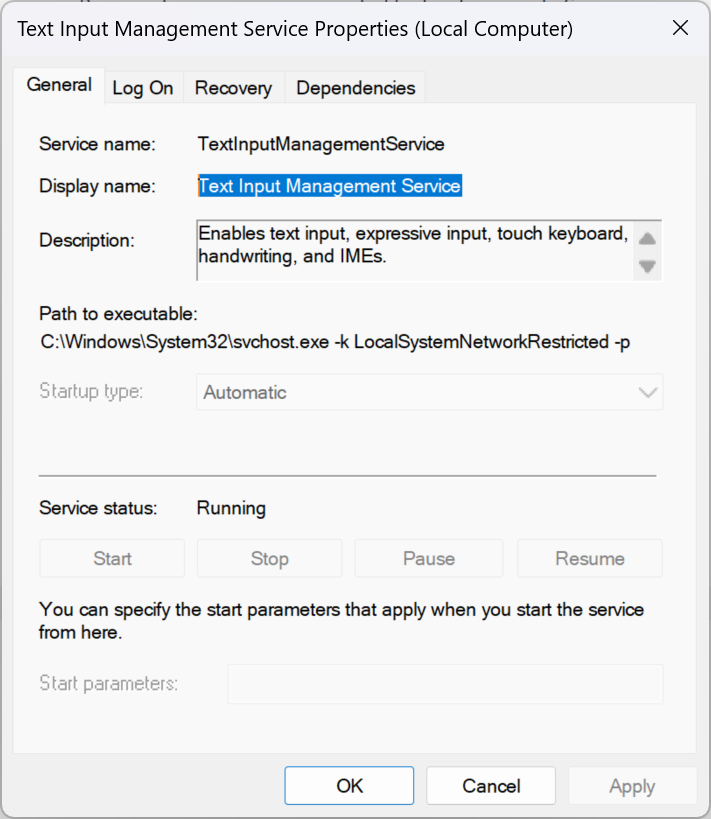
- Press Windows key + R, enter
services.msc, and press Enter. - Open Text Input Management Service, or the older Touch Keyboard and Handwriting Panel Service name.
- If it is disabled, set the startup type to Manual or Automatic and start it.
- Sign out and back in, then test language switching again.
Do not permanently disable this service just to reduce CPU use. Disabling the input framework removes symptoms by breaking features; it does not repair the layout, IME, app conflict, or damaged Windows component that caused the loop.
4. Remove and Re-add Only the Affected Layout
If one layout or IME consistently recreates the spike, repair that input configuration without deleting every language:
- Open Settings → Time & language → Language & region.
- Select the affected language and open Language options.
- Note the exact keyboard or IME. Make sure another working layout is available before removal.
- Remove the affected keyboard, sign out, sign back in, and add it again through Settings.
- Install any pending Windows and language-feature updates, then repeat the same input test.
If the layout is managed by an organization, stop before changing policy-controlled languages and contact the administrator. Avoid registry-cleaner recipes that delete keyboard mappings indiscriminately.
5. Test Third-Party Input and Overlay Software
A keyboard remapper, macro utility, clipboard manager, handwriting tool, game overlay, remote-control program, or accessibility add-on can repeatedly call the Windows input framework. Close or disable one recent tool at a time and retest. A clean boot can confirm a third-party conflict, but preserve Microsoft services and restore the normal startup configuration after the test.
CTF Loader and TextInputHost.exe are related to Windows input but are not interchangeable. Check the exact process at the top of Task Manager so you follow the right repair path.
6. Repair Windows Components After Updates or Crashes
If the spike began after an interrupted update, CTF Loader crashes repeatedly, or several Windows input features fail, use Microsoft’s supported repair order from an elevated Terminal or Command Prompt:
DISM.exe /Online /Cleanup-image /Restorehealth
sfc /scannow
Let DISM complete before starting SFC, and do not close the window until verification reaches 100 percent. Restart Windows afterward and reproduce the original layout or app trigger. These tools repair protected Windows components; they do not fix a third-party IME or prove that a suspicious file is harmless.
Is Ctfmon.exe a Virus?
The running Windows instance normally opens from C:\Windows\System32\ctfmon.exe and carries a valid Microsoft signature. Windows can also retain component-store copies under WinSxS, so judge the active process by its opened location, signature, and behavior rather than searching the drive for every same-name file.
- In Task Manager, right-click CTF Loader and choose Open file location.
- Open Properties → Digital Signatures. Confirm a valid Microsoft signer. The EXE safety checklist explains why name, path, signer, source, and behavior must agree.
- Investigate a copy in
AppData,Temp,Downloads, a browser cache, or an unrelated program folder. Microsoft Sysinternals Sigcheck can show signature, version, and hash details from the command line. - Check whether an unknown startup entry, scheduled task, service, or unusual parent process launches it. Use the suspicious startup app guide before deleting entries.
- Treat unexplained outbound connections, a security warning, a recently run unknown installer, or a process that returns from a user folder as separate security evidence.
If a wrong-path copy already ran, deleting only the visible executable may leave a loader, scheduled task, service, bundled app, or startup entry that recreates it. Disconnect from untrusted networks when there is unexplained traffic, preserve the path and alert details, and run a full Gridinsoft Anti-Malware scan to check related files and persistence. Remove detections, reboot, and scan again if the process or warning returns.
If the process path is wrong, the name imitates a Windows component, or high CPU started after an unknown installer, scan for hidden miners, services, startup entries, and bundled components.
Scan a suspicious ctfmon.exe copyIf CTF Loader High CPU Keeps Returning
- Record the exact trigger: sign-in, language switch, first keystroke, game launch, remote session, touch keyboard, handwriting, or speech input.
- Compare a standard layout with the affected IME or non-standard layout instead of changing several variables at once.
- Install stable Windows updates; if the issue exists only on an Insider build, include the build and reproduction steps in Feedback Hub.
- Update or remove the specific third-party input tool that recreates the loop.
- Check Event Viewer around each crash before repeatedly restarting the process.
- If multiple Windows components spike, diagnose the caller rather than assuming every busy system process is infected.
FAQ
Can I end CTF Loader in Task Manager?
Yes, as a temporary diagnostic step. Windows can restart it when text input is needed. If ending it fixes CPU use only briefly, isolate the layout, IME, app, or service trigger.
Is it safe to disable ctfmon.exe?
Permanent disabling is not a good default fix. It can break language switching, Start menu typing, the touch keyboard, handwriting, speech input, and text entry in Windows apps.
Why does CTF Loader spike only when I switch languages?
The selected IME or keyboard layout may be stuck while Windows loads or processes it. Switch to another layout, remove and re-add only the affected one, and install current Windows and language-feature updates.
Why are there multiple ctfmon.exe files on the drive?
Windows can keep component-store copies for servicing. Open the location of the running Task Manager process and verify its Microsoft signature. A same-name file in a user or temporary folder needs separate investigation.
Does high CPU mean ctfmon.exe is malware?
No. A legitimate Microsoft-signed System32 process can spike because of an IME, layout, input tool, app conflict, or damaged Windows component. Malware concern rises when path, signer, persistence, parent process, or network behavior is wrong.
References
- Microsoft. “Microsoft IME common issues and solutions.” Microsoft Learn, updated June 12, 2026, accessed August 18, 2026. https://learn.microsoft.com/en-us/troubleshoot/windows-client/shell-experience/troubleshoot-ime-common-issues
- Microsoft. “Use the System File Checker tool to repair missing or corrupted system files.” Microsoft Support, accessed August 18, 2026. https://support.microsoft.com/en-us/windows/experience/backup-recovery/use-the-system-file-checker-tool-to-repair-missing-or-corrupted-system-files
- Mark Russinovich. “Sigcheck v2.91.” Microsoft Sysinternals, published February 4, 2026, accessed August 18, 2026. https://learn.microsoft.com/en-us/sysinternals/downloads/sigcheck