

A virus found in System Volume Information is not necessarily running on your PC. An antivirus can detect a copy of a file that Windows saved in a restore point. The folder name alone does not tell you that the item is a restore point, that it ran, or that the rest of the PC is clean. Before deleting anything, open the scan report and check which drive, which file, when, and what action the antivirus took.
Read the alert without opening the folder
If Microsoft Defender reported the threat, open Windows Security → Protection history and expand the matching card. You may need administrator access to view the details. If another antivirus raised the alert, use that product’s detection history. Write down the detection name, the full affected path, the time, and the action. Look for other items listed under the same event.
- Only a folder on a USB drive? Windows can create a folder named
System Volume Informationthere. Seeing it in File Explorer is different from an antivirus naming a malicious file inside it. If other folders disappeared or turned into shortcuts, scan the drive without opening the shortcuts. Do not format it just because of the system folder. - A file under a restore path? For example, an older report might start with
C:\System Volume Information\_restore. That suggests a saved system state. A drive letter and the folder name without more detail are insufficient to identify which Windows feature stored the file. - What did the scanner do? In Defender, Threat quarantined means the item was contained. Leave it there. Remediation incomplete means cleanup did not finish. Expand the card for its next action; if needed, follow the guide to an incomplete Defender cleanup. Do not choose Allow or Restore to see what happens.
Compare the next alert with the first one
Suppose Monday’s scan lists a suspicious installer in a restore point and marks it quarantined. On Tuesday you open Protection history and see the same Monday date, the same path, and the same action. You are looking at a record of Monday’s finding. The card remaining visible is not a second detection.
Now suppose Tuesday’s scan names the same installer in C:\Users\Public\Downloads. This time you have a new event at a location outside the restore data. Even that does not prove the installer ran. It does mean deleting Monday’s restore points would leave Tuesday’s file unaddressed. Quarantine the newly identified item and check whether anyone opened it.
There is a third possibility: a fresh scan reports only the same restore path, and the action still says it could not clean it. Do not call that reinfection or assume the old copy is harmless. Keep the report, avoid using the suspect point, and check the current installation before deciding what recovery history to discard.
Check the current PC before changing recovery settings
- Update your active antivirus and run a full scan. In Defender, use Virus & threat protection → Scan options → Full scan → Scan now. If the original report named an external drive, also select that drive for a custom scan; do not assume it was included.
- Read the results. If there are no new findings outside the restore data and no unexplained symptoms, keep protection on and avoid the suspect point. A clean scan is reassuring, but it cannot establish whether a file ran in the past.
- If a file returns in a working folder after quarantine or restart, investigate what puts it back. A scheduled task or startup entry can recreate a payload. Use the post-malware Windows security checklist. A second scan with Gridinsoft Anti-Malware can check the current installation for related files and startup entries; it cannot certify a restore point as safe.
What you lose if you delete restore points
Classic Windows System Restore rolls back system files, registry settings, drivers, and installed programs. Applying a point from the affected period may bring the suspect file back. System Restore is not a backup of your photos and documents. If you need a separate copy before recovery, see which personal files to back up from an infected PC.
To see which drive the setting affects, search Start for Create a restore point. In the System Protection tab, select the drive named in the alert and choose Configure. You can inspect this dialog and cancel without changing anything. The Delete button affects all restore points for that drive, including ones from before the incident.
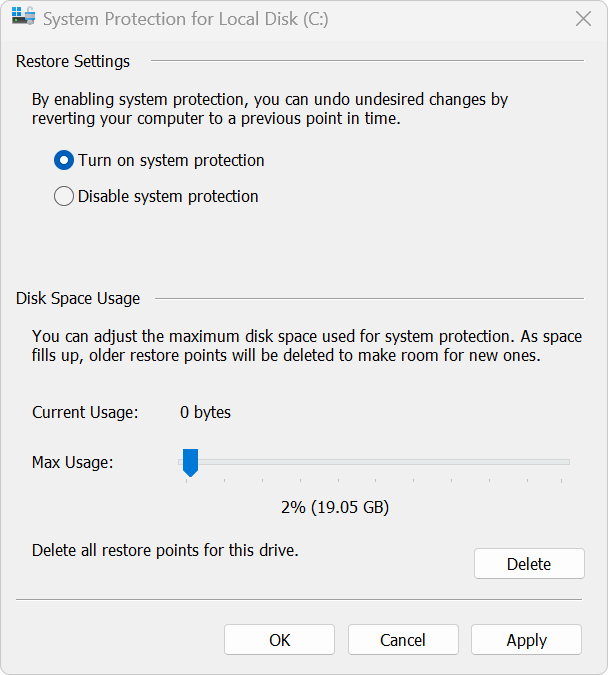
If the scanner confirms the remaining item is confined to restore data and specifically recommends removing those points, first make sure you have an independent, usable backup and accept losing those rollback dates. On a managed PC, give the report to IT instead. Do not take ownership of the system folder, delete its contents by hand, or turn off antivirus protection.
After any recommended cleanup, keep System Protection enabled, rescan, and create a fresh point once the system is stable. Give it a date and description you will recognize. A new point gives you a place to roll back later; it does not clean the PC or make an old point safe.
References
- Microsoft. Protection History in the Windows Security App. Microsoft Support. Accessed November 11, 2026.
- Microsoft. Virus and Threat Protection in the Windows Security App. Microsoft Support. Accessed November 11, 2026.
- Microsoft. System Protection. Microsoft Support. Accessed November 11, 2026.