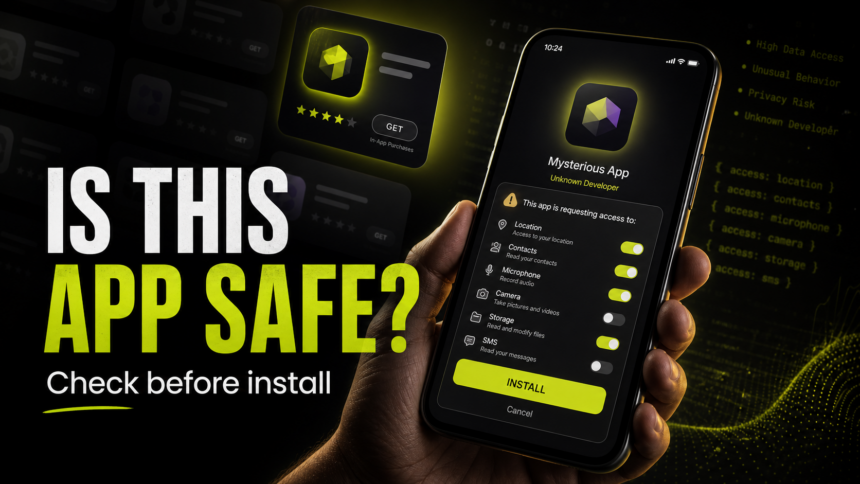
Before you install a mobile app, do a quick security check: verify the developer, read the latest reviews, compare requested permissions with what the app actually does, check payment and subscription traps, and use the built-in safety tools on Android or iPhone. A popular app is not automatically safe, and a brand-new app is not automatically malicious. The risk usually shows up in the mismatch between the app’s promise and the access it wants.
How to judge an unfamiliar app
A familiar icon or a popular name tells you little about the app you are about to install. Verify who publishes it, where the download comes from, and whether its requested access fits the feature you need. A simple game asking to read messages or control the screen deserves a closer look.
The 60-Second App Safety Checklist
- Start with the source. Prefer the official App Store, Google Play, or the developer’s own website. Be much more skeptical of APK mirrors, links in messengers, “beta” download pages, QR codes, and ads that promise a free premium version.
- Check the developer. Look for a real company name, website, support email, privacy policy, release history, and other apps from the same developer. Copycat names, generic Gmail addresses, and one-app developers are not automatic proof of malware, but they raise the bar for trust.
- Read recent low-star reviews first. Sort by newest and look for patterns: unwanted charges, impossible cancellation, login theft, aggressive ads, fake support, account bans, battery drain, or users saying the app changed after an update.
- Compare permissions with the job. A flashlight, wallpaper, calculator, QR reader, or coupon app should not need SMS, Accessibility, Notification access, Device Admin, VPN control, screen recording, contact list, precise location, or microphone access unless the feature clearly requires it.
- Check payments before tapping install. Look for subscriptions, in-app purchases, free-trial renewal dates, cancellation steps, and whether the app pushes you away from the official store payment flow.
- Use built-in safety signals. On Android, check Google Play Protect and warnings during installation. On iPhone, read the App Privacy section before installing and use App Privacy Report after installing to see permission and network activity.
- Check the download page or domain. If the app came from a web page, scan the URL with the Gridinsoft Website Reputation Checker. Fake app campaigns often start with a convincing download page, not the app file itself.
Red Flags That Should Stop You
| Signal | Why it matters |
|---|---|
| APK, profile, or installer link sent through WhatsApp, Telegram, Discord, SMS, email, or a job interview chat | Many fake app and fake job campaigns move victims away from official stores so the app can ask for more dangerous permissions. |
| The app asks you to disable Play Protect, antivirus, or browser warnings | Legitimate apps should not need you to turn off the device’s safety layer. |
| Accessibility, SMS, Notification access, Device Admin, VPN, or screen recording is requested without a clear reason | These permissions can be abused for credential theft, banking fraud, surveillance, ad injection, or blocking removal. |
| Reviews say the app is a copycat, subscription trap, fake cleaner, fake update, fake wallet, fake trading app, or fake support tool | Scam apps often look normal at first and reveal the monetization or theft flow only after installation. |
| The app’s icon/name imitates a famous brand but the developer is unrelated | Copycat apps target users who install quickly and trust familiar visuals. |
Android: What to Check Before Installing
On Android, Google Play Protect checks apps during installation and scans devices afterward. Google says Play Protect now scans more than 350 billion Android apps daily, and its 2025 ecosystem safety update says Google prevented more than 1.75 million policy-violating apps from being published on Google Play. That scale helps, but it does not make every install decision risk-free.
Use this Android-specific flow:
- Open Google Play Protect. In Google Play, tap your profile picture, then Play Protect. Make sure scanning is on and review any warnings.
- Be careful with sideloading. If Android warns that an app from a browser, file manager, or messenger is unsafe, pause. Do not install because a stranger, “support agent”, or employer says the warning is normal.
- Inspect permissions after install. Go to Settings -> Apps -> select the app -> Permissions. Deny anything that is not required for the feature you use.
- Check special access. Review Accessibility, Notification access, Device Admin apps, VPN, Usage access, Install unknown apps, and Display over other apps. These are more powerful than ordinary camera or photo permissions.
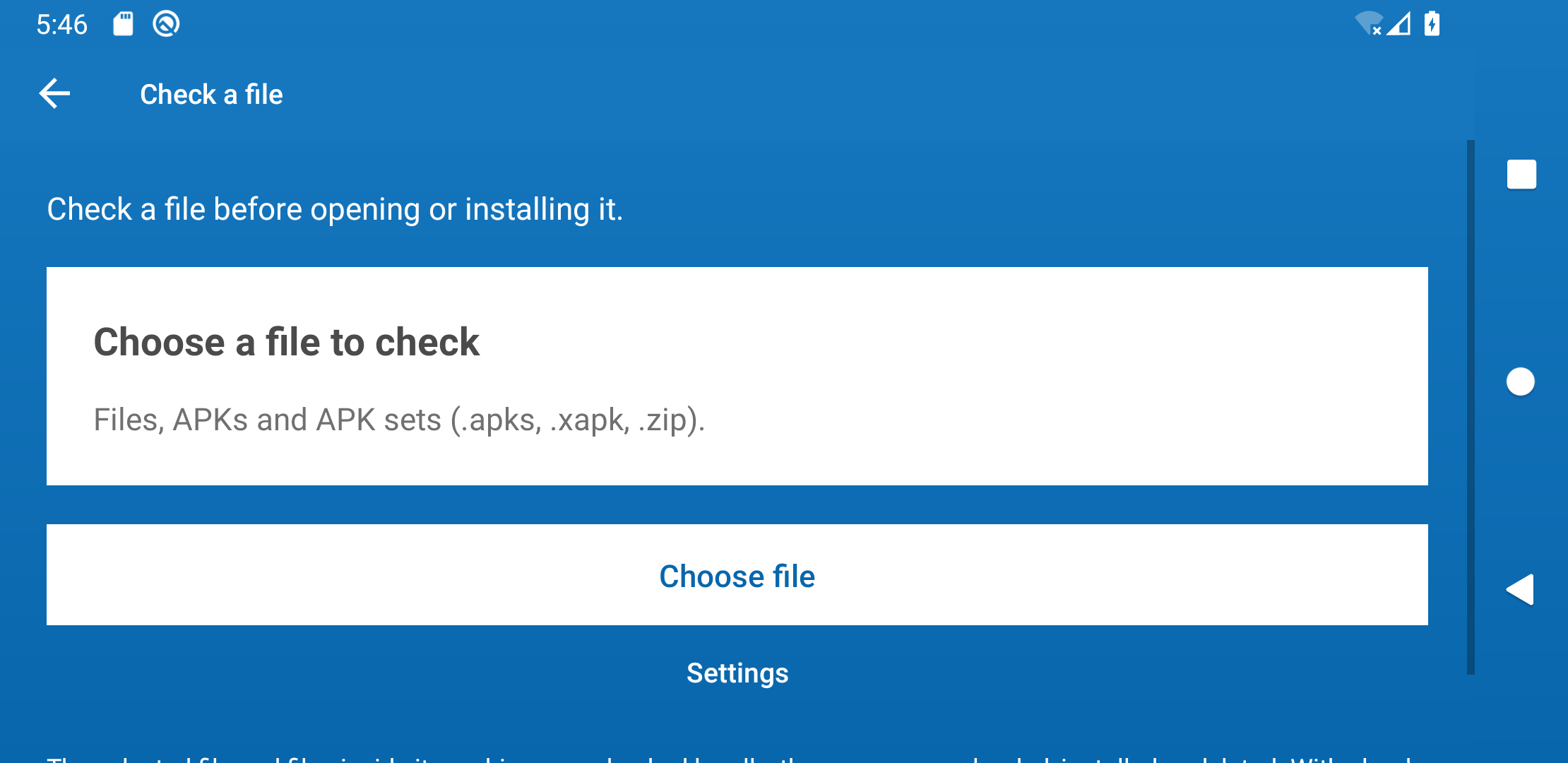
- Check the APK on your Android before installing it. In Trojan Scanner for Android, open Menu → Check a file → Choose file and select the download. You can examine the APK or supported archive without installing the app it contains. If it is flagged, leave it uninstalled and remove the unwanted download.
For symptoms after installation, see our guide to Android malware signs and removal. If the app was connected to a remote job, interview task, or “test project” download, also read Fake Job Interview Malware: What to Do After Downloading an App.
Official-store listings can also leave gaps in public feedback. The September 2026 report on Google Play Early Access reward apps explains why private tester feedback and a displayed cash balance do not establish that a payout promise is reliable.
Make the download check part of your decision
Trojan Scanner’s clear file-selection screen makes this a practical check before you give an unfamiliar app access to the phone. If you already installed it, scan the installed apps, review the findings, and confirm removal of unwanted items in Android. Anti Spy helps you review suspicious hidden-app access. A scan complements the source and permission checks; it does not turn an untrusted download into a trusted publisher.
iPhone and iPad: What to Check
iOS is more restrictive than Android, but scam apps, subscription traps, misleading reviews, fake profiles, and privacy-invasive behavior still exist. Apple says App Privacy Report shows how apps use the permissions you granted and which network domains they contact. Use it after installing an app that handles sensitive data, money, location, photos, messages, health data, or child safety.
Before installing on iPhone or iPad:
- Read the App Privacy section. On the App Store page, review data linked to you, data used to track you, and the developer’s privacy policy.
- Check the developer and app history. A real app should have a consistent developer identity, support path, update history, and credible recent reviews.
- Look for subscription traps. Check whether a “free” scanner, cleaner, VPN, dating, AI, or photo-editing app starts an expensive trial.
- Review permissions after install. Go to Settings -> Privacy & Security and inspect Location Services, Tracking, Photos, Contacts, Microphone, Camera, Bluetooth, Local Network, and App Privacy Report.
- Be wary of configuration profiles. A random app or website should not ask you to install a device management profile unless you know exactly why.
If You Already Installed a Suspicious App
- Disconnect if money or accounts are involved. Turn on airplane mode if the app is actively asking for one-time codes, screen sharing, banking login, or remote access.
- Save the evidence. Keep the app name, developer name, download link, transaction receipt, phone number, email, or chat that led you to the app.
- Revoke dangerous access. Remove Accessibility, Notification access, Device Admin, VPN, profiles, location, SMS, contacts, camera, microphone, and photo permissions where applicable.
- Uninstall the app. If it resists removal on Android, check Device Admin apps and Accessibility first.
- Change passwords from a clean device. Prioritize email, banking, Apple ID, Google account, crypto wallets, social accounts, and work accounts.
- Check payments. Review App Store or Google Play subscriptions, card charges, PayPal, bank transfers, and any payment app connected to the account.
- Check a Windows PC if software ran there. If you launched an unexpected Windows installer or see suspicious behavior on that PC, scan it with Gridinsoft Anti-Malware. Storing or transferring an Android APK does not install that app on Windows.
FAQ
Are apps from Google Play always safe?
No. Google Play is safer than random APK sites, and Play Protect adds an important safety layer, but malicious or misleading apps can still appear, change behavior, or abuse permissions. Check the developer, reviews, permissions, and warnings before installing.
What app permission is the biggest red flag?
Accessibility, SMS, Notification access, Device Admin, VPN, and screen recording deserve the most caution. They can be legitimate for some apps, but they are also frequently abused in scam, spyware, banking-fraud, and account-theft flows.
Should I install an APK if Play Protect blocks it?
Usually no. If the source is a messenger, browser download, fake job task, cracked app site, or “support” instruction, treat the warning as serious. Only continue if you can verify the developer, source, hash, and reason for the warning.
Can an iPhone app be dangerous?
Yes. iOS reduces many malware risks, but users can still face subscription traps, fake support apps, misleading reviews, privacy-invasive apps, scam payment flows, and risky configuration profiles.
References
- Google. “How Google Play and Android app ecosystems stayed safe in 2025.” The Keyword, accessed June 7, 2026. https://blog.google/products-and-platforms/platforms/google-play/how-we-kept-google-play-safe-in-2025/
- Apple Support. “About App Privacy Report.” Apple, accessed June 7, 2026. https://support.apple.com/en-us/102188