Trojan:Win32/NSteal.SA is a Microsoft Defender detection for a trojan that should be quarantined or removed, not restored, unless you are deliberately testing a known clean file and have submitted it for review. If the alert keeps returning after you choose Take action, treat the case as unfinished cleanup: another file, startup entry, scheduled task, browser cache item, or recently restored download may be recreating the detection.
The practical goal is to confirm the detected path, remove the source that is bringing it back, and protect accounts if the file already ran. Do not follow random registry-deletion advice before you know which file Defender named.
What Trojan:Win32/NSteal.SA means
Microsoft lists Trojan:Win32/NSteal.SA as a Defender Antivirus detection and says technical behavior details are not currently published for this family. The name still matters: Trojan means Defender believes the file can perform unwanted actions, and NSteal points to a stealer-style classification rather than a harmless Windows component.
In user reports, the same alert often appears as a loop: Defender notifies, the user clicks Take action, a later scan says there are no current threats, and then another notification appears. That pattern can happen when Defender is only seeing the copied payload while the origin remains elsewhere, such as a downloaded archive, a browser cache file, a game/mod installer, a startup entry, or a scheduled task.
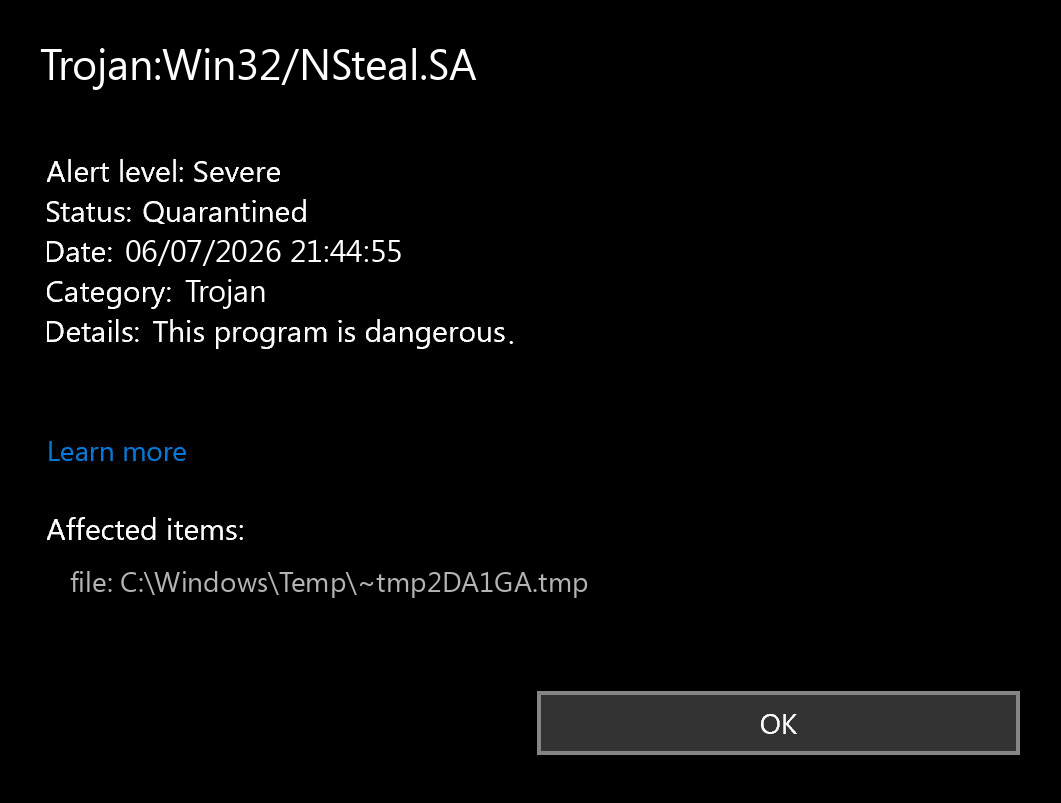
Check the Defender details first
- Open Windows Security -> Virus & threat protection -> Protection history.
- Open the newest Trojan:Win32/NSteal.SA entry and note the affected item path, detection time, and action status.
- If the path points to
Downloads, a ZIP/RAR/ISO, a game/mod folder,%TEMP%,%LOCALAPPDATA%, a browser profile cache, or a recently installed app, leave the item quarantined and remove the source file or installer. - If the path is hidden by Defender or the action status keeps changing, export or screenshot the Protection history details before making manual changes.
Be especially cautious with paths like %USERPROFILE%\Downloads, %LOCALAPPDATA%\Temp, C:\Users\Public, startup folders, and unusual entries under HKCU\Software\Microsoft\Windows\CurrentVersion\Run. Those locations are common places for temporary payloads, installers, and persistence, but the exact risk depends on the file Defender named.
If the NSteal alert keeps coming back
A repeating Trojan:Win32/NSteal.SA warning usually means one of four things: the original archive is still being scanned, a browser or app cache keeps restoring the file, a startup/persistence item is dropping it again, or the detection is a false positive against a file you keep re-downloading or restoring.
| What you see | What to check next |
|---|---|
| The same downloaded archive or extracted folder is named each time. | Delete the archive and extracted copy, empty Recycle Bin, then run a full Defender scan. |
| The alert appears after reboot or sign-in. | Check Startup apps, Task Scheduler, Services, and Run keys for entries created near the detection time. |
| The path is inside a browser profile or cache. | Clear the browser cache, remove recently added extensions, and check downloads from the same session. |
| The alert appears after restoring or allowing the file. | Stop restoring it and submit the file to Microsoft if you believe it is a false positive. |
Removal checklist
- Disconnect risky activity first. If the file ran, stop logging into accounts from the affected PC until you finish cleanup.
- Update Defender intelligence. Open Windows Security, install updates, then run a full scan.
- Remove the source. Delete the archive, installer, extracted folder, or suspicious download that matches the Protection history path.
- Check persistence. Review Task Scheduler, Startup apps, Services, and Run keys for entries created around the detection time. Do not delete random Microsoft or driver entries just because a forum post mentions the registry.
- Run an offline scan if the alert returns on boot. Use Windows Security -> Virus & threat protection -> Scan options -> Microsoft Defender Offline scan.
- Confirm with a second cleanup pass. If Defender keeps finding the same family after removal, run a Gridinsoft Anti-Malware full scan to look for hidden files, startup entries, bundled modules, browser changes, and scheduled tasks that may be recreating the alert.
Defender can quarantine the visible payload while a loader, scheduled task, service, browser change, or bundled installer remains. That is the point where a second cleanup pass is useful: it should focus on leftovers and persistence, not on restoring the file that Defender blocked.
Account and password checks
If Trojan:Win32/NSteal.SA was detected before the file ran, quarantine plus source removal may be enough. If you opened the file, ran an installer, extracted and launched a program, or saw account activity after the alert, assume browser sessions and saved passwords may have been exposed.
- From a clean phone or another trusted device, change passwords for email, banking, Steam, Discord, social media, and crypto accounts.
- Use each service’s log out of all sessions option where available.
- Turn on multi-factor authentication, preferably with an authenticator app or hardware key.
- Watch for new forwarding rules in email, new OAuth/app passwords, changed recovery email addresses, and unexpected marketplace or wallet activity.
Could it be a false positive?
It is possible, but do not decide that from the detection name alone. A false-positive review is reasonable only when the file came from a trusted vendor, the path and signature make sense, the file did not arrive through a crack, fake update, mod loader, email attachment, or unknown archive, and the same file is not recreating itself after removal.
When you have a business-critical or known clean file, submit it to Microsoft for analysis instead of allowing it blindly. Keep the file quarantined while you wait for a verdict.
Related Gridinsoft guides
- Microsoft Defender detection names: what they mean and what to do
- Infostealer after downloading a game or mod: what to do first
- PowerShell outbound connection blocked: what to do
FAQ
Is Trojan:Win32/NSteal.SA definitely stealing passwords?
The detection name suggests a stealer-style trojan classification, but Microsoft does not publish detailed behavior for this specific entry. If the file ran, treat account sessions and saved passwords as at risk until you have cleaned the PC and changed passwords from a trusted device.
Why does Defender say no current threats after showing the alert?
Defender may have quarantined the visible file, while the source archive, cache, startup entry, or installer remains. Protection history and the affected item path are more useful than the scan summary alone.
Should I delete registry keys I found in a forum thread?
Not unless the key clearly points to the detected file or a suspicious startup command on your PC. Random registry deletion can break Windows or remove unrelated device-management settings.
Can I restore the file if I need it?
Do not restore it just to test. Submit the file to Microsoft or the vendor first, and restore only when you have a trustworthy false-positive verdict and a clean source.
References
- Microsoft Security Intelligence. “Trojan:Win32/NSteal.SA threat description.” Microsoft, published and updated November 11, 2025; accessed July 6, 2026. https://www.microsoft.com/en-us/wdsi/threats/malware-encyclopedia-description?Name=Trojan%3AWin32%2FNSteal.SA&ThreatID=2147957302
- Microsoft Security Intelligence. “Submit a file for malware analysis.” Microsoft, accessed July 6, 2026. https://www.microsoft.com/en-us/wdsi/filesubmission