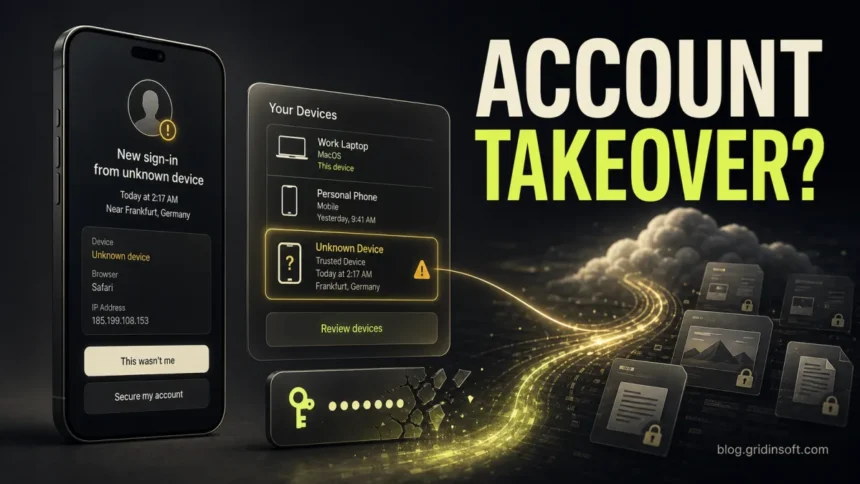
If your Apple ID was hacked, treat it as an Apple Account takeover and act from a trusted device first. Change or reset the password, remove unknown devices, check email and phone recovery details, sign out of web iCloud sessions, review purchases, and avoid any caller or message that asks for your verification code. If the attacker changed the password or trusted phone number, start account recovery through Apple’s official process instead of trusting “recovery” helpers.
This page uses “Apple ID” because many people still search for that term, but Apple now calls it Apple Account. The same email address or phone number and password still apply. The risk is not only that someone reads iCloud photos. A compromised account can expose messages, contacts, files, device location, purchases, recovery settings, and trusted-device prompts.
If this started with a call about a stolen iPhone, do not disclose its screen passcode or remove it from Find My. A caller knowing the model or Lost Mode contact details does not establish that they work for Apple. Keep the theft response separate from removing an unfamiliar attacker-owned device.
Do This First
- Use a trusted device or a clean browser. Do not follow links from the warning email, text, pop-up, or caller. Open Settings on your own iPhone, iPad, or Mac, or type the official Apple account address yourself.
- Change the Apple Account password. On iPhone or iPad, open Settings, tap your name, then Sign-In & Security, then Change Password. On Mac, use System Settings, your name, Sign-In & Security.
- If the password no longer works, start recovery. Use a trusted Apple device when possible. If you do not have one, use the Apple Support app on a borrowed Apple device or go to iforgot.apple.com in a browser you typed yourself.
- Remove unknown devices. Check the device list under your Apple Account. Remove laptops, phones, browsers, Apple TV, HomePod, or Windows/iCloud entries you do not recognize.
- Check email, phone numbers, and recovery details. If an attacker changed a trusted phone number or email, do not assume a password reset alone fixed the account.
- Sign out of iCloud web sessions. If you use iCloud.com, open iCloud settings and sign out of all browsers. Consider turning off iCloud web access if you do not need it.
- Check purchases and payment methods. Review App Store, subscriptions, Apple Pay-related alerts, and bank statements. Contact your bank quickly if you see unauthorized charges.
- Secure the email account behind your Apple Account. If that mailbox is compromised, attackers can keep receiving reset messages or delete Apple warnings before you see them.
Signs Your Apple Account May Be Compromised
A real compromise usually leaves a trail. Apple says warning signs include an unrecognized sign-in, an unexpected two-factor code, unfamiliar messages or deleted items, trusted devices you did not add, purchase activity you do not recognize, a password that stops working, or a device placed in Lost Mode by someone else.
- You receive an Apple notification or email about a sign-in from a device or location you do not recognize.
- You get a two-factor authentication code when you were not trying to sign in.
- Your password stops working or your trusted phone number looks changed.
- Unknown devices appear in your Apple Account, Find My, iCloud for Windows, HomePod, Apple TV, FaceTime, Messages, Mail, Calendar, or Media & Purchases settings.
- You see App Store, iTunes, Apple Pay, subscription, or in-app purchases you did not make.
- Messages, files, contacts, photos, notes, or calendar items appear, disappear, or change without your action.
- Your iPhone or iPad is marked as lost, locked, or erased without your consent.
- You are pressured by a caller, text, or email to share a password, passcode, recovery key, or verification code.
How Apple ID Takeovers Usually Happen
Most Apple Account takeovers are not a breach of Apple itself. They usually start with reused passwords, a compromised email inbox, phishing pages, fake Apple Support calls, stolen devices, or malware on a computer where the victim saved browser passwords or session cookies.
Phishing emails, texts, and fake Apple Support calls
Attackers often send “Apple ID locked”, “iCloud storage full”, “Apple Pay unusual activity”, “purchase confirmation”, or “your lost iPhone was found” messages. Some campaigns push victims to call a fake support number instead of clicking a link. Calling feels safer, which is why the trick works: the operator then asks for a verification code, remote-access session, gift card payment, or account password.
If a message claims your account is under attack, do not use its link or phone number. Go directly through Settings, account.apple.com, the Apple Support app, or Apple’s published support channels.
Unrequested two-factor prompts
An unexpected verification code does not always mean the attacker is already inside. It can mean someone has your password and is trying to pass the second factor. Do not tap Allow, do not read the code to anyone, and change the password from a trusted device. If the prompt repeats, also check whether your email account, password manager, or another device is compromised.
Compromised email or phone number
Your Apple Account depends on reachable email addresses and trusted phone numbers. If a mailbox has weak security or a mobile number is vulnerable to forwarding or SIM-swap fraud, an attacker may control the recovery path. Secure the email first, enable MFA on it, remove forwarding rules you did not create, and contact your carrier if you suspect SMS forwarding or SIM-swap abuse.
Malware, infostealers, and suspicious apps
If the incident started after installing a cracked app, fake game, browser extension, “support tool”, or remote-access program on a Mac or Windows PC, secure the Apple Account from a different trusted device. Then check the computer before trusting saved passwords again. On Windows, a scan with Gridinsoft Anti-Malware can help find stealers, unwanted apps, and browser threats that may have exposed account data. For a Mac, use a macOS-compatible security workflow; a Windows scanner cannot scan an iPhone or Mac.
Lost or stolen iPhone
If the device was stolen, mark it as lost through Find My or iCloud Find Devices. Do not remove it from Find My just because a text says the phone was found. Removing it from Find My removes Activation Lock protection. [3] Also be alert for phishing texts sent after a theft; they often try to steal the Apple Account password so the thief can unlock and resell the device.
Support calls after a theft: a September 2026 response checklist
Infoblox’s May 14 research documented stolen-iPhone services combining fake Find My pages, personalized messages, prerecorded calls and AI voice tools impersonating Apple. A Lost Mode contact number gives a thief someone to call; device-identifying information can make the story sound convincing. The objective can be to obtain the credentials or passcode needed to make stolen hardware usable. AI is one option, not a requirement for this scam. [4]
Apple will not ask for your device passcode, account password, recovery key or live verification code, or tell you to disable security features. Hang up and contact Apple through a route you opened independently. Caller ID, a polished voice and a claimed recovery case number do not authenticate a caller. [2]
- You answered or ignored the call: preserve the number, time and message, then block/report it. Hearing the caller is not itself an account takeover.
- You opened a link but entered nothing: close it; inspect the device in your own Find My app. If you also installed an app or profile, treat that as a separate device-security incident.
- You entered the Apple Account password: use a trusted device to change it and check recovery details, unfamiliar devices and web sessions using the steps above. [1]
- You disclosed a live verification code: assume the attempted sign-in may have succeeded. Review account access promptly; waiting for the code to expire does not undo a completed sign-in.
- You disclosed the stolen phone’s screen passcode: prioritize Find My/Lost Mode and Apple’s stolen-device guidance. Change that passcode on any device where you reused it. Changing the account password does not change the stolen phone’s screen passcode. If recovery is no longer realistic, follow Apple’s remote-erase guidance while keeping the device in Find My. [3]
Keep screenshots of threats and support case details for your carrier, police and insurer, contacted through known channels. If the phone held work accounts, notify your organization so it can revoke access independently. Never travel to a claimed recovery location alone or remove Activation Lock at a caller’s request.
What To Check Inside Your Apple Account
Once you can sign in, work through the account like an investigator. The goal is to remove the attacker’s foothold, not just change one password.
- Sign-In & Security: verify primary email, reachable emails, trusted phone numbers, password status, two-factor authentication, recovery contact, and recovery key settings.
- Devices: remove unfamiliar devices you did not authorize. Keep your stolen iPhone in Find My; do not treat it as an attacker-owned unknown device. Unknown devices can display verification codes and maintain access to Apple services until removed.
- iCloud: check Photos, Drive, Notes, Mail, Calendar, Contacts, backups, and iCloud web access. Sign out of all browsers if web access may have been abused.
- Find My: check device locations and Lost Mode status. Keep stolen devices in Find My while you are pursuing recovery or a theft claim.
- Media & Purchases: review purchases, subscriptions, payment cards, and unfamiliar billing details.
- Messages and FaceTime: make sure only your phone numbers and email addresses are reachable there.
- Mail and Calendar: look for forwarding, spam, calendar subscriptions, or messages you did not send.
If You Are Locked Out
If the attacker changed the password, trusted phone number, or recovery details, recovery may take time. Use Apple’s official account recovery path and be patient with the waiting period. Do not pay anyone who says they can hack the account back, bypass Activation Lock, or recover iCloud data for a fee. Those offers are usually recovery scams.
While waiting, protect what you still control:
- Secure the email account used for your Apple Account.
- Ask your cellular carrier to check for SIM-swap or SMS-forwarding risk.
- Contact your bank or card issuer if purchases or Apple Pay activity look suspicious.
- Keep screenshots of unauthorized changes, unknown devices, charges, and support case numbers.
- Warn family members if your account can send iMessage, FaceTime, or email scams in your name.
What Victims Search For and the Safer Answer
- Search or situation: “Apple ID hacked what can I do?” What to do: Change the password from a trusted device, remove unknown devices, check recovery info, and start account recovery if you cannot sign in.
- Search or situation: “I got an Apple verification code I did not request” What to do: Do not approve the prompt or share the code. Change the password and check whether your email or saved passwords were exposed.
- Search or situation: “Apple ID password changed by someone else” What to do: Use a trusted device or iforgot.apple.com. Then review email, phone numbers, devices, and payment details after regaining access.
- Search or situation: “Unknown device in Apple Account” What to do: Take a screenshot, change the password, remove the device, and sign out of iCloud web sessions.
- Search or situation: “Apple Support called me about my account” What to do: Hang up and contact Apple through official channels. Apple will not ask for your password, passcode, or two-factor code.
- Search or situation: “My stolen iPhone was found text” What to do: Do not enter your Apple Account password through the text. Use Find My or iCloud Find Devices and keep Activation Lock in place.
How To Prevent Another Apple Account Takeover
- Use a long, unique Apple Account password that is not reused anywhere else.
- Keep two-factor authentication enabled.
- Keep trusted phone numbers, recovery contacts, and email addresses up to date.
- Use a strong passcode and biometric unlock on Apple devices.
- Turn on Stolen Device Protection on supported iPhones.
- Consider Security Keys only if you understand the lockout risk and can keep backup keys safe.
- Do not store your Apple Account password in a browser profile on a computer you use for risky downloads.
- Review the device list every few months and after selling, gifting, or losing a device.
- Use the Apple ID scams guide to recognize fake locked-account, billing, iCloud, and support messages before you click.
When To Scan Your Computer
Scan your Mac or Windows PC if you entered your Apple password after a suspicious pop-up, installed a “support” app, ran a cracked download, opened a suspicious attachment, or noticed browser redirects around the same time. Account cleanup works best when the device used for recovery is trustworthy. If malware remains active, it can steal the new password or session again. If the warning followed a fake game, mod, launcher, or crack, use the infostealer game/mod cleanup checklist before signing back in from that computer.
For related cleanup, see our guides on how to spot phishing emails, fake “Your iPhone has been hacked” pop-ups, and Calendar spam on iPhone.
FAQ
Can an Apple ID really be hacked?
Yes. Apple Accounts are usually compromised through stolen passwords, phishing, a compromised email inbox, an approved two-factor prompt, a stolen device, or malware on a computer. It does not usually mean Apple’s systems were breached.
What if I cannot reset my Apple Account password?
Use Apple’s official account recovery process through a trusted device, the Apple Support app on a borrowed Apple device, or iforgot.apple.com. Do not pay third-party “recovery” services that promise to bypass Apple’s account controls.
Should I remove an unknown device immediately?
First take a screenshot if you need evidence, then change your password and remove the device. Unknown trusted devices can receive verification codes and keep access to Apple services until you remove them.
Is an unexpected Apple verification code proof that I am hacked?
Not always, but it is a serious warning. It often means someone knows or guessed your password and is trying to pass two-factor authentication. Do not approve the prompt or share the code. Change your password from a trusted device.
What should I do if I clicked an Apple phishing link?
If you only opened the page, close it and avoid entering information. If you entered a password, security code, payment details, or device passcode, change the Apple Account password immediately, review devices and recovery details, and contact your bank if payment data was shared.
References
- Apple Support. “If you think your Apple Account has been compromised.” Apple, updated December 5, 2025. Accessed June 7, 2026. https://support.apple.com/en-us/102560
- Apple Support. “How to find your lost iPhone or iPad.” Apple, accessed June 7, 2026. https://support.apple.com/en-us/101593
- Maël Le Touz and Elena Puga. “Inside the Underground Market That Unlocks Stolen iPhones.” Infoblox Threat Intel, May 14, 2026, accessed September 8, 2026. iPhone theft research.