RedWing is harmful Android spyware and banking malware distributed through fake app-store pages and sideloaded APKs. If you installed an unfamiliar app and granted it Accessibility, default SMS, notification access, screen-overlay, or device-administrator control, stop using that phone for banking or cryptocurrency, disconnect it from networks, and start account recovery from a different trusted device. Removing the app matters, but the bank, carrier, passwords, and active sessions also need attention because RedWing can read screens and messages, redirect calls, and operate the phone remotely.
What should you do first?
- Disconnect the affected phone. Turn on airplane mode, then turn off Wi-Fi and Bluetooth. Do not open banking, crypto, email, or password-manager apps on it.
- Use a clean device to call your bank and mobile carrier. Report possible mobile-banking compromise, review transactions, and ask the carrier to check and cancel any call forwarding you did not set.
- Revoke powerful Android roles before uninstalling the app. Check Accessibility, device administrator, notification access, default SMS, display-over-other-apps, and battery exemptions.
- Reset the phone if control cannot be removed cleanly. A factory reset is the safer branch when settings re-enable themselves, the app blocks removal, or sensitive accounts were used while the spyware had control.
What is RedWing Android spyware?
RedWing is a commercial Android malware toolkit sold as Malware-as-a-Service. Zimperium researchers described it as an apparent new variant of the Oblivion family based on similarities in the dropper stage and some overlays. That relationship is a research assessment, but the observed RedWing samples are clearly malicious: they support fake banking and crypto login overlays, SMS theft, screen streaming, keylogging, camera and microphone access, file collection, proxying, remote input, call forwarding, and even DDoS activity. [1]
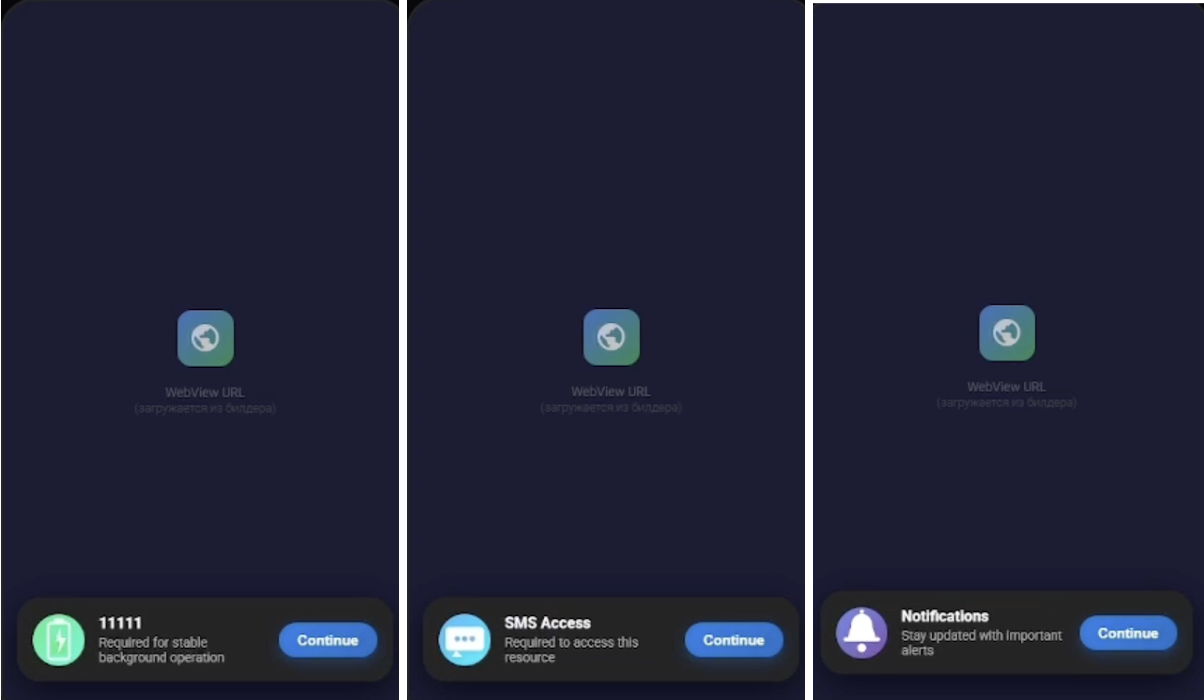
The infection begins with social engineering rather than a silent system update. Operators can build phishing pages that imitate Google Play, Galaxy Store, AppGallery, RuStore, or a custom marketplace. The page changes ratings, reviews, developer details, and update messages to make a sideloaded APK look legitimate. RedWing then presents permission requests one at a time so that each step appears routine instead of revealing the full takeover.
September 2026: fake video updates and silent audio
In research published September 24, F6 estimated that RedWing compromised more than 10,000 Android devices in Russia from July to mid-September. This is F6’s estimate, not a confirmed global victim count. Its analyzed RAT sample posed as a video from an accident scene, then displayed a fake Google Play update screen. [4]
The supposed update decrypted and installed an embedded APK. The next request sent the user to Android’s Accessibility settings; enabling the service started the RAT. The trap therefore crossed two boundaries: installing software to view a supposed video, then granting that software control through Accessibility.
F6 also found a looping silent audio track that helped keep RedWing running in the background, hidden entries in the recent-apps list, and an alarm-based restart set for 3:15 a.m. Closing recent apps therefore does not establish removal. If the unfamiliar app prevents permission changes or uninstall, follow the safe-mode or factory-reset branches below instead of treating a quiet, empty recent-apps screen as recovery.
RedWing warning signs and dangerous permissions
| What you notice | Why it matters |
|---|---|
| An app-store page opens in a browser and asks you to download an APK | Official stores normally install apps inside their own store client. A browser-hosted Google Play, Galaxy Store, AppGallery, or RuStore lookalike is a strong warning sign. |
| The app asks to become the default SMS app | This can expose verification messages and let malware send or manage texts. |
| Accessibility requests say the app needs full control | Accessibility can let malware read screen content, click buttons, type, scroll, and approve other actions. |
| “Display over other apps” or overlay access is requested | RedWing can place fake login windows over real banking and crypto apps. |
| Device administrator or battery-exemption access is requested | These settings can make removal harder and keep the app active in the background. |
| The icon disappears, the screen locks, or taps seem to happen by themselves | Observed capabilities include hiding the icon, remote screen control, touch blocking, fake loading screens, and lock-screen overlays. |
| Calls stop arriving or are routed elsewhere | RedWing can issue a call-forwarding request to interfere with bank verification calls. Your carrier should verify the actual forwarding state. |
One symptom alone is not proof of RedWing. A legitimate accessibility tool or enterprise management app may need one powerful permission. The danger rises sharply when an unfamiliar sideloaded app requests several roles together, hides its icon, or appears shortly before banking, SMS, call, battery, or data anomalies. For a broader comparison of fake browser warnings and harmful apps, use the Android malware removal guide.
If you opened banking or crypto apps
Treat credentials and sessions as exposed if you used a financial app after granting the suspicious app Accessibility, overlay, notification, or default-SMS access. RedWing can place a fake login form over the real app, read short authorization codes from the screen, intercept messages, and remotely operate the device.
- Keep the affected phone offline. Do not use it to change passwords or approve a transaction.
- Call the bank or card issuer from a trusted phone. Ask for the fraud team, explain that Android remote-control malware may have viewed the banking session, review recent transfers and card activity, and follow the institution’s freeze or reissue advice.
- Contact the mobile carrier. Ask it to check unconditional and conditional call forwarding, cancel changes you did not make, review recent SIM or account changes, and add an account PIN if available. Do not rely on one universal dial code because carrier behavior varies.
- Secure email, Google, messaging, banking, and crypto accounts from a clean device. Change unique passwords, revoke unfamiliar sessions and devices, replace exposed recovery methods, and use a stronger second factor where the service supports it.
- Move cryptocurrency only with provider guidance. If a seed phrase, wallet unlock code, or exchange session appeared on the compromised phone, assume it may have been observed. Do not enter the same secret on that phone again.
Preserve transaction IDs, bank alerts, unfamiliar phone numbers, approximate installation time, and screenshots of the suspicious app or permission pages if you can do so without reopening sensitive apps. Do not download or share the APK casually; if you already saved it, a separate trusted computer can check it with the Gridinsoft Online Virus Scanner without running it.
How to remove RedWing from Android
Android menu names vary by manufacturer and version. Search inside Settings if the path below is not identical on your phone. If the screen is being controlled, the Settings app closes immediately, or you cannot trust what you see, skip to the factory-reset section or ask the manufacturer for device-specific recovery instructions.
- Review Accessibility services. Open Settings → Accessibility → Installed apps or Downloaded services. Turn off any unfamiliar service, especially one associated with the recently installed APK.
- Remove device-administrator control. Search Settings for “Device admin apps” or open Security & privacy → More security settings → Device admin apps. Deactivate the suspicious entry before trying to uninstall it.
- Revoke special access. Under Apps → Special app access, check Display over other apps, Notification access, Install unknown apps, Usage access, and unrestricted battery use. Remove the suspicious app from every list where it does not belong.
- Restore the normal SMS app. Open Apps → Default apps → SMS app and select the messaging app you intentionally use. Review that app’s messages and settings only after the suspicious app loses control.
- Force stop and uninstall the app. Open Settings → Apps → See all apps, identify the unknown or recently installed app, then choose Force stop and Uninstall. An icon missing from the home screen does not mean the app is gone.
- Use safe mode if normal uninstall is blocked. Safe-mode steps differ by phone, so follow the manufacturer’s instructions. Safe mode temporarily prevents most downloaded apps from running, which may let you revoke access and uninstall the suspicious app.
- Run Google Play Protect and install updates. In the Play Store, open the profile menu → Play Protect, scan the device, and keep scanning enabled. Then install Android security and Google Play system updates. [2]
- Restart and repeat the permission check. Confirm that the removed app, its Accessibility service, device-admin role, overlay permission, default-SMS role, notification access, and unknown-source permission have not returned.
Scan your Android phone with Trojan Scanner
Once the suspicious app can no longer control the phone, use Trojan Scanner by Gridinsoft on Google Play to check for remaining malicious apps. Install it from the official listing, update its threat definitions, run a scan, review the detections, and follow the cleanup instructions. Keep Google Play Protect enabled too. If malware still blocks Settings or security apps, use the safe-mode or factory-reset branch above rather than relying on a scanner to regain control. A scan does not recover stolen credentials or reverse transactions.
Do not install a random “RedWing remover” APK from a search result or advertisement. That repeats the same sideloading pattern used by the threat. If you need help distinguishing a real infection from a fake warning, compare the evidence with the guide to tell whether a phone is hacked.
When a factory reset is safer
A factory reset is appropriate when the app cannot be uninstalled, dangerous permissions reappear, the screen or Settings remain under remote control, Play Protect continues to warn, or banking and crypto accounts were used while RedWing had high-risk access. It is also the safer choice when you cannot identify which APK was installed or cannot confirm that all related components are gone.
- Before resetting, record your Google Account username, confirm the password from another device, and make sure you know the phone’s screen-lock PIN.
- Back up irreplaceable photos, documents, and evidence. Do not back up APK files or blindly restore every app and setting from the compromised phone.
- Follow the phone manufacturer’s reset instructions or Android’s official factory-reset workflow. [3]
- Set up the phone as new when practical, update it fully, and reinstall apps only from the official store after checking the developer and permissions.
- If a suspicious app returns immediately after a clean setup, stop and contact the manufacturer or your organization’s mobile administrator; a managed profile, restored app, or deeper device problem needs separate investigation.
A reset removes local apps and data; it does not undo a fraudulent transfer, cancel attacker-controlled call forwarding, invalidate stolen passwords, or close every cloud session. Finish the bank, carrier, and account steps even if the phone looks normal afterward.
How to confirm cleanup
- No unfamiliar app appears under Accessibility, device administrator, notification access, overlay access, default SMS, VPN, or install-unknown-apps settings.
- Google Play Protect completes a scan without a harmful-app warning, and Android security updates are current.
- Calls and messages arrive normally, and the carrier confirms that no unexpected forwarding remains.
- Your bank and crypto services show no unexplained activity, and unfamiliar sessions or devices have been removed.
- The phone no longer shows unexplained overlays, remote taps, disappearing icons, microphone/camera activity, or persistent battery and network use tied to an unknown app.
Keep monitoring financial and account alerts after cleanup. RedWing is one example of a broader banking-spyware pattern; the Android malware types guide explains how banking trojans, spyware, screen lockers, and SMS fraud differ.
FAQ
Is RedWing in the Google Play Store?
The observed campaign used phishing pages and droppers that imitated app stores, including Google Play, Galaxy Store, AppGallery, and RuStore. A page that looks like a store but asks the browser to download an APK is not the same as installing through the official store client.
Can RedWing steal bank passwords and verification codes?
Yes. Reported capabilities include fake login overlays, screen reading, keylogging, SMS access, notification access, and remote control. If banking or crypto apps were used after those permissions were granted, recover the accounts from a clean device and contact the provider.
Can I remove RedWing by deleting its icon?
No. RedWing can hide its icon. Check the full app list and revoke Accessibility, device-admin, overlay, notification, and default-SMS access before uninstalling. If control persists or settings return, use the factory-reset branch.
Will a factory reset fix the banking risk?
A factory reset removes apps and local data, but it cannot reverse transactions, cancel call forwarding at the carrier, change stolen passwords, or close cloud sessions. Complete the financial and account-recovery steps separately.
References
- Vishnu Pratapagiri. “RedWing: A Mobile Malware-as-a-Service Operation.” Zimperium zLabs, July 7, 2026; accessed July 14, 2026. Zimperium research report.
- Google. “Remove malware or unsafe software — Android.” Google Account Help, accessed July 14, 2026. Android malware-removal guidance.
- Google. “Reset your Android device to factory settings.” Android Help, accessed July 14, 2026. Android factory-reset guidance.
- F6 Fraud Protection. “Red threat: RedWing Android trojan attacks Russian bank customers through fake apps and videos.” September 24, 2026; accessed September 25, 2026. F6 technical investigation.