AW Manager, Windows Manager, or Advanced Window Manager is potentially unwanted software when it appears unexpectedly in Windows, especially under C:\Program Files (x86)\AW Manager\ or as AdvancedWindowsManager.exe. Start by confirming the folder, publisher, install date, and uninstall entry, then remove the app, check startup and browser changes, and scan if ads, redirects, or the program return after reboot.
How To Identify AW Manager / Windows Manager
The name can look generic, so verify the exact clues before deleting files. A suspicious case usually has several of these signs at once:
- An installed app named AW Manager, Windows Manager, or Advanced Window Manager.
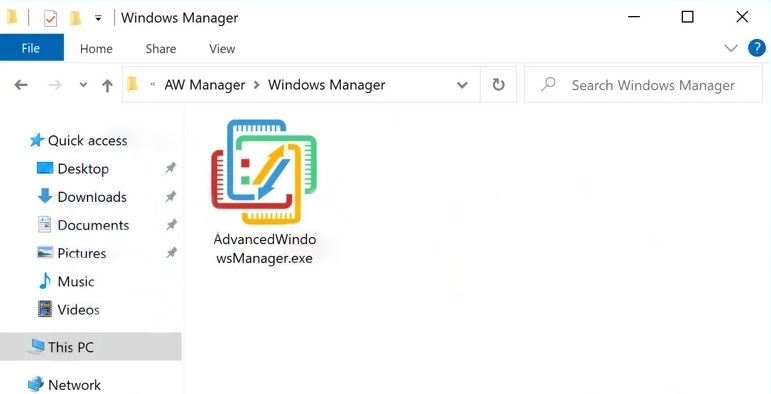
- A folder such as
C:\Program Files (x86)\AW Manager\or a process namedWindows Manager AdvancedWindowsManager.exe. - Shortcut or policy files such as
EULA.url,Privacy.url, or small configuration files inside the same folder. - New browser redirects, unwanted ads, proxy changes, or extensions that appeared on the same date.
- Startup entries, services, or scheduled tasks that point back to the AW Manager folder.
If those clues match, treat it as a potentially unwanted app cleanup. If you intentionally installed a legitimate window-management utility with a clear vendor, keep the installer and publisher details and verify them before removal.
Advanced Window Manager Overview
Advanced Window Manager is an unwanted adware-like program. Despite positioning itself as a useful utility, its primary purpose is to bombard users with advertisements. The program frequently promotes fraudulent or malicious content, posing significant security risks. Clicking on any promotions displayed by Advanced Window Manager may redirect users to malicious websites that automatically download additional potentially unwanted software.
| Attribute | Details |
|---|---|
| Threat Type | Adware / PUP (Potentially Unwanted Program) |
| Detection Names | Win32/Adware.AdvancedWindowManager, PUP.Optional.WindowManager, AW Manager / Windows Manager aliases |
| Symptoms | Unwanted advertisements, browser redirects, changed search settings, proxy changes, startup entries, slower system performance |
| Distribution Methods | Software bundling, malvertising, freeware downloads |
| Damage | Privacy issues, browser hijacking, exposure to malicious websites |
| Removal | Uninstall the visible app, remove AW Manager leftovers, check startup/tasks/browser settings, then scan if symptoms return |
Another undeclared feature is collecting information about users’ internet activity. This data includes search queries, visited URLs, geolocation data, and IP addresses, which are then sold to third parties. Advanced Window Manager is typically distributed as bundled software alongside other programs. Since this software is not particularly stealthy, users can identify its processes in Task Manager.
Detailed Analysis
Let’s analyze how Advanced Window Manager behaves in the system to understand its true nature. It arrives through an installer that precedes the original program and performs basic system checks. During installation, the unwanted software extracts the following files to a temporary folder on the system:
C:\Users\Admin\AppData\Local\Temp\7zS4E1438CD\setup_install.exe
C:\Users\Admin\AppData\Local\Temp\7zS4E1438CD\libcurlpp.dll
C:\Users\Admin\AppData\Local\Temp\7zS4E1438CD\libstdc++-6.dll
C:\Users\Admin\AppData\Local\Temp\7zS4E1438CD\libcurl.dll
It also resets some files, including:
%WINDIR%\Microsoft.NET\Framework\v4.0.30319\clr.dll
%WINDIR%\System32\rundll32.exe
C:\Users\<USER>\AppData\Local\Temp\7zSC8C4B203\metina_5.exe
C:\Users\<USER>\AppData\Local\Temp\7zSC8C4B203\metina_6.exe
Installation
Once installed, Advanced Window Manager (sample on VirusTotal) begins performing its main task – flooding the system with advertisements. It checks the following registry values, which are responsible for regionalizing the system to install more “relevant” programs:
\REGISTRY\USER\S-1-5-21-1346565761-3498240568-4147300184-1000\Control Panel\International\Geo\Nation
\REGISTRY\MACHINE\SOFTWARE\Microsoft\Windows NT\CurrentVersion\IMM\Ime File
\Registry\Machine\Software\Policies\Microsoft\System\DNSclient
After completing this check, the malware connects to its command and control server. In our analysis, one of the requests following the initial connection installed an unwanted program called Ultra Media Burner. This behavior likely depends on the results of the aforementioned geolocation check.
GET http://limesfile.com
GET http://limesfile.com/Ea42LhC7KVL6GEpzgxwW/C_Net_8Rpjkd5GEqRYJq87/UltraMediaBurner.exe
GET http://estrix.xyz/addInstallImpression.php?key=125478824515ADNxu2ccbwe&ip=&oid=139
Additional Checks & Persistence
As a typical adware specimen, Advanced Window Manager performs a series of system checks to determine the system’s location. By examining various registry keys, the malware obtains networking information. It is unlikely to implement any geofencing restrictions, as this data is primarily used to target advertisements more effectively.
HKEY_LOCAL_MACHINE\SYSTEM\ControlSet001\Services\Dnscache\InterfaceSpecificParameters\
HKEY_LOCAL_MACHINE\SOFTWARE\Policies\Microsoft\Windows NT\DNSClient\DnsPolicyConfig
Subsequently, the malicious program modifies another set of registry keys related to Windows services and drivers. This is how it establishes persistence, adding values that associate its files with specific drivers and services in the system.
HKEY_LOCAL_MACHINE\SYSTEM\ControlSet001\Services\MpKsl9a97d018\Parameters
HKEY_LOCAL_MACHINE\SYSTEM\ControlSet001\Services\MpKslcbc6775c\Parameters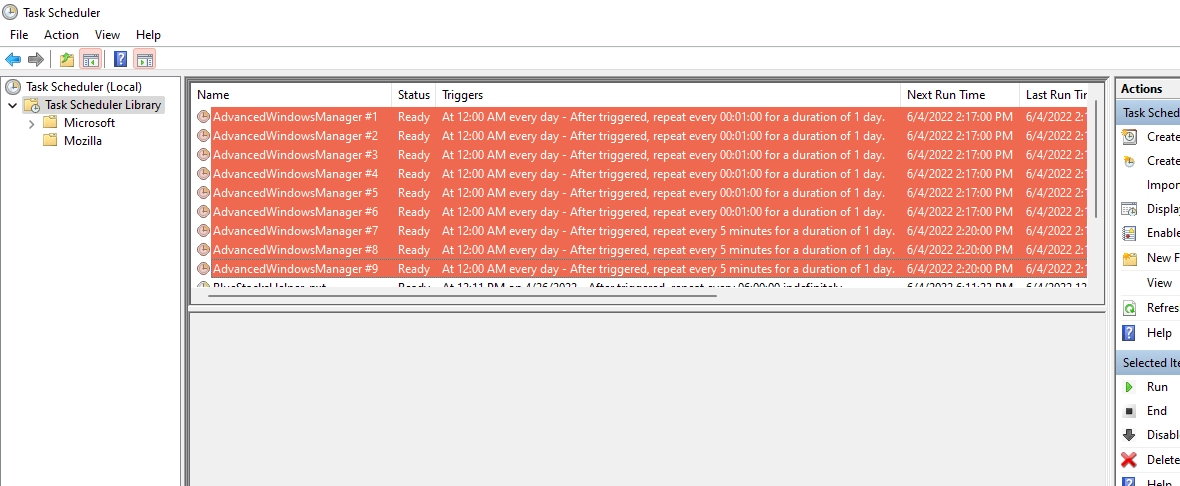
Advertising, Search Redirects and Browser Hijacking
After completing all preparations, Advanced Window Manager functions as adware or a browser hijacker. The most common scenario after installing this type of software is browser hijacking. The PUP changes the homepage and default search engine to ones it promotes (usually Bing or Yahoo). Users may also encounter lesser-known search engines like Chromstera set as the homepage or default search engine. In such cases, all queries are routed through these services, and the forced search engine change remains effective until the browser is restarted.
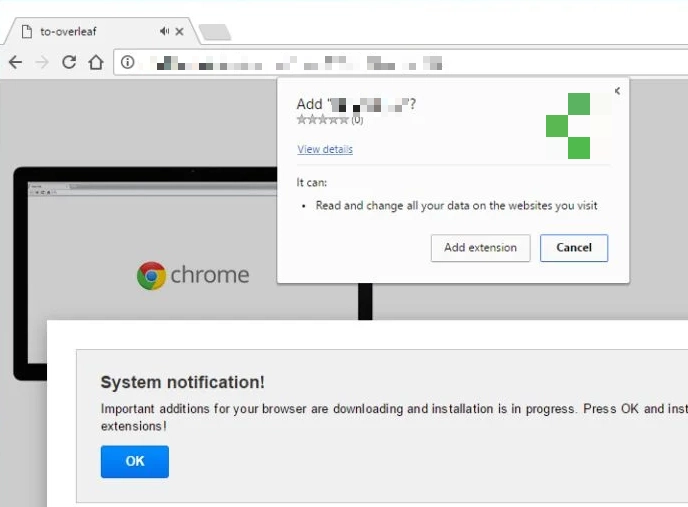
In addition to displaying irrelevant search results, the adware fills pages with advertisements and pop-ups, making web browsing extremely difficult. Another aspect of browser hijackers is collecting telemetry about users. Although such software typically does not steal passwords or other sensitive information, it redirects all search queries through its servers, thereby collecting general analytics about user behavior.
How To Remove Advanced Window Manager?
To remove Advanced Window Manager, AW Manager, or Windows Manager completely, start with the installed app and then verify the leftovers it can leave behind. Do not delete a random Windows Manager folder first; use the uninstall entry when it exists, then check the places that commonly restore ads and redirects.
- Open Settings → Apps → Installed apps, sort by install date, and uninstall AW Manager, Windows Manager, Advanced Window Manager, and other same-day apps you do not recognize.
- Open Task Manager before ending a process and use Open file location. If it points to
C:\Program Files (x86)\AW Manager\, note the path for cleanup.Windows Manager - After uninstalling, check the AW Manager folder for leftover
AdvancedWindowsManager.exe,EULA.url,Privacy.url, uninstall links, and configuration files. Remove the folder only after the app is no longer running. - Review Startup Apps, Task Scheduler, services, and browser extensions for entries created on the same date or pointing to the AW Manager folder.
- Check browser search, homepage, notification permissions, and proxy settings if ads or redirects started with the install.
- Reboot and confirm the app, task, folder, redirects, and ads do not return.
If AW Manager returns after reboot, the visible uninstaller probably missed a startup entry, service, scheduled task, browser change, or bundled component. A full Gridinsoft Anti-Malware scan can check for PUP detections, hidden files, startup entries, scheduled tasks, browser changes, and persistence left behind by the same installer.
Browser reset can remove visible symptoms, but adware may keep a desktop app, extension source, notification permission, or startup task that brings pop-ups and redirects back.
Scan for AW Manager leftoversAutomated Removal with GridinSoft Anti-Malware
Using anti-malware software is the most reliable way to remove Advanced Window Manager and all its components. We recommend GridinSoft Anti-Malware for this task.
Step 1: Download and Install GridinSoft Anti-Malware
First, download GridinSoft Anti-Malware using the button below. Close all browsers before starting the installation process.
Step 2: Run a Full System Scan
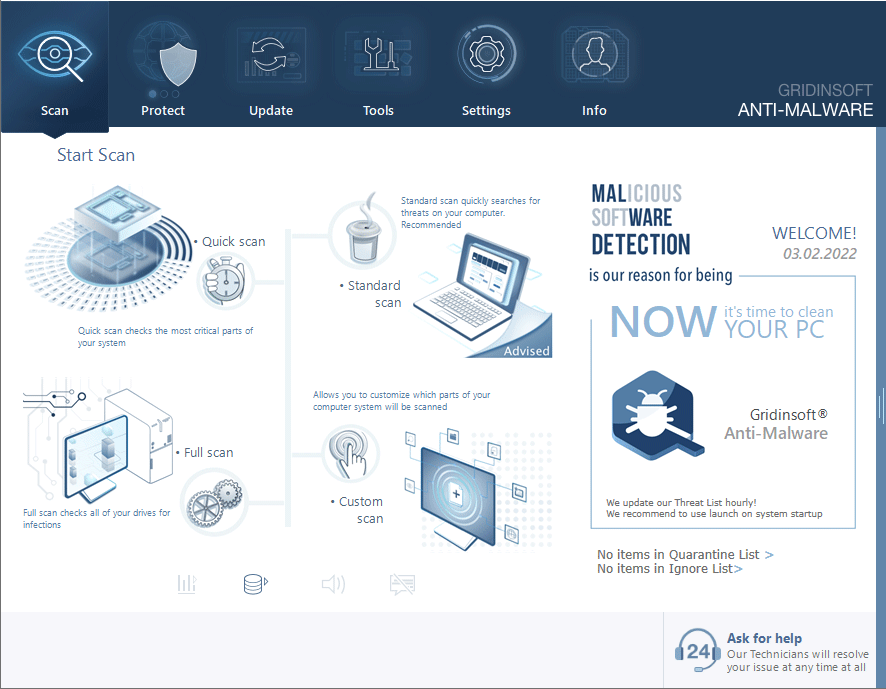
Launch GridinSoft Anti-Malware and click on the “Scan” button to begin a comprehensive system scan. This will detect Advanced Window Manager and any other potentially unwanted applications on your system.
Step 3: Remove Detected Threats
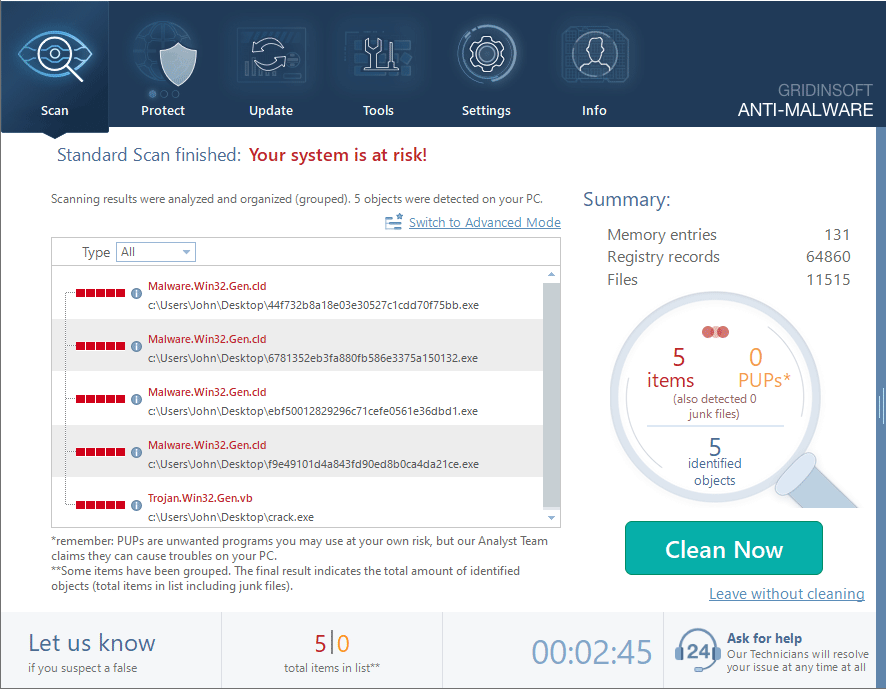
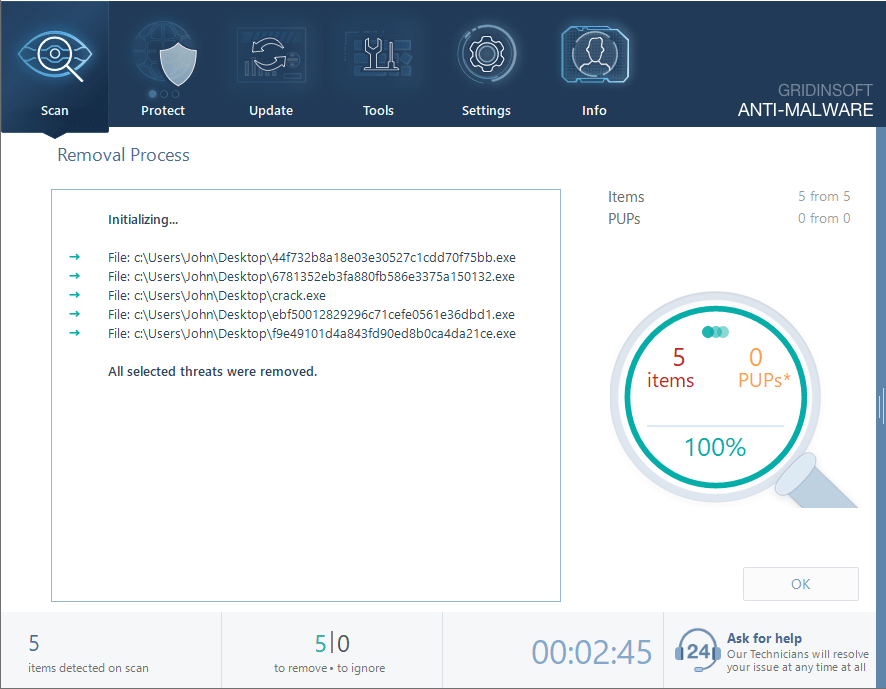
After the scan completes, you’ll see a list of detected threats, including Advanced Window Manager components. Select all items and click the “Clean Now” button to remove them.
Step 4: Reset Your Browsers
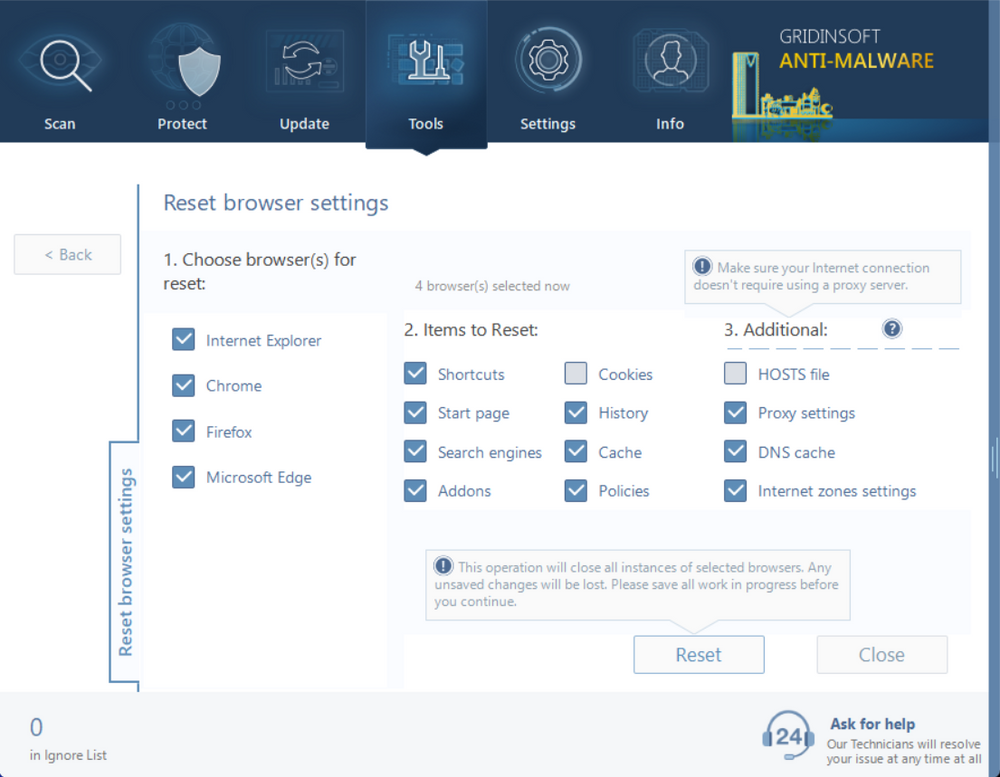
To completely remove any browser modifications made by Advanced Window Manager, you should reset your browsers to their default settings. In GridinSoft Anti-Malware:
- Go to the “Tools” tab
- Select “Reset Browser Settings”
- Choose the browsers you want to reset
- Click “Reset” to restore default settings
Step 5: Enable Real-Time Protection
To prevent future infections, enable the Internet Security module in GridinSoft Anti-Malware:
- Go to the “Protect” tab
- Check the “Internet Security” option
- Click “Apply” to save changes
Manual Removal Instructions
Manual cleanup is safest when you work from the install date and file path. For broader browser cleanup, use the browser hijacker removal guide; if an extension keeps coming back, follow the recurring extension cleanup steps. If AW Manager arrived with a driver utility or optimizer bundle, compare it with the fake driver updater cleanup workflow.
If you prefer to remove Advanced Window Manager manually, follow these steps. However, note that manual removal is more complex and may not eliminate all components.
Step 1: Uninstall Advanced Window Manager from Control Panel
- Press Win + R, type “control panel” and press Enter
- Go to “Programs” > “Uninstall a program”
- Find “Advanced Window Manager” or any suspicious recently installed programs
- Right-click on them and select “Uninstall”
Step 2: Remove the Malicious Scheduled Tasks
- Press Win + R, type “taskschd.msc” and press Enter
- Look for tasks containing “Advanced Window Manager,” “AWM,” or suspicious random names
- If you also see an App Explorer, SweetLabs, Pokki, or Host App Service updater task, follow the Host App Service cleanup guide before deleting unrelated scheduled tasks.
- Right-click on confirmed malicious or orphaned tasks and select “Delete”
Step 3: Reset Your Browsers
For Google Chrome:
- Open Chrome and click the three dots in the top-right corner
- Go to “Settings” > “Advanced” > “Reset and clean up”
- Click “Restore settings to their original defaults”
- Click “Reset settings” to confirm
For Mozilla Firefox:
- Open Firefox and click the three lines in the top-right corner
- Go to “Help” > “More troubleshooting information”
- Click “Refresh Firefox” in the top-right corner
- Click “Refresh Firefox” to confirm
For Microsoft Edge:
- Open Edge and click the three dots in the top-right corner
- Go to “Settings” > “Reset settings”
- Click “Restore settings to their default values”
- Click “Reset” to confirm
Frequently Asked Questions
Is Advanced Window Manager a virus?
Advanced Window Manager, AW Manager, or Windows Manager is usually treated as a potentially unwanted program (PUP) or adware when it appears unexpectedly. It may not behave like ransomware, but it can degrade browsing, track activity, change browser settings, and expose users to risky ads or redirects. The exact folder, publisher, install date, and startup behavior matter when deciding whether to remove it.
How did Advanced Window Manager get installed on my computer?
Advanced Window Manager typically enters systems through software bundling – it’s quietly included with free software downloads where users rush through installation steps without reading carefully. It may also be installed through malvertising (malicious advertisements) that trick users into clicking download buttons, or through deceptive pop-ups claiming your system needs an update or optimization. Always choose custom installation options and read each step when installing new software.
What if I only see AW Manager or Windows Manager?
Use the same cleanup path when the installed app or folder uses the shorter AW Manager or Windows Manager name. The important clues are the folder path, AdvancedWindowsManager.exe, same-day browser changes, and leftover files such as EULA.url, Privacy.url, uninstall links, or configuration files in the same directory.
Can Advanced Window Manager steal my personal information?
While Advanced Window Manager doesn’t directly steal passwords or banking details, it does collect browsing data including search queries, websites visited, IP addresses, and geographic location. This information is typically sold to third parties for targeted advertising purposes. The program may also inject advertisements that lead to phishing sites designed to steal sensitive information. For these reasons, it’s important to remove it promptly.