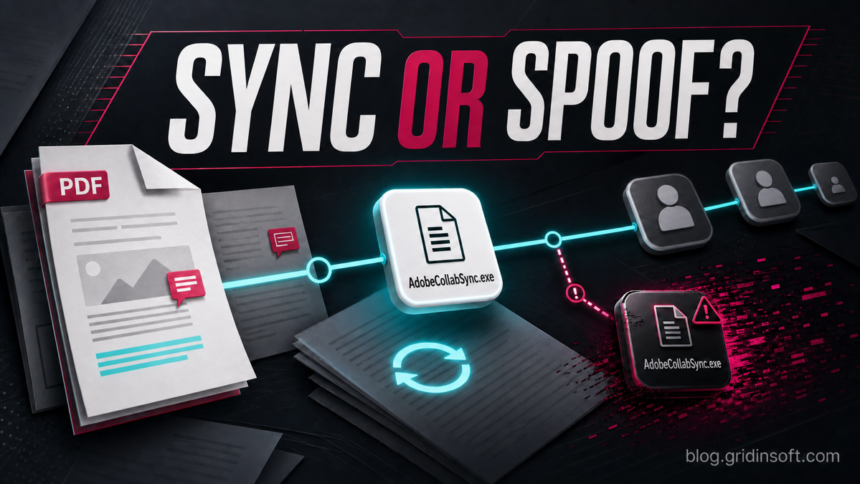
AdobeCollabSync.exe is usually a legitimate Adobe Acrobat component that supports shared reviews and collaboration synchronization. A copy inside the Acrobat installation under Program Files, with a valid Adobe digital signature, is normally safe. It is not a Windows system process, though, and the filename alone proves nothing. If it runs from AppData, Temp, Downloads, or another unrelated folder, or its signature is missing or invalid, keep it blocked and investigate the launcher as well as the file.
What is AdobeCollabSync.exe?
AdobeCollabSync.exe is installed with Adobe Acrobat or Acrobat Reader on Windows. It helps Acrobat exchange review comments and other collaboration updates. Adobe’s shared-review documentation explains that Acrobat synchronizes comments at intervals so participants can receive the latest changes.[1]
The process is different from other Adobe background components:
AdobeARM.exebelongs to the Acrobat and Reader updater path.AcroTray.exesupports Acrobat shell integration and PDF-conversion workflows.CoreSync.exebelongs to Adobe Creative Cloud content synchronization, not Acrobat’s shared-review helper.
Stopping one component does not necessarily stop the others. Identify the exact executable before changing startup settings or removing a file.
Is AdobeCollabSync.exe safe?
| What you find | Risk and what to do |
|---|---|
Acrobat folder under Program Files, valid Adobe signature, Acrobat installed |
Usually legitimate. Leave it alone unless you are troubleshooting a specific resource or collaboration problem. |
| Correct Adobe path and signer, but it restarts or briefly appears more than once | Often normal Acrobat behavior. Update and repair Acrobat if it stays active or causes errors. |
| Correct path but persistent high CPU, disk, or network use | Test after closing Acrobat, install updates, and use Acrobat’s repair option. Recheck the signer after repair. |
AppData, Temp, Downloads, a random folder, or no Acrobat installation |
Suspicious mismatch. Record the path and launcher, quarantine the copy, and scan the system. |
| Missing, invalid, or unrelated digital signature | Do not allow it merely because the name looks familiar. Treat the file and its startup trigger as untrusted. |
A file in an Adobe-looking folder is not automatically safe, and a valid signature is not a guarantee that every surrounding component is benign. Use path, signer, installed-product context, and behavior together.
How to check the path and digital signature
- Press Ctrl + Shift + Esc and open Task Manager.
- Find Adobe Collaboration Synchronizer or AdobeCollabSync.exe, right-click it, and choose Open file location.
- Confirm that the file is inside the installed Acrobat or Reader folder under
Program Files. Current and older builds may use different subfolders or theProgram Files (x86)tree. - Right-click the executable, select Properties, open Digital Signatures, and inspect the signer and signature details. A legitimate installed copy should have a valid Adobe signature.
- Open Settings > Apps > Installed apps and confirm that the matching Adobe product is installed.
PowerShell can report the Authenticode status without running the file. Replace the example path with the location Task Manager opened:
Get-AuthenticodeSignature -LiteralPath "C:\Program Files\Adobe\Acrobat DC\Acrobat\AdobeCollabSync.exe" |
  Format-List Status, StatusMessage, SignerCertificate
Microsoft documents Get-AuthenticodeSignature as the Windows PowerShell command for retrieving a file’s Authenticode signature information.[3] A Valid status and an Adobe signer support a legitimate verdict. An unknown path, invalid status, or unexpected signer requires further checks. If you need a broader pre-execution workflow, follow the EXE file safety checklist.
Why does AdobeCollabSync.exe keep running or return?
Ending the process in Task Manager is temporary. Acrobat can start it again when the application opens, an account signs in, or a shared-review feature checks for updates. A product update or repair can also restore the executable if someone renamed or deleted it.
Two visible instances are not proof of malware. They can reflect separate Acrobat sessions, user contexts, or a process that is shutting down while a new one starts. The more useful questions are whether every instance opens the same signed Adobe file and whether the activity stops after Acrobat closes.
Investigate further when instances come from different folders, the process remains busy long after Acrobat closes, a security tool flags it, or it appeared after an unknown installer. Also check the command line and parent process when an administrator tool exposes them; a legitimate-looking name launched by a script in a user-writable folder is not normal Adobe context.
Can you disable Adobe Collaboration Synchronizer?
You can end AdobeCollabSync.exe for a reversible test. Basic local PDF opening, reading, and printing may continue, while shared reviews, cloud comments, notifications, or collaboration updates can stop or be delayed. Test the Acrobat features you actually use rather than assuming there is no effect.
- Save open PDFs and close Acrobat completely.
- End Adobe Collaboration Synchronizer in Task Manager.
- Open a local PDF and test viewing, printing, signing, commenting, and any shared-review workflow you rely on.
- If a matching Adobe entry appears under Task Manager > Startup apps, disable only that entry and restart Windows for a longer test.
- Re-enable it if collaboration or account-backed features stop working.
Do not permanently delete or rename the signed executable as a first step. That can leave Acrobat in a damaged state, and a later update may put the file back. On managed or virtual desktops, use an approved Acrobat policy instead of changing program files by hand.
How to fix high CPU, crashes, or startup errors
A legitimate AdobeCollabSync.exe can still misbehave because Acrobat is outdated, its installation is damaged, a shared item is stuck, or several Adobe sessions did not close cleanly.
- Close Acrobat and end its background processes once. Then reopen one PDF and see whether the problem returns.
- Install Acrobat updates. In Acrobat, open Menu > Help > Check for updates, install available fixes, and restart Windows.
- Repair Acrobat. Use Menu > Help > Repair installation when available. Adobe recommends the same repair path for damaged files and running-instance problems.[2]
- Test without collaboration activity. Sign out only if that is acceptable for your workflow, close shared PDFs, and compare resource use with a local document.
- Reinstall from Adobe if repair fails. Remove an obsolete installation and use Adobe’s official installer. Never download a loose AdobeCollabSync.exe or replacement DLL from a file repository.
If the issue occurs only on a company image, Remote Desktop host, or VDI system, preserve the error details and ask the administrator to review the Acrobat build and policy. Blocking one executable can affect every user and may be reversed by the next managed update.
What to do if AdobeCollabSync.exe is in the wrong folder
- Do not open the folder copy or try to test it by running it.
- Record its full path, signature status, and the process or startup entry that launched it.
- Disconnect from sensitive accounts if the file already ran and the PC also shows redirects, unknown extensions, unexpected credential requests, or unusual network activity.
- Quarantine the suspicious file with the security tool that detected it.
- Review Startup apps, Task Scheduler, Services, browser extensions, and recently installed software for the source that can recreate it.
Ending or deleting the visible lookalike may leave its loader, scheduled task, startup entry, or bundled application behind. Run a full Gridinsoft Anti-Malware scan, remove detected persistence, restart Windows, and scan again if the process returns. Do not delete the signed copy inside the real Acrobat installation while cleaning an unrelated lookalike.
If the process path is wrong, the name imitates a Windows component, or high CPU started after an unknown installer, scan for hidden miners, services, startup entries, and bundled components.
Scan a suspicious AdobeCollabSync.exe copyFAQ
Is AdobeCollabSync.exe a virus?
The normal file belongs to Adobe Acrobat collaboration features. It is suspicious when the path, signer, installed-product context, or launcher does not match Adobe, or when copies run from user-writable folders.
Can I disable AdobeCollabSync.exe at startup?
You can disable a matching Startup apps entry for a reversible test. Local PDF viewing may continue, but shared reviews, cloud comments, and collaboration updates can be affected. Re-enable the entry if a feature you use stops working.
Why are there multiple Adobe Collaboration Synchronizer processes?
Separate Acrobat sessions or a restart during shutdown can briefly create more than one instance. Verify that every instance opens the same signed Adobe file. Different paths or signers are a warning.
Should I delete AdobeCollabSync.exe?
No. Do not delete a valid signed copy from the Acrobat folder. Update, repair, or uninstall Acrobat instead. Quarantine a wrong-path or invalidly signed copy and investigate the component that launched it.
What should I do if AdobeCollabSync.exe uses high CPU?
Close Acrobat, end the process once, update Acrobat, and use Repair installation. If high CPU returns while Acrobat is idle, repeat the path and signature checks and compare every running instance.
References
- Adobe. “Hosting shared reviews on SharePoint or Office 365 sites.” Adobe Acrobat Help, updated September 28, 2022; accessed July 21, 2026. Adobe shared-review documentation.
- Adobe. “Acrobat is not responding and shows a running instance error.” Adobe Acrobat Help, updated September 23, 2025; accessed July 21, 2026. Adobe Acrobat repair guidance.
- Microsoft. “Get-AuthenticodeSignature.” Microsoft Learn, accessed July 21, 2026. Microsoft PowerShell documentation.