Wave Browser is best treated as a potentially unwanted browser, not as a normal Chrome alternative. If it appeared after another download, opens at startup, changes search or homepage settings, or comes back after a normal uninstall, remove the app and then check the startup entries, browser settings, scheduled tasks, and leftovers that may keep it active.
This guide focuses on the practical cleanup path for Windows users: uninstall Wave Browser, stop its background behavior, reset affected browsers, scan for bundled unwanted apps, and turn on protections that reduce the chance of another bundled installer doing the same thing.
Stop Wave Browser Opening at Startup
If you intentionally installed Wave and only want it to stop opening when you sign in, try this reversible startup change. It leaves the browser installed. If you did not choose the app, or it changes settings or returns after removal, use the full removal steps instead.
- Identify the exact startup entry. Press Ctrl+Shift+Esc and open Startup apps in Task Manager. Look for Wave Browser or Wavesor, then inspect the publisher and, where available, right-click → Open file location or Properties. Confirm the target belongs to the installed Wave browser before changing it; the name alone is not enough.
- Disable that entry. Select the confirmed Wave entry and choose Disable. For a clearly identified entry, Settings → Apps → Startup → Off is another route. You can undo this with Enable or On if you deliberately want startup restored. [4]
- Restart and verify. Close Wave, restart Windows, and sign back in without opening a browser shortcut or web link. Check whether a Wave window opens and whether the same startup entry still says Disabled. No window means this login test passed; it does not establish that every background component is gone.
- Follow the result. If Wave opens despite the entry staying disabled, there may be another launch route. If the entry becomes enabled again, something restored it. If there is no matching entry, do not disable unrelated apps to guess. Use the returning-after-removal checklist to investigate the actual startup shortcut, scheduled-task action, or bundled app.
For the cleanup checks below, match each process, task, extension, or app to its file path, launch command, publisher, and installation history before disabling or removing it. An unfamiliar name or a shared install date alone is not enough. Keep notes so a mistaken startup change can be reversed; do not delete broad groups of registry entries.
What Is Wave Browser?
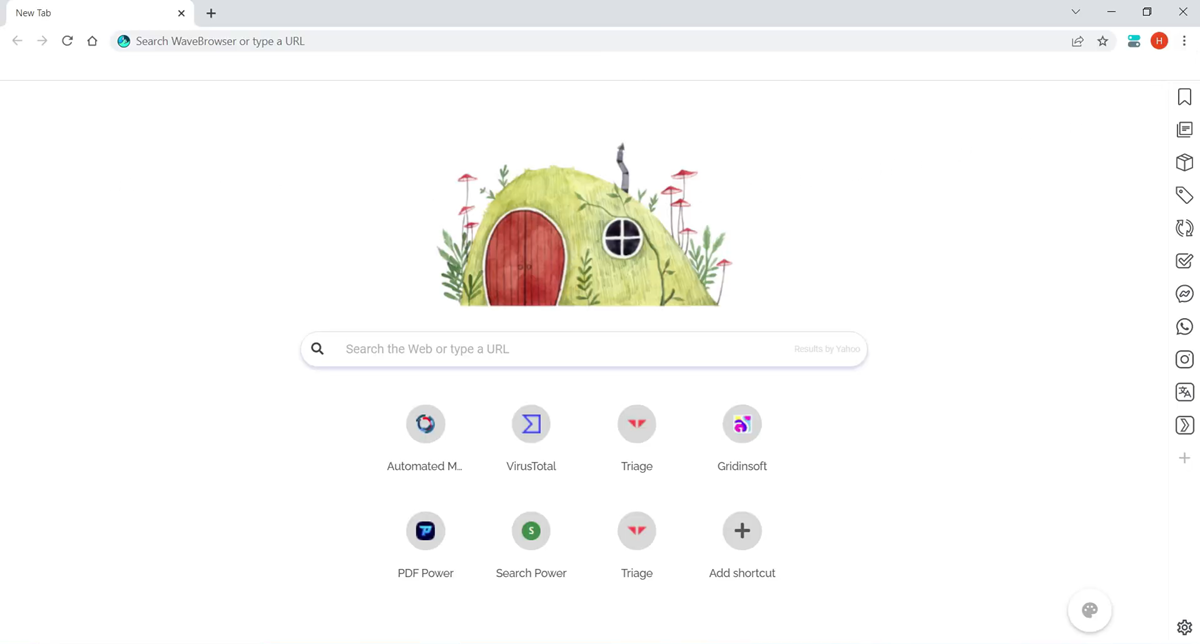
Wave Browser is a Chromium-based browser, which means its interface can look familiar at first glance. That resemblance is part of the problem: many users notice it only after it becomes the default browser, opens links by itself, changes the search engine, or starts with Windows.
The issue is not simply that Wave is another browser. The risk comes from how it is commonly discovered on a PC: bundled with other downloads, promoted through ads, or installed by someone who did not realize an optional offer was included. That behavior puts it in the same practical bucket as a potentially unwanted program.
Is Wave Browser Malware?
Wave Browser is usually discussed as a PUP or PUA, not as a classic file-encrypting virus or trojan. That distinction matters: you may not see the dramatic symptoms people associate with malware, but you can still have an unwanted app that changes browser defaults, runs in the background, shows ads or redirects, and arrives alongside other software you did not choose.
Microsoft describes potentially unwanted applications as software that may slow the machine, show unexpected ads, or install other software that is more annoying or harmful. That matches the user problem behind many Wave Browser searches: “Why is this on my computer?”, “Is it safe?”, and “Why does it keep opening?”
Common Signs You Should Remove It
- Wave Browser appeared after installing a free program, game mod, converter, or download manager.
- Windows opens links in Wave even though you normally use Chrome, Edge, Firefox, or another browser.
- Your homepage, new tab page, or search engine changes without a clear reason.
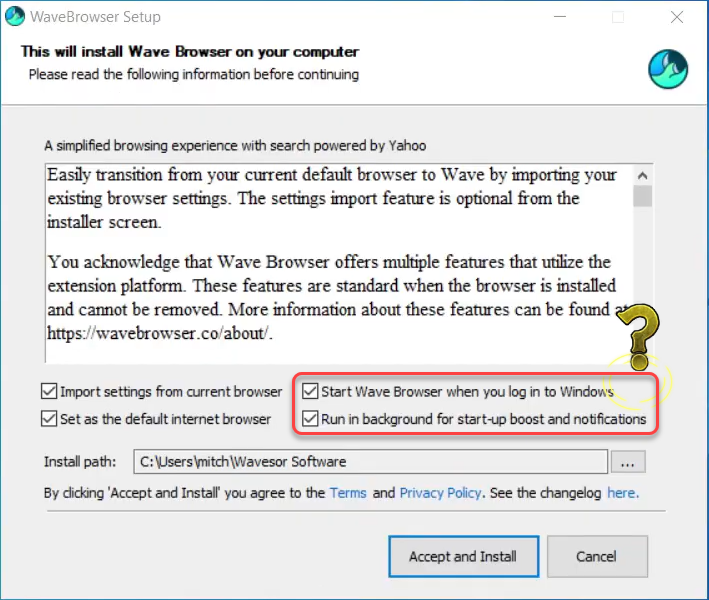
- Wave starts with Windows or keeps running after you close its window.
- Unwanted extensions, pop-ups, redirects, or ad-heavy search results keep returning.
- You uninstall Wave, but shortcuts, scheduled tasks, or background processes bring it back.
How To Remove Wave Browser From Windows
Start with the normal uninstall path, then verify the places that commonly keep unwanted browsers alive. If Wave was installed through a bundle, scan the system afterward because the browser may not be the only unwanted item.
- Close Wave Browser and its processes. Press Ctrl+Shift+Esc, open Task Manager, and end suspicious Wave, Wavesor, or unknown browser-related processes before uninstalling.
- Uninstall the app. Go to Settings → Apps → Installed apps, search for Wave Browser, open the three-dot menu, and choose Uninstall. Sort by install date and remove other unfamiliar apps installed at the same time.
- Change your default browser back. Open Settings → Apps → Default apps and set your trusted browser for web links and common web file types.
- Disable startup entries. In Task Manager, open the Startup apps tab and disable Wave, Wavesor, or any suspicious entry you do not recognize.
- Check scheduled tasks. Open Task Scheduler and inspect the Task Scheduler Library for tasks that reference Wave, Wavesor, browser updaters you do not recognize, or suspicious launch paths. Disable the task first if you are unsure, then delete it only after confirming it is unwanted.
- Remove browser leftovers. Check Chrome, Edge, Firefox, and other browsers for unknown extensions, changed search engines, and unwanted startup pages. Remove suspicious extensions before resetting settings.
- Run a full security scan. Use a trusted anti-malware scanner to remove remaining PUA components, bundled adware, startup entries, and registry leftovers. Gridinsoft Anti-Malware can be used here as a cleanup scan when manual removal is incomplete.
Avoid random “registry cleaner” tools. If you are not comfortable with Registry Editor, use a security scanner instead. Deleting the wrong registry key can break normal Windows or browser behavior.
After uninstalling the suspicious app or deleting the visible threat, use Gridinsoft Anti-Malware to check hidden files, startup entries, scheduled tasks, bundled apps, browser changes, and other persistence points that can restore malware.
Download Anti-MalwareIf Wave Browser Keeps Coming Back
When Wave returns after a normal uninstall, the usual cause is a leftover startup mechanism or another bundled app reinstalling it. Work through these checks in order:
- Sort installed apps by date. Remove the downloader, installer assistant, extension manager, or unknown utility that appeared around the same time.
- Review startup and scheduled tasks again. Persistence often hides behind update-style names instead of a visible Wave Browser name.
- Reset affected browsers. Google recommends checking for unwanted programs before resetting Chrome, then resetting settings when homepage, search, extensions, or redirects keep changing.
- Clear suspicious extensions from every browser. Do this even if Wave appeared only in one browser, because bundled installers often touch several browsers.
- Run a second scan after reboot. Rebooting exposes startup entries that were missed while Windows was running.
How To Remove Wave Browser From Chrome Or Edge
If your main complaint is that Chrome or Edge keeps redirecting, reset the browser after removing the Windows app. A browser reset can restore the homepage, new tab page, search engine, pinned tabs, and extension state. It does not usually delete bookmarks or saved passwords, but you should still review synced extensions afterward.
- Open the browser settings.
- Remove extensions you do not recognize.
- Set your preferred search engine and startup page.
- Use the browser’s reset option if redirects or unwanted extensions return.
- Reopen the browser and confirm Wave is no longer the default for links or searches.
How Did Wave Browser Get Installed?
Most victims are not looking for a new browser. They usually install something else and miss an optional offer, click the wrong download button on an ad-heavy page, or use a repackaged installer. That is why the best prevention is boring but effective: download software from the real vendor page, choose custom installation when available, decline optional offers, and keep Windows reputation-based protection enabled.
In Windows Security, potentially unwanted app blocking can detect some PUA behavior after download or installation. It is not a replacement for careful installs, but it is a useful safety net for the exact class of software that lands between “clearly malicious” and “clearly wanted.”
FAQ
Is Wave Browser a virus?
Wave Browser is better described as a potentially unwanted browser or PUA. It may not behave like a classic virus, but if it appeared without clear consent, changes browser settings, or keeps opening at startup, removing it is the safer choice.
Why does Wave Browser keep opening?
It may still have a startup entry, background permission, scheduled task, browser extension, or another bundled app that reinstalls it. Remove the Windows app first, then check Startup apps, Task Scheduler, browser extensions, and recently installed programs.
Can I just uninstall Wave Browser from Apps?
Sometimes yes, and Wave’s own support page describes a normal Installed Apps uninstall path. If it came through a bundle or keeps returning, you also need to clean startup entries, browser settings, and leftover unwanted apps.
Should I reset Chrome or Edge?
Reset the browser if search, homepage, new tab, redirects, or extensions keep changing after Wave is removed. Remove unknown extensions first, then reset settings and re-enable only extensions you trust.
References
- Wave Browser Support. “Uninstall.” Wave Browser Support, updated September 10, 2025; accessed June 7, 2026. https://help.wavebrowser.co/hc/en-us/articles/24361932332308-Uninstall
- Microsoft Support. “Protect your PC from potentially unwanted applications.” Microsoft, accessed June 7, 2026. https://support.microsoft.com/en-US/security/protect-your-pc-from-potentially-unwanted-applications
- Google Chrome Help. “Remove unwanted ads, pop-ups and malware.” Google, accessed June 7, 2026. https://support.google.com/chrome/answer/2765944
- Microsoft. “Configure Startup applications in Windows.” Microsoft Support, accessed September 11, 2026. Windows startup-app settings.