At a glance
Trojan:JS/ChatGPTStealer!MSR is a Microsoft Defender detection for a suspicious JavaScript-based threat. Treat it as real until you know exactly where Defender found it. Keep the item quarantined, copy the affected file path from Windows Security, update Defender, run a full scan, and check your browser extensions and recent downloads.
If the detection came from a browser cache, Defender may already have removed the dangerous script. If it came from an extension folder, downloaded archive, developer dependency, or a file you intentionally opened, you should investigate further before restoring anything.
People usually see Trojan:JS/ChatGPTStealer!MSR after Microsoft Defender blocks a JavaScript file during browsing, extension use, package installation, or extraction of a downloaded archive. The name sounds very specific because it includes “ChatGPTStealer,” but the safe response is still the same: identify the exact path, understand how the file arrived, and remove the risky source.
| Detection name | Trojan:JS/ChatGPTStealer!MSR |
| Detected by | Microsoft Defender Antivirus |
| Threat type | Suspicious or malicious JavaScript trojan/stealer behavior |
| Common locations | Browser cache, extension cache, downloaded scripts, npm/project folders, archives, temporary folders |
| First action | Do not restore the file. Keep it quarantined and run a full scan. |
| Most important check | The affected file path in Windows Security Protection history |
What is Trojan:JS/ChatGPTStealer!MSR?
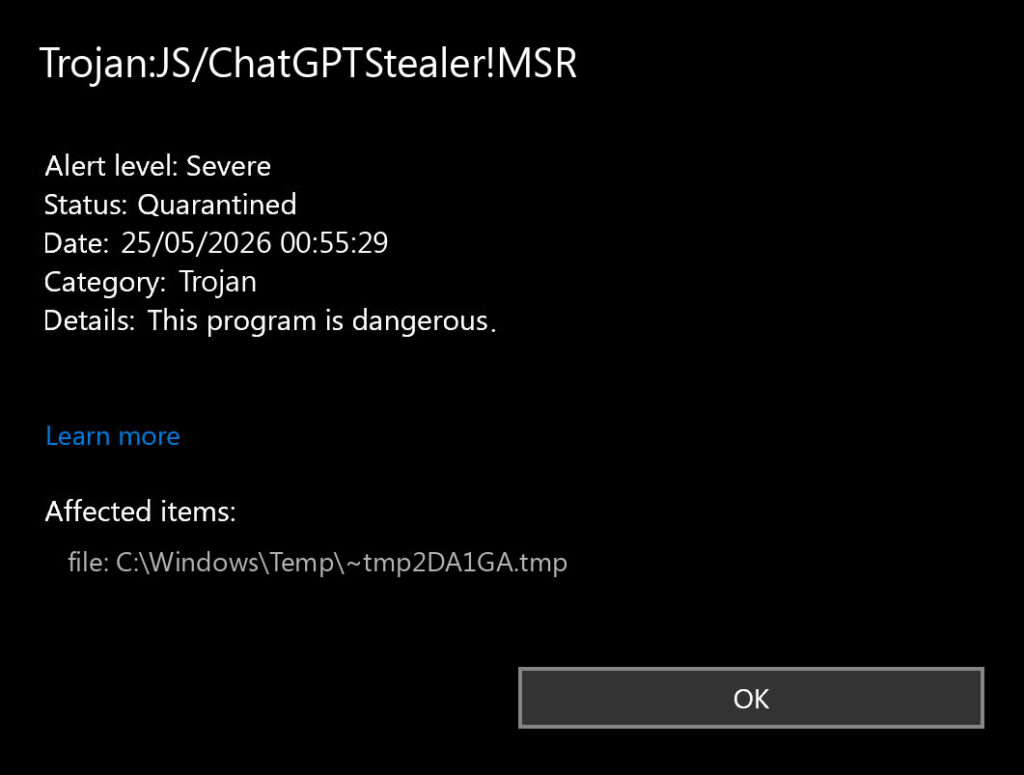
Trojan:JS/ChatGPTStealer!MSR is a Defender detection name for JavaScript that appears malicious or suspicious enough to be blocked. Microsoft’s malware encyclopedia lists a related detection, Trojan:JS/ChatGPTStealer.GVA!MSR, in its Security Intelligence entry, and says Defender detects and removes it. Microsoft also warns that trojans can steal sign-in details, browsing information, and other data, or download additional malware.
The JS part means JavaScript. That does not automatically mean the infection is deep inside Windows. JavaScript detections are often found in web pages, cached browser files, browser extensions, bundled scripts, malicious attachments, or developer project folders. The context matters.
The !MSR suffix is part of Microsoft’s detection naming. Do not treat it as a normal file extension or a Windows partition reference. The practical meaning for a user is simple: Defender considered the file risky enough to block, and you should verify the source before you trust it.
Why does the name mention ChatGPT?
The “ChatGPTStealer” label suggests behavior related to stealing data from AI-related browser sessions or pages. That can include attempts to read browser storage, session information, tokens, page content, or credentials connected to AI tools. It may also appear when a malicious script imitates an AI helper, browser sidebar, extension, prompt tool, or developer package.
This does not mean OpenAI, ChatGPT, or your browser is automatically compromised. It means Defender found a JavaScript file whose behavior or signatures match a threat pattern. The file path tells you whether it was only a cached web script, a malicious extension, or something you downloaded and ran.
Check the file path first
Open Windows Security and go to Virus & threat protection → Protection history. Open the Trojan:JS/ChatGPTStealer!MSR event and copy the affected item path. Then compare it with the table below.
| Detected path | What it usually means | What to do |
Browser cache or Cache_Data |
A malicious web script was cached while browsing. | Keep it removed, clear browser cache, close suspicious tabs, run a full scan. |
| Browser extension folder or extension cache | An extension or extension update may have loaded suspicious JavaScript. | Disable recently added AI/sidebar/download extensions and remove anything you do not recognize. |
Downloads, archive, crack, installer, or fake update |
High-risk source. The script may be part of a malicious bundle. | Delete the original download and archive, do not extract it again, run a full scan with Gridinsoft Anti-Malware. |
| Developer folder, npm package, VS Code workspace | A dependency, test package, or generated file may be flagged. | Check the package source, lockfile, recent installs, and scripts before restoring anything. |
AppDataTemp or random folder name |
Often indicates a drive-by download or dropped script. | Run a full scan, check startup entries and scheduled tasks. |
Real-world reports we see
This detection is not just a theoretical name in Microsoft’s database. Public user reports around Trojan:JS/ChatGPTStealer!MSR and the related Trojan:JS/ChatGPTStealer.GVA!MSR usually fall into three patterns.
| Case pattern | What happened | What it means for cleanup |
| Defender quarantine only | Windows Security reports the threat, places it in quarantine, and the user chooses Remove. | This may be enough if the file was only a cached web script, but the user should still run a full scan and check the detected path. |
| Chrome profile / extension data | Additional scanner logs show Chrome profile data, LevelDB, notification permissions, or extension-related files. | Review extensions, service workers, push notification permissions, and cached site data. Remove suspicious AI sidebars, VPNs, productivity helpers, and download extensions. |
| Developer workstation | The alert appears after installing dependencies, testing AI tools, using VS Code, or working with OpenAI/API keys. | Check recently installed packages, scripts, lockfiles, browser sessions, and any exposed API keys. Rotate tokens if secrets were stored in the project or browser. |
The important lesson is that the detection path changes the response. A one-time cache hit is different from a malicious extension folder or a project dependency that touched your API keys.
What to do now
- Keep the item quarantined. Do not restore it just because the file name looks familiar.
- Update Microsoft Defender. Open Windows Security and check for protection updates.
- Run a full scan. A quick scan is not enough if the source was a download, extension, or project dependency.
- Scan with Gridinsoft Anti-Malware. Use Gridinsoft Anti-Malware to remove the detected JavaScript file, the extension or installer that brought it in, and related leftovers. Reboot, then scan again.
- Clear the source. Remove the suspicious download, browser extension, temporary file, or dependency that introduced the script.
- Check your accounts. If the alert appeared while using AI tools, developer tools, or browser extensions, sign out of active sessions and rotate exposed API keys or passwords.
Chromium extension indicators to check
Microsoft’s public write-up for the related ChatGPTStealer.GVA!MSR detection describes a browser-extension style infection. It mentions suspicious Chromium extension identifiers such as fnmihdojmnkclgjpcoonokmkhjpjechg, inhcgfpbfdjbjogdfjbclgolkmhnooop, and eppiocemhmnlbhjplcgkofciiegomcon. If one of these appears in your Defender path, extension folder, or browser policy, treat it as a strong reason to remove the extension and reset browser policy overrides.
Useful places to inspect are Chrome or Edge extension folders under your user profile, service workers, and policy keys that force-install extensions. In Chrome and Edge, also review chrome://extensions/ or edge://extensions/, then remove anything that asks to read and change data on all websites without a clear reason.
Browser cleanup checklist
- Remove extensions you installed shortly before the detection.
- Pay attention to AI sidebars, “prompt helper” extensions, download managers, coupon extensions, video downloaders, and unofficial productivity add-ons.
- Clear cached files for the browser where the detection happened.
- Review notification permissions and remove suspicious sites.
- Reset the browser only if unwanted redirects, pop-ups, or new extensions return after removal.
If it appeared after installing packages or using VS Code
Some users see JavaScript detections after installing dependencies, cloning repositories, or running tools inside a developer workspace. In that situation, do not blindly delete your whole project, but do not ignore the alert either.
- Check recently installed npm packages and postinstall scripts.
- Inspect
package.json, lockfiles, and any downloaded scripts. - Remove packages that came from copy-pasted commands, unknown GitHub repositories, or typosquatted names.
- Rotate OpenAI API keys or other tokens if they were stored in the project, terminal history, environment files, or browser session.
- Reinstall dependencies from a clean lockfile only after you understand what triggered Defender.
Could it be a false positive?
A false positive is possible, especially when Defender flags cached JavaScript, minified code, generated bundles, or a developer dependency. But you should only consider that after checking the path and source.
A low-risk case looks like this: the detection was inside browser cache, Defender removed it, a full scan is clean, the browser has no suspicious extensions, and the alert does not return. A high-risk case looks like this: the file came from a crack, fake update, unknown extension, random archive, or package install that also created startup entries or new browser behavior.
If you believe a trusted file was misclassified, submit it to Microsoft through the official sample submission portal instead of creating a permanent Defender exclusion.
Signs you should take it more seriously
- The same detection returns after reboot.
- Defender finds more files in
AppData,Temp, startup folders, or browser extension directories. - Your browser opens unfamiliar pages or injects new AI/sidebar tools.
- Your ChatGPT, email, Microsoft, GitHub, or developer accounts show unfamiliar sessions.
- You recently installed a cracked tool, unofficial extension, fake update, or unknown npm package.
Manual places to check
After Defender removes the file, you can safely review common persistence locations. Do not delete entries randomly; focus on new or suspicious items created around the time of the alert.
- Startup apps: Task Manager → Startup apps.
- Scheduled tasks: Task Scheduler Library, especially random names or scripts in user folders.
- Browser extensions: Chrome, Edge, Firefox, Opera, and other Chromium-based browsers.
- Downloads and archives: remove the original file that led to the detection.
- Developer secrets: rotate API keys, tokens, and passwords stored near the affected project.
FAQ
Does this mean ChatGPT infected my computer?
No. The detection name does not prove that ChatGPT itself infected anything. It means Defender found JavaScript associated with a stealer pattern that may target AI-related sessions or data.
Should I restore the file from quarantine?
No, not unless you have strong evidence it is a false positive and the file came from a trusted source. For most users, leaving it quarantined or removed is the safer choice.
Is clearing browser cache enough?
Only if the detection was limited to browser cache and full scans stay clean. If the file came from an extension, download, archive, or project folder, remove the source and scan again.
Can Gridinsoft Anti-Malware remove it?
Yes. Start by removing the detected JavaScript file or extension source, then run Gridinsoft Anti-Malware, reboot, and scan again. If browser sessions or tokens may have been exposed, rotate those accounts after the PC is clean.
Related Microsoft Defender guides