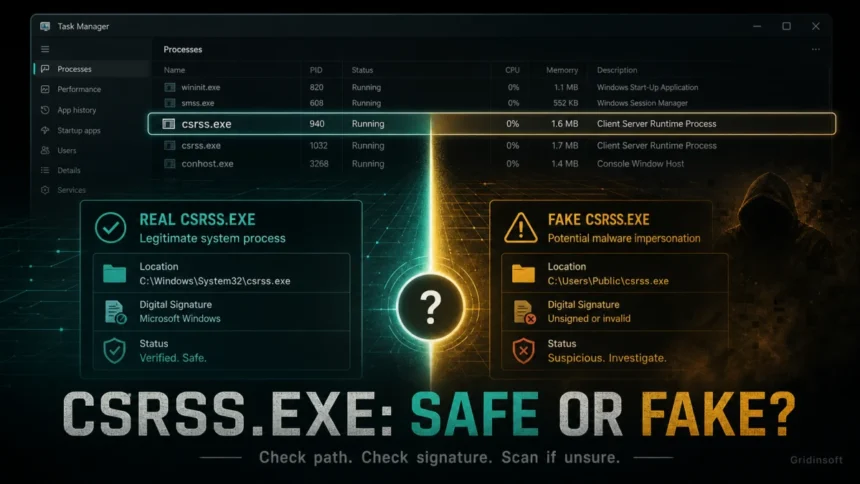
csrss.exe is a legitimate, protected Windows process when it runs from C:\Windows\System32\csrss.exe and carries a Microsoft signature. Do not end or delete that file. A same-named copy in AppData, Temp, Downloads, or another user-writable folder can be a Trojan or miner impostor; verify the path and signature first. Two or more System32 instances can be normal because Windows runs separate sessions.
If the path is wrong, use the fake csrss.exe removal steps below and check what starts the file after reboot. If the genuine System32 process was deleted or a blue screen started after you tried to end it, skip to the Windows recovery steps instead of deleting more system files.
Is csrss.exe safe or a Trojan virus?
| Likely legitimate | Suspicious |
|---|---|
File path is C:\Windows\System32\csrss.exe. |
File path is under AppData, Temp, Downloads, a browser folder, or another user-writable folder. |
| Properties show Microsoft Windows / Microsoft Corporation. | The file is unsigned, has an invalid signature, or shows an unknown publisher. |
| Runs as a system process and uses very little CPU after Windows settles. | Uses high CPU/GPU for long periods at idle, returns after deletion, or launches from a startup task. |
| You may see more than one instance because Windows can run one per session. | A security tool names a copy outside System32, especially with scripts, miners, or outbound connections. |
What is csrss.exe?
csrss.exe stands for Client Server Runtime Process. It is a critical Windows component involved in user sessions, process and thread handling, console-related behavior, shutdown, and other legacy subsystem tasks. On modern Windows, it works alongside other system components such as conhost.exe, but it remains essential to normal operation.
Do not end or delete the real System32 copy. Trying to terminate a critical Windows process can force instability, logoff, or a blue screen. If your concern is high CPU, a security alert, or a duplicate file name, diagnose the cause instead of attacking the protected Windows file.
How to check csrss.exe safely
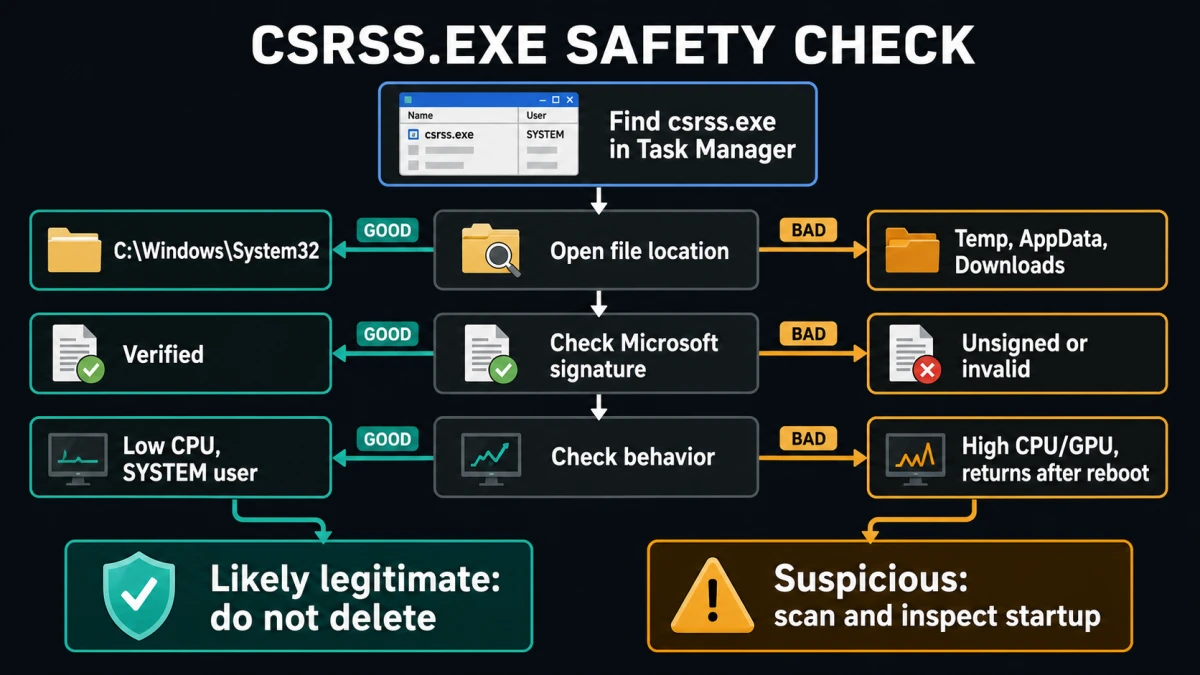
- Open Task Manager. Press
Ctrl+Shift+Esc. In Windows 10/11, look for Client Server Runtime Process on the Processes tab orcsrss.exeon the Details tab. - Open the file location. Right-click the process and choose Open file location. The expected location is
C:\Windows\System32. - Check the signature. Right-click the file, open Properties, and review the Details or Digital Signatures tab. A legitimate Windows copy should identify Microsoft as the signer or publisher.
- Check who runs it. In Task Manager Details, add the User name column if needed. A normal csrss.exe process is tied to Windows sessions, not to a random user startup folder.
- Watch behavior at idle. Brief spikes can happen during sign-in, app launches, console activity, or driver changes. Sustained high CPU/GPU at idle needs troubleshooting.
- Inspect startup if it returns. If a same-named file outside System32 comes back after deletion or quarantine, check Startup apps, Task Scheduler, services, browser policies, and recently installed software.
- Scan the suspicious copy. If the path or signature is wrong, scan the file and the whole system. Do not whitelist a bad path just because the filename resembles a Windows process.
For deeper inspection, Microsoft Sysinternals Process Explorer can show process trees, owning accounts, handles, DLLs, paths, and other details that are useful when Task Manager is not enough.
Why csrss.exe can use high CPU or GPU
High CPU from the legitimate Client Server Runtime Process does not automatically mean malware. It can be a symptom of another problem that is pushing Windows session or console handling too hard.
- Console-heavy apps: terminals, scripts, debuggers, or tools that print continuous output can keep console-related components busy.
- Driver or peripheral issues: GPU, printer, webcam, USB, storage, and input drivers can trigger repeated session notifications or UI work.
- Corrupted user profile: a damaged profile can cause recurring session problems that disappear under a new Windows account.
- System file corruption: incomplete updates or damaged files can make Windows components behave unpredictably.
- Malware impersonation: a fake
csrss.exeoutside System32 can mine cryptocurrency, download payloads, or persist through startup tasks.
Start with the path and signature check. If the file is legitimate, reboot once, install pending Windows updates, update GPU/chipset/printer drivers from official vendor sources, close noisy console applications, and test from another Windows user profile. If the same high usage continues, run system repair commands from an elevated Command Prompt:
sfc /scannow
DISM /Online /Cleanup-Image /RestoreHealth
If the file is not in System32, or a scan reports a same-named file in a user folder, disconnect from risky activity, preserve the path for analysis, and remove the suspicious copy with a trusted security tool.
csrss.exe BSOD: how to recover safely
A blue screen after deleting, killing, or modifying csrss.exe usually points to damaged system files or a broken Windows session component. Do not keep trying to remove the protected System32 file. Repair Windows instead.
- Boot into Windows Recovery Environment.
- Open Troubleshoot -> Advanced options -> Command Prompt.
- Run an offline System File Checker repair. Adjust the drive letter if your Windows installation is not on
C:.
sfc /scannow /offbootdir=C:\ /offwindir=C:\WindowsAfter the command finishes, restart Windows. If the system still crashes, use Startup Repair or restore from a known-good restore point or backup. If the crash began after removing a suspicious file outside System32, scan the system after Windows starts again because the original persistence mechanism may still be present.
Why are there two or more csrss.exe processes?
Seeing more than one Client Server Runtime Process is not automatically suspicious. Windows can create separate instances for different sessions. The important checks are still location, signature, owner, and behavior. Multiple instances that all point to C:\Windows\System32\csrss.exe and show normal low usage are usually expected. A duplicate in AppData, Temp, or another user-writable folder is a different story.
What if csrss.exe is in AppData, Temp, or Downloads?
A same-named file in a user-writable folder should be treated as suspicious. Malware often borrows trusted Windows filenames to look harmless in Task Manager. Do not move it into System32, do not mark it as safe, and do not focus only on deleting the visible file. A returning copy usually means a startup entry, scheduled task, script, service, or installer remains active.
- Record the full path and filename before removal.
- Check nearby files in the same folder, especially scripts, batch files, archives, and unknown executables.
- Inspect Startup apps and Task Scheduler for entries launching that path.
- Check browser extensions and browser policy folders if the path is under a browser-looking directory.
- Scan the whole system, not just the one file.
Gridinsoft Anti-Malware is useful at this stage because the risk is not the legitimate Windows process; it is the impostor file, its startup mechanism, and any bundled payloads around it.
How to remove a fake csrss.exe virus safely
Remove only the impostor, not the protected Windows process. A file named csrss.exe outside C:\Windows\System32, an invalid signature, a user-folder startup entry, or a copy that returns after reboot is the evidence that justifies cleanup.
- Verify the exact path again. In Task Manager, use Open file location. Stop if the process points to
C:\Windows\System32\csrss.exeand is signed by Microsoft. - Disconnect from the network if the copy is active. Do this when it is mining, opening unknown connections, downloading files, or consuming resources continuously.
- Record the evidence. Save the full path, signature status, file hash, parent process, and any Startup or Task Scheduler entry. The suspicious startup apps checklist shows where to find the command that launches a Windows-looking copy.
- Quarantine the wrong-path file. Use a security tool rather than repeatedly ending the process or deleting a locked executable by force. Do not whitelist it because the name looks like Windows.
- Remove its persistence. Delete the related non-Microsoft scheduled task, startup value, service, script, or parent app only after confirming it points to the suspicious path.
- Run a full system scan. Check nearby scripts, hidden files, other payloads, browser changes, services, and startup entries. Reboot, then confirm that the wrong-path copy does not return.
- Protect accounts if the file already ran. If the incident included password theft, browser-session access, a fake support tool, or an unknown installer, change important passwords from a clean device and revoke active sessions.
Deleting the visible file alone can miss the task, service, script, or bundled installer that recreates it. Gridinsoft Anti-Malware can check the suspicious process together with those persistence points; it does not replace Windows repair if the real System32 file was damaged.
If the process path is wrong, the name imitates a Windows component, or high CPU started after an unknown installer, scan for hidden miners, services, startup entries, and bundled components.
Scan the suspicious csrss.exe copyKnown impostor behavior
Older malware samples have used the csrss.exe name to disguise coin miners and other payloads. In one historical case, a miner dropped files under a Windows-looking folder and used scripts such as Auto.bat, Start.vbs, and Hide.bat to launch and conceal activity. The exact family names change over time, but the pattern remains useful: a trusted Windows filename appears in the wrong place, launches through scripts or startup entries, and consumes resources or reconnects after reboot.
That is why the safest rule is not “delete every csrss.exe” and not “trust every csrss.exe.” Verify the specific file on the machine: path, signature, parent process, startup source, and behavior.
When should you run a malware scan?
Run a full scan when any of these are true:
csrss.exeis outsideC:\Windows\System32.- The file is unsigned, has an invalid signature, or has a suspicious publisher.
- High CPU/GPU continues at idle after updates and basic repairs.
- The suspicious file returns after you delete or quarantine it.
- You recently opened a cracked installer, game mod, fake update, archive, or email attachment.
- A firewall or antivirus alert ties the process to unknown outbound traffic.
If the scan flags only the System32 copy and the signature/path are correct, treat that as a possible false positive and confirm with another scan or vendor submission before deleting anything. If the scan flags a copy under a user folder, quarantine it and inspect the persistence source.
How to avoid csrss.exe impostors
- Download drivers and utilities from official vendor websites, not driver-pack mirrors or “optimizer” bundles.
- Avoid cracked installers, game cheats, and mod packs that request administrator rights.
- Keep Windows, browsers, and GPU/chipset drivers updated.
- Review startup entries after installing unfamiliar software.
- Use a separate standard user account for daily work when possible.
- Back up important files so repair or reset decisions are less risky.
If your concern is a busy Console Window Host rather than Client Server Runtime, use the Conhost.exe high CPU checklist to verify the file path, parent process, and suspicious script behavior without deleting Windows files.
FAQ
What is the csrss.exe Trojan virus?
The name can describe malware that impersonates the real Client Server Runtime Process. The protected Microsoft file at C:\Windows\System32\csrss.exe is legitimate; a same-named file in AppData, Temp, Downloads, or another unusual folder can be a Trojan, miner, or loader.
Is csrss.exe safe?
Yes, when it is the Microsoft-signed Windows process in C:\Windows\System32. Do not end or delete that copy. Check the full path, signature, parent process, and startup source before treating any same-named file as malware.
Why are there two csrss.exe processes running?
Two or more instances can be normal because Windows can run a separate Client Server Runtime Process for different sessions. They are usually safe when every instance points to C:\Windows\System32\csrss.exe, carries a valid Microsoft signature, and has normal low resource use.
How do I remove a fake csrss.exe virus?
Verify that the file is outside System32 or otherwise fails the signature and behavior checks, then quarantine only that copy. Remove the related scheduled task, startup value, service, script, or parent app, run a full scan, reboot, and confirm the wrong-path file does not return.
Can I end csrss.exe in Task Manager?
Do not end the real Client Server Runtime Process. It is critical to Windows sessions, and terminating or deleting it can cause a forced shutdown, instability, or a blue screen.
Why does csrss.exe use high CPU or GPU?
Possible causes include console-heavy apps, driver or peripheral problems, a damaged user profile, system-file corruption, or a fake same-named file. Check the path and signature first, then troubleshoot updates, drivers, SFC/DISM, and the user profile.
What should I do if a suspicious csrss.exe keeps coming back?
Do not only delete the visible file. Check Task Scheduler, Startup apps, services, Run keys, scripts, and nearby files in the same folder. A recurring wrong-path copy usually has a persistence mechanism that must be removed too.
References
- Microsoft. “Debugging CSRSS.” Windows drivers, updated December 23, 2021, accessed July 17, 2026. https://learn.microsoft.com/en-us/windows-hardware/drivers/debugger/debugging-csrss
- Microsoft. “sfc.” Windows commands, updated November 1, 2024, accessed July 17, 2026. https://learn.microsoft.com/en-us/windows-server/administration/windows-commands/sfc
- Mark Russinovich. “Process Explorer v17.12.” Microsoft Sysinternals, updated May 7, 2026, accessed July 17, 2026. https://learn.microsoft.com/en-us/sysinternals/downloads/process-explorer
If you are checking Windows shell files, compare this with our sihost.exe safety guide; it uses the same path-and-signature method for deciding whether a process is safe or suspicious. For another protected component, the Wininit.exe safety and restart-event guide explains why the signed System32 process must not be ended or deleted.