Remote Desktop Protocol is useful, but exposed RDP is one of the easiest ways to turn a Windows machine into an entry point. If port 3389 is open to the internet, attackers can brute-force passwords, test stolen credentials, exploit old systems, or use the session to deploy ransomware.
If your RDP firewall rules depend on a fixed outside address, review the difference between static and dynamic IP addresses before relying on an IP allowlist.
What Is RDP?
RDP stands for Remote Desktop Protocol. It lets a user connect to a Windows desktop or server remotely and interact with it as if sitting in front of the machine. That makes it valuable for administrators, support teams, remote workers, and small businesses.
For a broader remote-work baseline around MFA, devices, phishing, file sharing, and incident response, use the remote work security checklist alongside this RDP hardening guide.
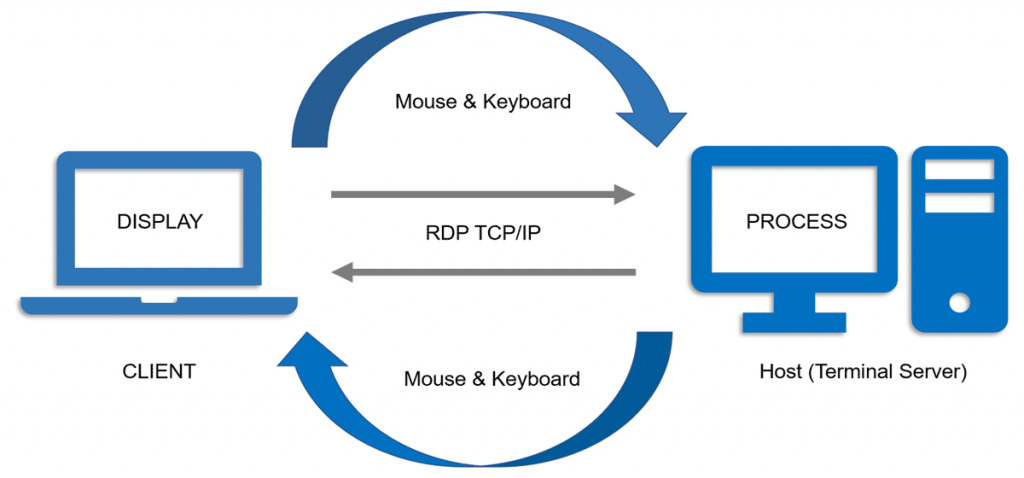
The same power makes RDP dangerous when it is reachable by anyone on the internet. A successful login is not just a file download; it is an interactive foothold.
Why Exposed RDP Is Risky
RDP risk usually comes from configuration, not from the idea of remote access itself. The most common problems are weak passwords, no MFA, old Windows builds, direct exposure to the internet, too many allowed users, and no monitoring.
| Risk | Why it matters | Better control |
| Open port 3389 | Anyone can attempt connections and password attacks. | Use VPN, RD Gateway, zero-trust access, or IP allowlists. |
| Weak or reused passwords | Attackers can use credential stuffing and brute force. | Long unique passwords, MFA, account lockout. |
| No NLA | The remote host is exposed before user authentication. | Require Network Level Authentication. |
| Too many RDP users | Any compromised account may become remote access. | Limit Remote Desktop Users and admin rights. |
| No logging | Brute force and suspicious access may go unnoticed. | Monitor logon events, failed attempts, source IPs, and new accounts. |
Best Practice: Do Not Publish RDP Directly
The most important RDP security decision is exposure. If users need remote access, avoid direct internet access to each Windows machine. Use one of these patterns instead:
- VPN first: users connect to the VPN, then RDP to internal systems.
- Remote Desktop Gateway: centralize access through an HTTPS gateway and restrict backend RDP.
- Zero-trust remote access: require identity, device, and policy checks before the session.
- Jump host: allow RDP only from a hardened management host.
- IP allowlist: if nothing else is possible, restrict source IPs and monitor them.
Changing the RDP port can reduce noise from basic scans, but it is not real protection. Attackers can still find the service.
How to Secure RDP Step by Step
1. Disable RDP where it is not needed
If a workstation or server does not need Remote Desktop, turn it off. Fewer remote entry points means less attack surface.
2. Require Network Level Authentication
Network Level Authentication makes the user authenticate before a full remote session is created. On supported Windows versions, keep it enabled unless you have a specific compatibility reason and a compensating control.
3. Restrict who can log in
Review the Remote Desktop Users group and local administrators. Remove stale accounts, shared accounts, former employees, and accounts that do not need remote access.
4. Use strong passwords and MFA
RDP exposed to password-only authentication is a brute-force target. Use long unique passwords, disable reused local admin passwords, and add MFA through RD Gateway, VPN, identity provider, or a remote access gateway.
5. Set account lockout policies
Account lockout slows password guessing. A common baseline is to lock an account after a small number of failed attempts for a short period, then monitor repeated failures.
6. Patch Windows and RDP clients
Keep both the remote host and client devices updated. Old RDP components and unpatched Windows systems can turn a remote-access feature into an exploit path.
7. Limit clipboard, drive, and device redirection
Clipboard, printer, drive, USB, and credential redirection can be useful, but they also expand what a compromised session can access. Disable what users do not need.
8. Log and review RDP activity
Monitor failed logons, successful logons from new locations, unusual session times, new local users, changed firewall rules, and disabled security tools. RDP abuse often leaves clues before the final damage.
Home User RDP Checklist
- Do not forward port 3389 from your router to your PC.
- Use a VPN if you need to connect from outside the home.
- Use a Microsoft account or local account with a strong unique password.
- Keep Windows updated and restart after security updates.
- Disable RDP when you no longer need it.
- Scan the PC if you notice unknown users, new startup items, or failed-login alerts.
Small Business RDP Checklist
- Inventory every machine with RDP enabled.
- Block direct internet RDP at the firewall.
- Require VPN, RD Gateway, or zero-trust access with MFA.
- Use least privilege and separate admin accounts.
- Apply account lockout and password policies.
- Enable centralized logging for logon events.
- Keep offline or protected backups in case RDP is abused for ransomware.
Signs RDP May Be Under Attack
- Many failed login attempts from unknown IP addresses.
- Successful login at an unusual time or from an unexpected country.
- New local administrator accounts.
- Disabled antivirus, changed firewall rules, or new exclusions.
- Unknown remote access tools installed after a session.
- Ransom notes, encrypted files, or deleted backups.
If you suspect compromise, disconnect the affected machine from the network, preserve logs, change passwords from a clean device, and scan the system. For a second opinion on malware or persistence left after remote-access abuse, use Gridinsoft Anti-Malware.
FAQ
Is RDP safe?
RDP can be safe when it is restricted, patched, monitored, and protected with strong authentication. It is unsafe when exposed directly to the internet with password-only login.
Should I change the default RDP port?
Changing the port may reduce automated noise, but it is not a primary security control. Use VPN, RD Gateway, MFA, firewall restrictions, and NLA first.
What is Network Level Authentication?
Network Level Authentication requires the user to authenticate before the full RDP session starts. It reduces exposure and should stay enabled on supported systems.
Can RDP lead to ransomware?
Yes. Attackers often use exposed or stolen RDP access to enter a system, disable protections, move through the network, and deploy ransomware.
What port does RDP use?
RDP uses TCP port 3389 by default. Some environments change it, but firewall restrictions and secure access design matter more than hiding the port.