Remote work security in 2026 is not just a VPN question. The real goal is to protect the account, the device, the remote access path, and the data a worker touches outside the office. Start with MFA or passkeys on email and cloud apps, keep Windows, browsers, VPN clients, and collaboration tools patched, never expose RDP directly to the internet, and give employees a clear way to report suspicious links, MFA prompts, calls, and unexpected remote-support requests.
Remote work security checklist: what to do first
- Require MFA or passkeys for email, VPN/ZTNA, cloud apps, admin panels, and remote desktop gateways.
- Remove public RDP exposure; put Remote Desktop behind a VPN, RD Gateway, zero-trust access layer, or strict allowlist.
- Patch laptops, browsers, VPN clients, password managers, remote-support tools, and file-sharing apps quickly.
- Use managed file sharing instead of personal email, public links, or unsanctioned AI/chat tools for work data.
- Scan devices after suspicious downloads, fake job/interview apps, unexpected remote-support sessions, or repeated security alerts.
Google’s top results for this topic are broad best-practice pages from Microsoft, TechTarget, Cyber.gov.au, Kaspersky, and official small-business guidance. Gridinsoft can be more useful when the article focuses on the problems people actually search during an incident: exposed remote access, stolen passwords, suspicious MFA prompts, fake support calls, phishing emails, personal laptop risk, and what to do after a remote-work device may already be compromised.
Why remote work risk changed in 2026
Remote work expanded the number of places where attackers can try to enter: home routers, personal devices, cloud logins, browser sessions, VPN portals, SaaS file sharing, and remote desktop tools. Verizon’s 2026 DBIR notes that vulnerability exploitation became the top breach entry point, while mobile social engineering and unapproved AI tool use also rose sharply [1]. That matters for remote teams because an outdated VPN appliance, a weak cloud login, or a fake SMS to an employee can become the first step into company data.
| Remote-work risk | What it looks like | Best first control |
| Stolen account access | Unexpected MFA prompt, new sign-in location, mailbox rules, password reset emails | MFA/passkeys, session revocation, sign-in alerts |
| Exposed remote access | RDP, VPN, remote-support, or admin portal reachable from the public internet | Gateway, ZTNA/VPN, allowlist, logging, no direct RDP |
| Unpatched software | Old VPN client, browser, Windows build, router firmware, or remote desktop component | Patch policy and emergency update process |
| Personal or shared devices | Family use, unknown extensions, no disk encryption, mixed personal/work files | Approved device policy, separate profile, endpoint protection |
| Phishing and mobile scams | Fake login pages, invoice changes, SMS/voice verification requests, Teams/Zoom lures | Verification workflow, reporting, password manager checks |
| Shadow AI and file leaks | Work text, code, screenshots, or customer data pasted into unapproved AI tools | Approved tools, data rules, DLP, employee training |
Secure remote access without opening the door
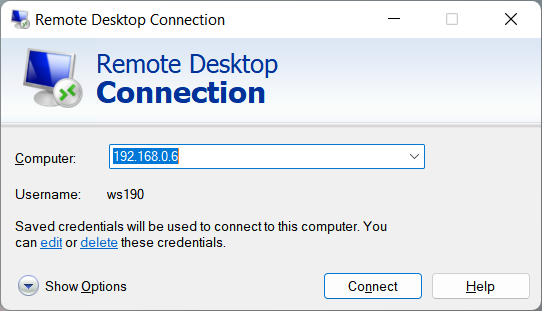
Do not publish Remote Desktop directly to the internet. If employees or administrators need Windows remote access, use a controlled access layer: VPN first, Remote Desktop Gateway, a zero-trust network access service, a hardened jump host, or a strict IP allowlist with MFA and monitoring. Direct public RDP is a common brute-force and ransomware entry point; the stronger pattern is to make the user authenticate before a remote session is reachable.
For deeper Windows-specific steps, use the Gridinsoft guide to securing Remote Desktop (RDP). For malware that gives attackers covert control rather than legitimate admin access, see Remote Access Trojan signs and cleanup.
Remote employee security checklist
- Use only approved devices for work data whenever possible.
- Lock the screen when away from the laptop, even at home.
- Install operating system, browser, VPN, remote desktop, and collaboration updates promptly. A current example is CVE-2026-53412 in Zoom Workplace for Windows, which shows why collaboration-app version checks belong in every remote-work update routine.
- Use a password manager so fake login pages are easier to spot.
- Do not approve unexpected MFA prompts, even if the message looks urgent.
- Verify payment changes, password reset requests, and “IT support” calls through a trusted channel.
- Do not store work files in personal cloud storage or send them through personal email.
- Avoid public Wi-Fi for sensitive work unless VPN and HTTPS are active.
- Do not paste customer data, source code, credentials, screenshots, or private files into unapproved AI tools.
- Report suspicious emails, links, sign-in alerts, and security-tool warnings quickly.
If a message looks suspicious, compare it with the examples in Gridinsoft’s phishing email red-flag guide before opening links from a work device.
Small business remote work checklist
- Create an inventory of remote users, laptops, phones, admin accounts, VPN users, and remote-support tools.
- Require MFA for email, cloud storage, VPN/ZTNA, remote desktop gateways, finance tools, and admin panels.
- Disable unused accounts quickly, especially for contractors and former employees.
- Patch Windows, browsers, VPN clients, routers, firewalls, NAS devices, and remote-access gateways.
- Limit admin rights on daily-use accounts and separate administrator sessions from email and browsing.
- Back up business-critical files and test restores, not just backup creation.
- Monitor impossible travel, new mailbox rules, new OAuth app consent, suspicious forwarding, and repeated failed logins.
- Write a simple incident plan for lost laptops, compromised email, stolen passwords, exposed RDP, and suspected malware.
NIST’s telework and BYOD guidance treats remote access, endpoint security, BYOD, and policy as one system rather than separate checkboxes [3]. For small teams, that means the policy should answer plain questions: which devices can hold work data, which services require MFA, who approves remote-support tools, and what employees do when something looks wrong.
If something already happened
| What happened | What to do now |
| You entered a password on a suspicious page | Change it from a clean device, revoke sessions, check mailbox rules, enable MFA/passkeys, and tell IT or the account owner. |
| You approved an unexpected MFA prompt | Assume the password may be known. Revoke active sessions, reset the password, review sign-ins, and report the prompt. |
| You installed a fake meeting, VPN, job, or remote-support app | Disconnect from sensitive accounts, uninstall the app, scan the system, and check for remote-access tools, startup entries, and password theft. |
| RDP or a remote admin panel was exposed | Close public access, rotate affected passwords, review login events, check for new users, and scan endpoints for persistence. |
| A laptop or phone was lost | Revoke sessions, trigger remote lock/wipe where available, rotate passwords for local apps, and review recent cloud activity. |
If the device may have run malware, do not rely only on deleting the visible file. Run a full system scan and check browser sessions, saved passwords, email forwarding rules, and important accounts. If an infostealer may be involved, follow Gridinsoft’s password stealer recovery checklist before changing every password on the same possibly infected computer.
After uninstalling the suspicious app or deleting the visible threat, use Gridinsoft Anti-Malware to check hidden files, startup entries, scheduled tasks, bundled apps, browser changes, and other persistence points that can restore malware.
Download Anti-MalwareCan employees use personal laptops?
Personal laptops can be allowed only with clear boundaries. At minimum, require current security updates, disk encryption, screen lock, endpoint protection, separate work browser/profile, no shared family use during work sessions, and a rule that work files stay in approved storage. Cyber.gov.au recommends MFA, strong passphrases, device updates, backups, and remote-working policy alignment for people working away from the office [2].
If a company cannot verify the device, do not allow it to store sensitive files locally or access admin systems. Use browser-based access with conditional controls, virtual desktops, or managed devices for higher-risk roles.
FAQ
Is a VPN enough for remote work security?
No. A VPN can protect the connection path, but it does not fix stolen passwords, phishing, unpatched laptops, risky browser extensions, public RDP, or data pasted into unapproved tools.
What should remote workers secure first?
Secure email and identity first: MFA or passkeys, unique passwords, session review, and sign-in alerts. Compromised email often lets attackers reset other accounts, intercept invoices, and send trusted phishing messages.
Why is exposed RDP dangerous?
Public RDP gives attackers a visible target for brute force, stolen credentials, and old vulnerabilities. Put RDP behind a gateway, VPN, ZTNA layer, or strict allowlist with logging and MFA.
What should I do after clicking a work phishing link?
If you only opened the page, report it and avoid entering data. If you entered a password or approved MFA, change the password from a clean device, revoke sessions, check mailbox rules, and notify IT immediately.
Should remote workers scan personal devices?
Yes, if the device touches work accounts or files. Scan after suspicious downloads, fake meeting apps, remote-support sessions, cracked tools, browser redirects, or repeated antivirus alerts.
References
- Verizon Business. “Vulnerability exploitation top breach entry point, 2026 industry-wide DBIR finds.” Verizon, May 19, 2026. https://www.verizon.com/about/news/breach-industry-wide-dbir-finds
- Australian Signals Directorate, Australian Cyber Security Centre. “Security tips for remote working.” Cyber.gov.au, accessed June 7, 2026. https://www.cyber.gov.au/protect-yourself/staying-secure-online/security-tips-remote-working
- National Institute of Standards and Technology. “NIST SP 800-46, Revision 2: Guide to Enterprise Telework, Remote Access, and Bring Your Own Device (BYOD) Security.” NIST, updated August 29, 2025, accessed June 7, 2026. https://www.nist.gov/privacy-framework/nist-sp-800-46