Trojan:MSIL/Jalapeno!MTB is a Microsoft Defender detection. Keep the affected item quarantined while you check its full path and whether you ran it. A hit in a browser cache calls for a different investigation from an installer you opened or a file recreated at startup. If the warning appeared while downloading Epic Games Launcher, that timing alone does not establish either an infected official installer or a false positive. Start with the Affected items field in Protection History, then use the matching case below.
What the Jalapeno alert actually tells you
Microsoft lists the exact name Trojan:MSIL/Jalapeno!MTB in its threat encyclopedia. Its entry says Defender detects and removes the threat, but detailed technical behavior is unavailable.[1] The label therefore is not enough to identify a particular stealer, remote-access tool, malicious installer, or stolen account. Claims about those outcomes need evidence from the affected file or the device.
Open Windows Security → Virus & threat protection → Protection history, expand the matching card, and record three things before changing anything:
- The full affected path. Copy the folder and filename, including any reference to an archive or download container. A familiar app name elsewhere on the screen does not replace this field.
- The action result. Threat quarantined means the item was isolated; Threat blocked means Defender blocked and removed it. Remediation incomplete means cleanup did not finish and needs follow-up.[2]
- The detection time and what you did just before it. Distinguish downloading, running an installer, opening a browser, and signing in to Windows.
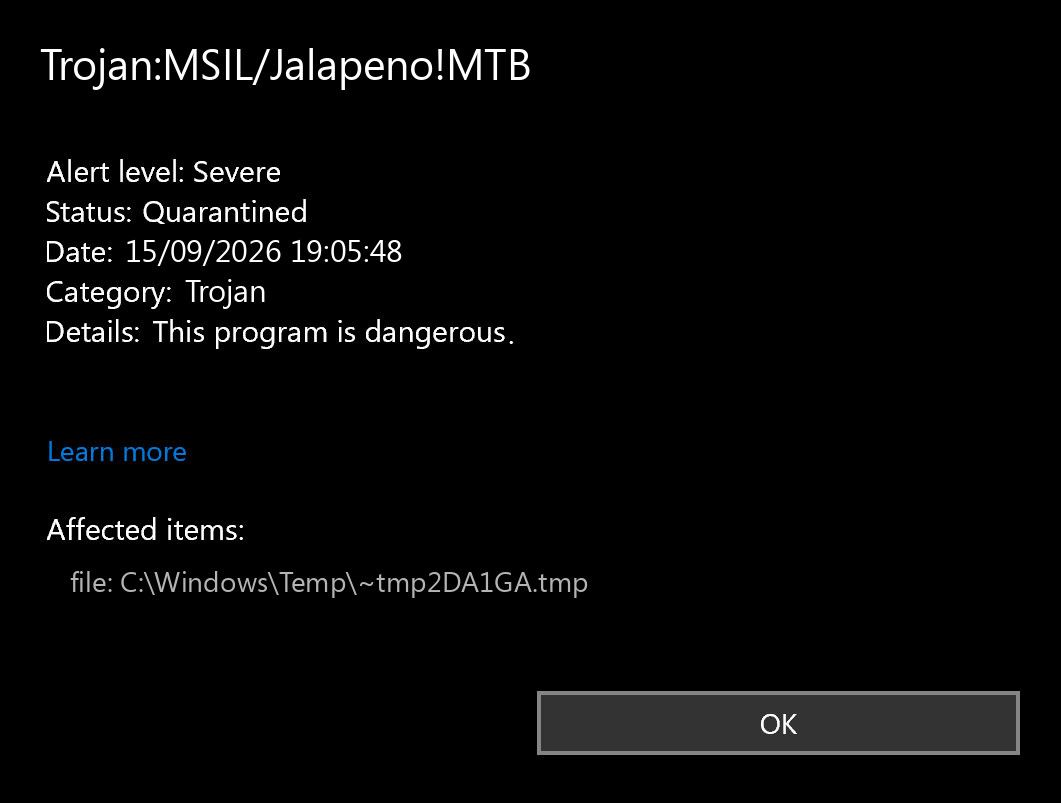
The pictured date and temporary-file path are illustrative. Use the values on your own PC; Jalapeno does not have one universal filename or folder. For the structure of the label, see our guide to Microsoft Defender detection names.
Choose the case that matches Affected items
A browser cache file
A path under %LOCALAPPDATA%\Microsoft\Edge\User Data\Default\Cache or %LOCALAPPDATA%\Google\Chrome\User Data\Default\Cache points to browser storage. A filename such as f_0004bc identifies a cache entry, not the app you meant to install. The profile folder may differ on your PC.
For this case, keep the detection quarantined, close the page that preceded it, and use that browser’s Clear browsing data settings to clear cached images and files. You do not need to erase saved passwords or every browser profile. Close the browser afterward and run an updated full scan. If a fresh alert appears only after returning to the same download page, stop revisiting it and verify the download source.
Browser cache and Epic Games Launcher’s own cache are separate locations. Deleting the launcher’s webcache folder is not a targeted fix for a path inside Edge or Chrome. Conversely, a cache-only finding does not establish that a downloaded program executed. Check your actions separately.
A downloaded installer or download-manager fragment
If Defender names an item in %USERPROFILE%\Downloads, or a download manager’s temporary folder, locate the matching download entry without opening the file. Cancel any pending retry. Keep the detected item isolated and remove an untrusted source download through the security tool or the download manager.
A download manager can fetch the same content again after you remove it. If a new alert coincides with a resumed download, first stop that job; repeated downloading and malware recreating itself are different causes. For a wanted program, verify its publisher and official distribution route before obtaining a fresh copy. Do not test a blocked installer by running it.
A file you already opened
If you ran the installer, accepted its administrator prompt, or launched a downloaded script before the alert, cache cleanup alone is insufficient. Record the download source and approximate execution time, then follow the full cleanup sequence below. Review apps installed at that time and any new startup behavior. Avoid signing in to sensitive accounts on the affected PC while investigating an untrusted program that ran.
A file recreated after Windows sign-in
A new Jalapeno event after a restart, before you reopen the browser or download manager, deserves a persistence check. Inspect Startup apps and Task Scheduler for entries whose executable path or task action matches the affected file or its parent folder. A scheduled task’s friendly name is less useful than the command it launches.
Do not delete every unfamiliar task or everything in AppData. Record a suspicious entry’s action and target first. Disable only an entry you can tie to the unwanted program, then remove that program and scan. If the relationship is unclear, keep the evidence for support instead of guessing at registry deletions.
Could Jalapeno be an Epic Games false positive?
It is possible for a legitimate file to receive an incorrect detection. However, the name Trojan:MSIL/Jalapeno!MTB, a cache location, or the fact that you were trying to install Epic Games is not sufficient to clear your particular file.
Compare the actual download address, exact filename, version, and digital signature. If the file is still available outside quarantine, its Properties → Digital Signatures tab can help identify the signer without launching it. A matching valid signature supports provenance, but it is not a standalone guarantee of safety. Do not restore a quarantined file just to inspect its properties.
For a suspected false positive, update Defender’s security intelligence and ask the software publisher to investigate the exact file/version. Microsoft’s detection troubleshooting page also provides its file-submission route.[3] Share only a file you are authorized to submit, and do not upload private documents or personal browser-cache contents as though they were an ordinary installer. A publisher can submit its own distribution file.
Keep real-time protection enabled while waiting for a clarified verdict or corrected download. Avoid blanket folder exclusions. If you already clicked Allow on device, follow the steps to undo an accidentally allowed Defender threat before continuing.
Remove the source and check whether Jalapeno returns
- Complete the recorded action. Quarantine an unresolved detection or remove the untrusted item. If Windows Security reports incomplete remediation, open the card and follow its additional instructions. Preserve the path and time rather than clearing the history.
- Stop the matching source. Close the affected page, cancel the download-manager retry, or uninstall the unwanted program that matches your findings. Use the path cases above to avoid cleaning an unrelated cache or app.
- Update and scan. Install current Defender protection updates, then select Scan options → Full scan. Review the final result, including failed actions, rather than relying only on the dashboard color.
- Restart and compare. Note the restart time. Before resuming the original download or browser session, check for a new event. Compare its timestamp and affected path with the recorded alert.
If a fresh detection returns, a remaining component may be recreating the file. Microsoft describes this as one possible cause of repeated malware detection.[3] Depending on the case, the remaining source may be a loader, scheduled task, startup entry, bundled app, or repeated download; the Jalapeno name does not tell you which.
After manual containment, run a full Gridinsoft Anti-Malware scan to check for malicious components and leftovers. Review its findings, apply the recommended cleanup to confirmed unwanted items, restart, and recheck if symptoms return. This is particularly useful when a file ran or the alert appears again without another download.
Defender can quarantine the visible file, but repeated alerts may mean a loader, scheduled task, service, browser change, or bundled component is recreating it. Scan the PC before trusting the cleanup.
Scan for malware leftoversIf recurrence continues, Microsoft Defender Offline is another built-in investigation step. Save your work before starting it. If it does not restart or produces no usable result, follow our Defender Offline Scan troubleshooting guide.
When cleanup is complete—and when to escalate
A useful stopping point is: the detected item is isolated or removed, the identified source is stopped, an updated full scan completes without unresolved detections, and no fresh Jalapeno event appears after restart. An old Protection History card can remain visible after cleanup; its presence alone is not a new infection. Do not erase history to manufacture a clean result.
If an untrusted file ran and you see unexpected account sessions, password changes, or security alerts, use a separate trusted device to secure those accounts, revoke unknown sessions, and change affected passwords. Malware removal cannot revoke an already stolen session. Persistent security tampering or repeated execution from an unidentified source may justify professional help or a clean Windows installation; a single quarantined cache finding alone does not establish that need.
References
- Microsoft. “Trojan:MSIL/Jalapeno!MTB.” Microsoft Security Intelligence, May 7, 2024; accessed September 15, 2026. Threat description.
- Microsoft. “Protection History in the Windows Security App.” Microsoft Support; accessed September 15, 2026. Protection History status guide.
- Microsoft. “Troubleshoot problems with detecting and removing malware.” Microsoft Support; accessed September 15, 2026. Repeated detections and submission guidance.