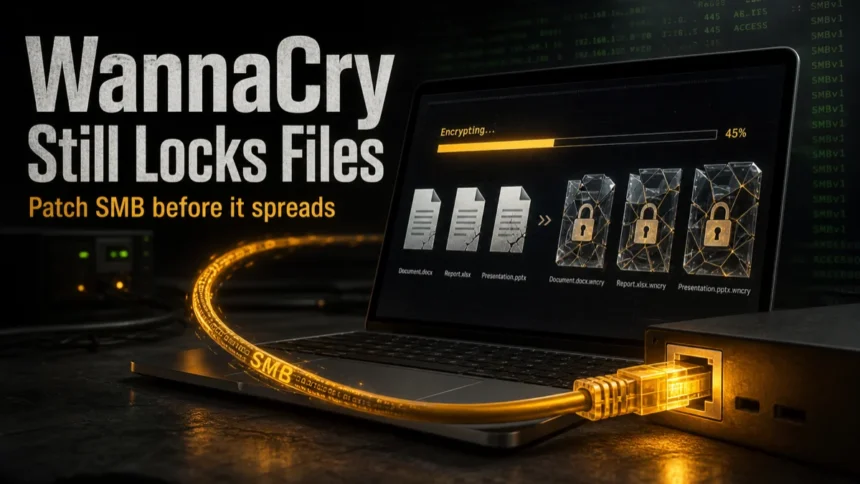
WannaCry ransomware is not a normal “virus” that waits for one bad click. It is a Windows ransomware worm that became famous because it could spread through vulnerable SMB services and encrypt files on unpatched systems. The practical defense is still simple: install the MS17-010 security update, remove or disable SMBv1 where possible, keep endpoint protection active, and keep offline backups that ransomware cannot rewrite.
The original outbreak happened in May 2017, but the lesson is still current in 2026. Old Windows installations, forgotten virtual machines, legacy file servers, lab PCs, and exposed SMB ports can turn one infected host into a larger incident. If you only want the action list, start with the protection checklist below.
What Is WannaCry?
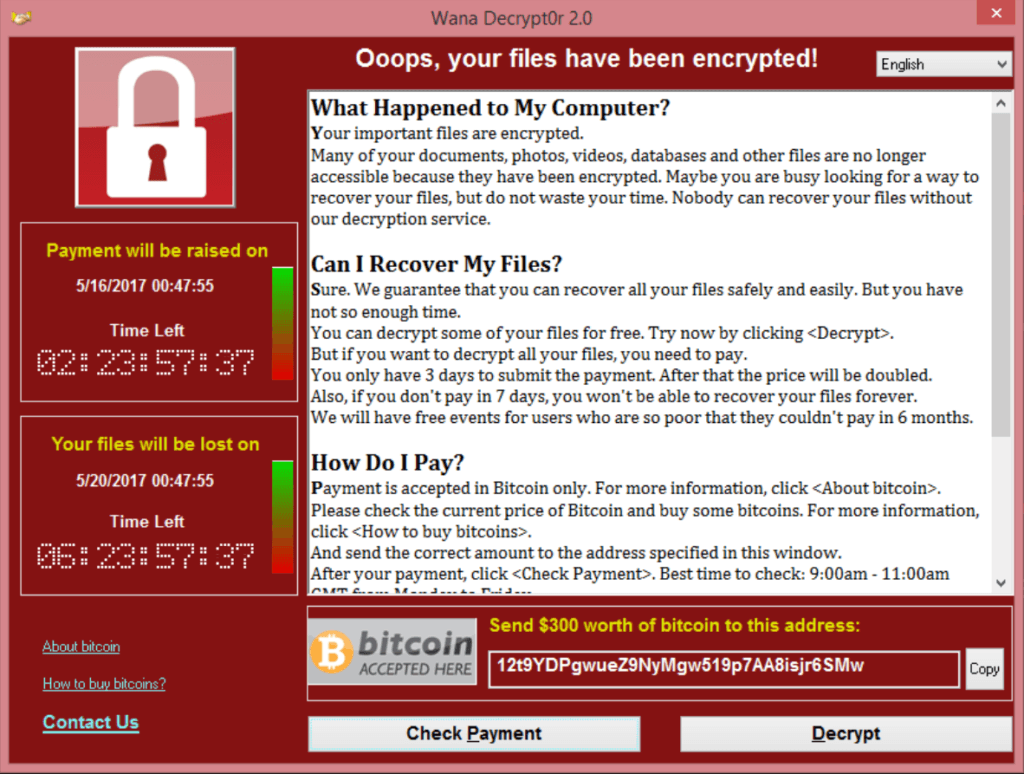
WannaCry, also known as WannaCrypt or WanaCrypt0r 2.0, is crypto-ransomware for Windows. After infection, it searches for user files, encrypts them, and shows a ransom note demanding payment in Bitcoin. The well-known ransom screen says that files have been encrypted and gives a deadline for payment.
What made WannaCry unusually dangerous was its worm behavior. Instead of relying only on malicious email attachments or fake downloads, it used the EternalBlue exploit against vulnerable Microsoft SMBv1 systems. Microsoft addressed the underlying SMB vulnerabilities in security bulletin MS17-010 before the outbreak, but many machines were not patched in time [1].
Why WannaCry Still Matters
WannaCry is remembered as a 2017 outbreak, but the failure pattern behind it is still relevant: delayed patching, old Windows builds, exposed SMB services, and backups that are not isolated from infected machines. A home user may only have one PC to worry about. A small office may have old scanners, file shares, or virtual machines that quietly keep legacy settings alive.
That is why the right question is not only “is the original WannaCry still spreading?” The better question is whether your Windows systems are patched, whether SMBv1 is still enabled, and whether a single compromised device could reach shared files or backups.
Who Is Still at Risk?
Fully updated Windows 10, Windows 11, and supported Windows Server installations are not the same risk profile as an abandoned Windows 7 or Windows Server 2008 machine. Microsoft no longer installs SMBv1 by default in modern Windows versions such as Windows 11 and Windows Server 2019 or later [2]. The problem is usually legacy exposure, not a fresh Windows 11 laptop with normal updates enabled.
You should still check for WannaCry-style risk if any of these apply:
- You run Windows XP, Vista, Windows 7, Windows 8, Server 2003, Server 2008, or other unsupported Windows builds.
- A file server, NAS, scanner, printer, or industrial device requires SMBv1.
- TCP port 445 is exposed to the internet or allowed too broadly inside the network.
- Old virtual machines or lab PCs are powered on but rarely updated.
- Backups are connected as writable network shares all the time.
How to Protect a PC from WannaCry
- Install Windows security updates. Make sure MS17-010 or a later cumulative update that includes it is installed. Microsoft provides methods to verify the update by installed KB number or by the
srv.sysfile version [1]. - Disable SMBv1 if you do not need it. SMBv1 is deprecated and has serious security weaknesses. If old hardware requires it, isolate that device instead of enabling SMBv1 everywhere.
- Block SMB from the internet. Do not expose TCP 445 or 139 publicly. SMB should be limited to trusted internal segments or VPN-only access.
- Run updated security software. Keep Microsoft Defender or another trusted antivirus enabled, and run a full scan if a machine was exposed or behaved strangely.
- Keep backups offline or immutable. A backup that ransomware can access as a writable share may be encrypted with everything else. Test restoration before you need it.
- Be careful with downloads and archives. WannaCry’s famous spread was SMB-based, but ransomware also arrives through fake installers, malicious attachments, and cracked software. If you are unsure about an archive, see our guide on whether opening ZIP or RAR files can infect a PC.
What to Do If Files Are Already Encrypted
If you see the WannaCry ransom screen or files with suspicious encrypted extensions, do not rush to pay. Payment is not a reliable recovery method, and it does not guarantee that the attackers will restore files. The safer order is containment, cleanup, and then recovery.
- Disconnect the computer from the network. Unplug Ethernet, disable Wi-Fi, and stop shared-drive access so the infection cannot spread or touch backups.
- Preserve evidence before wiping. Take photos of the ransom note, record affected file names, and note the time of discovery. This helps when restoring and when reporting an incident.
- Scan the system. Use an updated security tool to remove active malware before reconnecting the machine. Gridinsoft Anti-Malware can be used as a second-opinion scan when you need to check whether ransomware or another payload is still present.
- Restore from a clean backup. Restore only after the system is clean or rebuilt. If backups were connected during the attack, verify them on an isolated machine first.
- Patch before reconnecting. Reinstalling Windows or restoring a snapshot without fixing SMB exposure can put the same machine back into the same risk state.
After uninstalling the suspicious app or deleting the visible threat, use Gridinsoft Anti-Malware to check hidden files, startup entries, scheduled tasks, bundled apps, browser changes, and other persistence points that can restore malware.
Download Anti-MalwareCommon Signs of WannaCry or Similar Ransomware
- A ransom note claims that files were encrypted and asks for Bitcoin.
- Documents, photos, and archives no longer open.
- File names or extensions change unexpectedly.
- Multiple computers on the same network show the same symptoms within a short period.
- Security tools report ransomware behavior, SMB exploitation attempts, or suspicious encryption activity.
These signs do not prove that the original 2017 WannaCry sample is present. Many ransomware families copy old ransom-note language or reuse similar tactics. The important part is to stop spread first, then identify the exact threat family during cleanup.
Why Prevention Beats Cleanup
Removing ransomware stops further damage, but it does not automatically decrypt files that were already locked. That is why patching, SMB hardening, and backup testing matter more than any last-minute cleanup step.
If you manage more than one Windows device, treat WannaCry as a reminder to review the basics: update status, exposed services, shared folders, local administrator access, and whether backups can be restored from a clean point in time.
FAQ
Is WannaCry still active?
The original 2017 outbreak is over, but unpatched SMB exposure is still a serious pattern. Old machines can still be infected by legacy malware, and newer ransomware can abuse similar operational weaknesses.
Can Windows 11 get WannaCry?
A normally updated Windows 11 installation is not the typical WannaCry target because SMBv1 is not installed by default. Risk increases when legacy SMB settings, exposed services, or old unpatched systems exist on the same network.
Should I pay the WannaCry ransom?
No. Payment does not reliably recover files and supports the criminal operation. Contain the machine, remove active malware, and restore from clean backups.
Does antivirus decrypt WannaCry files?
Antivirus can remove the ransomware and stop further damage, but it usually cannot decrypt files by itself. Recovery depends on backups, safe restore points, or a trusted decryptor that matches the exact ransomware variant.
References
- Microsoft. “How to verify that MS17-010 is installed.” Microsoft Support, accessed June 7, 2026. https://support.microsoft.com/en-us/security/how-to-verify-that-ms17-010-is-installed
- Microsoft. “SMBv1 not installed by default in Windows Server and Windows.” Microsoft Learn, accessed June 7, 2026. https://learn.microsoft.com/en-us/windows-server/storage/file-server/troubleshoot/smbv1-not-installed-by-default-in-windows
- NCSC. “Ransomware: ‘WannaCry’ guidance for home users and small businesses.” National Cyber Security Centre, accessed June 7, 2026. https://www.ncsc.gov.uk/guidance/wannacry-guidance-for-home-users-and-small-businesses