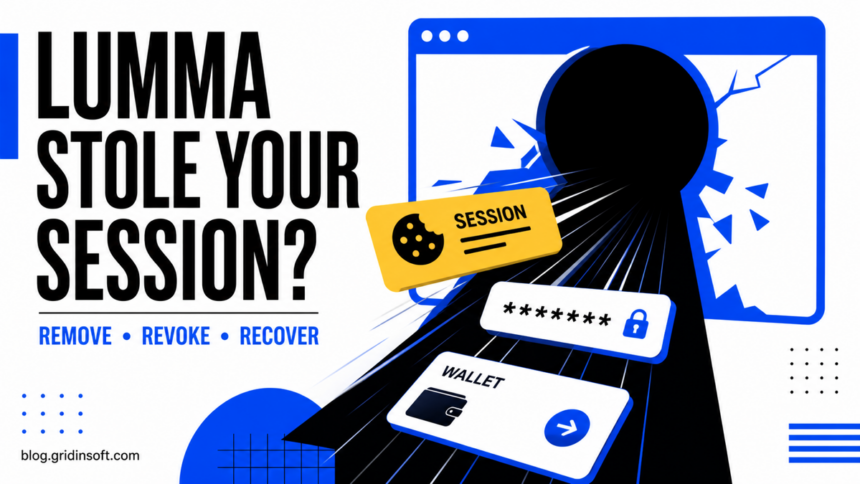
Lumma Stealer (LummaC2) is a Windows infostealer that can copy browser passwords, cookies and active session data, wallet files, and selected documents. If a suspicious file or fake CAPTCHA command ran, disconnect the PC, secure your primary email and revoke active sessions from a clean device, then scan Windows and check for persistence. Deleting the downloaded file does not undo data theft.
If the file was blocked before it ran, the risk is lower and a reinstall is usually unnecessary. Repeated detections, disabled security, administrator-level execution, or unknown remote access are reasons to consider a clean Windows reinstall. Use the guide below to match the response to what actually happened.
Match the Response to What Happened
- You saw or clicked a fake update or CAPTCHA page but did not paste or run anything: close the tab and overwrite the clipboard by copying harmless text. If you did not download, paste, run, or approve anything, infection is unlikely. Remove any notification permission the site received and scan if a file downloaded automatically.
- A file downloaded, but you did not open it: record the download URL, filename, and time, then delete or quarantine the file, update security definitions, and run a scan. Do not open the archive to “check” it.
- Defender blocked or quarantined the file before execution: open Protection history and confirm the action shows a pre-execution block or quarantine. If the source was never run and a full follow-up scan is clean, account recovery is generally unnecessary for that event alone; otherwise revoke sessions.
- You ran a file, installer, script, or command: assume browser data may have been copied. Isolate the PC, use a clean device to secure accounts and revoke sessions, then complete the removal workflow below.
- The Lumma alert returns after reboot: isolate the PC again. A loader, scheduled task, startup item, synced archive, browser cache, or another payload may be restoring the detection. Repeat scanning and investigate the source path.
What Lumma Stealer Is and What It Can Steal
Lumma is an information-stealing malware family offered to multiple criminal operators. Microsoft describes it as malware-as-a-service capable of stealing data from browsers and applications, including cryptocurrency wallets, and of installing other malware [1]. CISA and the FBI have also documented LummaC2 campaigns against organizations and individuals [2].
The important consequence is that the incident can continue outside the infected computer. A quarantined file cannot revoke a copied session cookie. Depending on the service, a stolen session may remain useful until it expires or is invalidated server-side.
- Saved browser passwords and autofill: attackers can try the same credentials on email, stores, banking, gaming, and work portals.
- Browser cookies and active sessions: some accounts can be accessed without entering the password until sessions are revoked or expire.
- Cryptocurrency wallets and browser extensions: exposed seed phrases, keys, or authenticated exchange sessions can lead to rapid, irreversible theft.
- Email, Discord, Steam, Telegram, and social accounts: stolen accounts can spread scams or malware to trusted contacts.
- Files, screenshots, and system details: campaign configurations vary, but collected context can support follow-up fraud or access attempts.
Lumma may finish its theft quickly and leave few obvious symptoms. Slow performance, browser crashes, and high CPU usage are not reliable proof by themselves. Security detections, an executed command, unfamiliar account sessions, password-reset messages, or suspicious outbound messages are stronger incident clues.
What Lumma Stealer Defender Detections Mean
Microsoft publishes several related Defender names, including Behavior:Win32/LummaStealer, Trojan:Win32/LummaStealer, Trojan:Win64/LummaStealer, Trojan:MSIL/LummaStealer, and TrojanDropper:Win32/LummaStealer [1]. A suffix may differ as signatures and variants change. The name is useful, but the status, time, source path, and affected process determine the response.
- Blocked before execution: risk is lower. Confirm the item stayed quarantined, update definitions, and run a full scan.
- Behavior or process alert after execution: treat this as a possible compromise even if Defender later says “removed.” Start device cleanup and account recovery.
- The same archive or cache path returns: remove the original archive, email attachment, browser download, synchronized copy, or mounted installer that keeps being rescanned.
- A new path appears after every reboot: investigate startup entries, scheduled tasks, browser extensions, scripts, and the app that recreates the payload.
- A trusted signed file is named: keep the item quarantined while you verify its signature, original path, download source, and Defender status. A legitimate host process can be abused by malware; do not delete files from
System32orSysWOW64solely because their names appeared in an alert.
A possible false positive should be reviewed, not restored on instinct. Preserve the detection details, verify the publisher and file hash, and submit the file to the security vendor if the file came from a known official source. If the file came from a crack, mirror, ad, fake update, or copied command, do not restore it; obtain a fresh copy from the official source.
What to Do in the First 15 Minutes
- Disconnect the affected PC from Wi-Fi or Ethernet if a command or file ran, or if alerts are still appearing. Do not keep testing the lure.
- Move to a clean phone or computer. Do not sign in to important accounts from the suspect browser.
- Protect the primary email account first. Change its password, sign out other sessions, check recovery methods and forwarding rules, and enable MFA.
- Revoke active sessions for Google, Microsoft, Apple, password managers, social media, Discord, Steam, Telegram, financial services, crypto exchanges, and work accounts used in that browser.
- Record the incident window. Save Defender’s detection name, time, status, and file path, plus the name of the page, command, installer, or archive involved.
- Begin Windows cleanup before restoring browser sync or entering new credentials on the PC.
If work or school credentials, VPN access, customer data, or an organization-managed browser profile were present, notify IT or security immediately. They may need to revoke tokens, inspect sign-ins, or isolate other systems.
How to Remove Lumma Stealer From Windows
Start with the trigger, then check the places that can bring malware back after reboot. If manual inspection is unfamiliar, run the scans first and use the list to understand what must be reviewed.
- Keep the PC isolated while collecting the installer and alert details. Do not upload sensitive work files or suspected malware from a managed device unless your administrator requests it.
- Remove the source. Check Downloads, Desktop, recent archives, email attachments, fake update installers, cracked apps, browser downloads, and the file or command you ran. Quarantine suspicious items instead of opening them again.
- Update security intelligence and run Microsoft Defender Offline. Then boot normally and run a full scan. Offline scanning can check before many normal startup components load.
- Run a full Gridinsoft Anti-Malware scan. Check for the Lumma payload, loaders, scripts, scheduled tasks, startup entries, unwanted apps, browser changes, and additional malware.
- Review Startup Apps and Task Scheduler. Investigate recent entries with random names, fake “update” wording, or commands that launch
powershell.exe,cmd.exe,wscript.exe,mshta.exe, orrundll32.exefrom user-writable folders. Do not remove a Windows component merely because one of these tools appears; examine its command line and source. - Review installed apps by date. Remove unknown downloaders, helpers, cracks, fake AI or video tools, browser assistants, and remote-access apps added around the incident.
- Check browsers without restoring sync. Remove unknown extensions and notification permissions. Review startup pages, search settings, downloads, and unexpected “Managed by your organization” policies on a personal PC.
- Reboot and scan again. A second clean result, no returning alert, and no recreated startup item provide stronger evidence than one quick scan.
A scan can help find malicious files and persistence, but it cannot revoke stolen sessions or prove that data was never copied. Complete the account steps even if the malware itself is removed.
If a token stealer ran here, logging back in can hand the attacker your new Discord session, email cookie, Steam token, or wallet access. Scan this Windows PC first, then reset passwords from a clean device.
Scan Windows for Lumma leftoversWhy the Lumma Alert Keeps Coming Back
A repeating detection does not always mean the same active process survived. Use the source path and timestamp to distinguish four common cases:
- The original archive remains: Defender detects a copy inside Downloads, email storage, a mounted image, cloud sync, or a backup each time it is indexed.
- A loader persists: a scheduled task, startup entry, script, or unwanted app downloads or reconstructs the payload.
- Browser sync restores the problem: an extension or setting returns after the browser profile reconnects.
- Another malware component remains: the first Lumma alert was one stage of a larger infection chain.
Write down the path each time. If the path changes, security tools fail to start, a task reappears after removal, or unknown remote access is present, stop repeated manual deletion and move to the clean-reinstall decision below.
How to Secure Accounts and Revoke Stolen Sessions
Do this from a clean device whenever possible. Password changes and session revocation belong together: some services invalidate sessions after a password reset, while others require a separate “sign out everywhere” or device-removal action.
- Primary email: change the password, revoke sessions, remove unknown forwarding rules and app passwords, verify recovery email and phone, and enable MFA.
- Google, Microsoft, Apple, browser sync, and password managers: review devices and recent activity, revoke suspicious sessions and OAuth apps, rotate credentials, and avoid syncing old extensions back to the cleaned PC. If access is blocked, use the provider’s official recovery flow; do not trust a phone number from a pop-up.
- Discord, Steam, Telegram, and social accounts: check sent messages, linked apps, recovery settings, and active sessions. Warn contacts if scam links were sent.
- Banking, stores, and payment services: review transactions and saved payment methods. Contact the provider through its official app or website if money moved or an unknown device appeared.
- Crypto wallets and exchanges: assume seed phrases, private keys, and authenticated extensions exposed on the PC are unsafe. Prepare a clean wallet environment before moving funds.
- Work or school: tell IT which accounts, browser profiles, VPNs, and files were used during the incident window. Follow the organization’s incident-response process.
Prioritize accounts by control and value: primary email and password manager, identity-provider accounts, financial and crypto accounts, work access, then social and shopping accounts. Use unique passwords. For a broader credential checklist, see the password-stealer recovery guide.
When a Clean Windows Reinstall Is Safer
A clean reinstall is not required for a page you only viewed or a download that was blocked before execution. It becomes the safer choice when one or more of these conditions apply:
- Lumma or its loader ran with administrator rights.
- Defender, Windows Update, firewall settings, or security services remain disabled or damaged.
- Detections, tasks, browser policies, or unknown accounts return after cleanup.
- An unknown remote-access tool, backdoor, or additional payload appeared.
- The machine handled high-value work, administrator credentials, banking, or cryptocurrency and its state cannot be confidently explained.
Use known-good installation media. Back up only documents, photos, and project data you need; do not carry over executables, scripts, cracks, unknown archives, browser profiles, or the old Downloads folder wholesale. Scan the backup before opening it. After installation, update Windows, enable protection, install trusted applications, and only then reconnect recovered accounts. The Windows security audit after malware provides a post-cleanup checklist.
How Lumma Reaches Windows
There is no single “usual Lumma file.” Microsoft has observed phishing, malvertising, abuse of trusted platforms, traffic-distribution systems, fake applications, and multiple loaders [1]. Campaign-specific techniques should not be treated as permanent features of every Lumma build.
- Fake CAPTCHA and ClickFix: a page copies a command and tells the visitor to press
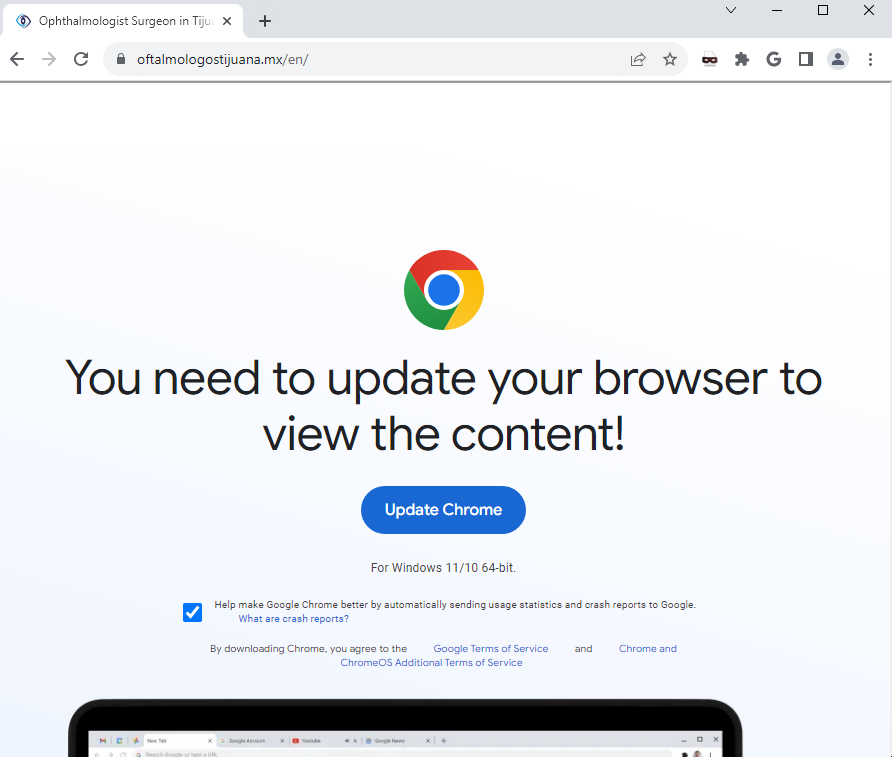
Win + R, paste, and press Enter. Merely seeing the page is not the same as executing the command. See the dedicated fake CAPTCHA and ClickFix guide. - Fake browser updates: a compromised or deceptive site presents an update installer that did not come from the browser’s own updater.
- Cracks, mods, cheats, and trojanized tools: an archive or installer hides the stealer behind content the victim expects. Use the infostealer-after-a-download guide when this was the entry point.
- Malvertising and impersonated software: ads or search results lead to fake AI, video, wallet, utility, or productivity downloads.
- Phishing and other loaders: an attachment, link, script, or previously installed loader starts the next stage.
The original Gridinsoft investigation documented a ClearFake-style browser-update lure. A deceptive tutorial page looked ordinary before a malicious prompt appeared:
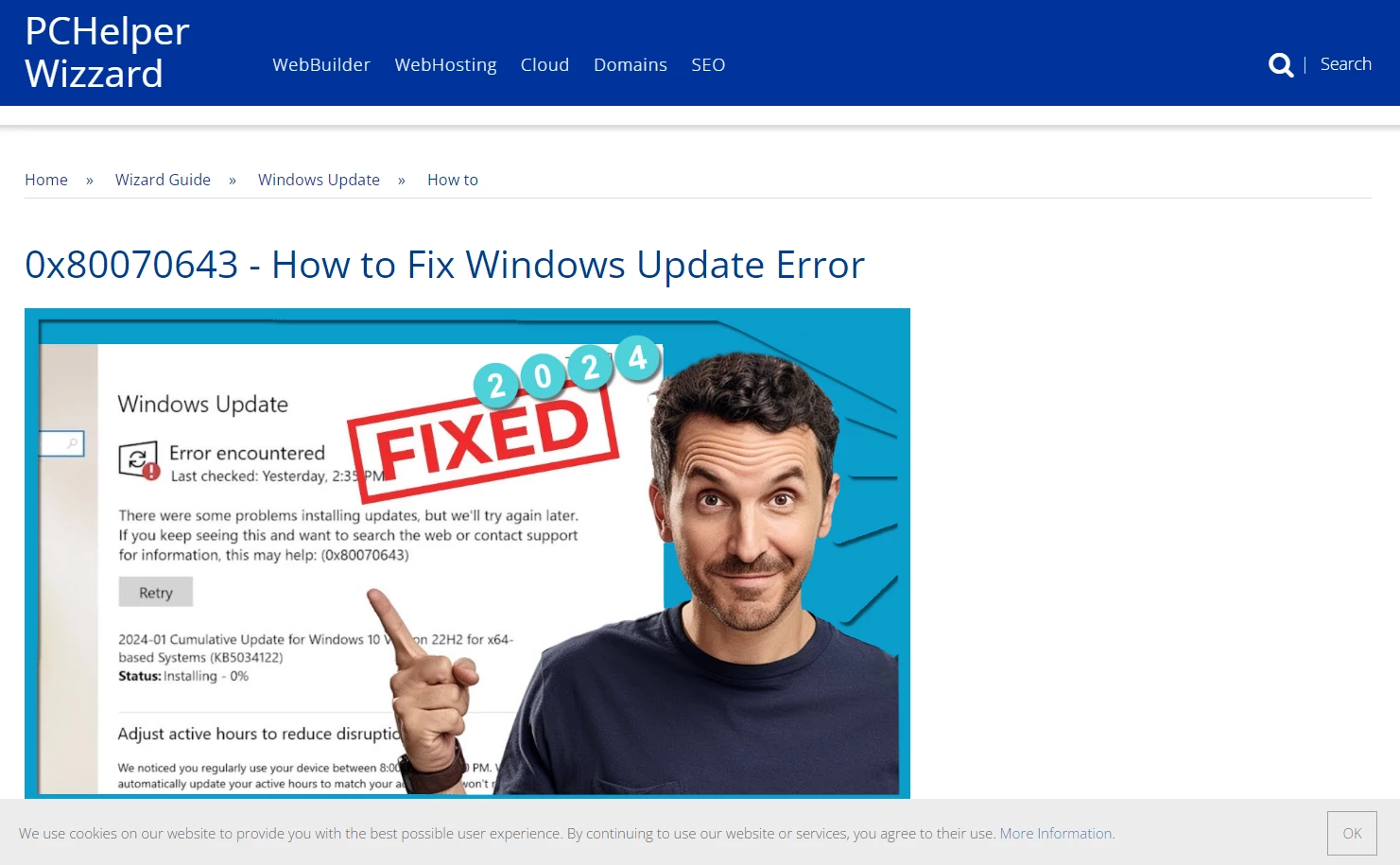
Qualys later documented Lumma campaigns using fake CAPTCHA pages and a PowerShell-based payload chain [3]. The delivery details change, but the safety rule does not: a website should never need you to run a system command to prove you are human or update a browser.
How to Confirm Cleanup
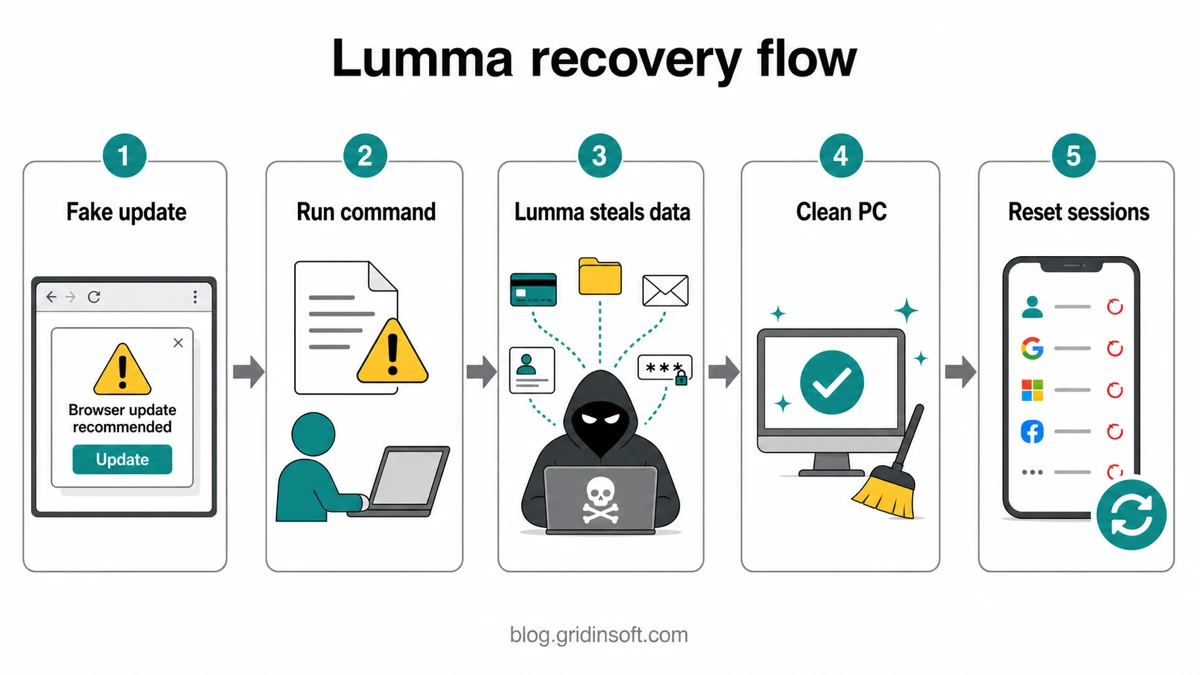
No single check proves that nothing was stolen, but the following combination gives useful confidence that the device is no longer actively compromised:
- Defender Offline, a full Defender scan, and the follow-up anti-malware scan complete without an active detection.
- The original source file, archive, command, and unwanted application are gone.
- No suspicious startup item, task, extension, browser policy, or remote-access app returns after reboot.
- Security services, Windows Update, browser updates, and firewall settings work normally.
- Account sessions have been revoked and recent sign-ins show no new unknown activity.
- A second scan after reboot stays clean.
Continue monitoring primary email, financial services, social accounts, and work sign-ins for at least the next several days. Unexpected MFA prompts or password-reset messages should be treated as signs that a stolen credential is still being tested.
How to Prevent Another Lumma Infection
- Update browsers through the browser menu or official app store, never through a page overlay.
- Close any site that tells you to open Run, PowerShell, Terminal, or Command Prompt to pass a CAPTCHA.
- Avoid cracks, keygens, cheats, fake AI/video tools, codecs, and installers from ads or mirrors.
- Keep file extensions visible and do not execute content directly from an archive.
- Use a password manager, unique passwords, MFA, and backup codes stored away from the PC.
- Keep cloud-delivered protection, browser reputation checks, Windows, and applications updated.
- Use a standard user account for daily work where practical, especially on a shared or high-value PC.
Lumma Stealer FAQ
Is Lumma Stealer still active after the 2025 disruption?
Infrastructure disruption reduces capacity but does not make old samples, copied code, related loaders, or the delivery methods harmless. Treat a current Lumma detection or executed stealer command as a real incident unless investigation proves otherwise.
Can Microsoft Defender completely remove Lumma Stealer?
Defender can block and quarantine Lumma components, but removal is only one part of the response. Run follow-up scans, check persistence, and revoke stolen sessions. A clean result cannot prove that credentials or cookies were not copied before detection.
Was I infected if I only saw the fake CAPTCHA or update?
Probably not if you closed it and did not download, run, paste, or approve anything. Infection risk rises when a command or file executes. Scan if a download started automatically, you granted browser permissions, or alerts appeared.
Should I change passwords before or after cleaning the PC?
From a clean device, secure primary email and revoke important sessions immediately. Do not enter the new credentials on the affected PC until cleanup is complete, or they could be exposed again.
Why does the Lumma detection return after reboot?
The source archive may still exist, cloud or browser sync may restore an item, or a loader, task, script, extension, or unwanted app may recreate it. Compare the path and timestamp of each alert instead of deleting files by name alone.
Should I reinstall Windows after Lumma?
Reinstall when trust cannot be restored: repeated detections, broken security settings, unknown remote access, administrator-level execution, or a high-value machine with unexplained changes. A blocked download that never ran usually does not justify a reinstall.
References
- Microsoft Threat Intelligence, Microsoft Digital Crimes Unit, and Microsoft Defender Experts. “Lumma Stealer: Breaking down the delivery techniques and capabilities of a prolific infostealer.” Microsoft Security Blog, May 21, 2025, accessed August 18, 2026. Microsoft Lumma Stealer analysis.
- Cybersecurity and Infrastructure Security Agency and Federal Bureau of Investigation. “Threat Actors Deploy LummaC2 Malware to Exfiltrate Sensitive Data from Organizations.” Cybersecurity Advisory AA25-141B, May 21, 2025, accessed August 18, 2026. CISA/FBI advisory AA25-141B.
- Qualys Threat Research Unit. “Unmasking Lumma Stealer: Analyzing Deceptive Tactics with Fake CAPTCHA.” Updated February 24, 2026, accessed August 18, 2026. Qualys fake CAPTCHA analysis.