

If Windows Security lists FTDIBUS.sys when you try to turn on Memory integrity, first find the USB device that uses it. FTDI’s bus driver helps Windows communicate with hardware such as a USB-to-serial adapter. A particular installed version can block the security setting even when the cable is in a drawer. Write down the driver details, match them to the device, and check its manufacturer for a compatible update before removing anything.
Why a cable can keep Memory integrity off
RT Systems documented a case involving a USB-29A radio programming cable. The programming application was up to date, but Windows still listed version 2.12.8.0 of the bus driver. Even installing a newer driver initially left the warning in place. The owner traced the old package to the cable, followed the vendor’s removal and reinstall procedure, and could then use Memory integrity with the replacement driver. The version and instructions belong to that cable. Another product with an FTDI chip may use a different package. [1]
Find out which device uses FTDIBUS.sys
- Record the entry Windows flags. Open Windows Security → Device security → Core isolation details. If Memory integrity lists incompatible drivers, open the list and expand the FTDI entry. Copy the provider, version and published name if shown. A name such as
oemNN.infidentifies a package on this Windows installation. The number in someone else’s screenshot can identify a completely different driver on your PC. - Match the package in Device Manager. On Windows 11, look under View → Devices by driver if available. Find the published INF name you recorded and expand it to see associated devices. In the usual device view, check Universal Serial Bus controllers for a USB Serial Converter and Ports (COM & LPT) for a serial port. Some products expose only the converter. A generic USB or COM name alone is a weak match.
- Confirm the hardware. Open the candidate device’s Properties → Driver and compare the provider and version. Under Details, select Hardware Ids. Copy the first ID and check it against the manufacturer’s support information for your model. If a familiar, noncritical adapter is unplugged, reconnect it while watching Device Manager to see which entry appears. Avoid interrupting equipment in use. [2]
If the names or versions disagree, keep both sets of details. A currently connected device may already use a newer driver while Windows is flagging an older package. View → Show hidden devices can help locate a previously connected peripheral. A dim entry alone does not establish that the hardware has been retired.
Choose the next step for your device
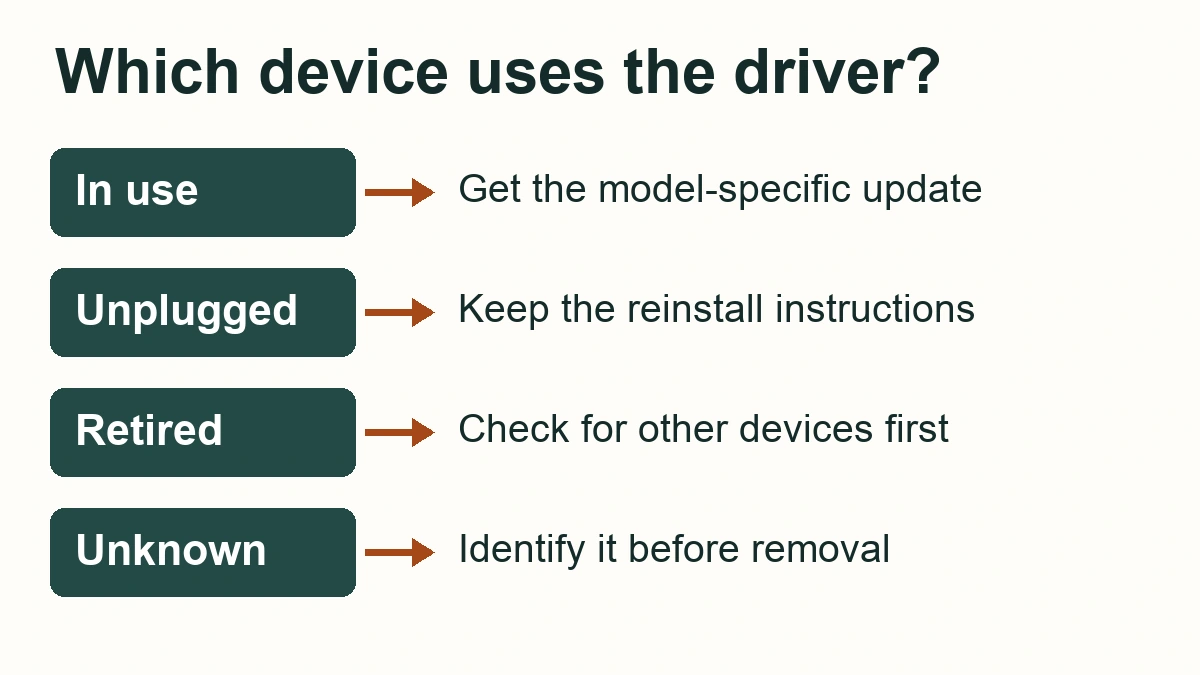
You still use the device
Note the model, current driver version and, for a serial application, the COM port it opens. Save the manufacturer’s support page and reinstall instructions. Check Windows Update for a compatible driver, including Settings → Windows Update → Advanced options → Optional updates on Windows 11. If none is offered, check the maker of the actual cable, instrument or programming tool. Products built around FTDI chips can require customized drivers. Use the package the maker lists for your model and Windows version. Our guide to checking the source of a Plug and Play driver covers unfamiliar installers.
The cable is unplugged, but you plan to use it again
Keep the installer source and identify the device while you still have access to it. A diagnostic cable used once a year can be easy to overlook. If no compatible release is available, ask the vendor about support or replacement hardware. On a managed PC, give IT the device model, hardware ID, driver version and published INF name before making a change.
You have retired the device or its software
Check whether another peripheral uses the same package, and keep a trusted reinstall route. If the driver came with a utility, follow its publisher’s uninstall instructions. If the device maker documents a driver-removal procedure, apply it only to the matched device and package. Manually deleting the SYS file can damage the installation and leave the package registered. [3]
You still cannot identify it
Leave the package in place. Ask the device maker or IT to identify it using the details you collected. An incompatible driver can be legitimate. The warning concerns compatibility with a Windows protection feature. A matching filename or digital signature alone cannot establish that every copy is safe or compatible.
After restarting, check Windows and the peripheral
- Return to Core isolation details. Rescan if offered, turn on Memory integrity when Windows allows it, and restart if prompted. Reopen the same screen and confirm the setting reads On. If it still lists an incompatible driver, compare the filename, version and published INF name with your original notes before changing another package.
- Reconnect any device you kept. Open its usual application and perform a routine, read-only operation, such as reading a radio’s configuration. For a serial device, check that the application selects the current COM port. If the setting is on but the application cannot see the device, give the vendor the old and new driver details. Keep protection enabled while you work through the supported recovery options.
References
- RT Systems, Inc. Windows 11 Memory Integrity. USB-29A support case. Accessed November 18, 2026.
- Microsoft. Hardware ID. Microsoft Learn. Accessed November 18, 2026.
- Microsoft. Device Security in the Windows Security App. Microsoft Support. Accessed November 18, 2026.