


If Chrome sends a search to Bing even though Google is your default, try the same harmless phrase twice. Type it into Chrome’s address bar, then go directly to google.com and type it into Google’s search box. If only the address-bar search ends at Bing, check what handles searches in that Chrome profile. If Bing appears as soon as Chrome opens, start with the startup page instead.
Bing is Microsoft’s search engine. The useful clue is what happened before its results appeared. A change you made deliberately, a work policy, and an extension that reroutes searches can all leave you looking at the same page.
Find where the search changes
Open a new tab. Click in the address bar, type a neutral phrase such as library opening hours, and press Enter without selecting a history suggestion or a site shortcut. Note the hostname of the results page. Repeat the test from Google’s own search box. If you see an unfamiliar hostname flash by, write down its name without revisiting it. Keep the full search URL private because it can contain your query.
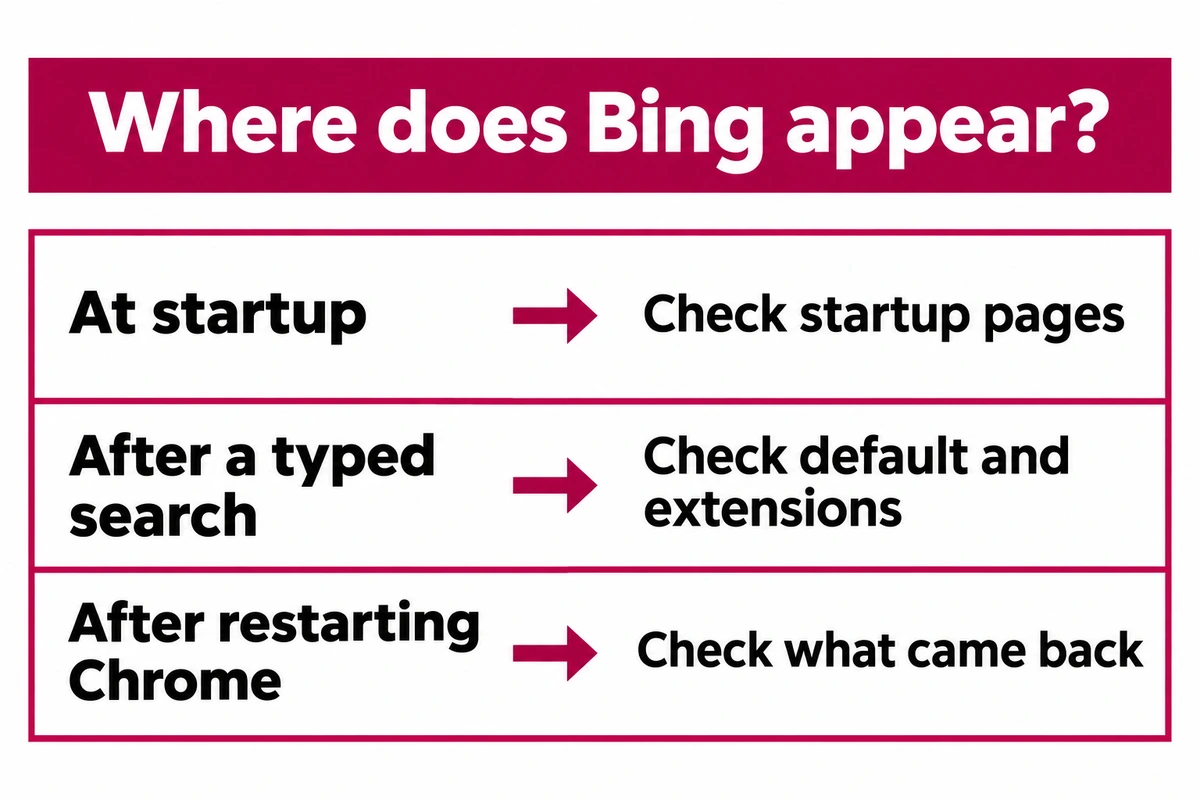
- Bing appears at launch, but both searches go to Google. Open Chrome Settings → On startup. Check both the list of startup pages and whether Chrome reopens a previous session that had a Bing tab. If Bing appears with every new tab instead, inspect extensions that replace the new-tab page.
- Only the address bar lands on Bing. In Settings → Search engine, check the selected engine. Use Change to select Google if that is your preference. Under Manage search engines and site search, check whether you invoked a shortcut. Type the test phrase again without a shortcut. Keeping Bing in the list of available engines is fine.
- Google is already selected, or even a direct Google search is redirected. Compare profiles before resetting anything. An intermediate site is worth investigating, but its appearance alone cannot identify the extension or program responsible.
Compare with a fresh Chrome profile
From the profile button, add a temporary profile and continue without signing in. Check its default search engine, choose Google if needed, and repeat both searches. Leave your original profile and its bookmarks in place. This comparison changes one thing at a time.
For example, suppose your everyday profile sends library opening hours to Bing, while the same address-bar search in the new profile stays on Google. Return to the affected profile and open Extensions → Manage extensions. Temporarily switch off a recent search, coupon, new-tab, or PDF extension and repeat the test. If the redirect stops, leave that extension disabled. Remove it if you did not choose it or no longer trust it. If Chrome actually lists MINERSEARCH, use the MinerSearch removal steps.
If both profiles redirect, profile-specific extensions are a weaker explanation. Check whether the search setting is locked, and whether an installed program or administrator controls it.
When the setting is locked or comes back
Open Chrome’s menu and look for Managed by your organization. Type chrome://policy into the address bar to read the policy list. Note any entries about the default search provider or forced extensions. On a work or school device, give IT the policy name and the result of the two searches. A managed search engine can be intentional.
On a personal Windows PC, check Settings → Apps → Installed apps for a search utility or bundled program installed when the redirect began. Review the publisher and installation date before deciding whether to uninstall it. A management label on its own does not identify malware. If an extension disappears and then returns after signing in, compare the affected devices and the extensions saved with your account. The guide to extensions that reinstall themselves explains how to distinguish sync from a forced installation.
Reserve Chrome’s Reset settings → Restore settings to their original defaults for unwanted changes you cannot isolate. A reset preserves saved passwords and bookmarks, but resets settings including the search engine and startup pages, disables extensions, and can affect settings in other signed-in Chrome profiles using that account. Read the confirmation before continuing. A Windows program or managed policy can still restore the unwanted setting.
Verify the fix after a restart
Close Chrome completely, reopen the affected profile and repeat both searches with the same phrase. Check the final hostname and confirm the chosen search engine is still selected. If both tests now stay on Google and the change was an ordinary preference, you can stop here.
If a removed extension or unknown search provider returns after restart, especially after a bundled installer ran, use Gridinsoft Anti-Malware on the affected Windows PC. Update it, run a Full Scan, review the detections and apply the recommended cleanup for identified unwanted software. Restart Windows and repeat the two-search test before restoring extensions. The browser hijacker cleanup guide covers cases that affect several browsers. A clean scan still leaves a legitimate Chrome policy or account setting to check.
References
- Google. Set default search engine and site search shortcuts. Google Chrome Help. Accessed November 11, 2026.
- Google. Check if your Chrome browser is managed. Google Chrome Help. Accessed November 11, 2026.
- Google. Reset Chrome settings to default. Google Chrome Help. Accessed November 11, 2026.