

FingAgent.exe is the background agent included with Fing Desktop for Windows. If you installed Fing to see which devices are on your network, a firewall prompt can appear when the app starts a scan. Before choosing Allow, open the alert details and copy the full application path. Windows can have two files with the same name. The permission you grant applies to the file in the alert.
| What you see | What to check first |
|---|---|
| A firewall prompt when you open Fing | Match the file to your Fing installation and check which network profile the rule would cover. |
| Fing Desktop says “Fing Service Not Found” | Check whether Windows has a service named Fing.Agent and whether it is running. |
| An alert for a copy you don’t recognize | Leave the connection blocked while you check the file path, publisher and installation history. |
Match the firewall alert to the installed service
- Read the event. Note the time, application path, connection direction, destination if shown, and whether Windows lists a Private or Public network. If the alert has already closed, check your firewall’s event history. A request to accept incoming connections grants a different permission from an outbound connection to an online service.
- Check the installation. Search for Fing in Settings → Apps → Installed apps. On a work PC, IT may have deployed it. Ask the administrator before changing the service or firewall policy.
- Compare the two paths. Open Command Prompt and run
sc.exe qc Fing.Agent. FindBINARY_PATH_NAMEand compare the executable portion, excluding any arguments, with the alert. In File Explorer, open that file’s Properties → Digital Signatures, select the signature and open Details. Check whether Windows validates it and whether the publisher matches the Fing software you obtained. Inspect the file without launching it.
For example, suppose the service points into the Fing application folder but the alert names %TEMP%\FingAgent.exe. Even a valid signature on the installed service tells you nothing about the temporary copy. Investigate the path shown in the alert. If the path and publisher agree, check what Fing was doing at the event time before changing any rule.
Should you allow the connection?
Fing Desktop discovers devices on the local network. It also uses internet services for sign-in, device recognition and synchronization. Seeing network activity while you scan your home network fits those functions. A particular internet destination or incoming request still needs its own explanation.
If you deliberately started Fing on a trusted home network, the files match, and you need discovery there, limit any permission to the appropriate app and network profile. Leave Public networks unchecked when you only need the app at home. On hotel Wi-Fi, or when a prompt asks for an unexpected inbound rule, leave it blocked until you can establish why it is needed. If the event actually names svchost.exe, use the guide to identifying the service behind network traffic.
When Fing reports “Fing Service Not Found”
On a PC where you recognize the installation, open Command Prompt and enter sc.exe query Fing.Agent. Read the result before changing anything.
- RUNNING. Windows can see the service. Reopen Fing and reproduce the error once. If it persists, save the exact error and time for Fing Support.
- STOPPED. After confirming the executable path, restart the PC and check again. If the service is still stopped, open Services, locate the matching Fing service and choose Start. Keep the error number if Windows cannot start it.
- Error 1060, service does not exist. A firewall exception cannot create the missing service. If you need Fing, install the current Fing Desktop package from the official source in the installation reference below. Avoid standalone copies of the EXE.
Fing documents a possible compatibility issue involving Npcap, a packet-capture component that other network tools may also use. If you rely on those tools, record their names and versions for support before changing a shared component.
Turn off monitoring or uninstall Fing Desktop
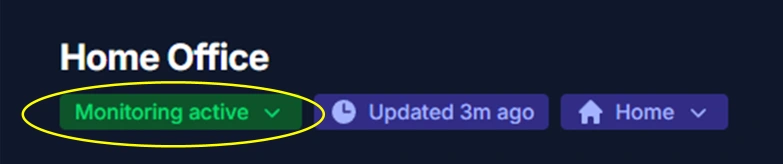
If you want to stop continuous monitoring while keeping Fing for occasional scans, open Fing Desktop or its web app, select Profile → Monitoring Sources, choose the correct network and select Deactivate. The monitoring indicator under the network name shows whether monitoring is active. Deactivating a network leaves the Windows application installed.
To remove Fing from your own PC, close the app, open Settings → Apps → Installed apps, find Fing Desktop and select Uninstall. After restarting, compare the timestamp of any new firewall event with the uninstall time. An old log entry alone doesn’t mean the agent ran again.
If an unfamiliar copy keeps running
Keep the suspicious connection blocked. Save the path and time of the latest event. If the file ran from a temporary folder after an unrecognized installer, or a fresh event appears for the same copy after reboot, run a full scan with Gridinsoft Anti-Malware and review the detections. A bundled startup item or service can relaunch a file after its process closes. Check for another event at that exact path after cleanup. If you’re also concerned about other devices on the same wireless network, follow the shared Wi-Fi infection checks.
References
- Fing Dev Team. How to Install Fing Desktop on Windows and macOS. Fing Support, June 4, 2026. Accessed November 27, 2026.
- Sean Travers. Troubleshoot Fing Desktop: Fing Service Not Found. Fing Support, October 8, 2026. Accessed November 27, 2026.
- Bernadette Willis. Activate/Deactivate a Fing Agent. Fing Support, October 15, 2026. Accessed November 27, 2026.