Usb Safe Protect.exe is a filename, not a reliable safety verdict. Gridinsoft’s ThreatInfo record flags the sample with MD5 fea251a89466c640718aaf74f17501b6 as Trojan.Wacatac. If this unfamiliar program appeared on your USB drive, your files seem hidden behind it, or it returns after deletion, do not run it to reach your documents. Keep any detection quarantined, check the Windows PC and the removable drive, and preserve the data before attempting recovery. A similar name alone cannot establish that your file is the same sample—or that it caused changes on a network share.
What is known about Usb Safe Protect.exe?
The ThreatInfo file report ties the following details to one particular file. Its product and publisher strings are metadata recorded from that sample; they do not authenticate every program with a similar USB-security name.
- Filename:
Usb Safe Protect.exe - MD5 identifier:
fea251a89466c640718aaf74f17501b6 - Detection:
Trojan.Wacatac, reported by Gridinsoft. This is not a Microsoft Defender alert name. - File description: 165 KB; 32-bit Windows executable.
- Publisher and product metadata:
USB Safeguard, Soft.andUSB SafeguardUSB Safeguard. - Signature field: The database reports a valid signature associated with
Anneng electronic Co. Ltd.;USB Safeguard. Check your local file separately.
We have not executed this sample or established a forensic link between it and the incidents below. The practical distinction is between a detection for a specific file, a user’s description of symptoms, and evidence of which process performed an operation.
Hidden USB files and NAS deletions are separate reports
In an r/computerviruses post, a user described an unfamiliar Usb Safe Protect item appearing on an external hard drive after someone else used it to copy files. The user said the original files were hidden, opening the EXE appeared necessary to access them, and deleting it did not last: it returned after reconnecting the drive. The attached picture shows the name in File Explorer, but it cannot establish how the program works. [1]
That is a reason to stop using the EXE as a doorway to your documents. It is not a reason to assume the drive manufacturer added a legitimate feature. It is also not proof that the original documents were encrypted or deleted.
A different r/synology report described invisible folder names followed by SMB deletion events from a workstation. The poster found Usb Safe Protect.exe and the MD5 above in the NAS recycle area. The report also described a shared account and no detection from a Defender scan. These are the poster’s observations, not an independently verified attack reconstruction. [2]
The two reports should not be merged into a claim that one proven USB worm destroyed a NAS. In particular, an EXE found in #recycle does not establish that it ran on the NAS. Investigate the Windows client and the account allowed to modify the share.
Check the file without opening it
If your security tool already quarantined the file, leave it there and save the detection details. Do not restore it just to calculate a hash. Otherwise, record its full path, where it came from, and whether you actually ran it. Enable File name extensions in File Explorer so a program or shortcut cannot pass as a normal folder.
For an accessible file, these PowerShell commands read its hash and signature without launching the EXE. Replace the example path with the actual location. E: is only an example drive letter. [3] [4]
$file = 'E:\Usb Safe Protect.exe'
Get-FileHash -LiteralPath $file -Algorithm MD5
Get-FileHash -LiteralPath $file -Algorithm SHA256
Get-AuthenticodeSignature -LiteralPath $file |
    Format-List Status, StatusMessage, SignerCertificate
Compare MD5 with the recorded identifier above; save SHA256 for a new analysis or support request. MD5 is used here to look up an existing record, not as a modern security guarantee against tampering. A different hash means this record does not identify your file. It does not, by itself, mean the file is safe.
A Valid signature result is one identity check, not permission to ignore a malware detection. If you deliberately installed a known utility and suspect a false positive, keep the detected copy isolated and ask its developer and the detecting vendor to review the exact hash, source and detection report. Do not add an exclusion because the name sounds protective.
Remove the detected file and check the Windows PC
If unexplained renaming or deletion is happening now, disconnect the affected Windows PC from the network and stop using attached storage. For a managed PC or shared NAS, involve the administrator before cleanup so existing logs and recovery points can be preserved.
If the file ran or comes back, removing the visible EXE may leave the source of the activity untouched. A companion program or startup mechanism could recreate it; that is a possibility to investigate, not an established behavior of this sample.
- Keep the detected object quarantined. Save the file path, detection name and scan report. Avoid repeatedly opening it or passing the drive between other PCs to test it.
- Download and install Gridinsoft Anti-Malware from its official site, update the database, and run a Full Scan of Windows. If the affected PC is isolated because of ongoing damage, use a trusted device to obtain the installer and involve your administrator before reconnecting it.
- Scan the affected removable drive as well. Confirm that its drive letter is included in the scan scope; do not assume a Windows scan covered every attached volume. Review detections and apply the recommended cleanup.
- Restart and check the original symptom. Check whether the same file or detection returns, whether you can access ordinary documents without launching it, and whether unexpected share activity has stopped.
If the process path is wrong, the name imitates a Windows component, or high CPU started after an unknown installer, scan for hidden miners, services, startup entries, and bundled components.
Download Gridinsoft Anti-MalwareYou do not need to follow a second mandatory registry-and-task deletion checklist after this scan. If the EXE returns, save the new path and timestamp and investigate the process or device recreating it. Optional startup, scheduled-task or service checks should follow evidence; do not delete entries merely because they look unfamiliar. If security software cannot run or Windows remains compromised, use the USB malware cleanup guide’s offline-scan and reinstall branches.
If you ran the unknown file while signed in to important accounts, review recent sign-ins from a trusted device. Revoke suspicious sessions and change affected passwords where exposure is suspected. A clean scan does not undo account access, restore deleted files or prove that no compromise occurred.
Recover hidden files without running the EXE
Once scanning and containment are complete, open the drive itself in File Explorer. In Windows 11, use View → Show → Hidden items; in Windows 10, use the View tab’s hidden-items option. Look for ordinary folders and documents rather than launching an executable or shortcut with a familiar icon.
- If the original files are visible: copy needed documents, photos and other personal data to a separate recovery location, scan the copies, then open them with their normal applications. Do not carry over the unfamiliar EXE, shortcuts, scripts or old installers as part of the recovery.
- If the files remain hidden or appear as shortcuts: use the hidden-file and USB shortcut recovery steps. Changing file attributes is a recovery action, not malware removal; confirm the exact drive and preserve a backup before making changes.
- If files were deleted, the drive reports errors, or the data is irreplaceable: stop writing to it and seek recovery help. Do not format it or run broad repair commands as the first experiment.
When the EXE returns after reconnecting the drive to the same PC, the recurrence does not tell you whether the PC, the drive or another connected system is responsible. Keep those devices out of normal file sharing until checked. Formatting the USB drive alone cannot clean a Windows system that is recreating files.
If a Synology share has renamed or missing files
Server Message Block (SMB) is the Windows file-sharing protocol. A client with sufficient permissions can modify or delete files on a NAS through a share. Consequently, destructive SMB operations can originate from a client without proving that malware is installed on the NAS itself.
Preserve existing file-transfer logs, snapshots, backups and #recycle contents. Do not empty the recycle area or format volumes before deciding how to recover data. If changes continue, isolate the implicated client and have the administrator restrict the affected account’s share access.
In Synology Log Center → Logs → File Transfer, correlate the event time, source IP, user, operation and file path. The vendor’s example below shows where those fields appear; it is not a screenshot of either reported incident. [5]
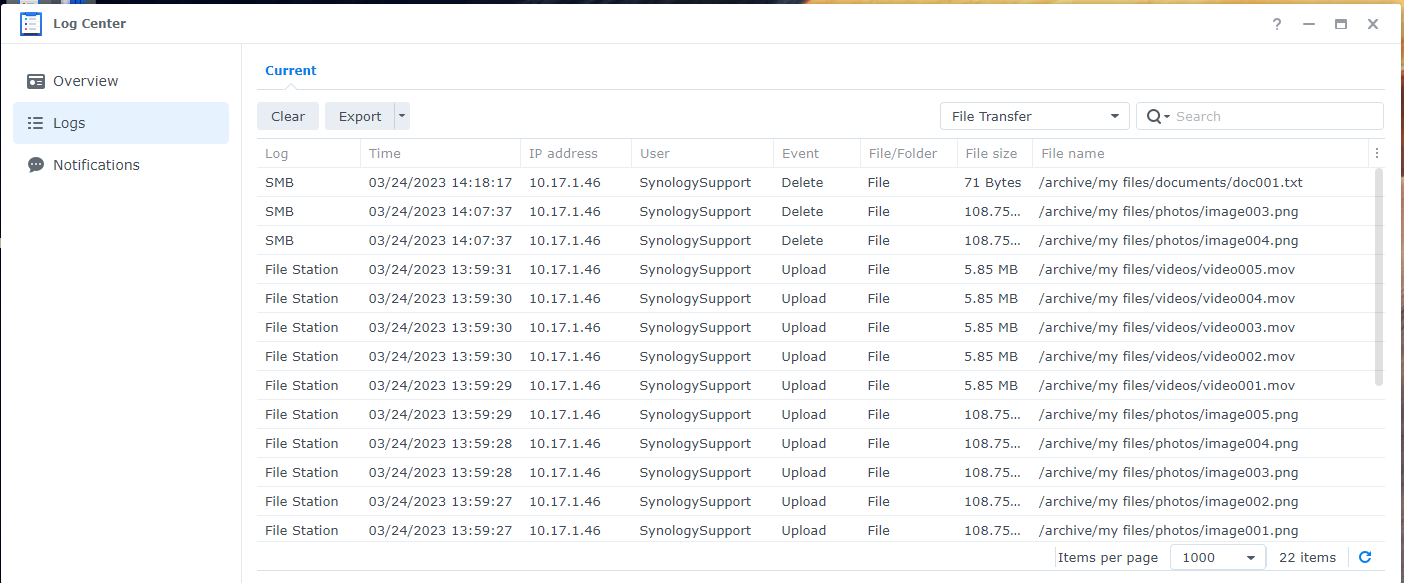
Synology says transfer logging is usually disabled until enabled. Once SMB Transfer Log is enabled, deletion is recorded by default; additional events such as Move and Rename can be selected in Log Settings. Enabling them now does not reconstruct events that were never recorded. Export existing logs before rotation removes relevant entries.
Use the account and IP to narrow the investigation, then correlate with the workstation’s security and process evidence. A shared login weakens attribution: it does not identify which person or program performed the operation. Replace shared credentials with individual accounts and only the share permissions each user needs. Restore data from a known-good recovery point after containing the source of the changes.
Keep NAS administration checks separate: review unexpected administrator logins, accounts, packages and configuration changes. A negative Windows scan cannot answer those questions, while an EXE stored on a share does not by itself justify declaring the NAS infected.
FAQ
Is Usb Safe Protect.exe part of Windows?
The evidence here identifies a third-party executable with USB-related product metadata, not a required Windows component. Verify the exact file and its origin; neither its name nor a drive-shaped icon makes it necessary for opening your documents.
Does Trojan.Wacatac mean Microsoft Defender detected it?
No. The Trojan.Wacatac label in the cited record comes from Gridinsoft. Different vendors use different detection names. Record the actual product, label and affected path shown on your own PC.
Can I delete it if my files seem to depend on it?
Do not execute an unknown program to regain access. Keep a detection quarantined, preserve the drive’s data, and follow the hidden-file recovery branch. If a legitimate encryption utility is involved, obtain its verified recovery procedure rather than deleting containers or formatting the drive.
References
- AardvarkAdditional95. “An .exe file appeared in my hard drive after my classmate used it to transfer files.” Reddit, r/computerviruses, accessed October 18, 2026. User report.
- AppuniAkhil. “Two Synology NAS hit in sequence: folders renamed to blank names, then data deleted. Similar case?” Reddit, r/synology, accessed October 18, 2026. User report.
- Microsoft. “Get-FileHash.” Microsoft Learn, accessed October 18, 2026. Cmdlet documentation.
- Microsoft. “Get-AuthenticodeSignature.” Microsoft Learn, accessed October 18, 2026. Cmdlet documentation.
- Synology. “How to use file transfer logs in Log Center to monitor file modifications.” Synology Knowledge Center, updated February 27, 2025; accessed October 18, 2026. Logging instructions and example.