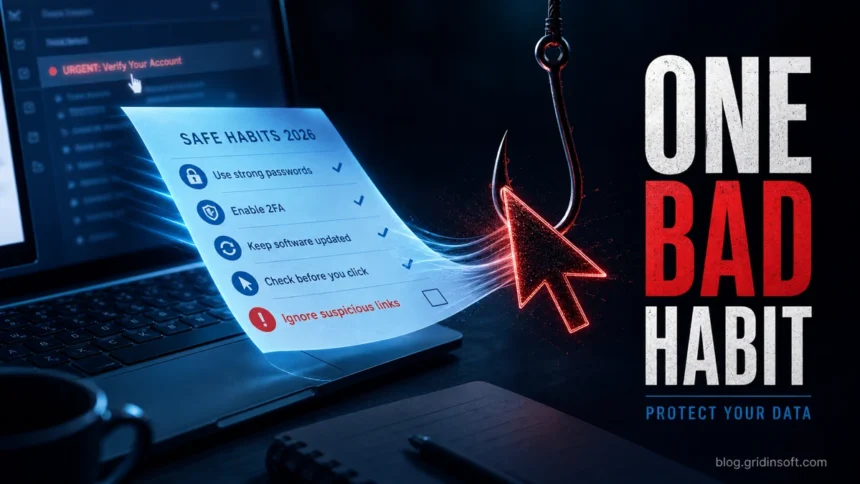
Good computer security is mostly habit. You do not need to be a security engineer to reduce most everyday risks, but you do need a routine: updates, strong account protection, safe downloads, backups, and a skeptical eye for links, pop-ups, and unexpected MFA prompts.
Why These Habits Matter More in 2026
The basics are not outdated; they became more important. CISA and the FTC still point ordinary users toward the same core routine: update software, use strong unique passwords, turn on multi-factor authentication, and slow down around phishing messages [1] [2]. The newer change is speed. Verizon’s 2026 DBIR reports that 31% of breaches now start with exploited software vulnerabilities, 48% involve ransomware, and mobile scams can get 40% higher click rates than traditional email phishing [3]. For a home user, that means updates, backups, browser hygiene, and recovery settings are not optional chores; they are the habits that stop a small mistake from becoming account theft or data loss.
Best Computer Security Habits for 2026
Threats change, but the basics still block a large share of infections and account takeovers. The habits below are practical computer security tips for home users, students, remote workers, and small businesses.
| Habit | What it prevents | Best first step |
| Install updates | Exploits against old Windows, browsers, drivers, and apps. | Turn on automatic updates and remove abandoned software. |
| Use unique passwords | Credential stuffing after one site is breached. | Use a password manager and replace reused passwords first. |
| Enable MFA | Account takeover after password theft. | Enable app-based or passkey MFA for email, banking, cloud, and social accounts. |
| Back up files | Ransomware, device failure, accidental deletion. | Keep one backup that is not always connected to the PC. |
| Avoid risky downloads | Trojans, stealers, adware, ransomware loaders. | Download from official sites and avoid cracks, keygens, and repacks. |
1. Keep Windows, Browsers, and Apps Updated
Updates close vulnerabilities that attackers can use through malicious pages, documents, drivers, or exposed services. Windows Update matters, but browsers, PDF readers, Office apps, VPN clients, and remote access tools matter too.
- Enable automatic updates for Windows and browsers.
- Restart the computer when updates require it instead of postponing for weeks.
- Remove software you no longer use, especially old browser plugins and abandoned utilities.
- Update firmware and drivers from the device maker when stability or security fixes are available.
2. Use Unique Passwords for Every Important Account
A strong password reused on several sites is still a weak security plan. If one service leaks credentials, attackers test the same email and password on email, banking, shopping, cloud storage, and social accounts.
Use a password manager to generate and store unique passwords. Start with the accounts that can reset everything else: email, Apple ID or Google account, Microsoft account, banking, payment services, hosting, and work logins.
3. Turn On Multi-Factor Authentication
Multi-factor authentication adds a second step after the password. It is especially important for email, cloud drives, banking, social media, password managers, and administrator accounts.
- Prefer passkeys or authenticator apps when available.
- Keep recovery codes in a safe place.
- Remove old phone numbers or devices you no longer control.
- Be suspicious of unexpected MFA prompts; they may mean someone knows your password.
4. Keep Backups That Malware Cannot Easily Reach
Backups are not only for hardware failure. They are also protection against ransomware, accidental deletion, and corrupted files. The strongest routine is the 3-2-1 idea: multiple copies, more than one storage type, and at least one copy offline or otherwise protected.
- Use cloud backup for convenience, but do not rely on sync alone.
- Keep an external backup that is disconnected after the backup finishes.
- Test restoring a few files before you actually need recovery.
- For work files, make sure version history is enabled where possible.
5. Treat Downloads as a Security Decision
Many infections begin with a file the user chose to run: a fake installer, cracked game, license activator, driver updater, browser extension, or “required codec.” If the source is shady, the file is part of the risk.
- Download software from official vendor pages or trusted app stores.
- Avoid cracks, keygens, repacked installers, and password-protected archives from forums.
- Scan suspicious files before opening them.
- Do not ignore Microsoft Defender warnings just because an installer “worked.”
6. Verify Links Before You Log In
Phishing pages are often good enough to look real on a phone screen. The safer habit is to slow down before entering a password, card number, or banking code.
- Check the domain, not just the logo on the page.
- Do not log in from links in unexpected SMS messages, invoices, or delivery notices.
- Open important services from bookmarks or by typing the address yourself.
- Never share one-time codes with a caller or chat agent.
If a message looks suspicious, compare it with examples in our phishing attack guide.
7. Keep Your Browser Clean
Browsers store sessions, passwords, payment data, extensions, and notification permissions. That makes them a frequent target for adware and stealers.
- Remove extensions you do not actively use.
- Review site notification permissions and block unknown senders.
- Clear suspicious search engines or homepage changes.
- Keep separate browser profiles for work, banking, and testing risky links if needed.
8. Use Security Software and Second Opinions Wisely
Microsoft Defender is a solid baseline on Windows, but no scanner is perfect. Use real-time protection, keep it updated, and run full scans after risky downloads, fake update pop-ups, browser hijacking, or unknown startup items.
For a second opinion, Gridinsoft Anti-Malware can help detect leftover Trojans, adware, potentially unwanted programs, and persistence entries that may remain after a first cleanup.
9. Use a Standard User Account for Daily Work
Administrator rights make every mistake more expensive. If malware runs under an admin account, it may change system settings, install services, add exclusions, or disable protections more easily.
- Use a standard account for daily browsing and documents.
- Keep a separate admin account for software installation and system changes.
- Pause when Windows asks for elevation. If you did not expect it, cancel and investigate.
10. Secure Wi-Fi and Remote Access
Home and small-office networks often fail at simple things: old router firmware, weak Wi-Fi passwords, exposed remote desktop, or default admin panels.
- Use WPA2 or WPA3 with a strong Wi-Fi password.
- Update router firmware and change the router admin password.
- Disable remote administration unless you truly need it.
- Do not expose Remote Desktop directly to the internet.
11. Watch Account Recovery Settings
Attackers do not always need your password forever. Sometimes they add a recovery email, forwarding rule, OAuth app, or trusted device, then regain access later.
- Review recovery email addresses and phone numbers.
- Check email forwarding rules after any suspicious login.
- Remove unknown trusted devices and app passwords.
- Revoke suspicious third-party app access.
If You Already Clicked, Downloaded, or Logged In
Many people search for computer security tips after something already feels wrong: a fake virus pop-up, a cracked installer, a suspicious login alert, or a password entered on the wrong page. Use the first response below before you start changing everything at once.
| What happened | First safe response |
| You clicked a suspicious link but did not enter data. | Close the page, do not call numbers shown in pop-ups, and remove suspicious browser notification permissions. If the page showed a fake infection warning, compare it with our fake virus alert guide. |
| You entered a password, code, or card number. | From a clean device, change that password, sign out of active sessions, revoke unknown connected apps, and check recovery email, phone, and forwarding rules. |
| You ran a crack, keygen, fake update, or unknown installer. | Stop using the file, uninstall suspicious apps, review startup items and browser extensions, run a full malware scan, and change passwords only after the device is clean. If saved passwords may be exposed, read the password stealer recovery steps. |
| Your files look encrypted or renamed. | Disconnect external drives and network shares, preserve the ransom note for identification, avoid reinstalling over evidence, and restore only from clean offline or versioned backups. |
12. Make Security a Monthly Routine
Security habits work best when they are routine. Once a month, spend ten minutes on the basics:
- install pending updates;
- check backup status;
- remove unused programs and extensions;
- review browser notifications;
- scan downloads and clean old installers;
- check recent account sign-in alerts.
FAQ
What is the most important computer security habit?
Use unique passwords with MFA or passkeys for important accounts. If your email or cloud account is taken over, attackers can often reset many other accounts from there.
Do I still need antivirus if I am careful?
Yes. Careful browsing helps, but malicious ads, compromised sites, infected downloads, and document exploits still happen. Real-time protection and full scans are still useful.
How often should I back up my computer?
Back up important files as often as they change. For many home users, weekly external backups plus continuous cloud backup is a reasonable baseline. Keep at least one backup that malware cannot edit or encrypt.
Is public Wi-Fi unsafe?
Public Wi-Fi is not automatically hostile, but you should avoid sensitive logins on unknown networks unless the site uses HTTPS and you trust the connection. A VPN can reduce exposure on untrusted networks.
What should I do after clicking a suspicious link?
If you did not enter data or download anything, close the page and clear suspicious browser notifications. If you entered a password or code, change the password from a clean device and review account sessions, recovery settings, and connected apps immediately.
Are passkeys better than SMS codes?
Passkeys and security keys are stronger choices when a service supports them because they are harder to phish than passwords and one-time SMS codes. If passkeys are not available, an authenticator app is usually a better fallback than SMS.
References
- Cybersecurity and Infrastructure Security Agency. “Secure Our World.” CISA, accessed June 7, 2026. https://www.cisa.gov/secure-our-world
- Federal Trade Commission. “Protect Your Personal Information From Hackers and Scammers.” FTC Consumer Advice, accessed June 7, 2026. https://consumer.ftc.gov/articles/protect-your-personal-information-and-data
- Verizon. “2026 Data Breach Investigations Report.” Verizon Business, published May 19, 2026, accessed June 7, 2026. https://www.verizon.com/business/resources/reports/dbir/