


Yes, a scammer may be able to reconnect after you close the AnyDesk window. On Windows, an installed copy can keep running in the background. If the caller set an unattended-access password or saved a login, they may be able to return without a new approval. Sharing your AnyDesk ID or clicking Accept once does not, by itself, grant that ongoing access.
If the caller still controls your mouse or the session is open, disconnect the PC from the internet now. Unplug Ethernet or turn off Wi-Fi, end the call, and make the changes below on the affected PC. If the caller saw your banking screen or moved money, call your bank immediately from another device using the number on your card.
What did closing AnyDesk actually stop?
- You gave the caller your ID but declined the request. The ID lets someone address a connection request to your PC. With no prior unattended credentials or saved login, the ID alone gives them no control. Decline any further requests.
- You ran a portable copy and fully closed it. AnyDesk says closing the portable Windows client ends its active sessions. That copy must be started again before it can accept another connection. Ending a session while leaving the app open is different. If you let the caller install the program during the call, use the installed-client steps below. [1]
- AnyDesk was installed on Windows. Its service can remain available after all windows close and can start again after a reboot. This matters if someone configured unattended access. If you’re unsure which copy you used, open Settings → Apps → Installed apps in Windows and look for AnyDesk. If the caller already had control, an empty app search alone can’t tell you everything they did.
Where to turn off unattended access on Windows
Work on the computer the caller connected to. While it is offline, open AnyDesk locally. From the upper-right menu, choose Settings → Access and find Unattended Access. In the Windows layout below, Remove password and Clear all tokens are in the same section. [2]
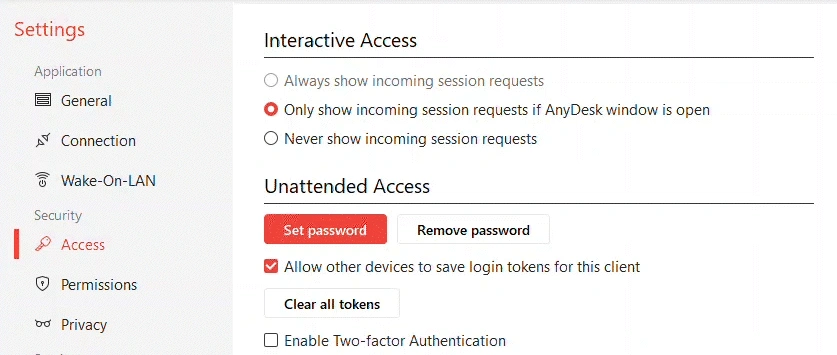
- Clear the saved logins. Click Clear all tokens. This revokes remembered logins for all remote devices, including your own. Clear the checkbox that allows other devices to save login tokens as well. Clearing only the checkbox leaves previously issued tokens valid.
- Remove the unattended password. Click Remove password if available and confirm. Clearing tokens alone still leaves a way back for someone who knows the password. If your client puts these settings under Permission Profiles, open each enabled profile and turn off Enable Unattended Access wherever it is enabled. AnyDesk also documents that disabling a profile disables its unattended password. [3]
- Verify before going back online. Reopen the same settings. Confirm there is no unattended password configured in the relevant profiles and that saving login information is off. Leave unexpected incoming requests unanswered. If these controls are locked on a work PC, keep it disconnected and call your IT team from another device.
“Never show incoming session requests” is the wrong switch for this job. It hides the prompt people normally use to accept or decline a call. A client with valid unattended credentials can still connect. If you installed AnyDesk only because of the caller, you can uninstall it through Windows Installed apps → AnyDesk → Uninstall after revoking access. Deleting the installer from Downloads leaves an installed service in place.
I let the caller control my computer. What else should I check?
Think back to what was on screen. If the caller installed a “refund tool,” opened a browser download, or blanked the display so you couldn’t see their actions, turning off AnyDesk closes only one possible route back. Write down the time of the call and any program names you remember. On a personal PC, once remote access has been disabled or the unwanted client removed, reconnect to obtain security updates and check for software left behind.
Open Gridinsoft Anti-Malware, let its detection databases update, and select Full Scan. Review its findings, apply the recommended cleanup, and restart if prompted. A clean result cannot tell you what the caller viewed or copied. If another remote-support app appeared during the call, check whether it belongs on the PC, even if the scan gives it no malware verdict. Our guide to an unexpected ScreenConnect client covers that specific case.
If you typed a password where the caller could see it or gave them access to an already signed-in account, use a trusted device to change the affected password, sign out other sessions, and check the account’s recovery details. Once you have the computer back under your control, our Windows remote-access scam prevention guide explains how to reduce the chance of a repeat call succeeding.