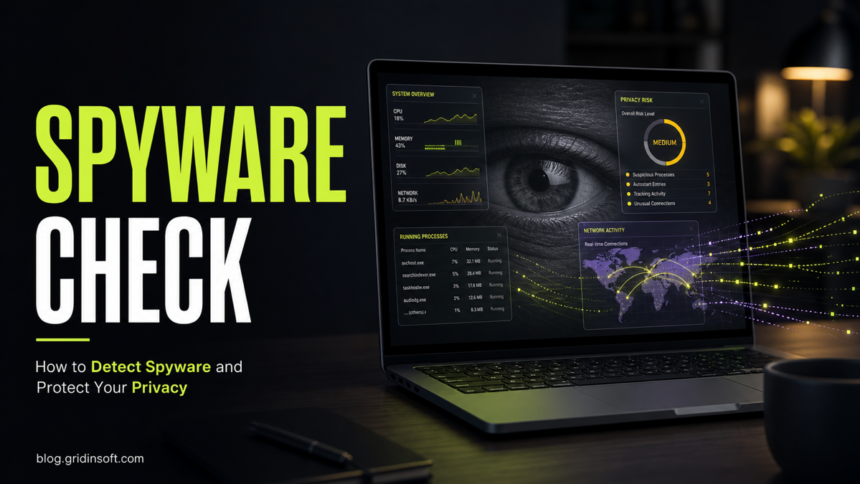
If your computer is infected with spyware, the first clue is usually a pattern, not one random pop-up. Treat it as suspicious when privacy-related signs appear together: security tools stop working, the browser changes by itself, network activity continues while you are idle, unknown programs start with Windows, or account alerts appear after you use the PC. Stop signing in from that computer, check the items below, then scan and clean the system before changing passwords.
This page is the quick computer-focused checklist. For a broader explanation of spyware symptoms, use the main symptoms guide; for prevention, see the anti-spyware tips checklist.
10 Signs Your Computer May Have Spyware
| Warning sign | What to check | Why it matters |
|---|---|---|
| Security tools turn off or will not open | Open Windows Security, your antivirus, and browser protection settings. | Spyware and other malware often try to silence alerts before collecting data. |
| Browser homepage, search, or extensions changed | Review extensions, default search engine, notification permissions, and startup pages. | Spyware often travels with hijackers, ad injectors, or unwanted extensions. |
| Network activity continues while idle | Check Task Manager, Resource Monitor, or your router for unknown traffic. | Data theft usually needs outbound connections, even if the spyware stays visually quiet. |
| Unknown processes start with Windows | Review Startup apps, Task Scheduler, and newly installed programs. | Persistence is a common sign that unwanted software is trying to survive reboot. |
| The PC suddenly becomes slow, hot, or unstable | Compare CPU, memory, disk, and network use when no heavy apps are open. | Monitoring, screenshots, ads, and bundled malware can consume resources. |
| Pop-ups appear on trusted sites or outside the browser | Check browser notifications, installed apps, and recently added extensions. | This may be adware rather than pure spyware, but the cleanup path is similar. |
| Account alerts appear after using this computer | Look for new sign-ins, password resets, sent messages, or payment warnings. | Password stealers and keyloggers can turn a local infection into account compromise. |
| Camera, microphone, or location indicators behave oddly | Review app permissions and close unknown apps before using sensitive accounts. | Some monitoring tools request access to sensors or capture screenshots. |
| Files, disk space, or errors change unexpectedly | Check Downloads, Temp folders, recently installed programs, and disk usage. | Spyware may arrive with installers that drop extra components or logs. |
| Friends receive strange messages from your accounts | Check email, social media, and messaging sessions from a clean device. | Stolen credentials can be used for scams before you notice the infection. |
How to Check Safely
- Disconnect from sensitive accounts. Do not log in to banking, email, crypto wallets, or work tools from the suspicious PC.
- Use a clean phone or another trusted computer to change the passwords for accounts that showed alerts.
- Open Task Manager and Startup apps. Look for unfamiliar names, unsigned publishers, and programs added around the time symptoms started.
- Review browser extensions, search settings, notification permissions, and recently installed apps.
- Run a full malware scan. If the scanner is blocked, try Safe Mode with Networking or use a rescue/second-opinion cleanup path.
- After cleanup, update Windows, browsers, and security software, then restart and check whether the same symptoms return.
After uninstalling the suspicious app or deleting the visible threat, use Gridinsoft Anti-Malware to check hidden files, startup entries, scheduled tasks, bundled apps, browser changes, and other persistence points that can restore malware.
Download Anti-MalwareWhen It Is Probably Not Spyware
One symptom by itself is not proof. A slow computer can be caused by Windows updates, failing storage, too many startup apps, cloud sync, browser tabs, or an old device. Browser pop-ups can come from allowed notifications rather than malware. If your issue is broader than spyware, compare it with the general guide on how to tell if your computer has a virus.
What to Do After Cleanup
- Change important passwords from a clean device, not from the computer you just cleaned.
- Turn on multi-factor authentication for email, banking, social media, and password-manager accounts.
- Review account sessions and sign out unknown devices.
- Check bank cards and payment apps for unfamiliar transactions.
- Remove browser extensions you do not need and keep only trusted downloads.
- Create a fresh restore point or backup after the system is stable.
FAQ
Can spyware hide if my antivirus says the computer is clean?
Yes, but do not assume the worst from one symptom. If you still see browser changes, unknown startup entries, blocked security tools, or account alerts after a clean scan, run a second scan and review installed apps and extensions manually.
Should I reset Windows if I suspect spyware?
A reset is not the first step for most home computers. Scan and remove the threat, change passwords from a clean device, and monitor accounts. Consider a reset or clean reinstall when security tools stay disabled, unknown admin accounts appear, or symptoms return after cleanup.
Can spyware steal passwords I type after infection?
It can. That is why you should stop signing in from the suspicious computer until it is cleaned, then change important passwords from a trusted device.
Is spyware the same as adware?
No. Adware mainly shows ads or redirects searches, while spyware is focused on monitoring and data theft. They often arrive together, so pop-ups plus privacy-related symptoms should be treated seriously.
References
- Cybersecurity and Infrastructure Security Agency. “Recognizing and Avoiding Spyware.” CISA, accessed June 7, 2026. https://www.cisa.gov/news-events/news/recognizing-and-avoiding-spyware