


Ending wildrig.exe in Task Manager stopped a Windows user’s graphics card from running at 100%. The next time they started the PC, the process came back. Later, during cleanup, they reported that the miner had stopped launching, but the exclusion for it was still visible in Microsoft Defender.
If you see the same behavior and nobody who uses the PC set up mining, treat it as suspected unauthorized mining. Check which process owns the GPU load, scan the computer, and verify after restarting whether the process returns and whether Defender still has an unexpected exclusion.

Does wildrig.exe return after a restart?
Run a full scan to check for an unwanted miner and the startup items that may be launching it.
What is wildrig.exe?
WildRig Multi is cryptocurrency-mining software for AMD, NVIDIA and Intel graphics cards. The developer also maintains WildRig NG. Mining is supposed to keep a GPU busy. On a machine set up for mining, high utilization while the miner runs is expected. On a gaming PC sitting at the desktop, a miner that starts at every sign-in deserves an explanation.
Open Task Manager → Processes and sort by GPU. If the column is hidden, right-click a column heading and enable it. Right-click wildrig.exe → Open file location and note the full path without opening the executable. If another person manages the PC, ask whether they installed a miner and whether they recognize that location. A familiar filename can belong to more than one file.
An alert on a download can describe a different situation. A user who intentionally downloaded WildRig Multi 0.51.5 reported that Defender quarantined the ZIP before extraction or execution. They asked for a review and could only cite the published checksum because the local archive had already been quarantined. That report documents a blocked download. It offers no evidence that a miner ran on that machine.
Why C:\ProgramData\wildrig.exe deserves a closer look
In a separate Windows 11 report, a player noticed falling frame rates. Even with games closed, they said WildRig was using about 92% of their Radeon RX 7800 XT. They found C:\ProgramData\wildrig.exe in Defender’s exclusions. The list also included the entire C:\ProgramData folder. They said they had never intentionally installed mining software.
Windows applications legitimately store data in ProgramData. The significant detail here was the scope of the exclusion. A file exclusion can leave that particular file outside Defender’s real-time scan. A folder exclusion can cover other files under that folder, including ones written later. An exclusion can also remain after the file has gone. It records what Defender is configured to skip, so its presence alone cannot tell you what is running.
A Gridinsoft scan of one wildrig.exe sample returned Trojan.Win64.CoinMiner.ca. The report identifies the submitted file by its SHA-256 hash. Neither forum user supplied a matching hash in the posts cited here, so that verdict cannot identify their copies.
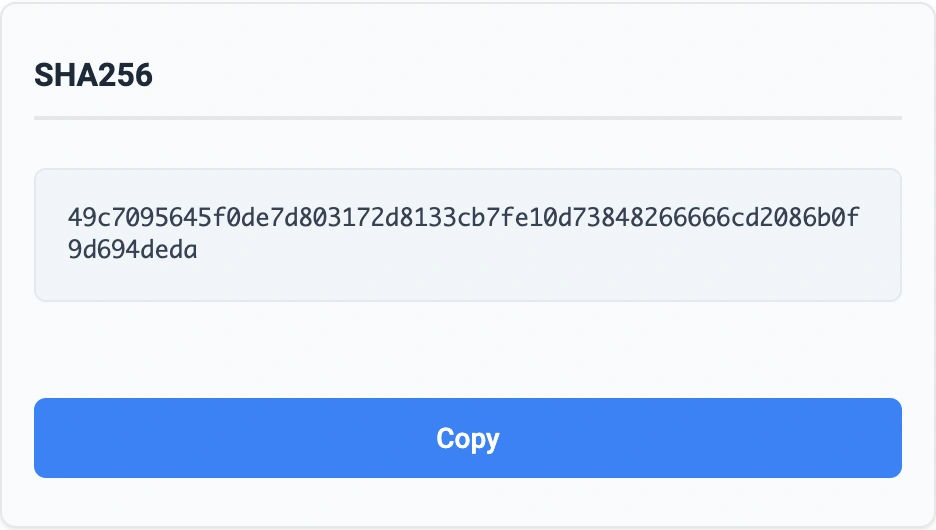
If the file is still present at the path above, you can compare its hash in PowerShell without running it. Use Get-FileHash -LiteralPath 'C:\ProgramData\wildrig.exe' -Algorithm SHA256 and compare the entire value. A different hash means a different file. Leave an already quarantined file in quarantine.
The process and the Defender exclusion disappeared at different times
In the November 20 support thread, the user first reported that ending the task worked only until restart. After the first cleanup steps and another restart, wildrig.exe stayed out of startup, but the user still could not remove its exclusion. Only later did they report that the suspicious exclusions had disappeared. On November 21 they corrected a typo in their follow-up and confirmed that the process had stopped appearing. The helper closed the thread the next day.
The player with the RX 7800 XT described a different result. After a scan and quarantine, the exclusions went away, then returned on reboot. That gives you a specific test to repeat on your own PC. Write down the exact exclusion and check it again after signing back in. A quiet GPU by itself would have missed the remaining problem in the first case.
How to remove an unwanted WildRig miner and check the result
- Record what you found. Note the path, the process using the GPU and any matching entry under Windows Security → Virus & threat protection → Manage settings → Exclusions → Add or remove exclusions. On a work or school PC, send those details to IT. An administrator may manage the list centrally.
- Run a full scan. On your own PC, install Gridinsoft Anti-Malware from the official Gridinsoft site, update its detection database and choose Full Scan. Review the findings, including related startup items, and quarantine the items identified as unwanted. If you use Microsoft Defender instead, update its security intelligence, review the unexpected exclusions and run a full scan. Microsoft Defender Offline is an additional option if detections keep returning. Save your work before starting it because Windows will restart.
- Check the exclusion and restart. On a personal PC, remove the specific unauthorized exclusion if Windows permits it. Keep real-time protection enabled. Sign in again, leave games and other GPU-heavy apps closed, and check Task Manager and the exclusions list. Also review Protection History for fresh detections. Compare the process and the full path with what you recorded.
If wildrig.exe returns, its full path can help identify what launches it. Microsoft Sysinternals Autoruns can search logon entries and scheduled tasks for that filename. Record any matching entry and its target for further investigation. If the exclusion returns or its Remove button stays unavailable, bring the exact path, reboot time and scan results to a support technician. Avoid applying a forum cleanup script written for someone else’s PC. For broader troubleshooting, see the Windows coin miner removal guide.
Could WildRig explain messages sent from Facebook, Instagram or Discord?
The first user also reported that someone had used their accounts to send a fraudulent giveaway link. The thread established no link between the miner and those sign-ins. If messages went out under your name, treat the accounts as a separate incident even if GPU usage has returned to normal. From a clean device, secure your recovery email, change affected passwords, sign out unfamiliar sessions, review connected apps and enable two-factor authentication. Warn contacts who received the link.