
Browser cookies are small records that websites save in your browser so the site can remember a login, cart, language choice, security state, or tracking preference. They are not programs and cannot run code by themselves. The real risk is different: some cookies identify your browser across visits, and a stolen session cookie can sometimes keep an attacker logged in as you even if they do not know your password.
Quick answer: what are browser cookies?
- A browser cookie is a small piece of site data stored by your browser.
- Useful cookies keep you signed in, remember preferences, and make carts or checkout work.
- First-party cookies come from the site you are visiting; third-party cookies come from embedded domains such as ad, analytics, or social widgets.
- Accepting all cookies usually allows optional analytics, personalization, or advertising cookies in addition to necessary cookies.
- Cookies are not malware, but session cookies are sensitive. If malware or a phishing page steals them, you should sign out of other sessions and change passwords.
What are browser cookies?
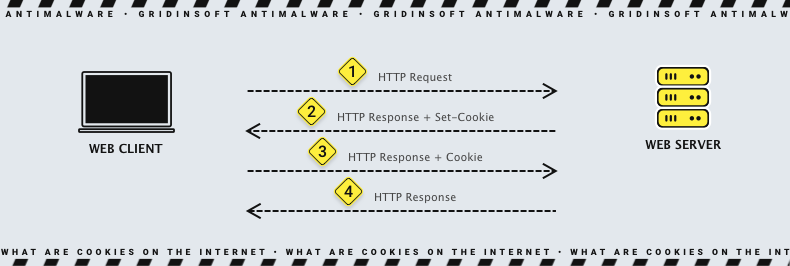
A browser cookie, also called an HTTP cookie or web cookie, is data that a website asks your browser to store. When you visit that site again, the browser can send the cookie back with the request. That is how a site recognizes the same browser without asking you to log in again on every page.
Think of a cookie as a small label for a web session. The label may say “this browser is signed in,” “this cart contains three items,” or “this visitor selected English.” The cookie usually does not contain the whole account or cart by itself; it often contains an ID that lets the server find the right state.
| Cookie type | What it does | Example |
| Session cookie | Works for the current browser session | Temporary login or checkout state |
| Persistent cookie | Stays until it expires or is deleted | Remembered language, region, or login preference |
| First-party cookie | Set by the website in the address bar | Cart, account session, site settings |
| Third-party cookie | Set by another domain embedded on the page | Ad tracking, social widgets, embedded tools |
| Secure cookie | Sent only over HTTPS | Safer account session handling |
| HttpOnly cookie | Hidden from normal page JavaScript | Better-protected authentication cookie |
What are cookies used for?
- Authentication: keeping you signed in after you log in.
- Preferences: remembering language, region, theme, or cookie choices.
- Shopping carts: storing items before checkout.
- Security: helping detect suspicious sessions, fraud, or cross-site request abuse.
- Analytics: counting visits and understanding site usage.
- Advertising: measuring ads or building interest profiles across sites.
What does accepting cookies mean?
Accepting cookies means allowing a website to store cookies according to its notice and your browser settings. On many websites, necessary cookies are required for login, checkout, fraud prevention, or remembering your privacy choice. Optional cookies may be used for analytics, personalization, social widgets, or advertising.
If a banner gives you choices, use this simple rule: accept necessary cookies, reject non-essential cookies when you do not want tracking, and only allow third-party cookies for a site you trust when something important breaks without them.
| Situation | Safer choice | Why |
| Banking, email, password manager, admin panel | Allow necessary cookies only | Login and security checks need cookies, but ad tracking does not. |
| News, blogs, shopping research | Reject non-essential cookies | The page usually works without tracking or ad personalization cookies. |
| Checkout or payment flow breaks | Allow cookies for that site only | Some carts and embedded payment tools rely on site data. |
| Public or shared computer | Clear cookies after use | This removes saved sessions and local preferences from that browser. |
Are browser cookies dangerous?
Cookies are not dangerous by default. A cookie that saves your language setting is low risk. A cookie that keeps you logged in is sensitive because it represents an active session. If malware, a malicious extension, or a phishing page gets access to that session data, an attacker may be able to reuse the session without entering the password again.
This is why “I changed my password” is not always enough after malware. If you suspect cookie theft, sign out of all devices in the affected account, revoke unknown sessions or connected apps, change the password from a clean device, and enable MFA. For a broader account-recovery order, see our guide on what to do after an infostealer infection.
Third-party tracking cookies are a different problem. They usually do not infect the computer, but they can let ad, analytics, or embedded-service domains recognize the same browser across multiple sites. Modern browsers increasingly restrict or isolate cross-site cookies, but settings and exceptions still matter.
First-party vs third-party cookies
A first-party cookie belongs to the site shown in the address bar. It is often needed for normal site functions. A third-party cookie belongs to another domain that is embedded on the page. That third party might be an ad network, analytics provider, video player, comments widget, payment flow, or social button.
Blocking third-party cookies is usually a good privacy default. It may break some embedded login, school, workplace, payment, or document tools, so the practical approach is to keep them blocked by default and add temporary exceptions only when you trust the site and need that feature.
When should you clear cookies?
- You used a shared, school, hotel, library, or work computer for a personal account.
- A website keeps showing account, cart, region, or loading errors.
- You want to sign out of saved sessions in that browser.
- You clicked a suspicious login page and want to reduce local session risk.
- You removed malware or a suspicious browser extension.
- You want to remove old tracking and preference data.
Clearing cookies can sign you out of websites and reset preferences. For account security, also use the account’s “sign out everywhere,” “devices,” “sessions,” or “connected apps” page if you think a login cookie was stolen. Clearing cookies on your own browser does not revoke a copy that an attacker already captured.
Cookie privacy controls
| Browser | Where to check cookies | Good default |
| Chrome | Settings -> Privacy and security -> Third-party cookies | Block third-party cookies, allow exceptions only for trusted sites. |
| Edge | Settings -> Cookies and site permissions | Block or limit third-party cookies and trackers. |
| Firefox | Settings -> Privacy & Security -> Enhanced Tracking Protection | Use Standard or Strict, depending on breakage tolerance. |
| Safari | Settings -> Privacy | Keep Prevent cross-site tracking enabled. |
Cookies are only one part of browser privacy. Trackers can also use browser fingerprinting, account logins, IP address, and embedded scripts. If you want a fuller hardening checklist, use our browser security settings guide.
FAQ
Are cookies the same as cache?
No. Cookies store small site data such as sessions and preferences. Cache stores copies of page resources such as images, scripts, and styles to make pages load faster.
Can cookies steal passwords?
Cookies do not steal passwords by themselves. However, stolen session cookies can sometimes let attackers access an account that is already logged in, so session revocation matters after malware or phishing.
Should I accept cookies?
Accept necessary cookies for sites you need to use. Reject optional analytics, personalization, and advertising cookies when you do not want tracking. Add exceptions only for trusted sites that fail without them.
Should I block all cookies?
Blocking all cookies can break logins, carts, and preferences. A better default is to block or limit third-party cookies while allowing necessary first-party cookies.
Does deleting cookies improve privacy?
It can reduce stored tracking and sign you out of sessions, but it does not remove all tracking methods. Browser fingerprinting, account logins, and IP address can still identify activity.
References
- Mozilla Developer Network, “Set-Cookie header – HTTP”, accessed June 8, 2026. https://developer.mozilla.org/en-US/docs/Web/HTTP/Reference/Headers/Set-Cookie
- Mozilla Developer Network, “Third-party cookies – Privacy on the web”, accessed June 8, 2026. https://developer.mozilla.org/en-US/docs/Web/Privacy/Guides/Third-party_cookies
- Google Chrome Help, “Delete, allow, and manage cookies in Chrome”, accessed June 8, 2026. https://support.google.com/chrome/answer/95647