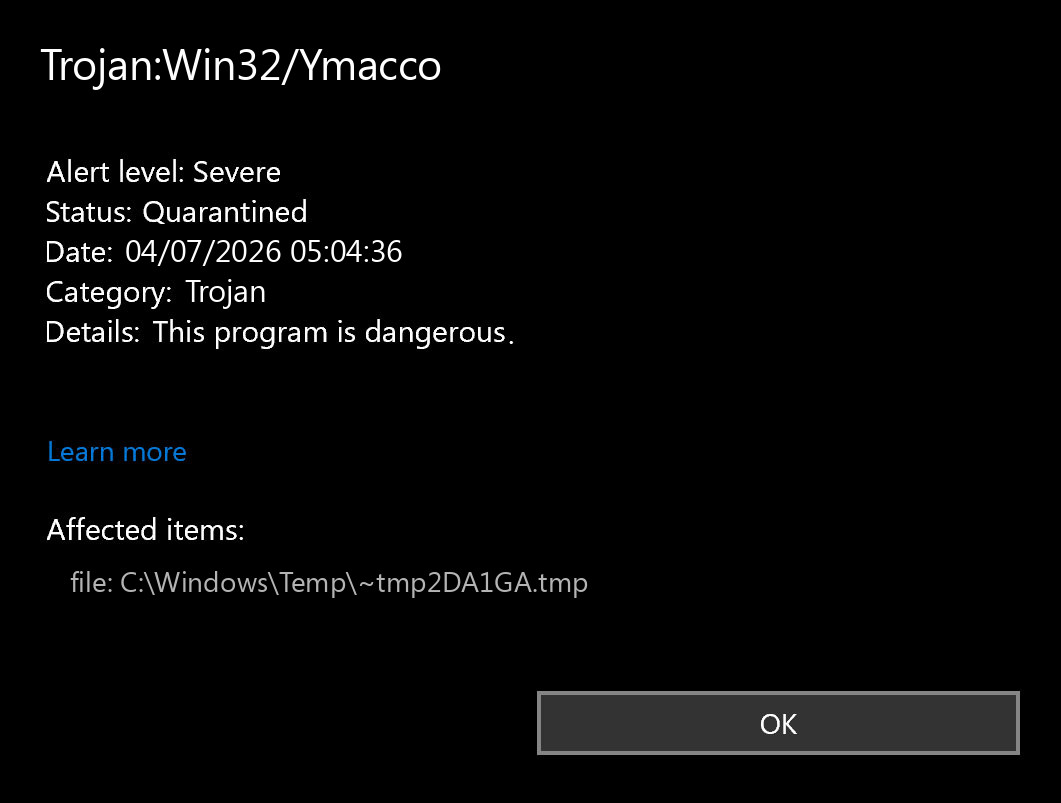
Trojan:Win32/Ymacco is a Microsoft Defender detection for a severe Windows threat family. If Defender shows Program:Win32/Ymacco instead, treat it the same way at first: keep the item quarantined, note the affected path, and do not restore or allow it until you know where the file came from and whether the alert returns after a reboot.
The confusing part is that Ymacco appears under many suffixes, such as Ymacco.AAF4, Ymacco.AA86, or Ymacco!rfn. The suffix can change with Defender intelligence updates, but the practical response is the same: check the source of the file, remove the original installer or archive, scan for persistence, and change passwords if the file actually ran.
What Is Trojan:Win32/Ymacco?
Microsoft lists Ymacco detections as threats that Defender Antivirus detects and removes. In real user cases, the alert often appears after running a downloaded installer, trainer, cracked tool, bundled app, or old utility that Defender considers unsafe. A Trojan: label usually means Defender is classifying the item as malicious; a Program: label can also appear for software that behaves like an unwanted or unsafe program.
Do not make the decision only from the family name. The affected item, download source, signature, and whether the warning returns are more important than the suffix after Ymacco.
What To Do First
- Leave the item in quarantine. Do not use Restore or Allow unless you are investigating a developer false positive and can verify the file safely.
- Open Protection History. Record the exact detection name, affected item, date, and action status.
- Delete the original source package. Remove the installer, ZIP/RAR archive, crack, trainer, or download folder that produced the alert.
- Reboot and scan again. Run a full Defender scan after restart. If Defender still reports active threats or remediation incomplete, move to the persistence checks below.
- Do not clear Protection History as a “fix.” Clearing old history can hide a stale entry, but it does not remove a loader, task, service, or infected file.
Use The Affected Path To Judge Risk
The affected item tells you what kind of response is needed. Copy the path from Protection History before you delete anything else.
| Where Defender found Ymacco | Risk and next step |
|---|---|
%USERPROFILE%\Downloads, Desktop, or an archive extraction folder |
The file may not have run yet. Keep quarantine, delete the source archive, and scan again before restoring anything. |
%TEMP%, %LOCALAPPDATA%, Startup, or an installer cache |
Assume the installer may have started. Check startup entries, scheduled tasks, services, and browser changes. |
| Game trainer, crack, keygen, repack, or “unlocker” folder | Do not allow it just because it was expected. Read the HackTool:Win32/Crack safety guide before deciding whether the source is worth the risk. |
| A signed business tool or open-source utility from a trusted vendor | Check the signature, hash, release page, and Microsoft submission result before restoring. A false positive is possible, but it needs evidence. |
False Positive Or Real Malware?
A Ymacco alert can be a false positive when it appears on a known signed utility from the vendor’s official site, the hash matches the vendor release, the file has not been modified, and other evidence points to a clean build. It is much less likely to be harmless when it came from a crack, loader, repack, unknown Telegram/Discord link, fake update page, or download mirror.
If you are a developer or you trust the source, submit the file to Microsoft for analysis instead of restoring it immediately. If Microsoft later changes the verdict, download a fresh copy from the official source rather than restoring the quarantined copy.
How To Remove Trojan:Win32/Ymacco Safely
- Update security intelligence. In Windows Security, check for protection updates so Defender uses the latest signatures.
- Run a full scan. A quick scan may miss the folder or user profile where the original installer unpacked files.
- Remove the source download. Delete the original archive, installer, mounted ISO, or torrent folder that led to the alert.
- Check startup locations. Review Task Manager Startup apps, Task Scheduler, Services, and unusual entries under
HKCU\Software\Microsoft\Windows\CurrentVersion\Run. - Look for Defender exclusions. Malware and risky loaders sometimes add exclusions so the next payload is not scanned.
- Run an offline scan if the alert returns. If Defender says remediation is incomplete, an offline scan can catch files that hide while Windows is running.
- Use a second cleanup scan when persistence is possible. If Ymacco came from a crack, fake installer, browser download, or the warning returns after reboot, scan with Gridinsoft Anti-Malware to check for hidden files, scheduled tasks, startup entries, bundled apps, browser changes, and leftovers.
Defender may quarantine the visible file while the loader, scheduled task, browser change, exclusion, or bundled module that brought it there remains. That is why repeated Ymacco alerts need a persistence check, not only a one-click quarantine action.
Defender can quarantine the visible file, but repeated alerts may mean a loader, scheduled task, service, browser change, or bundled component is recreating it. Scan the PC before trusting the cleanup.
Scan Ymacco leftoversIf Ymacco Keeps Coming Back
Repeated Ymacco alerts usually mean one of three things: Defender is showing a stale Protection History item, the original installer is still being opened or extracted, or another component recreates the detected file. Use this order:
- Confirm whether the latest alert has a new timestamp after reboot.
- Delete the original download and empty the extraction folder.
- Check Task Scheduler for recently created tasks that run PowerShell,
cmd.exe, scripts, or files from user-profile folders. - Check browser extensions and notification permissions if the file came from a fake download or redirect page.
- Run Defender Offline or a trusted second-opinion scan if the same path returns.
For broader label confusion, the Microsoft Defender detection names guide explains what prefixes such as Trojan, Program, PUA, HackTool, and Behavior usually mean.
Should You Change Passwords?
Change passwords only after the machine is clean, but do not wait if the Ymacco file ran and came from a high-risk source. Prioritize email, Microsoft, Google, browser-synced accounts, Steam/Discord, banking, crypto, and work accounts. Also revoke active sessions where the service allows it.
If Defender blocked the file before it ran and the affected path is only the Downloads folder or an unopened archive, account risk is lower. Still delete the source and complete a full scan before using the PC normally.
When Is A Windows Reset Needed?
A reset is not the first step for every Ymacco alert. Consider backing up personal files and reinstalling Windows only when alerts continue after offline scans, Defender or Windows Security is disabled by policy you did not set, unknown admin accounts appear, browser sessions or accounts are stolen, or you cannot remove suspicious startup tasks and services.
If the alert was a single quarantined file from a download that never ran, a full cleanup and scan is usually enough. The goal is to match the response to the evidence, not to wipe a working system because of one old Protection History entry.
FAQ
Is Trojan:Win32/Ymacco always a real virus?
Not always, but treat it as real until proven otherwise. A false positive needs strong evidence such as an official source, clean vendor hash, valid signature, and Microsoft submission result.
Can I allow Program:Win32/Ymacco if I need the app?
Do not allow it just to make the warning disappear. Submit the file for analysis or download a fresh copy from the official vendor after the detection is resolved.
Why does Defender say Ymacco was removed but it comes back?
The source installer, archive, scheduled task, startup entry, browser extension, or Defender exclusion may still be present. Check the affected path and scan for persistence.
Does quarantine mean my PC is safe?
Quarantine is a good sign, but it only proves Defender acted on the detected item. If the file ran or the alert returns, check for leftovers and account risk.
References
- Microsoft Security Intelligence. “Trojan:Win32/Ymacco.A threat description.” Microsoft, accessed July 4, 2026. https://www.microsoft.com/en-us/wdsi/threats/malware-encyclopedia-description?Name=Trojan%3AWin32%2FYmacco.A&ThreatID=2147782950
- Microsoft Security Intelligence. “Program:Win32/Ymacco.AA4A threat description.” Microsoft, accessed July 4, 2026. https://www.microsoft.com/en-us/wdsi/threats/malware-encyclopedia-description?Name=Program%3AWin32%2FYmacco.AA4A&ThreatID=288053
- Microsoft Security Intelligence. “Submit a file for malware analysis.” Microsoft, accessed July 4, 2026. https://www.microsoft.com/en-us/wdsi/filesubmission