

Trojan:Win32/Sonbokli.A!cl is a Microsoft Defender detection for a Windows trojan that can load more malware, give an attacker remote access and steal login credentials. Those are three capabilities of the same threat. The first question after an alert is whether the flagged file had a chance to run. If Defender blocked an unopened download, keep it quarantined. If you launched it, disconnect the PC and use a separate, trusted device to secure your accounts.
A file called “.pdf.exe” triggered this Win32 detection
On August 5, 2024, a Gridinsoft file report recorded the Microsoft verdict Trojan:Win32/Sonbokli.A!cl for a file whose Ukrainian name began “Офіційний запит” (“official request”). Its name ended in .pdf.exe, with a long stretch of spaces before that ending. The report identifies the file as a Windows executable from its contents. Double-clicking a file of this type asks Windows to run a program.

The report records the file type and the scanner verdict. It contains no evidence that a particular person opened the file or lost credentials. In File Explorer, turn on View → Show → File name extensions to see the final extension of other downloads. Keep the flagged item in quarantine. If your alert actually begins Trojan:PDF/, see the Sonbokli guide for PDF documents and phishing links.
Is Sonbokli a loader, a RAT or a credential stealer?
Microsoft’s description of the exact Win32 detection, updated March 15, 2026, documents all three roles. Each one calls for a different check after a suspected execution.
- Loader. Sonbokli can bring another threat onto the PC. Microsoft lists ransomware and coin miners as possible follow-on payloads. Check the scan history for other detections after the first event. A Sonbokli alert alone does not establish that either payload arrived.
- Remote access trojan (RAT). A running infection can let an operator send commands to the PC. Microsoft describes variants that use legitimate .NET utilities and survive a restart. A familiar Microsoft process name, by itself, is insufficient evidence to delete a Windows component. On a work PC, give the incident team the alert time so they can check process and network records.
- Credential theft. A running trojan can expose logins used on the device. Cleaning the PC addresses the malware. Changing exposed passwords and revoking active sessions address the access someone could still have afterward.
Was it blocked before it ran?
In Windows Security → Virus & threat protection → Protection history, expand the entry. Record the exact name, time, action and affected item. You may need administrator access for the details. Compare the time shown with what you were doing. An archive path can identify a member Defender found during scanning. A quarantine entry records what Defender did to that copy. Neither detail alone establishes whether an earlier copy ran.
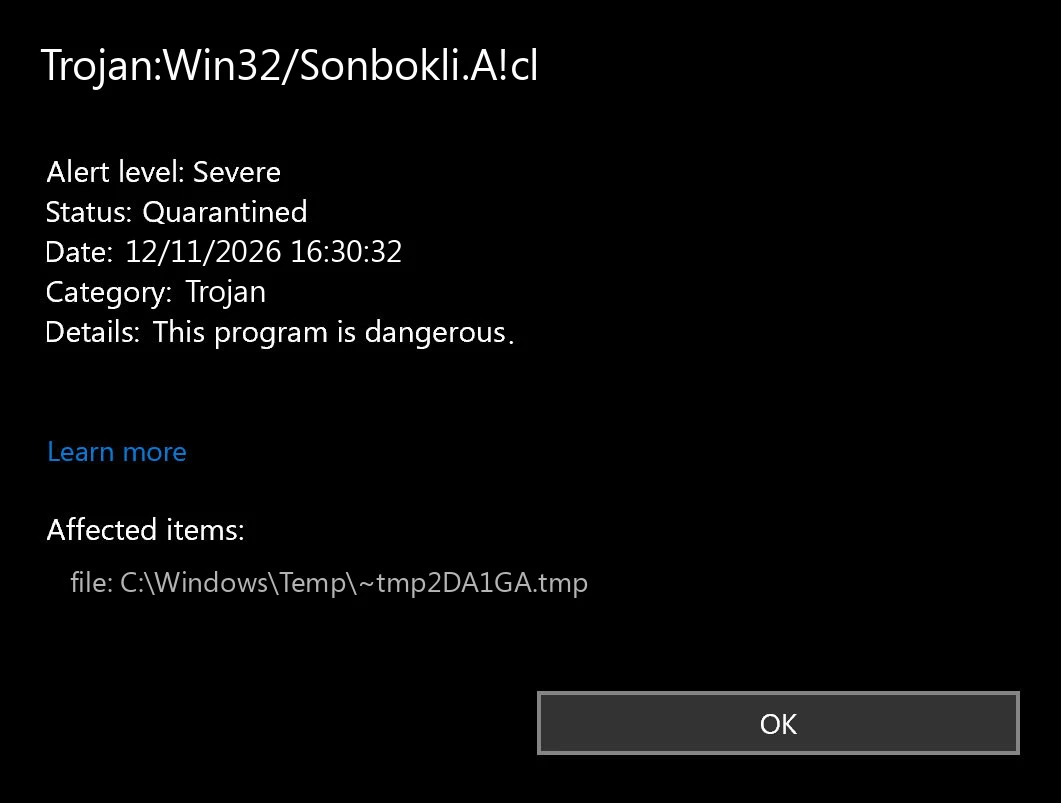
- You saved the file and never launched it. If Defender reports Threat blocked, it removed the detected item. If it says Threat quarantined, leave it isolated or use Remove. Discard the untrusted download source. This situation alone does not call for resetting every password.
- You double-clicked it, approved an installer, or cannot rule out execution. Disconnect Wi-Fi or Ethernet. Record the filename and alert time without reopening it. For a managed device, contact IT from another device before deleting files or running cleanup. They can examine endpoint telemetry and revoke work sessions.
- Defender says “Action needed” or “Remediation incomplete.” Expand the card and follow the indicated action. Quarantine an unverified file. If cleanup fails or a fresh event appears after restart, continue with the system checks below.
How to clean Windows and secure exposed accounts
- Protect accounts from a trusted device. If the trojan ran, start with the email account used for password resets, your password manager if it was open, and work accounts used on the PC. Change affected passwords and any reused copies. Sign out other sessions, review recovery methods and connected apps, and revoke unfamiliar grants. Enable multifactor authentication where available. For a work login, ask IT to review sign-ins during the exposure window.
- Scan the personal PC. Use current Defender security intelligence and select Scan options → Full scan. If detections return or Defender cannot finish cleanup, save your work and use Microsoft Defender Offline scan from Scan options. The PC restarts for the scan. Afterward, review its results in Protection History.
- Check the next event, if there is one. Compare its timestamp and path with the original. Another hit inside the same downloaded archive or synced backup can identify a source that keeps restoring the file. A new executable or startup detection at sign-in warrants a closer look. The Windows security audit after malware covers those follow-up checks.
If Sonbokli ran, removing the first executable may leave a second payload or startup entry on the PC. On a personal device, update Gridinsoft Anti-Malware and run a Full Scan. Review the detected files and persistence entries, apply cleanup to confirmed threats, then restart and check for a new alert. Continue account recovery from the trusted device while the affected PC is being checked.
What if Defender flagged a familiar installer?
Leave the flagged copy in quarantine. Record the version, download source and SHA-256 if the original alert or your organization’s tools provide it. Ask the publisher about that exact build, using contact details from its official site. A similar filename, an unrelated forum report or a clean verdict for another version says little about the copy you received.
If the publisher provides a checksum, compare it with the affected build through a trusted channel. A match establishes that two copies are identical. Microsoft can still review whether its detection was correct through the file-submission link on its threat page. Avoid restoring an unknown installer merely to calculate a hash or adding a folder-wide Defender exclusion to make setup finish.
References
- Microsoft. Trojan:Win32/Sonbokli.A!cl. Microsoft Security Intelligence. Updated March 15, 2026.
- Microsoft. Protection History in the Windows Security App. Microsoft Support. Accessed November 12, 2026.