Trojan:Win32/Guloader means Microsoft Defender detected GuLoader, also known as CloudEyE, on your Windows device. Treat the alert as a real loader warning unless you can prove the file came from a trusted source and was never run. GuLoader is dangerous because the first file is often only the delivery stage; the payload behind it may be a remote-access trojan, password stealer, or another downloader.
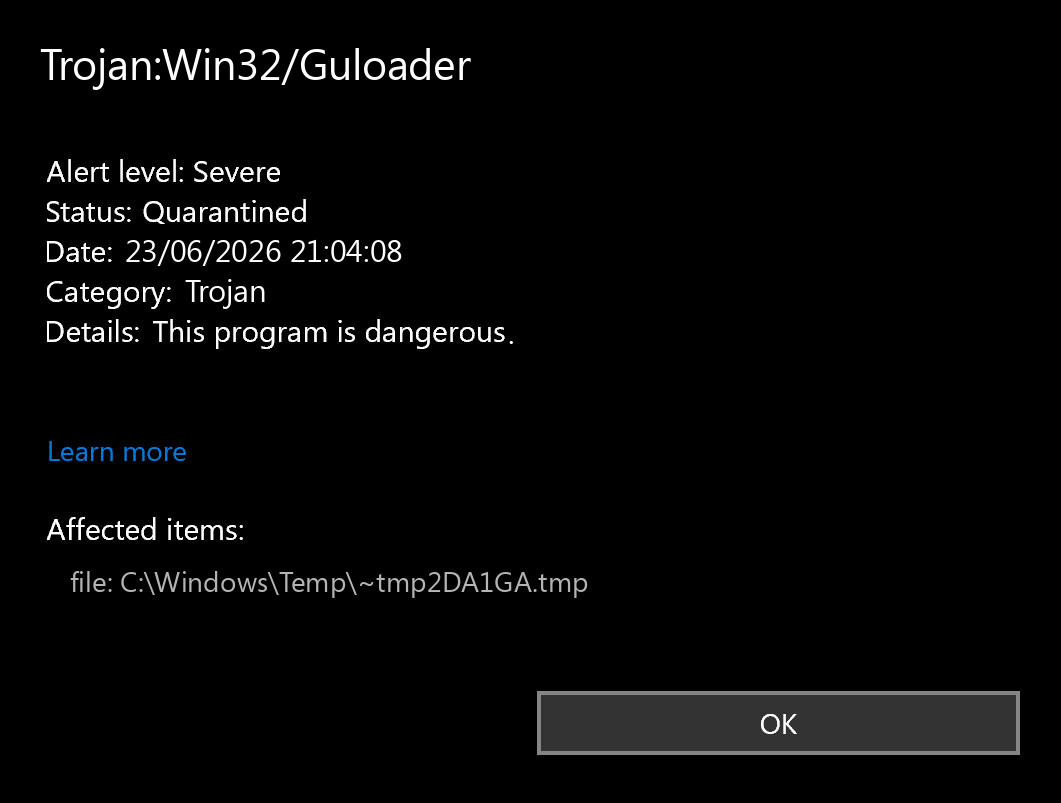
If Defender already quarantined the item, do not restore it to “test” the file. Record the detected path, delete the source attachment or download, run a full scan, and check for signs that the loader or a second-stage payload ran before the alert appeared.
What is Trojan:Win32/Guloader?
Microsoft describes Trojan:Win32/Guloader as a Defender detection for GuLoader, a stealthy downloader that uses encrypted shellcode, process injection, and cloud-hosted payload delivery. Microsoft notes that one observed chain started from a phishing message, led to a ZIP archive with shortcut files, and used PowerShell and batch files to fetch a payload. [1]
Security researchers also track the same family as GuLoader or CloudEyE. Zscaler describes it as an obfuscated downloader that has kept evolving with polymorphic code and exception-based control-flow tricks, while Malpedia lists CloudEyE as the GuLoader family and notes that it can deliver RATs and stealers such as Agent Tesla, Arkei/Vidar, FormBook, LokiBot, NetWire, and Remcos. [2] [3]
What to do after the Defender alert
- Keep the item quarantined. Do not allow, restore, or exclude it unless a trusted software vendor can reproduce and explain the detection.
- Write down the path. The important clue is where Defender found it:
%USERPROFILE%\Downloads, an email attachment folder,%TEMP%, a mounted archive, a browser cache, or a suspicious installer directory. - Remove the source file. Delete the original ZIP, PDF, shortcut, installer, crack, fake update, or email attachment that led to the alert. Empty the browser download folder only after saving evidence you need for work or IT.
- Run a full security scan. Use Microsoft Defender’s full scan first, then scan with Gridinsoft Anti-Malware to look for hidden copies, startup entries, scheduled tasks, bundled apps, browser changes, and related detections.
- Reboot and scan again if the alert returns. A repeat alert after reboot, a new file under
AppDataorTemp, or a new scheduled task means the first quarantine may not have removed the whole chain. - Change passwords from a clean device if the file ran. GuLoader commonly delivers stealers or RATs, so protect email, browser-saved passwords, banking, Steam, Discord, Microsoft, and work accounts if you opened the attachment or installer.
How GuLoader usually gets in
The most common home-user and small-business entry points are malicious email attachments, fake document links, ZIP archives with shortcut files, cracked software, fake updates, and installers from unfamiliar download pages. In Microsoft examples, the visible lure may look like a document workflow, but the execution chain can use .lnk, PowerShell, batch files, and cloud-hosted downloads before the final payload appears.
That is why the detected path matters. A quarantine event in C:\Users\Public\Downloads after a shared workstation download is different from an alert in a browser cache, a startup folder, or HKCU\Software\Microsoft\Windows\CurrentVersion\Run. If the file came from email, treat the mailbox and account as part of the cleanup, not just the Windows file.
Safe cleanup checklist
1. Check Defender Protection History
Open Windows Security, review Protection History, and confirm the status is Quarantined or Removed. If it says remediation incomplete, failed, or abandoned, do not clear the history yet. Note the affected item, detection time, and path.
2. Inspect startup and scheduled tasks
Look for new entries created around the same time as the alert. Pay special attention to unknown commands that launch from %APPDATA%, %LOCALAPPDATA%, %TEMP%, browser profile folders, or a recently extracted archive. Do not delete random Windows services; remove only entries tied to the suspicious path or parent app.
3. Scan for leftovers and second-stage payloads
Defender can quarantine the visible GuLoader file while a loader, scheduled task, copied script, browser change, or second-stage payload remains. After the manual checks, run Gridinsoft Anti-Malware and remove detections it finds, then reboot and scan again if symptoms or alerts return.
Defender can quarantine the visible file, but repeated alerts may mean a loader, scheduled task, service, browser change, or bundled component is recreating it. Scan the PC before trusting the cleanup.
Scan for GuLoader leftovers4. Review accounts if execution happened
If you opened the attachment, clicked the shortcut, ran the installer, or saw a command window before the alert, assume credentials may have been exposed. Change passwords from a clean device, revoke suspicious sessions, rotate browser-saved passwords, and check email rules or forwarding if the lure came through a mailbox.
Could Trojan:Win32/Guloader be a false positive?
It is possible, but this is not a detection to dismiss quickly. A credible false-positive review needs the original file source, a valid digital signature, a clean vendor explanation, a matching file hash from the vendor, and no suspicious path or repeat behavior. Do not use “it came from a cloud drive” as proof of safety; GuLoader campaigns have used trusted cloud-hosting services to deliver payloads.
If the file is a business document, invoice, tax form, or installer from a partner, ask the sender through a separate channel before restoring anything. If the alert came from a crack, activator, mod menu, or “document viewer” installer, treat it as hostile and clean the system.
Related Gridinsoft checks
If the alert name is different but still starts with Trojan:Win32, our Microsoft Defender detection names guide explains how to read the label. If you saw Trojan:Win32/Znyonm, that page covers an adjacent Defender detection often seen around obfuscated loaders and remote-access malware. If you suspect a stealer already ran, use the post-infostealer recovery checklist before trusting saved browser sessions.
FAQ
Is Trojan:Win32/Guloader the final malware?
Not necessarily. GuLoader is mainly a downloader/loader. The bigger risk is what it tried to deliver, such as a RAT, password stealer, or another malware component.
Can I just clear Defender history?
No. Clear history only after the item is quarantined or removed, the source download is gone, and a follow-up scan does not find related files or persistence.
Should I reinstall Windows?
Most cases do not require an immediate reinstall. Consider reinstalling from clean media if the file ran, admin tools were disabled, detections keep returning after cleanup, or you find signs of remote access or credential theft.
Why did the alert appear after opening a ZIP or PDF?
Some GuLoader campaigns use archive files, shortcut files, document links, or scripts to start the loader chain. Defender may detect the loader only after the archive is opened or a linked file starts running.
References
- Microsoft Security Intelligence. “Trojan:Win32/Guloader threat description.” Microsoft, published July 22, 2022, updated May 12, 2025, accessed June 23, 2026. https://www.microsoft.com/en-us/wdsi/threats/malware-encyclopedia-description?Name=Trojan%3AWin32%2FGuloader
- Zscaler ThreatLabz. “Technical Analysis of GuLoader Obfuscation Techniques.” Zscaler, February 9, 2026, accessed June 23, 2026. https://www.zscaler.com/blogs/security-research/technical-analysis-guloader-obfuscation-techniques
- Malpedia. “CloudEyE (Malware Family).” Fraunhofer FKIE, accessed June 23, 2026. https://malpedia.caad.fkie.fraunhofer.de/details/win.cloudeye