Trojan:Win32/Acll is a Microsoft Defender detection for a Windows trojan. If Defender shows Trojan:Win32/Acll or an Acll!rfn variant, first quarantine the detected file, update security definitions, and run a full scan. Then check where the file came from: an alert in Downloads, Temp, a cracked game, or an extracted archive is much riskier than an old quarantined item that no longer exists on disk.
This guide focuses on the decisions most users need after the alert: whether the detection is still active, how to remove remaining startup entries, when to use a second-opinion scan, and when to change passwords or move crypto wallets because the file may have run before quarantine.
| Detection name | Trojan:Win32/Acll, sometimes shown with suffixes such as Acll!rfn |
| Detector | Microsoft Defender Antivirus and compatible Microsoft security products |
| Main risk | Unknown trojan behavior; some ACLL-family samples drop files, modify registry settings, or arrive from malicious downloads |
| Most suspicious locations | Downloads, Temp, AppData, ProgramData, extracted archives, game cracks, keygens, fake utilities, and email attachments |
| First action | Quarantine or remove the item, update definitions, run a full scan, and do not restore the file unless you can verify it is safe |
| Extra action if it ran | Check startup entries, browser extensions, saved passwords, crypto wallets, and active sessions |
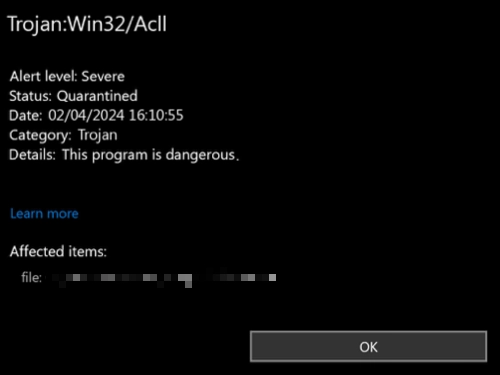
What Is Trojan:Win32/Acll?
Trojan:Win32/Acll is a Defender detection name for a Windows trojan. Microsoft’s public threat entry says Defender detects and removes this threat, but Microsoft does not publish detailed behavior for the family. That is why the right response is not to guess from the name alone. Treat the alert as serious, then use the file path, source, status, and scan results to decide what cleanup is needed.
The !rfn suffix usually appears on Defender detections that are made by broader reputation or behavior logic rather than by a simple family name alone. It does not automatically mean the alert is harmless. It means you should inspect the file source and avoid restoring it from quarantine unless the file came from a trusted vendor and a fresh scan or vendor confirmation supports a false-positive decision.
Check the Alert Status First
Open Windows Security and check Virus & threat protection → Protection history. The status tells you whether you are cleaning an active infection or only reviewing an old blocked item.
| Defender status | What it means |
| Quarantined or Removed | The detected file was blocked. Run a full scan and check whether the same path comes back. |
| Active | Assume the file or a related component is still present. Disconnect risky downloads, stop suspicious processes, and scan again. |
| Remediation incomplete | Restart Windows, update definitions, run a full scan, then use a second-opinion scanner if the alert repeats. |
| Allowed or Restored | Remove the allow entry unless you intentionally restored a verified clean file. Restored malware can run again. |
Use the File Path to Decide the Risk
Defender’s detection name is only one clue. The file path and source usually tell you more about the real risk.
- Downloads, Temp, archives, cracks, cheats, or keygens: treat the alert as high risk. Delete the source package and scan the whole system.
- AppData or ProgramData startup folders: check startup entries, scheduled tasks, and browser extensions because malware often persists there.
- A file from an official vendor installer: do not restore it immediately. Re-download from the vendor, scan the new copy, and submit the file to Microsoft if you suspect a false positive.
- Only Protection History, no file on disk: the item may already be gone. Clear the source archive and run a full scan to confirm it does not return.
How to Remove Trojan:Win32/Acll
1. Update Defender and Run a Full Scan
- Open Windows Security.
- Go to Virus & threat protection → Protection updates.
- Install the latest security intelligence update.
- Return to Scan options and run a Full scan.
Microsoft recommends updating antimalware definitions and running a full scan because infections can leave remnants after the first removal attempt.
2. Delete the Source File or Archive
If the alert started after opening a downloaded archive, installer, crack, cheat, or attachment, delete the original source file too. A cleaned executable does not help if the same archive remains in Downloads and gets extracted again.
3. Check Startup Locations
Open Task Manager and review Startup apps. Then check Task Scheduler for unknown tasks created around the time of the alert. Be especially cautious with entries that launch from these locations:
%AppData%
%LocalAppData%
%ProgramData%
%Temp%
Downloads
Trend Micro’s analysis of a related ACLL sample recorded dropped files under user profile folders and changes to Internet Settings registry values. You do not need to find those exact artifacts on every system, but their presence is a reason to stop manual cleanup and run a deeper scan.
4. Run a Second-Opinion Scan
If Defender says the threat is active, remediation is incomplete, or the alert keeps returning after restart, scan with GridinSoft Anti-Malware. This is useful when a trojan has companion files, startup entries, browser changes, or hidden payloads that the first quarantine did not fully remove.
After uninstalling the suspicious app or deleting the visible threat, use Gridinsoft Anti-Malware to check hidden files, startup entries, scheduled tasks, bundled apps, browser changes, and other persistence points that can restore malware.
Download Anti-Malware5. Review Browser and Account Exposure
If the suspicious file ran before it was blocked, treat the browser as an account-risk surface, not as the main malware cleanup target. Focus on extensions, saved sessions, and credentials before doing a full browser reset.
- Remove browser extensions you do not recognize, especially ones installed around the time of the alert.
- Sign out of active sessions for email, password managers, Microsoft, Google, Steam, Discord, banking, and crypto services.
- Change important passwords from a clean device after the system scan is complete.
- Reset a browser only if its search engine, homepage, extensions, proxy settings, or notification permissions were changed without your approval.
- Do not restore an old browser profile until it has been scanned; bookmarks are safer to keep than full profile folders with cookies and extensions.
What to Do After Removal
- Change passwords for email, banking, work, gaming, and cryptocurrency accounts from a clean device.
- Enable two-factor authentication on important accounts.
- Sign out of active sessions in browsers, password managers, Steam, Discord, Microsoft, Google, and email accounts.
- If crypto wallets were stored on the computer, move funds to a new wallet seed after the device is clean.
- Do not reuse the same cracked installer, game mod, utility, or email attachment that triggered the alert.
If the alert came from a game crack, cheat, or mod installer, read our guide to malware risks in cracked games. If you already ran a suspicious game or mod, follow the post-infostealer recovery checklist as well.
Could Trojan:Win32/Acll Be a False Positive?
It is possible, but you should not assume that from the detection name alone. A false-positive review makes sense only when the file came from a trusted vendor, the download URL is official, the file signature is valid, and repeated scans do not show suspicious behavior. If the file came from a crack, unofficial mirror, ad-driven download site, or unknown archive, treat it as malicious.
For a suspected false positive, keep the file quarantined and submit it to Microsoft for review instead of adding a permanent allow rule. Restoring a real trojan can restart the infection.
How to Avoid the Next Acll Alert
- Download software only from official vendor sites or trusted app stores.
- Avoid cracked software, game cheats, keygens, and fake system utilities.
- Keep Windows, browsers, and security tools updated.
- Use a password manager and unique passwords so one stolen browser profile does not expose every account.
- Back up important files to storage that is not always connected to the PC.
FAQ
Is Trojan:Win32/Acll dangerous?
Yes. Treat it as a serious trojan detection unless you can verify a clean false positive. The safest response is quarantine, full scan, source-file deletion, and account checks if the file ran.
What does Acll!rfn mean?
The suffix points to a Defender detection variant, often based on reputation or behavior signals. It does not prove the file is safe, so inspect the source, path, and status before restoring anything.
Why does Defender still show Trojan:Win32/Acll after removal?
Protection History can retain old events, but repeated active or remediation-incomplete alerts mean something may still be present. Update definitions, restart Windows, run a full scan, and use a second-opinion scanner if it returns.
Should I change passwords after Trojan:Win32/Acll?
Change passwords if the suspicious file ran, if the alert came from a stealer-like download, or if browser data and wallets were stored on the infected device. Change them from a clean device after removal.
Can I delete the detected file manually?
You can delete the original download or archive, but let Defender or a trusted anti-malware tool handle active malware files. Manual deletion can miss startup entries, companion scripts, and registry changes.
References
- Microsoft Security Intelligence. “Trojan:Win32/Acll threat description.” Microsoft, published February 14, 2024, accessed June 7, 2026. https://www.microsoft.com/en-us/wdsi/threats/malware-encyclopedia-description?Name=Trojan%3AWin32%2FAcll&ThreatID=2147900036
- Trend Micro Threat Encyclopedia. “Trojan.Win32.ACLL.0NA103CE24.” Trend Micro, April 22, 2024, accessed June 7, 2026. https://www.trendmicro.com/vinfo/us/threat-encyclopedia/malware/trojan.win32.acll.0na103ce24