PureRAT is a remote access trojan; win.pure_rat is a malware-family identifier, not a file you should expect to find in Windows. If your security software reports it, keep the detected item quarantined. The next decision is whether the suspicious file was stopped before you opened it or may already have run. After possible execution, disconnect the PC from the network and secure important accounts from a different, trusted device while you arrange cleanup.
A quarantine result tells you what happened to a detected item. It does not, by itself, give you the complete history of the PC. This guide separates three tasks: interpreting the alert, removing malware, and recovering accounts that may have been exposed.
What PureRAT, win.pure_rat and the Defender name mean
Malpedia catalogs win.pure_rat as PureRAT and lists PureHVNC and ResolverRAT as related names. Those names help connect research and security reports; they are not a universal filename, installation folder or uninstall entry. Different campaigns and security products can use different labels. [1]
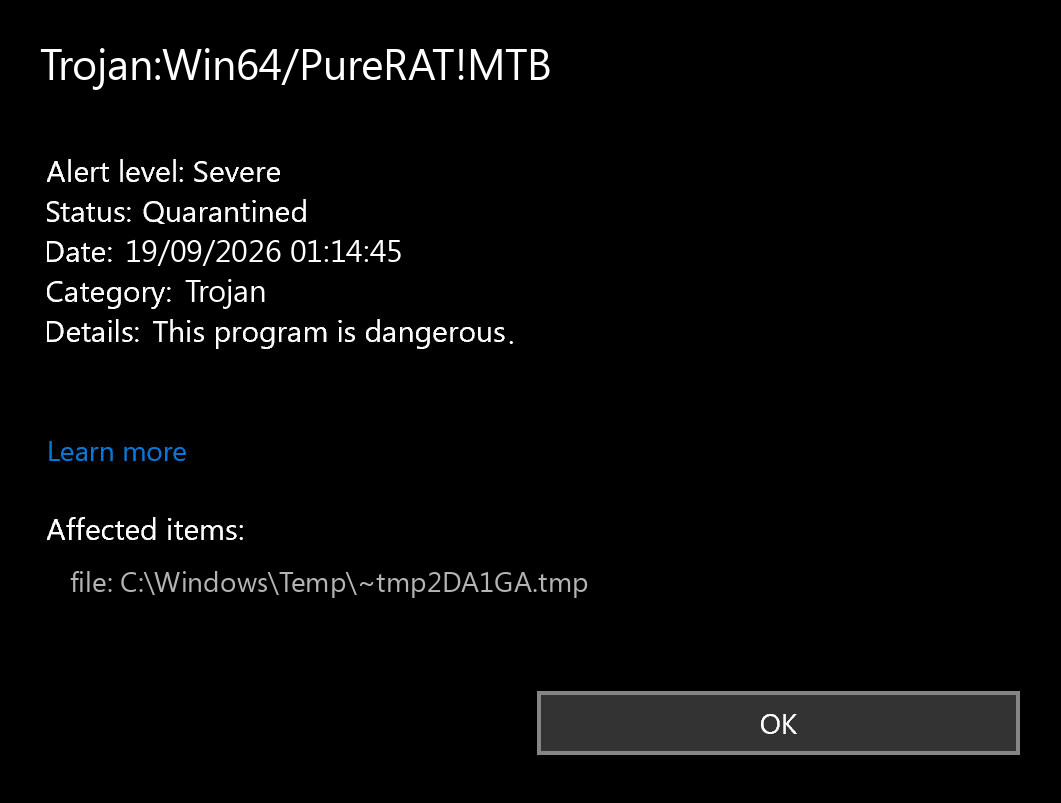
Microsoft also documents the exact detection Trojan:Win64/PureRAT!MTB. Its entry says Defender detects the threat, but it does not provide a detailed technical behavior description. Treat the full detection name, affected item, time and action status as evidence to preserve—not as a list of everything an attacker did. [2]
The important property of a remote access trojan is the access it can provide after execution. A normal-looking desktop does not establish that a suspicious program was harmless.
Example
The alert below shows the PureRAT detection name and a quarantined state. Its timestamp and temporary filename are illustrative; compare the name and status with your own security history rather than searching for that sample path.
Start with what happened before the alert
Open the security application’s detection history and save the full name, affected path, detection time and action taken. In Windows Security, check Virus & threat protection → Protection history. Do not restore the item, add an exclusion, or run it again to find out what it does.
The file was blocked before opening
If the download or archive was blocked before you opened anything inside it, keep it quarantined, remove the original download/source copy, update protection and run a full scan. Check whether the alert actually predates any launch. This is a narrower exposure than known execution.
The file ran, or you are unsure
If you ran the installer, shortcut, script or application—or cannot establish whether it ran—disconnect Wi-Fi and Ethernet. Stop using that PC for email, banking and password changes. Follow the cleanup path below and use a trusted device for account recovery.
A new alert appears after cleanup
If a new PureRAT alert appears after cleanup or a restart, save the new time and affected path. Check whether you downloaded the same source again or whether a remaining component is recreating it. Keep the device out of sensitive use until that cause is resolved.
For example: an alert at 14:03 after an installer was launched at 14:00 needs a different response from a browser download blocked at 14:03 that was never opened. Both may end with “Quarantined,” but only the second history supports a before-execution block. If you cannot reconstruct the sequence, use the possible-execution path.
On a work-managed PC, disconnect and contact your IT or security team before running cleanup or deleting evidence. They may need the original alert and logs to establish whether other devices or accounts were involved.
How to remove PureRAT and check the result
For a personal Windows PC, use a full malware scan as the main cleanup path. You do not need to guess which Windows processes to kill or delete registry entries first.
- Leave the detected file quarantined. Remove the original suspicious download if it remains outside quarantine. Do not rerun the installer or restore it because another scanner did not flag it.
- Get Gridinsoft Anti-Malware from its official product page, install it and update its detection database. Use a trusted device to obtain the installer if necessary. If you have evidence of active remote control and obtaining updates would require reconnecting the affected PC, keep it isolated and get technical help instead.
- Run a Full Scan. Let it finish, review the detection results and apply the recommended cleanup to malicious items. Save the report so you can compare later results.
- Restart when prompted, then check again. Look for new detections and the original symptom. Run a follow-up scan after the restart if the alert returns or cleanup requests it. An old entry still visible in history is different from a new detection with a new time.
- Escalate if cleanup is incomplete. Repeated detections, disabled protection or continuing unauthorized activity are reasons to keep the PC isolated and use professional help or a clean Windows installation.
If the file already ran or the alert comes back, quarantining one payload may leave a loader or scheduled task that recreates it. That is why scanning the whole system is more useful than repeatedly deleting the same visible file. Microsoft also notes that infections can leave files or system changes after detection. [2]
Defender can quarantine the visible file, but repeated alerts may mean a loader, scheduled task, service, browser change, or bundled component is recreating it. Scan the PC before trusting the cleanup.
Scan this PCA completed scan helps assess the current device state. It cannot undo information already taken or revoke an attacker’s access to an online account. Handle that separately below.
Why a PureRAT alert can return
There are two different problems to distinguish: receiving the same malicious download again and a component on the PC relaunching it. Compare the new affected path, time and activity that immediately preceded the alert. A repeat tied to opening the same archive suggests a source you are reintroducing; a fresh detection after startup without reopening that source deserves persistence investigation.
A concrete example comes from Trellix’s April 2026 analysis: a malicious Windows shortcut started a script chain, and scheduled tasks kept stages running. The chain later loaded code through a legitimate Windows process. That explains how deleting an initial download can leave a separate execution path. It does not establish that every PureRAT alert follows that campaign. [3]
Do not delete Windows components such as Msbuild.exe just because a research report names them. In that report, the legitimate process was used to host malicious code; the process name alone is not a safe removal target. Likewise, a file being under C:\Windows\Temp or %LOCALAPPDATA% is context, not a verdict.
Manual investigation is an optional fallback when the scan cannot resolve recurrence. A technician can compare scheduled tasks, startup commands, services and security exclusions against the scan report and alert timeline. Give them the evidence you saved instead of broadly deleting unfamiliar entries. If a Defender Full Scan fails to start, use the separate Full Scan troubleshooting guide.
Recover accounts from a trusted device
If the suspicious file ran—or there are signs of unauthorized account use—start with the email account used to recover your other accounts. On a different, trusted device:
- Change the password to a unique one and review recovery addresses, phone numbers and multifactor settings.
- Use the provider’s sign-out or session-revocation controls to end unfamiliar sessions. A password change and signing out other devices may be separate actions.
- Review forwarding rules, connected applications and recent sign-ins. Remove unauthorized changes.
- Repeat for important accounts used on the affected PC, prioritizing password managers, financial services and work accounts. Contact the relevant provider if you see unauthorized activity.
If the file was demonstrably blocked before execution and there are no other signs of compromise, do not assume every account was stolen. Review the alert timeline first. Conversely, removing malware after execution is not a substitute for addressing sessions or recovery settings that an intruder may already have changed.
False positive or clean reinstall?
If the detection concerns software you believe is legitimate, keep it quarantined while checking where it came from and whether its publisher can explain the specific flagged file. A valid signature is one useful detail, not a reason to ignore an alert. Use the detecting vendor’s official false-positive review process when needed; do not upload confidential work files to public scanners without permission.
A single family label cannot decide whether Windows must be reinstalled. A clean installation is a reasonable recovery choice when execution is confirmed and the scope is unclear, protection has been altered, or detections keep returning despite cleanup. Use installation media prepared on a trusted device and restore personal documents from a known-good backup. Do not bring back the suspect installer, scripts or an unreviewed copy of the old application environment.
The useful endpoint is a resolved source of infection, working protection and recovered accounts—not merely a quieter alert window.
References
- Fraunhofer FKIE. “PureRAT (win.pure_rat).” Malpedia, accessed September 18, 2026. Family naming and related names.
- Microsoft. “Trojan:Win64/PureRAT!MTB.” Microsoft Security Intelligence, July 10, 2026; accessed September 18, 2026. Detection entry.
- Prashanth A N and Mallikarjun Wali. “PureRAT: A Multi-Stage, Fileless RAT Utilizing Image Steganography and Process Hollowing.” Trellix, April 20, 2026; accessed September 18, 2026. Campaign analysis.