iAuthFlow v2 can turn one successful Google phishing login into access that survives a password reset. In a seller-controlled demonstration analyzed by Abnormal AI, the toolkit relayed the victim’s Google sign-in through an attacker-controlled browser, then used that authenticated session to enroll a new passkey. Resetting the password and revoking the captured session did not remove that added sign-in method.
This does not break passkey cryptography, and it does not make legitimate passkeys unsafe. The attack first needs a person to complete a phishable sign-in flow with a password and a relayed verification code. The practical lesson is narrower but important: after account phishing, changing the password is not enough if the attacker changed authentication or recovery settings.
How the iAuthFlow v2 passkey attack works
Abnormal based its analysis on the seller’s forum posts, Telegram material, and recorded demonstrations. The researchers did not run the toolkit or reproduce the login. In the recorded test, the victim interacted with a Google-styled page while a separate browser under the operator’s control completed the real Google sign-in. This browser-in-the-middle relay passed the email address, password, Google prompts, and an authenticator code between the two browsers.
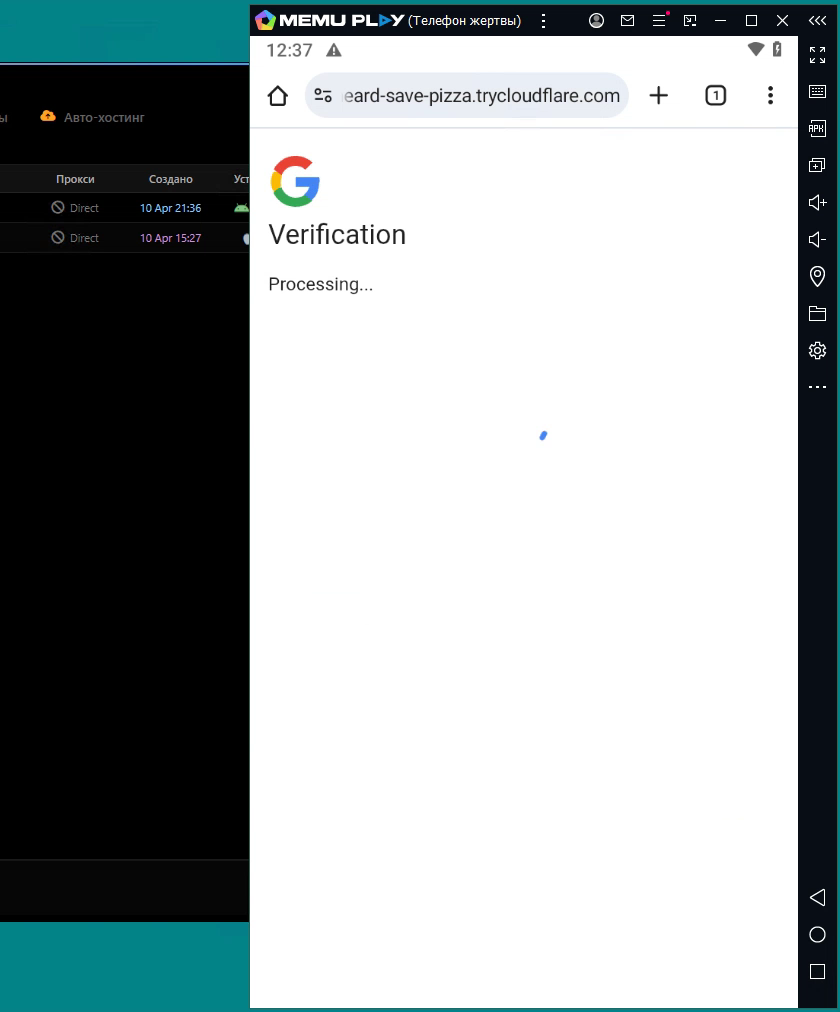
After Google authenticated the operator-controlled browser, iAuthFlow v2 held the victim on a “Verification, Processing” screen. The seller’s log showed a passkey being created six seconds after authentication. That newly enrolled credential was separate from the password and captured session, so the operator could later choose “Try another way” and sign in with the added passkey.
Does this mean Google passkeys are broken?
No. A passkey normally resists phishing because it is bound to the legitimate website and cannot be typed into a fake form. iAuthFlow v2 does not ask the victim to hand over an existing passkey. It relies on weaker fallback methods—such as a password plus a relayed one-time code—to obtain a real authenticated session, then enrolls a new credential as if the signed-in user requested it.
The demonstrated mechanism also has limits. Google may ask the account holder to verify identity before a sensitive change, may delay trust for a new passkey, and says it can disable a suspicious passkey and notify the user. Abnormal also describes the storage mechanism as technically plausible rather than proven. The report documents seller-controlled tests, not a measured victim count or a confirmed Google-wide campaign.
Check your exposure state first
| What happened | Risk and next action |
|---|---|
| You received or opened a link but entered nothing | Close the page. Open Google from a trusted bookmark or app and review recent security activity. Do not return to the link. |
| You entered only your email address or password | From a clean device, change the password and review devices, sessions, recovery methods, and recent events. |
| You completed MFA or saw a long “Processing” screen | Treat the account as compromised. Remove unknown passkeys and security keys, revoke sessions, and inspect mailbox and app access. |
| Google warned about a new or suspicious passkey | Use the Google Account security page directly. Do not approve the method unless you can identify the device and time. |
| The attacker can still return after a password reset | Recover the account from a trusted device, remove every unknown sign-in and recovery method, and escalate to your Workspace administrator or Google recovery support. |
How to remove a rogue Google passkey
- Use a clean, trusted device. Do not recover the account from the same link, message, or browser tab that started the incident.
- Open your Google Account directly. Go to Security & sign-in, then Passkeys and security keys. Remove any passkey or hardware key you cannot identify. Google notes that Android devices may register passkeys automatically, so verify the device before deleting a legitimate factor.
- Sign out unfamiliar devices and sessions. If multiple sessions have the same device name and you cannot distinguish them, sign out all of those sessions.
- Change the password. Use a unique password from the trusted device. This cuts off password-derived access, but it is only one part of recovery.
- Review recovery settings. Remove unfamiliar recovery phone numbers, email addresses, delegated mailbox access, and app passwords.
- Revoke connected apps and OAuth grants. A password reset may not remove every third-party connection. Our OAuth consent phishing guide shows where malicious app access can persist.
- Inspect Gmail changes. Check forwarding addresses, filters, blocked addresses, delegates, and sent/deleted messages for rules or activity you did not create.
- Review security events and important accounts. If Gmail was exposed, recover financial, cloud, social, and password-manager accounts that use it. Follow the broader account takeover checklist for prioritization.
If you still have only the suspicious URL and have not entered credentials, a Gridinsoft Website Reputation Checker lookup can add context about the domain. A clean result does not prove that a dynamic tunnel or newly created phishing page is safe, so the address bar and the exposure steps above still matter.
How organizations can reduce this risk
Workspace administrators should review passkey, 2-Step Verification, login, OAuth, Gmail forwarding, and recovery-factor events after a phished session. If the organization can require phishing-resistant authentication, disable phishable fallback methods for high-risk users. Google’s “Only security key” setting supports security keys and passkeys, while Advanced Protection adds stricter sign-in and application controls for eligible users.
Do not confuse this campaign with Pass-ta-key malware. Pass-ta-key starts with code already running on a Windows endpoint and targets synchronized Google Password Manager credentials. iAuthFlow v2 starts with a relayed phishing login and uses the authenticated account session to add a new attacker-controlled passkey.
References
- Callie Baron and Piotr Wojtyla. “iAuthFlow v2 Enrolls Google Passkeys That Survive Password Resets.” Abnormal AI, August 20, 2026. abnormal.ai
- Google Account Help. “Sign in with a passkey instead of a password.” Google, accessed September 2, 2026. support.google.com
- Google Account Help. “Secure a hacked or compromised Google Account.” Google, accessed September 2, 2026. support.google.com