


Leave FNPLicensingService64.exe enabled until you know which application uses it. It is the executable for FlexNet Licensing Service 64 on some Windows installations. Turning it off can prevent a locally licensed application from opening. If you found it on a work PC, the first question for your administrator is whether this computer uses a license itself or supplies licenses to other people.
Find the file Windows actually uses
- Press Windows key + R, enter
services.msc, and open FlexNet Licensing Service 64. On the General tab, note the service status, startup type and Path to executable. Leave the settings as you found them. - Open that folder in File Explorer. Right-click the executable and select Properties → Details. Record the product name and version. One documented folder is
C:\Program Files\Common Files\Macrovision Shared\FlexNet Publisher\. A shared folder tells you about the licensing component, but several applications may use that component. - If you first saw the name in Task Manager, right-click the running entry and choose Open file location. Compare that file with the service path. Under Properties → Digital Signatures, select the signer and open Details to check the signature status. A valid signature identifies the publisher of that copy. You still need the application name and license type to decide whether to keep it.
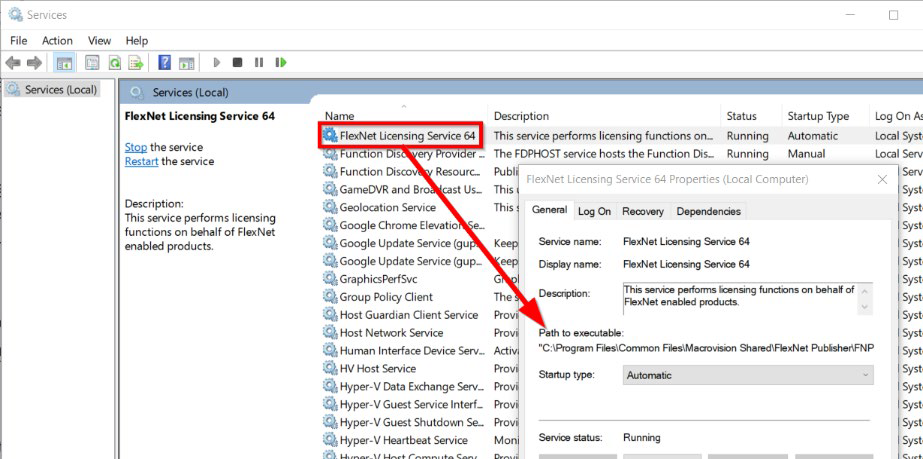
Check the licensed program’s Help or About menu for its version and license information. On a managed PC, IT can match those details to the deployment record. If the entry you found is ISUSPM.exe, the InstallShield update scheduler, follow the startup guidance for that file. Turning off update checks and changing a licensing service have different effects.
Can you disable FlexNet Licensing Service 64?
Consider two machines that both use network licensing. An engineer’s workstation may only request a seat. The server that grants those seats may itself depend on the service. The words “network license” describe both setups, yet stopping a service on the second machine can affect an entire team.
- AutoCAD, Inventor or Revit, versions 2014–2019. Autodesk says standalone licensing for these products needs the local service. Its guidance says a network license for those versions is unaffected by disabling the local service, but recommends leaving it enabled because other software may use it. On a workstation with both a network-licensed design tool and a locally activated application, confirming the first license answers only half the question.
- A FlexSim 25.2 license server. The FlexSim knowledge base specifies version 11.19.8.0 or later of the 64-bit service for this release. Check the executable’s Product version against that requirement. Leave changes to the license administrator, who can check which clients rely on the server.
- An application you have retired. If the application still runs, check its vendor’s license-return or transfer procedure before uninstalling. Remove the retired product with its supported uninstaller. If the service remains, check the other installed products with their vendors before removing a shared component.
If your design application stopped opening
If the first licensing error appeared after someone disabled the service, save the error wording and application version. For Autodesk releases from 2017 through 2019, Autodesk lists checking whether FlexNet is running as an early troubleshooting step. If you recorded a working configuration on your own PC, restore that startup setting, start the verified service and reopen the affected app once. On a shared machine, give the administrator the original setting and time of the change.
If the service already runs, or your application is from a different generation, use the troubleshooting instructions for that product and release. Autodesk has separate instructions for 2020 and newer versions. Keep license data in place while diagnosing the problem. A replacement EXE from a download site cannot tell you which component the installed product expects.
If a second copy runs from an unexpected folder
Suppose Services points to the shared licensing folder, but Task Manager opens a copy in Downloads. Those paths identify two separate files. Keep the working service in place and investigate the Downloads copy. Note its full path, signature status, and the time it ran. If it followed an unfamiliar installer, has an invalid signature, or returns after cleanup, run a full scan with Gridinsoft Anti-Malware and review findings against that exact path. A later alert for the same file is worth checking against the original event time.
References
- Autodesk Support. FlexNet Licensing Service 64 with network licenses. October 8, 2023. Accessed November 27, 2026.
- Ben Wilson. License Server – FlexNet Licensing Service 64. FlexSim Knowledge Base, Autodesk Community. Accessed November 27, 2026.
- Autodesk Support. Troubleshooting a license manager error when launching Autodesk software. Autodesk Help. Accessed November 27, 2026.